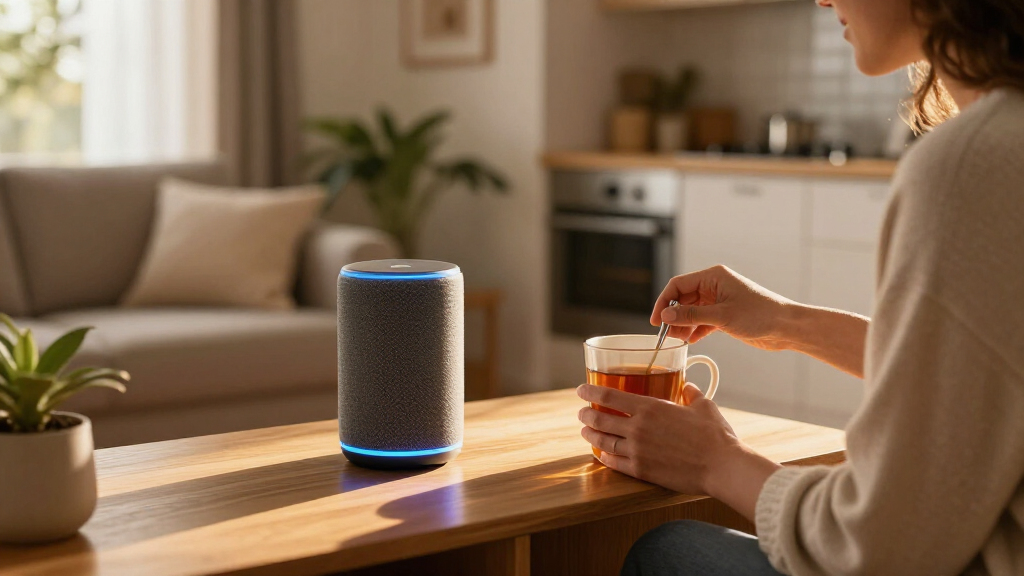
This guide walks you through setting up a new Amazon Echo device — including the standard Echo, Echo Dot, Echo Show smart display, and Echo Studio — from unboxing to your first working voice command. You will plug in the device, connect it to Wi-Fi through the Alexa app, link it to your Amazon account, and verify it responds correctly to wake word commands.

Get the latest gadgets delivered free — and shop member deals
- Fast, free delivery on millions of items
- Access to Prime Big Deal Days deals on October 6–7
- Prime Video, Amazon Music and more included

Amazon Echo Show 11 (Newest Model)
- ✔ Display: 11" Full-HD touchscreen
- ✔ Color: Graphite
- ✔ Chip: AZ3 Pro

Amazon Echo Dot Max (Newest Model)
- ✔ Color: Graphite
- ✔ Voice Assistant: Alexa (Alexa+ support)
- ✔ Smart Home Hub: Built-in

Amazon Echo Dot (5th Gen, 2025)
- ✔ Size: 3.9" x 3.9" x 3.5" (100mm x 100mm x 89mm)
- ✔ Weight: 10.7 oz (304g)
- ✔ Audio Bandwidth: 62 Hz – 19 kHz
This guide is written for beginners. No smart home experience is required. If you can install a phone app and enter a Wi-Fi password, you can complete this setup. Expect the full process to take 15-30 minutes, plus a few extra minutes if you plan to enable optional features like voice shopping or smart home device control.
Setup is nearly identical across the current Echo lineup. Where models differ — mainly the Echo Show’s touchscreen and the Echo Studio’s speaker configuration — the differences are called out in the steps.
Difficulty: Beginner | Time: 15-30 minutes
What You’ll Need
Tools & Materials:
- An Amazon Echo device (Echo, Echo Dot, Echo Show, or Echo Studio), unboxed
- The included power adapter and cable
- A smartphone or tablet running iOS or Android (the Alexa app is not available on computers)
- Your Wi-Fi network name and password — must be a 2.4 GHz or dual-band network; Alexa does not connect to 5 GHz-only or captive-portal (hotel-style) networks
- An Amazon account (free to create during setup if you do not have one)
Knowledge:
- Basic smartphone skills: installing apps, typing passwords, allowing app permissions
- Knowing where to find your Wi-Fi password (usually printed on your router)
Place the Echo before you start setup. It should sit on a flat surface at least 8 inches (20 cm) from walls or windows, away from sinks and steam, and roughly at speaking height if possible. Moving the device after setup can force it to reconnect to Wi-Fi, so pick a permanent spot first. Keep it out of bedrooms if you are privacy-sensitive — the microphone-mute button disables listening entirely when pressed.
If you received the device second-hand, factory-reset it first: hold the Action button (the single dot button) for about 25 seconds until the light ring pulses orange, then release. This clears the previous owner’s account.
Amazon Echo Show 11 (Newest Model)
The Echo Show 11 sits at the top of our list because it is the only device in this lineup that genuinely replaces multiple gadgets at once. Its 11-inch Full-HD screen offers 60% more viewing area than the Echo Show 8, which transforms what a smart display can be used for: following recipes, monitoring camera feeds, making video calls, and watching Prime Video or Netflix without squinting. Compared with the two Dot speakers here, the Show 11 answers questions visually — showing weather radars, calendar overviews, and smart home dashboards in a way no speaker can.Under the hood, the AZ3 Pro chip and Omnisense technology make this the most future-ready device of the three, with temperature, presence, and visual ID detection enabling adaptive routines that the standard Echo Dot simply cannot match. The audio story is equally strong: spatial audio with up to 2x the bass of the Echo Show 8 means this display outperforms the Echo Dot Max in both clarity and low-end depth, which matters if the Show 11 will live in a kitchen or living room where it doubles as the main speaker.The tradeoffs are real, though. The large footprint demands dedicated counter or shelf space, and smart home control is anchored to the Alexa ecosystem — buyers invested in Google Home or Apple Home will find the hub function largely wasted. If you do not want a screen, the Dot Max delivers much of the audio and hub experience for less and in a smaller package.
Pros:
- Large Full-HD display with 60% more viewing area than the Echo Show 8
- Built-in smart home hub removes the need for a separate hub device
- Room-filling spatial audio with up to 2x the bass of the previous Show 8
- Auto-framing camera with 3.3x zoom makes video calls effortless
- Strong privacy controls, including a mic and camera disable button
Cons:
- Smart home control is limited to the Alexa ecosystem
- Large footprint takes up significant counter or shelf space
- More device than needed if you only want voice control and music
Best for: Smart home owners who want a visual command center for a kitchen, living room, or entryway
Not ideal for: Buyers with limited counter space or those invested in non-Alexa smart home ecosystems
Bottom line: The most complete Echo device available — buy it if you want one gadget that handles smart home control, video calls, entertainment, and music.
“The most complete Echo device available — buy it if you want one gadget that handles smart home control, video calls, entertainment, and music.”
Amazon Echo Dot Max (Newest Model)
The Echo Dot Max occupies a sweet spot in this lineup: it takes the compact footprint people love about the Dot family and pairs it with audio that finally justifies being your primary room speaker. With nearly 3x the bass of the 2022 Echo Dot, it closes most of the gap to a full-size Echo while staying discreet on a shelf or nightstand. If you have ever been disappointed by how thin the standard Dot sounds with bass-heavy playlists, this model directly addresses that complaint.Where the Dot Max pulls ahead of the standard Echo Dot is hub capability. The built-in smart home hub lets it control Zigbee, Thread, and Matter devices directly — a function the standard Dot lacks entirely — making it the better first Echo for anyone building out a smart home. Omnisense technology adds adaptive audio and presence-based routines, so music follows you and rooms respond automatically as you enter.It also inherits the eero Built-in feature, extending mesh Wi-Fi coverage by up to 1,000 sq. ft., though — a recurring caveat across this lineup — that only works if you already run a compatible eero network. Compared with the Show 11, you obviously give up the screen, but if your Echo will live in a bedroom or office where a display adds little, the Dot Max is the more sensible spend. The always-on microphone is worth considering, even with the physical disable button available.
Pros:
- Room-filling sound with nearly 3x the bass of the 2022 Echo Dot
- Built-in smart home hub eliminates the need for a separate hub device
- Doubles as a mesh Wi-Fi extender with eero Built-in
- Pairs with other Echo devices and Fire TV for multi-room audio and home theater setups
- Omnisense technology enables adaptive audio and presence-based routines
Cons:
- Wi-Fi extender feature only works with existing eero networks
- Always-on microphone raises privacy concerns despite built-in controls
- No display means no video calls or visual smart home controls
Best for: Music-first buyers who want strong bass and smart home hub features without a screen
Not ideal for: Households without an existing eero network who want the Wi-Fi extension feature, or anyone who wants visual feedback
Bottom line: The best-sounding speaker in the Dot family and a capable smart home hub — ideal when you want power without a screen.
“The best-sounding speaker in the Dot family and a capable smart home hub — ideal when you want power without a screen.”
Amazon Echo Dot (5th Gen, 2025)
The Echo Dot remains the entry point we recommend most often, not because it is the most capable device here but because it solves a different problem: putting Alexa everywhere. At under four inches wide, it disappears onto a nightstand, bathroom counter, or office shelf, and its surprisingly vibrant mono output handles podcasts, audiobooks, timers, and casual background music well. This is the pick makes the most sense for buyers expanding an existing setup rather than building the centerpiece of one.What makes the latest Dot more than just a cheap speaker is its sensor suite. Built-in motion and temperature sensors let it trigger routines — lights on when you walk in, AC adjustments when a room warms up — capabilities that once required a dedicated hub or sensor. The eero Built-in extender adds up to 1,000 sq. ft. of additional Wi-Fi coverage, though it requires a compatible eero router and account linking, so check your network before counting on it.The honest tradeoff is audio: mono playback from a 1.6-inch driver cannot fill a large room or satisfy bass-hungry listeners, and that is precisely why the Echo Dot Max exists. If music is central to how you will use the device, step up to the Max or the Show 11. Also note that Amazon Sidewalk is enabled by default and shares a sliver of your bandwidth — a small thing, but privacy-conscious buyers should disable it during setup.
Pros:
- Compact size fits almost anywhere while producing vibrant sound
- Motion and temperature sensors enable automated smart home routines
- Doubles as an eero mesh Wi-Fi extender covering up to 1,000 sq. ft.
- Streams from Amazon Music, Apple Music, Spotify, and more
- Multiple privacy controls, including a mic off button
Cons:
- Mono audio only — a single unit cannot produce stereo sound
- Wi-Fi extender requires a compatible eero router and account linking
- Amazon Sidewalk is enabled by default and uses a portion of your bandwidth
Best for: Buyers adding Alexa to bedrooms, offices, or secondary rooms on a budget
Not ideal for: Audiophiles or anyone wanting their Echo to be the main music speaker in a large space
Bottom line: The easiest, least intrusive way to add Alexa to any room — as long as music quality is not your priority.
“The easiest, least intrusive way to add Alexa to any room — as long as music quality is not your priority.”
As an Amazon Associate we earn from qualifying purchases.
Before You Start
Check the bottom or back of the box for the exact model name. Setup steps vary slightly between generations, and support articles reference the model number. The model name also appears on the bottom of the device itself (for example, “Echo Dot 5th Gen”).
Have your Wi-Fi password visible before you begin. The setup flow will not wait while you search for it, and re-entering passwords on a phone keyboard mid-setup is a common point of frustration.
If you have more than one Echo device already in your home, set them up one at a time and give each a distinct name during setup (for example, “Kitchen” and “Bedroom”). Naming devices as you go prevents confusion later when controlling them by voice.
Step-by-Step Instructions
Step 1: Plug in the Echo and wait for the light ring
Connect the included power cable to the Echo and the adapter to a wall outlet. Do not use a third-party USB charger — Echo devices draw more power than most phone chargers provide, and the device will behave unpredictably.
Wait 1-2 minutes. The light ring will pulse blue first, then change to orange. On Echo Show models, the screen will display a welcome message instead.
Tip:The orange ring means the device is in setup mode and ready to be discovered by the app. If the ring never turns orange, see the troubleshooting section — this is the most common setup blocker.
Check: The light ring glows solid or pulsing orange, or the Echo Show screen shows a setup welcome message.
Step 2: Install the Amazon Alexa app
Open the App Store (iPhone) or Google Play Store (Android) on your phone or tablet. Search for “Amazon Alexa” and install the app published by Amazon. Open it when installation finishes.
Sign in with your Amazon account credentials. If you do not have an account, tap “Create a new Amazon account” at the bottom of the sign-in screen and follow the prompts — you will need an email address and phone number.
Tip:Install the Alexa app, not the Amazon Shopping app. They look similar in store listings but serve different purposes.
Check: The app opens to its home screen showing a greeting and device controls, with your name in the account menu.
Step 3: Add the Echo device in the app
Tap the Devices icon at the bottom of the screen (the small TV-and-speaker shape), then tap the + button in the top corner. Select Add Device, then choose Amazon Echo from the list, and pick your exact model (Echo Dot, Echo, Echo Show, Echo Studio) from the following screen.
Confirm the light ring on your Echo is orange, then tap Continue. The app will search for the device, which can take up to a minute.
Tip:Keep your phone within about 10 feet (3 meters) of the Echo during this step. Weak Bluetooth or Wi-Fi signal during discovery is a frequent cause of “device not found” errors.
Check: The app displays your Echo’s model name and asks which room it is located in.
Step 4: Connect the Echo to Wi-Fi
Choose your Wi-Fi network from the list the app displays. Enter your Wi-Fi password carefully — it is case-sensitive — and tap Connect.
The app may briefly switch your phone to the Echo’s temporary setup network. Allow this if your phone asks; the connection returns to normal Wi-Fi automatically afterward.
Tip:If your network does not appear, check that your router is broadcasting on 2.4 GHz and that you are not on a guest network with device isolation enabled. Guest networks often block Echo devices from completing setup.
Check: The app shows a confirmation that the Echo is online, and the light ring on the device turns off or shows a brief blue flash.
Step 5: Name the device and choose a room
Select the room where the Echo physically sits (Kitchen, Bedroom, Living Room, and so on) or create a custom name. If you own multiple Echo devices, this name is what you will use in commands like “Alexa, play music in the kitchen.”
Tip:Pick names based on location, not model. “Kitchen Dot” is more useful six months from now than “Device 2.”
Check: The device appears under Devices > Echo & Alexa in the app with the name you gave it.
Step 6: Set the wake word and voice features
Follow the remaining prompts to choose a wake word (Alexa, Amazon, Echo, Computer, or Ziggy) and decide whether to enable voice profiles. Voice profiles let Alexa recognize who is speaking, which personalizes responses, shopping, and calling.
Say the wake word aloud when prompted so Alexa can calibrate to voices in your household. Each household member can complete a short voice training sequence — about six spoken phrases.
Tip:You can change the wake word later any time: Devices > your Echo > Settings > Wake Word.
Check: The app confirms voice profile setup is complete and returns you to the device home screen.
Step 7: Test the device with basic commands
Say your wake word, wait for the light ring to turn blue, then say a simple command. Start with these:
- “Alexa, what time is it?”
- “Alexa, what’s the weather?”
- “Alexa, set a timer for 5 minutes.”
- “Alexa, play music.” (On Echo Show, ask “Alexa, show me the weather” to test the screen.)
Tip:Speak at a normal pace from across the room — shouting or leaning into the device actually degrades recognition. The Echo’s far-field microphones are designed for distance.
Check: Alexa responds to at least three of the four test commands, and the light ring glows blue whenever the wake word is detected.
Step 8: Add optional skills and smart home devices
Open the Alexa app and tap More > Skills & Games to browse and enable voice apps — common ones include Spotify, Audible, and smart thermostat brands.
To connect smart home products, go to Devices > + > Add Device, choose the product category or brand, and follow the manufacturer’s linking screen. Most smart bulbs, plugs, and thermostats are discoverable within a couple of minutes.
Tip:Install smart home devices with their own manufacturer app first, then link that account to Alexa. Trying to connect a device that has never been set up will fail silently.
Check: Ask “Alexa, discover my devices” — any connected smart home products appear in the app’s device list and respond to voice commands.
Common Mistakes to Avoid
- Using a phone charger or USB port instead of the included power adapter. — Echo devices need more current than typical phone chargers deliver. Always use the adapter in the box; a weak power source causes random reboots and failed Wi-Fi connections.
- Setting up on a 5 GHz-only or guest Wi-Fi network. — Check your router settings before starting. Echo devices prefer 2.4 GHz networks, and guest networks often block the device-to-device communication setup requires. Use your main home network.
- Skipping the room assignment and leaving multiple devices with default names. — Name every Echo by its physical location during setup. Unnamed devices become nearly impossible to target with voice commands once you own several.
- Ignoring app permissions on the phone, especially location and local network access. — When the Alexa app asks for location or local network permission on iOS, allow it. Declining these permissions prevents the app from discovering the Echo, and the failure gives no clear error message.
Troubleshooting
Problem: The light ring never turns orange when the Echo powers on.
Solution: The device is not in setup mode. Hold the Action button (the single dot button on top) for about 25 seconds until the ring pulses orange, then release. If it still does not enter setup mode, unplug for 30 seconds and plug back in, then repeat the button hold.
Problem: The Alexa app cannot find the Echo during device discovery.
Solution: Move the phone within a few feet of the Echo, force-close and reopen the Alexa app, and check that Bluetooth is enabled on the phone. On iPhone, also check Settings > Privacy > Local Network and confirm the Alexa app has access. Restart discovery after each change.
Problem: The Echo connects but Alexa says “I am having trouble understanding” or does not respond to the wake word.
Solution: Check for obstructions — the Echo needs clear line of sight at microphone height, away from noisy appliances like TVs and microwaves. In the app, run a quick retraining: Devices > your Echo > Settings > Voice Training. If the problem persists, press the microphone-mute button to confirm it was not accidentally muted (a red ring indicates muting).
Problem: undefined
Solution: Move the Echo closer to your router to test signal strength. If it stays connected up close, the original location is out of reliable Wi-Fi range — either relocate the Echo or add a mesh node. Also verify the router firmware is current in the router’s admin page.
What Success Looks Like
Your setup is complete and working when all of the following are true:
- The Echo appears by name in the Alexa app under Devices > Echo & Alexa, with a status of “Online.”
- The light ring turns blue when you say the wake word and the device answers basic questions about time, weather, and timers.
- Music playback works from at least one streaming source (Amazon Music is enabled by default).
- The microphone-mute button toggles the red ring on and off, confirming hardware controls respond.
- Any smart home devices you added respond to “Alexa, turn on [device name].”
If all five checks pass, the device is fully configured. No further setup is required for everyday use.
Next Steps
With the basics running, add capabilities gradually rather than all at once:
- Set up voice purchasing controls. In the app under Settings > Alexa Privacy > Purchasing, you can require a spoken confirmation code or disable voice ordering entirely — recommended in households with children.
- Enable Drop In or Announcements if you own multiple Echos, turning them into a household intercom.
- Create Routines under More > Routines to chain actions — for example, “Good morning” turning on lights, reading the weather, and starting a news briefing.
- Review privacy recordings. Visit Settings > Alexa Privacy to review or delete voice history, and consider enabling auto-deletion after 3 or 18 months.
- Check for firmware updates monthly. Echo devices update automatically overnight, but you can force a check by muting the microphone for 30 seconds or restarting the device from the app.
If Alexa consistently misunderstands a household accent or specific commands, contact Amazon support through the app under Help & Feedback — they can inspect device diagnostics remotely.
Frequently Asked Questions
Do I need an Amazon Prime subscription to use an Echo?
No. Prime is not required for any core function — timers, weather, questions, smart home control, and radio all work on a free Amazon account. Prime only adds benefits like Prime Music’s full catalog, Prime shipping integration for voice orders, and Prime Reading content.
Can I set up an Echo without a smartphone?
Not reliably. The Alexa app is the primary setup tool and runs only on iOS, Android, and Fire tablets. If you have no smartphone, a family member can set up the device on their phone, sign it into your Amazon account, and hand it over — after initial setup, the Echo works independently without any app.
Does the Echo record all my conversations constantly?
No. The device processes audio locally and only streams to Amazon after the wake word is detected. You can verify this by watching the light ring — it illuminates only when actively listening after the wake word. Pressing the microphone-mute button cuts the microphones entirely and shows a red ring as visual confirmation. All recordings can be reviewed and deleted in the app under Settings > Alexa Privacy.
Can I use multiple Echo devices in one house, and will they all answer at once?
Yes, you can add as many Echos as you like to one account. Alexa uses a feature called Echo Spatial Perception to respond only from the device closest to the speaker, so you will not get overlapping answers. For music across multiple rooms, create a speaker group in the app and say “Alexa, play music everywhere.”
What is the difference between Echo Dot, Echo, and Echo Show for setup?
Setup is identical for all models — same app, same Wi-Fi steps, same wake word. Echo Show models add an on-screen setup wizard you can complete by tapping the screen instead of using the phone app, and they support video calls and camera-based features the speaker-only models cannot.
Fall Picks
fall essentials
As an affiliate, we earn on qualifying purchases.