
Your PC gets loud because its fans work harder to cool overheating parts or due to dust blocking airflow. When your system load increases, fans spin faster, and poor ventilation makes components like the CPU and GPU heat up more quickly. Dust buildup and blocked vents reduce airflow, forcing fans to run at high speeds. If you want to identify the exact cause and smooth out the noise, there are simple steps you can follow for better airflow and cooling.
Open a free Amazon Business account
Business pricing, bulk buying and tax-exempt orders.
As an affiliate, we earn on qualifying purchases.
Key Takeaways
- Overheating components trigger fans to spin faster, increasing noise levels.
- Dust buildup inside the case obstructs airflow, causing fans to work harder and become louder.
- Software demands or background processes can cause hardware to overwork, leading to noisy fans and drives.
- Ventilation issues or blocked vents prevent proper cooling, resulting in increased internal noise.
- Worn or failing fans and drives produce abnormal sounds, indicating potential hardware failure.
If your PC has suddenly become louder than usual, it’s likely due to increased internal activity or dust buildup. When fans start spinning faster and louder, it’s often a sign that your system is working harder to keep itself cool. One common culprit is hardware overheating. Over time, dust can accumulate inside your case, clogging vents and fans, which hampers airflow and causes components like the CPU or GPU to heat up more quickly. As temperatures rise, your system responds by ramping up fan speeds to dissipate the heat, resulting in increased noise levels. This process is essential for preventing hardware damage, but it can make your PC sound like a jet engine. Regular cleaning and ensuring proper ventilation can help reduce this noise and keep temperatures in check. Additionally, monitoring your system’s hardware health with diagnostic tools can help you identify potential issues before they cause excessive noise or damage.
However, hardware overheating isn’t the only reason your PC might be loud. Software conflicts can also cause your system’s fans and drives to work overtime. When multiple programs run simultaneously or poorly optimized software demands excessive resources, your CPU and GPU can become overly taxed. This increased workload triggers thermal management systems to kick in, which in turn causes the fans to spin faster and louder. Sometimes, background processes or malware can cause unusual activity, pushing your hardware beyond its normal operating limits and making your PC noisier than usual. In such cases, checking your task manager for unnecessary or suspicious processes and updating your software can help identify and resolve conflicts, reducing the strain on your hardware.
As an affiliate, we earn on qualifying purchases.
Frequently Asked Questions
How Can I Reduce Fan Noise Without Affecting Performance?
You can reduce fan noise without hurting performance by using noise dampening techniques, like installing soundproofing materials or anti-vibration mounts. Additionally, adjust your fan speed settings through your BIOS or software to lower the RPM when full cooling isn’t needed. This helps keep your PC quieter while maintaining ideal airflow and performance. Regular cleaning of fans and vents also prevents dust buildup, which can cause unnecessary noise.
Are Loud Drives a Sign of Impending Failure?
Loud drives can indeed signal impending failure. Did you know that hard drive whine or fan rattling often precedes drive crashes? If your drive makes unusual noises, like grinding or squealing, it’s a warning sign. Don’t ignore these sounds—backup your data immediately and consider replacing the drive. Persistent noise isn’t normal and could lead to data loss, so stay vigilant and act quickly to protect your files.
What Tools Can Help Diagnose Noisy Hardware?
You can use hardware diagnostics tools like HWMonitor or CrystalDiskInfo to identify noisy hardware components. These tools help measure temperature, fan speeds, and performance, giving you insight into potential issues. Noise measurement apps, such as Sound Meter on your phone, can also help you quantify how loud your PC is. Combining these tools allows you to diagnose hardware problems effectively and determine if a component needs cleaning, repair, or replacement.
Does Dust Buildup Cause Increased Noise Levels?
They say a stitch in time saves nine, and the same applies to your PC. Dust buildup can definitely cause increased noise levels by obstructing airflow and causing fans to work harder. When dust accumulates, it hampers cooling efficiency, making fans spin faster and louder. Regular cleaning prevents airflow obstruction, keeps your PC quiet, and prolongs its life. So, don’t wait—clean out dust to keep noise down and performance high.
Can I Replace PC Fans Myself?
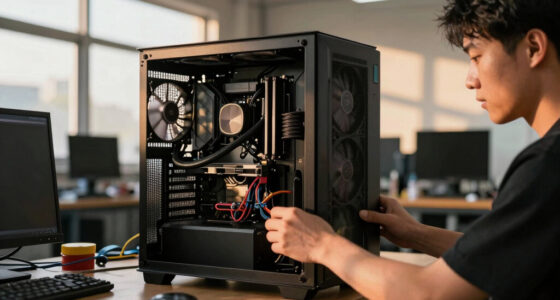
Yes, you can definitely replace PC fans yourself with some DIY repairs. First, shut down your computer and unplug it. Open the case carefully, then disconnect the old fan’s cables. Attach the new fan, making sure it’s properly aligned, and reconnect the cables. Close the case, power up your PC, and enjoy quieter operation. Fan replacement is a straightforward process that saves you money and keeps your system running smoothly.
computer fan noise dampening pads
As an affiliate, we earn on qualifying purchases.
As an affiliate, we earn on qualifying purchases.
Conclusion
Now that you know what makes your PC loud—whether it’s overheating, dust, or a failing drive—you can take action. Remember, don’t just sit there like a knight in shining armor; clean those fans, check for dust bunnies, and consider replacing noisy components. With a little troubleshooting, your PC will run quieter than a library on Sunday. So, go ahead—tackle the noise and enjoy a peaceful, modern-day experience, no more “horseless carriage” whines!
As an affiliate, we earn on qualifying purchases.
As an affiliate, we earn on qualifying purchases.
Evergreen bestsellers Picks
bestsellers
As an affiliate, we earn on qualifying purchases.