
Your comfort depends more on monitor ergonomics than high-end specs. Adjust the height and angle so your head stays level and your eyes look straight ahead, reducing neck and eye strain. Proper lighting and glare reduction also help, along with choosing the right refresh rate to prevent flicker. Maintaining good habits like regular breaks and adjusting brightness to your environment boost long-term health. Keep exploring to discover how ideal ergonomics can make a real difference in your work experience.
Listen free for 30 days with Audible
Thousands of audiobooks and originals — cancel anytime.
As an affiliate, we earn on qualifying purchases.
Key Takeaways
- Proper monitor height and angle prevent neck and eye strain, prioritizing comfort over technical specifications.
- Correct lighting and glare reduction enhance visual comfort, making ergonomics more important than screen resolution or size.
- Maintaining appropriate viewing distance and regular breaks reduce eye fatigue regardless of screen specs.
- Adjusting refresh rate for smoother motion minimizes eye effort, emphasizing ergonomic choices over hardware features.
- Creating a comfortable environment with proper lighting and workspace organization supports health more than screen pixel density.

Maintaining proper monitor ergonomics is vital for preventing discomfort and long-term health issues during extended computer use. While screen specifications like resolution and refresh rate often catch your attention, ergonomic factors play a more significant role in your comfort and well-being. When setting up your workspace, prioritizing how you interact with your monitor can make a huge difference. For example, making sure your monitor’s height and angle are correct reduces strain on your neck and eyes. An ergonomically positioned monitor keeps your head level and your eyes looking straight ahead, preventing fatigue and discomfort over hours of work.
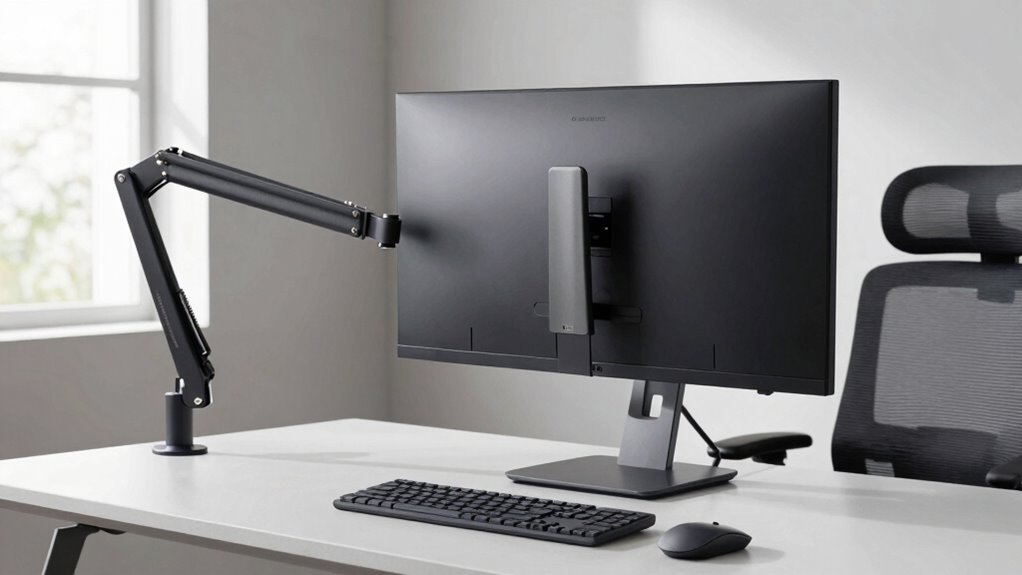
Proper monitor setup reduces neck and eye strain, promoting comfort during long hours of computer use.
Color calibration might seem like a detail only graphic designers or photographers care about, but it’s more important than you think. Properly calibrated colors reduce eye strain by providing a consistent and comfortable viewing experience. When colors are off, your eyes work harder to interpret images and text, leading to fatigue. A well-calibrated monitor ensures that the tones you see are accurate and that your eyes don’t have to compensate for distortions. This becomes especially vital if you spend a lot of time editing images or working with color-sensitive applications, but it benefits everyone by making the display easier on your eyes. Additionally, paying attention to the lighting conditions in your workspace can significantly improve your visual comfort and reduce glare.
The refresh rate is another vital aspect of monitor ergonomics that often gets overlooked. A higher refresh rate results in smoother motion on the screen, which can reduce eye strain during fast-paced activities like gaming, video editing, or even scrolling through lengthy documents. When the refresh rate is too low, your eyes constantly try to keep up with the flickering or stuttering images, leading to fatigue and headaches. Choosing a monitor with an appropriate refresh rate not only enhances visual comfort but also minimizes the effort your eyes exert to track movement or read text smoothly. Moreover, understanding screen flicker and its effects can help you select monitors that are easier on your eyes over long periods. Using appropriate contrast settings can further reduce eye fatigue by making the screen easier to view in different lighting environments. Additionally, ensuring your monitor’s brightness settings match ambient lighting can further prevent eye strain and improve overall viewing comfort.
Beyond technical specs, how you use your monitor influences your health more than what the specs are. Maintaining a proper viewing distance, adjusting brightness to match ambient lighting, and taking regular breaks are simple yet effective ways to prevent eye strain and musculoskeletal issues. Additionally, landscaping your workspace with plants or natural elements can help create a more calming environment that reduces stress and enhances overall comfort. Remember, a monitor with excellent specs won’t help if you’re constantly squinting or hunching over to see the screen better. Ergonomics isn’t just about comfort; it’s about protecting your long-term health. Prioritize how you set up and use your monitor, and you’ll find that your overall experience becomes more comfortable, productive, and sustainable over time.
ergonomic monitor stand adjustable height
As an affiliate, we earn on qualifying purchases.
As an affiliate, we earn on qualifying purchases.
Frequently Asked Questions
How Do I Adjust My Monitor for Optimal Ergonomics?
To adjust your monitor for ideal ergonomics, start by setting the monitor height so the top of the screen aligns with your eye level. Keep it about an arm’s length away to reduce eye strain. Adjust the tilt and angle so you can view the screen comfortably without tilting your head up or down. Proper positioning minimizes neck and eye strain, making your workspace more comfortable and productive.
What Are Common Signs of Poor Monitor Ergonomics?
Imagine your monitor as a gentle guide—when you notice persistent neck discomfort or frequent eye discomfort, it’s a sign your monitor posture might be off. Common signs of poor monitor ergonomics include headaches, blurred vision, and shoulder tension. If you find yourself squinting or leaning forward often, it’s likely your setup isn’t supporting good eye health or proper posture. Adjusting your monitor can help ease these issues and improve comfort.
Does Monitor Size Affect Ergonomic Comfort?
Yes, monitor size greatly affects ergonomic comfort. A larger screen helps you avoid eye strain by reducing the need to squint or lean forward, promoting better posture correction. When your monitor is appropriately sized, you can maintain a natural head position and keep your eyes at a comfortable distance, preventing fatigue. Choosing the right size guarantees you work comfortably longer, minimizing discomfort and supporting overall ergonomic health.
How Often Should I Take Breaks When Using a Monitor?
You should take a break every 20 minutes to reduce eye strain and promote better posture correction. During these breaks, look away from the monitor, focus on distant objects, and stretch to prevent stiffness. Regular short breaks help your eyes relax and keep your posture aligned, reducing discomfort over time. Remember, consistent breaks are essential for maintaining ergonomic comfort and preventing long-term strain from prolonged monitor use.
Are Ergonomic Accessories Worth Investing In?
Yes, ergonomic accessories are worth investing in because they considerably enhance your comfort and productivity. Items like adjustable stands, wrist rests, and monitor arms help you maintain proper posture, reducing strain and fatigue during long hours. By prioritizing ergonomic accessories, you create a workspace that supports your health and boosts efficiency, making your work more enjoyable and sustainable. These small investments can lead to big improvements in your overall well-being.
monitor glare filter anti-reflective
As an affiliate, we earn on qualifying purchases.
As an affiliate, we earn on qualifying purchases.
Conclusion
You might think that the latest screen specs are what matter most, but often, it’s your comfort that truly makes a difference. When you prioritize ergonomic design, you naturally reduce strain and boost productivity—sometimes even without realizing it. It’s funny how a simple adjustment can transform your workday, just like how stumbling upon this article might be the coincidence that finally shifts your focus. Remember, a healthier setup isn’t just about specs; it’s about how you use your space every day.
As an affiliate, we earn on qualifying purchases.
monitor with high refresh rate 144Hz
As an affiliate, we earn on qualifying purchases.
As an affiliate, we earn on qualifying purchases.
Fall yard work Picks
leaf blowers
As an affiliate, we earn on qualifying purchases.