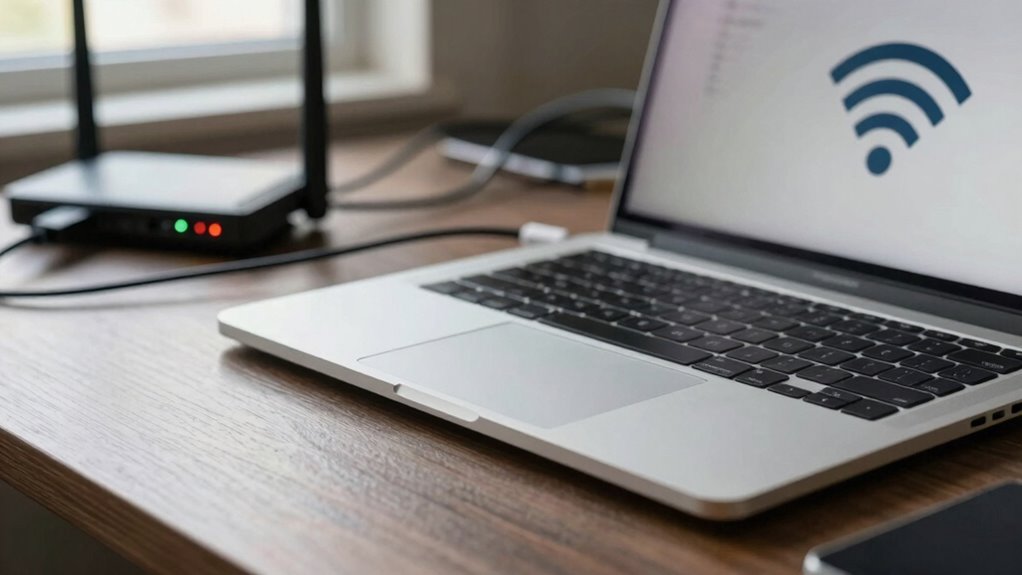
If your laptop Wi-Fi feels slow despite having a fast internet plan, interference from nearby devices, outdated drivers, or network congestion could be the cause. Moving closer to your router, switching Wi-Fi channels, or reducing device usage during peak times can improve speed. Ensuring your drivers are up to date and adjusting your network settings also helps. Want to discover more simple tips to boost your Wi-Fi performance? Keep exploring to find out!
Key Takeaways
- Wi-Fi interference from electronic devices or neighboring networks can weaken signal strength and slow down your connection.
- Outdated Wi-Fi drivers may cause slow data transfer and unstable connections despite fast internet speeds.
- Network congestion during peak hours or multiple devices can reduce Wi-Fi performance on your laptop.
- Incorrect or misconfigured Wi-Fi settings, such as power-saving modes, can limit connection quality.
- Environmental factors and interference sources can disrupt wireless signals, impacting Wi-Fi speed and stability.
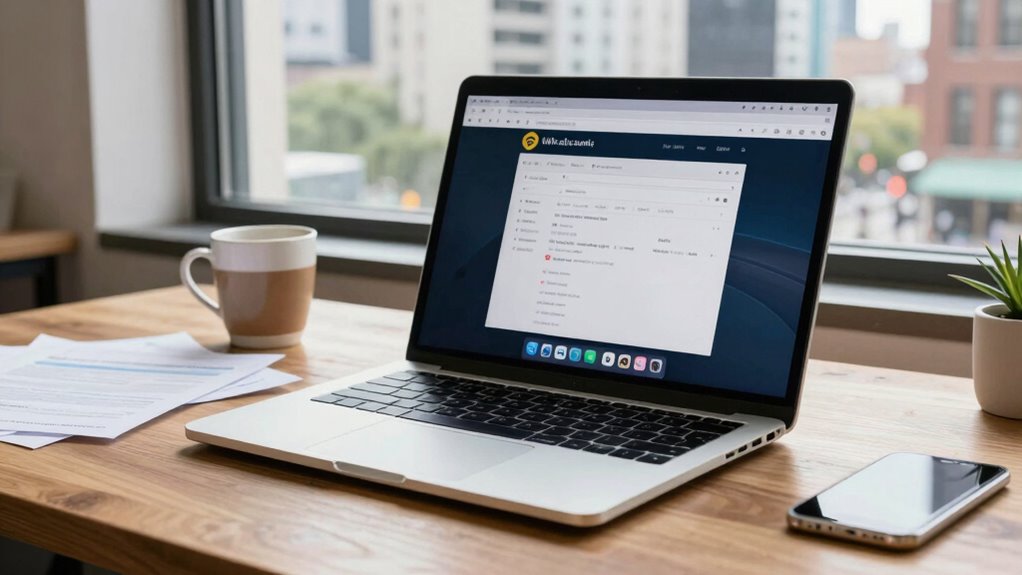
Even if you have a fast internet connection, your laptop’s Wi-Fi can still feel sluggish due to a variety of common issues. One of the most frequent culprits is Wi-Fi interference. If your laptop is near other electronic devices like cordless phones, microwave ovens, or Bluetooth gadgets, these can disrupt the Wi-Fi signal. Even neighboring Wi-Fi networks operating on the same frequency can cause interference, leading to slower speeds and dropped connections. To combat this, try moving closer to your router or relocating it to a more central position. Changing your Wi-Fi channel to one less crowded can also make a noticeable difference, reducing interference and boosting your connection’s stability.
Wi-Fi interference from nearby devices and networks can slow your connection; try relocating your router or changing channels for better stability.
Another overlooked issue is outdated drivers. Your Wi-Fi adapter relies on specific software to communicate with your router, and if these drivers are outdated, they may not work efficiently. Outdated drivers can cause slow data transfer, dropped connections, or an inability to connect altogether. Regularly checking for updates and installing the latest drivers from your laptop manufacturer or Wi-Fi card vendor helps guarantee your adapter functions at its best. Updating drivers can resolve compatibility issues, fix bugs, and improve overall performance, making your Wi-Fi run smoothly even if your internet speed from your provider is blazing fast.
Beyond interference and outdated drivers, you might also notice your Wi-Fi feels slow during peak usage times. Many households and workplaces experience increased Wi-Fi traffic during certain hours, which can lead to congestion and slower speeds. If you’re sharing a network with multiple devices streaming videos, gaming, or downloading large files, your connection can become overwhelmed. To improve this, consider limiting the number of active devices or scheduling bandwidth-heavy tasks during off-peak hours. Using a dual-band router that supports both 2.4 GHz and 5 GHz frequencies can also help, as the 5 GHz band typically experiences less interference and offers faster speeds.
Additionally, your laptop’s Wi-Fi settings might be contributing to the problem. Sometimes, power-saving modes or incorrect network configurations can reduce connection quality. Disabling power-saving features for your Wi-Fi adapter, ensuring your network settings are optimized, and resetting your network configurations can help restore better performance. Sometimes, a simple restart of your router and laptop can clear temporary glitches affecting your Wi-Fi. Moreover, monitoring your Wi-Fi environment for sources of interference can help you identify and mitigate issues that impact your connection quality. Being aware of interference sources and understanding how they affect wireless signals can further enhance your overall connection stability. Regularly reviewing your network performance metrics can also help you identify recurring issues and areas for improvement. Additionally, staying updated on best practices for Wi-Fi setup can help prevent future issues.

Nineplus Wireless USB WiFi Adapter for PC – 1300Mbps Dual 5Dbi Antennas 5G/2.4G WiFi Adapter for Desktop PC Laptop Windows11/10/7, Wireless Adapters for Desktop Computer Network Adapters
- High-Speed Data Transfer: 1300Mbps USB WiFi Adapter
- Dual-Band Connectivity: Supports 5.8GHz and 2.4GHz bands
- Fast Wireless Speeds: Up to 867Mbps on 5.8GHz, 400Mbps on 2.4GHz
As an affiliate, we earn on qualifying purchases.
As an affiliate, we earn on qualifying purchases.
Frequently Asked Questions
Can Software Updates Improve Wi-Fi Speed on My Laptop?
Yes, software updates can improve your Wi-Fi speed. When you update your drivers and network settings, you guarantee your laptop uses the latest technology for ideal connection. Driver updates fix bugs and enhance compatibility, while adjusting network settings can reduce interference and improve stability. Regularly updating your software helps maintain a faster, more reliable Wi-Fi connection, preventing slowdowns even on fast internet plans.
Does the Age of My Laptop Affect Wi-Fi Performance?
Your laptop’s age can be like an old car struggling to keep up; hardware limitations and outdated components can slow your Wi-Fi down. Over time, internal hardware may not handle modern signals well, and signal interference from other devices can make things worse. If your laptop’s pretty old, it might just be time for an upgrade or a hardware check to boost your Wi-Fi speed and connectivity.
How Do I Prioritize Wi-Fi Over Other Network Traffic?
To prioritize Wi-Fi over other network traffic, you can set your device to prioritize Wi-Fi connections or enable Quality of Service (QoS) settings on your router. This helps reduce network congestion and signal interference, ensuring your Wi-Fi gets priority. Avoid other bandwidth-heavy activities during important tasks, and consider connecting via Ethernet for an even more reliable connection. These steps help improve your Wi-Fi performance amidst network congestion and interference.
Can Malware or Viruses Slow Down My Wi-Fi Connection?
Did you know that malware can slow down your Wi-Fi by up to 50%? It can cause network congestion and interfere with your router’s performance, making your connection sluggish. Malware consumes bandwidth and system resources, leading to frequent disconnections and slow speeds. To fix this, run a thorough virus scan, update your security software, and make certain your router isn’t experiencing interference from other wireless devices.
Does Using a VPN Impact Wi-Fi Speed?
Using a VPN does impact your Wi-Fi speed because of VPN encryption, which can slow down your connection. Additionally, some networks might implement network throttling, intentionally reducing speeds for certain activities or during peak times. While a VPN offers privacy benefits, it can introduce latency and reduce overall speed. To improve performance, choose a VPN with high-speed servers and avoid heavy encryption if speed is your priority.

TP-Link Dual-Band BE3600 Wi-Fi 7 Router Archer BE230 | 4-Stream | 2×2.5G + 3×1G Ports, USB 3.0, 2.0 GHz Quad Core, 4 Antennas | VPN, EasyMesh, HomeShield, MLO, Private IOT | Free Expert Support
- Wi-Fi 7 Technology: Faster speeds and enhanced performance
- Dual-Band Wi-Fi 7 Router: Up to 2882 Mbps (5 GHz) and 688 Mbps (2.4 GHz)
- Multi-Gig Ethernet Ports: 1x 2.5G WAN/LAN, 3x 1G LAN ports
As an affiliate, we earn on qualifying purchases.
As an affiliate, we earn on qualifying purchases.
Conclusion
So, if your laptop Wi-Fi still feels sluggish despite lightning-fast internet, don’t just shrug it off. It’s like trying to run a race with a jet engine stuck in slow motion—you’re missing out on the true power of your connection. Fix those issues, optimize your setup, and release the full speed you’re paying for. Otherwise, you might as well be using dial-up in a fiber-optic world—totally pointless!

TP-Link USB WiFi Adapter for PC(TL-WN725N), N150 Wireless Network Adapter for Desktop – Nano Size WiFi Dongle for Windows 11/10/7/8/8.1/XP/ Mac OS 10.9-10.15 Linux Kernel 2.6.18-4.4.3, 2.4GHz Only
- High-Speed Wi-Fi: Up to 150 Mbps for smooth streaming
- Extended Coverage: Reliable 2.4GHz Wi-Fi throughout your home
- Compact Design: Mini size for discreet use
As an affiliate, we earn on qualifying purchases.
As an affiliate, we earn on qualifying purchases.

WiFi Router EMF Protection Cover – Faraday Shield for 5G & Standard Routers
- Effective EMF Shielding: Reduces electromagnetic fields from routers
- Oversized Compatibility: Fits large routers and modem combos
- Maintains Signal & Airflow: Honeycomb design ensures airflow and performance
As an affiliate, we earn on qualifying purchases.
As an affiliate, we earn on qualifying purchases.