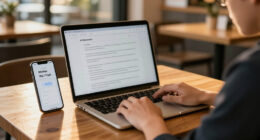
To set up your tablet for focused work, start by organizing apps to prioritize productivity tools like task managers and note-taking apps, hiding or removing distractions like social media. Enable “Do Not Disturb” mode or focus profiles and schedule notifications to pop up only at designated times. Use timers for work intervals and keep your workspace clutter-free. If you keep exploring, you’ll discover even more ways to turn your tablet into an efficient productivity tool.

Get the latest gadgets delivered free with Prime
- Fast, free delivery on millions of items
- Prime Video, Amazon Music and more included
- Member-only deals all year
Key Takeaways
- Organize your home screen with productivity apps and hide distracting or entertainment apps.
- Enable “Do Not Disturb” mode and customize notification settings to limit interruptions.
- Create a dedicated workspace or app folder for work-related tools for quick access.
- Use timers like Pomodoro apps to structure work sessions and breaks effectively.
- Automate focus profiles or schedules to activate distraction-free modes during peak productivity periods.
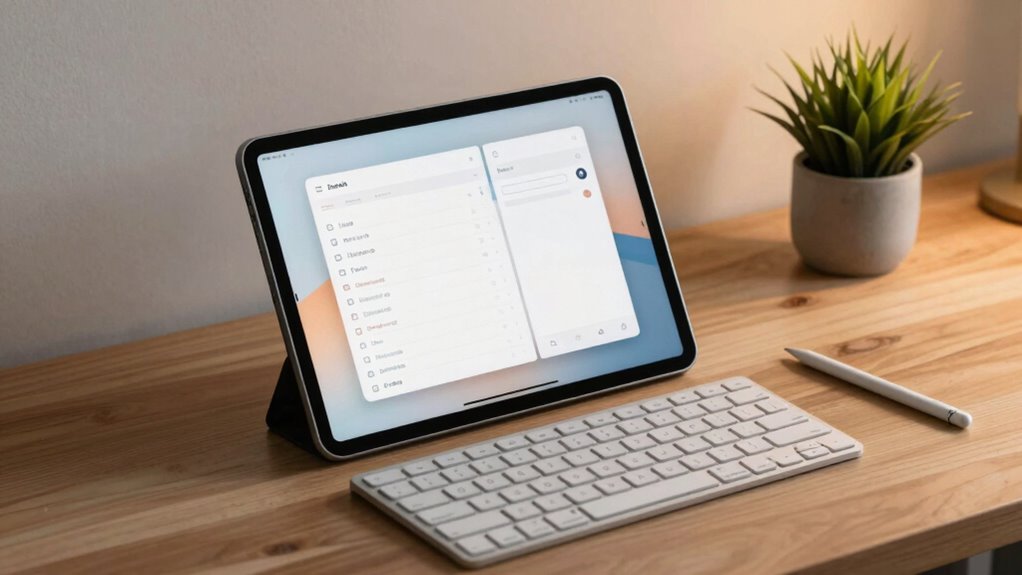
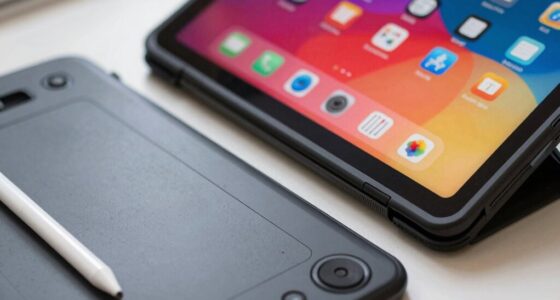
Ever wonder how to turn your tablet into a powerful tool for focused work? The key lies in customizing your device to minimize distractions and maximize efficiency. Start by organizing your home screen to prioritize productivity apps that help you stay focused, like task managers, note-taking apps, or time-tracking tools. Remove or hide any apps that tend to divert your attention, such as social media or entertainment platforms. By creating a clean, dedicated workspace on your tablet, you set the tone for serious work sessions.
Organize your home screen with focus-boosting apps and hide distractions to create a dedicated workspace for productivity.
Next, optimize your notification management. Notifications are notorious for breaking concentration, so you should disable or limit them during work periods. Go into your tablet’s settings and turn off notifications for non-essential apps. For those you do want to keep, set them to deliver alerts only at certain times or in a way that doesn’t interrupt your flow. For example, you might allow messages from close contacts or work-related emails but silence everything else. This way, you stay informed without constant interruptions, allowing you to maintain your focus for longer stretches.
In addition to managing notifications, consider enabling “Do Not Disturb” mode during your dedicated work sessions. This feature blocks all notifications and alerts, giving you a clean slate to concentrate. Schedule this mode to activate automatically during your most productive hours, so you don’t have to remember to turn it on and off repeatedly. Many tablets also allow you to create custom profiles—such as a “Work Mode”—that further restrict notifications and access to distracting apps. Understanding the importance of distraction management can help you better tailor your environment for productivity. Recognizing the role of distraction management in maintaining focus can significantly enhance your work efficiency.
Furthermore, leverage productivity apps designed to boost your focus. Timer apps like Pomodoro timers can help you work in focused intervals, breaking your session into manageable chunks with scheduled breaks. Note-taking apps can keep your ideas organized and accessible without cluttering your workspace. Cloud storage apps ensure you can access your work from anywhere, reducing the temptation to switch devices or dig through cluttered folders. The goal is to create an environment where everything you need is readily available, and distractions are minimized. Additionally, understanding the popularity of electric dirt bikes can inspire you to explore new tech tools that enhance your workflow or leisure activities. Being aware of emerging technology trends can also motivate you to incorporate innovative solutions into your setup.
Finally, develop a routine that supports your setup. Before each work session, open only the apps you need, activate “Do Not Disturb,” and set your timer. Stick to this routine to condition your mind for deep focus. Over time, these habits will make your tablet an even more effective tool for productivity, helping you achieve your goals with less stress and more clarity.
As an affiliate, we earn on qualifying purchases.
Frequently Asked Questions
Can I Use a Tablet for Multitasking During Work Sessions?
Yes, you can use a tablet for multitasking during work sessions. With the right productivity apps, you can run multiple programs simultaneously, making multitasking seamless. Take advantage of customization options like split-screen mode and app multitasking features to organize your workflow efficiently. These tools help you switch between tasks quickly, boosting your productivity and keeping your focus intact. Just make certain your tablet supports these features for the best experience.
How Do I Switch Between Work Profiles on My Tablet?
You can switch between work profiles on your tablet through profile management settings. First, access your device’s settings and find the “Profiles” or “Users” section. Tap to select the profile you want to switch to. For app customization, set up each profile with specific apps and settings suited for different tasks. This guarantees you stay organized and focused, switching effortlessly between work and personal modes with a few taps.
Are There Any Recommended Accessories for Focused Work?
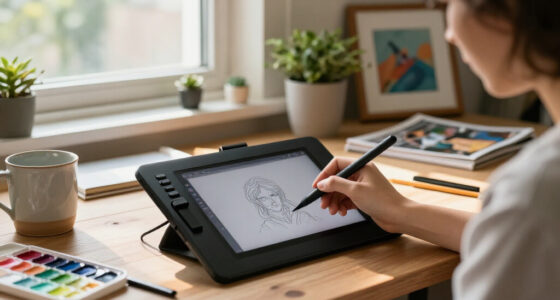
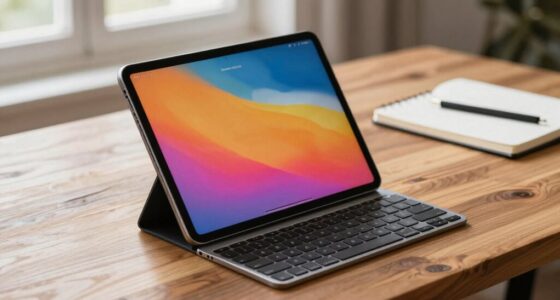
Yes, there are great accessories to boost your focus. Use ergonomic accessories like a stand or keyboard to improve comfort and reduce strain. Pair your tablet with productivity apps that help block distractions or organize tasks efficiently. A stylus can enhance precision for note-taking or sketching, while noise-canceling headphones create a focused environment. These accessories and apps together help you stay productive and maintain concentration during work sessions.
How Can I Extend My Tablet’s Battery Life During Long Sessions?
Your tablet’s battery is as powerful as a rocket, so you’ll want to maximize it during long sessions. Lower the screen brightness to save energy and enable power saving modes to extend battery life effectively. Close unnecessary apps and disable Wi-Fi or Bluetooth when not needed. These simple steps can make your tablet last much longer, ensuring you stay productive without worrying about running out of juice mid-work.
Is It Safe to Disable Notifications Completely?
Disabling notifications completely can be safe, especially if it helps you stay focused. With effective notification management and privacy settings, you control which alerts come through, reducing distractions. Just make certain you check important messages periodically or set up exceptions for urgent contacts. Disabling notifications temporarily protects your privacy and helps maintain concentration, but remember to re-enable them when you need to stay updated.
As an affiliate, we earn on qualifying purchases.
Conclusion
By customizing your tablet for focused work, you set yourself up for success and less distraction. Turn off notifications, organize your apps, and use focus modes to stay on track. Remember, Rome wasn’t built in a day, so be patient as you create your ideal workspace. With a little tweaking, your tablet can become a powerful tool to boost productivity and help you stay on course—just keep your eye on the prize and stay committed!
tablet notification management tools
As an affiliate, we earn on qualifying purchases.
As an affiliate, we earn on qualifying purchases.
As an affiliate, we earn on qualifying purchases.
Fall Picks
fall essentials
As an affiliate, we earn on qualifying purchases.