
TL;DR

Get the latest gadgets delivered free with Prime
- Fast, free delivery on millions of items
- Prime Video, Amazon Music and more included
- Member-only deals all year
XDA Developers writer Megan reports that reducing or disabling three Android animation scales made her Pixel 8 Pro feel more responsive when moving between apps, menus and windows. The setting changes how quickly transitions appear; it does not establish that the phone’s processor or underlying performance is faster.
Pixel owners can make interface transitions appear faster by reducing or disabling three animation scales in Android’s Developer options, according to a guide published by XDA Developers on Nov. 8. Writer Megan said the change made her Pixel 8 Pro feel snappier, but it changes the visual timing of transitions rather than upgrading the phone’s processing power.
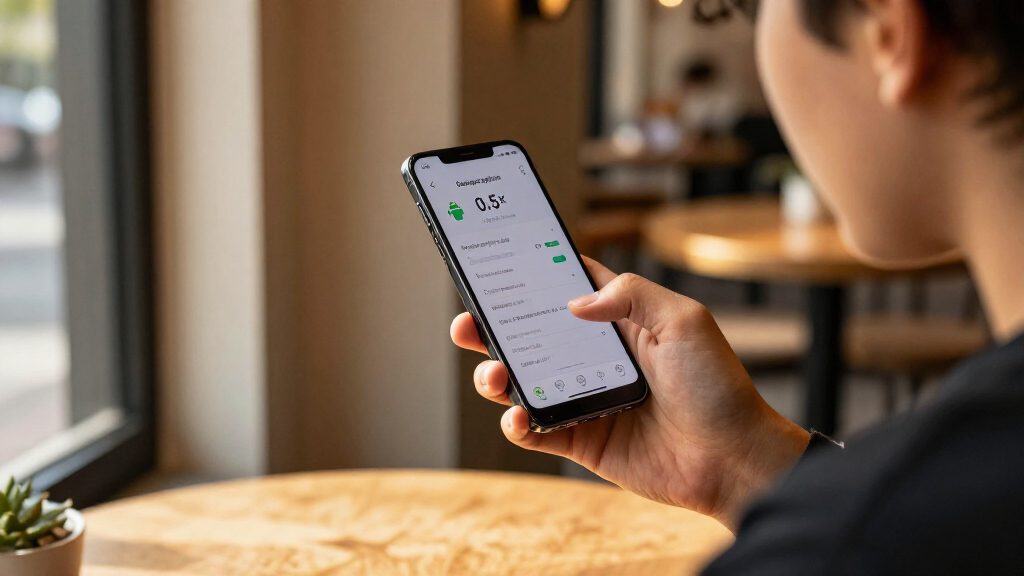
Android provides separate controls for Window animation scale, Transition animation scale and Animator duration scale. They govern different parts of the interface: pop-ups and dialog boxes, movement through menus, and broader system animations such as opening apps or returning to the home screen. Each can be set to the default 1x, a quicker 0.5x, or Animation off.
Megan said she noticed a difference immediately after adjusting the settings on her Pixel 8 Pro. With animations off, the interface moves directly from one screen or item to the next; at 0.5x, transitions remain visible but take less time. The guide recommends changing all three scales for a consistent effect, since leaving one at 1x can make some areas seem slower than others.
To find the controls, open Settings, go to About phone and tap the Build number seven times. After entering the phone’s PIN, pattern or password if prompted, Android displays a message that developer mode is enabled. The options then appear under Settings, System and Developer options, in the Drawing section. The guide says this setup is needed only once.
Make a Pixel feel snappier with one hidden setting
Android’s animation scales can shorten interface transitions. They change how quickly motion appears, not the phone’s processing power.
Three controls shape transitions
Set all three alike for a consistent feel across the interface.
Window animation
Changes motion in pop-ups and dialog boxes.
Transition animation
Affects movement through menus and settings tabs.
Animator duration
Covers effects such as app launches and returning home.
Choose how much motion to keep
- Transitions stay visible
- Motion takes less time
- Screens switch directly
- Navigation may feel abrupt
Where to find the scales
In Settings under About phone, tap Build number seven times. Enter your PIN, pattern or password if prompted.
Go to Settings, System and Developer options to find the three animation scales.
Start with 0.5x or turn animations off, then decide which feels right.
What the change can tell you
| It can | It cannot confirm |
|---|---|
| Make transitions feel quicker | That the processor is faster |
| Shorten visual waiting during navigation | That a slow app or storage issue is fixed |
| Offer a motion-reduction option in accessibility settings | A measured speed or battery improvement |
The adjustment is a free interface change that does not require a newer Pixel or a more powerful processor. It can make everyday actions—opening menus, switching apps and dismissing windows—feel quicker because the user waits through less transition animation. That may help people who prefer a more direct response from their phone, even though it does not by itself resolve a genuinely slow app or a device strained by storage or other performance problems.
The guide also distinguishes this setting from Smooth Display, which raises the display refresh rate and can make scrolling look smoother but affects battery life. Megan says changing animation scales does not carry that battery cost. The perceived change is not the same as a benchmarked speed improvement, and the source provides no measured performance test or battery comparison.
Products Worth Considering

Apple iPad 11-inch with A16 Chip, 512GB, Wi-Fi 6, and Apple Pencil (USB-C) — Blue

Apple iPad Pro 12.9-inch (2017), 512GB Wi-Fi, Space Gray

LG UltraGear 32GS60QC-B 32-inch Curved QHD Gaming Monitor (180Hz, 1ms, 1000R, AMD FreeSync, HDR10)
As an affiliate, we earn on qualifying purchases.
Three Animation Controls, Three Effects
Animations are set to 1x by default, meaning the interface displays its standard transition timing. Window animation scale applies to pop-ups and dialog boxes; transition animation scale affects navigation such as moving between settings tabs. Animator duration scale covers a wider range of system effects, including app launches, unlocking, the notification shade and returning to the home screen.
These controls are part of Android’s Developer options, a settings area that is hidden until developer mode is enabled. The source describes the steps on a Pixel and reports a personal experience on a Pixel 8 Pro; it does not provide comparative results across Pixel models or Android versions. It also suggests that people seeking to reduce motion for sensitivity reasons can use the phone’s accessibility settings to disable animations without enabling developer options.
“Switching off animations made my device feel snappier.”
— Megan, XDA Developers writer
What the Setting Cannot Confirm
The reported improvement is subjective: the guide describes how the Pixel 8 Pro felt after the change but does not provide timing measurements, benchmark results or testing on other devices. It is not clear from the source whether the same perceived effect will be equally noticeable to every Pixel owner or across Android versions.
Shortening animations also does not establish that underlying slowdowns have been fixed. The source specifically cautions that animation changes will not repair sluggish apps or overburdened storage. Users may also find that removing motion makes navigation feel abrupt; the guide advises trying 0.5x as well as turning animations off. People with motion sensitivity may prefer the accessibility controls.
Try a Partial Speed Increase
Pixel users interested in the change can test 0.5x before Animation off and apply the same choice to all three animation controls. That makes it easier to compare the quicker transition with the default and decide whether a visible animation is preferable to an immediate switch.
No follow-up test or broader device comparison is included in the source. If a phone remains slow after its transitions are shortened, users will need to investigate the underlying app, storage or system issue rather than treating animation scale as a performance repair.
Key Questions
Does turning off animations make a Pixel’s processor faster?
No. It makes interface transitions appear quicker by removing or shortening their visual effects; it does not change the processor.
Where are the animation settings on a Pixel?
Enable developer mode by tapping Build number seven times in Settings under About phone. Then open Settings, System and Developer options, and find the three animation scales in the Drawing section.
Should I change all three animation scales?
The XDA guide recommends setting Window animation scale, Transition animation scale and Animator duration scale alike so transitions behave consistently across the interface.
Will reducing animations save battery?
The guide says animation-scale adjustments do not come with a battery-performance cost. It does not provide a measured battery test. Smooth Display is a separate setting that can affect battery life.
Can I reduce motion without enabling Developer options?
Yes. The guide says Android accessibility settings can disable animations for people seeking to reduce motion, without using Developer options.
Source: XDA Developers