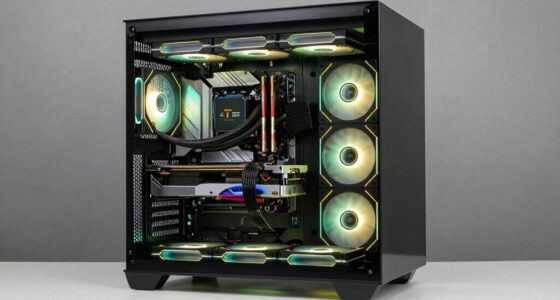

A PC bottleneck happens when one component, like your CPU or GPU, limits your system’s performance, causing slowdowns or stuttering during demanding tasks. If your GPU is maxed out while the CPU stays idle, your graphics card is holding you back. Conversely, a CPU running at 100% while your GPU is underused indicates a CPU bottleneck. Understanding which part causes the slowdown helps you optimize your setup—keep exploring to learn more about fixing bottlenecks.
Open a free Amazon Business account
Business pricing, bulk buying and tax-exempt orders.
As an affiliate, we earn on qualifying purchases.
Key Takeaways
- Bottlenecking occurs when one PC component limits overall system performance during demanding tasks.
- A CPU bottleneck happens when the CPU is maxed out, while the GPU remains underutilized.
- An imbalance between CPU and GPU causes system slowdown and reduces gaming or application performance.
- Monitoring component usage helps identify whether the CPU or GPU is causing the bottleneck.
- Balancing upgrade choices ensures both CPU and GPU work harmoniously without limiting each other.
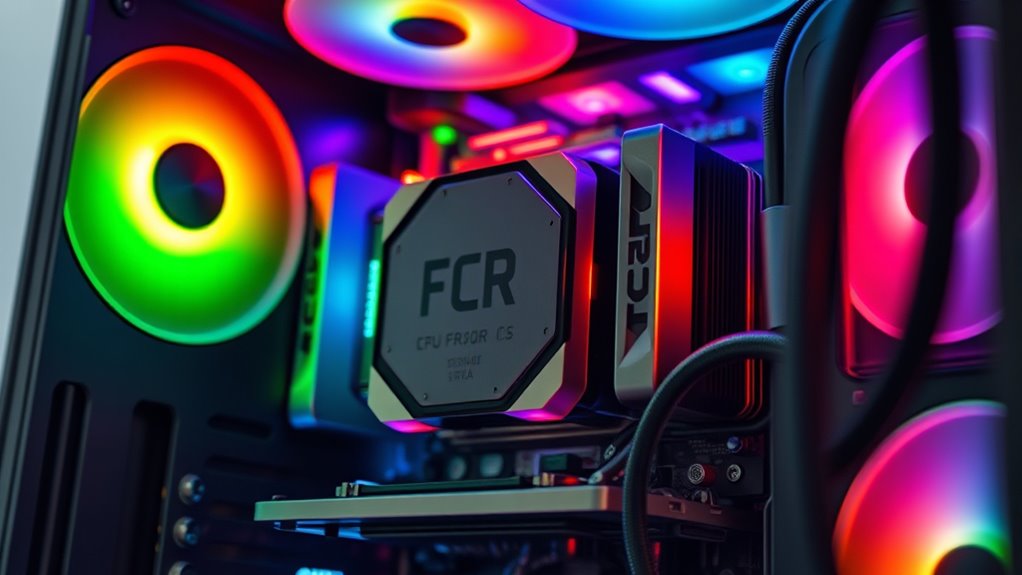
If you’ve ever experienced your PC slowing down during high-demand tasks, you might be dealing with a bottleneck. This situation occurs when one component limits the overall performance because it can’t keep up with the others. Understanding how GPU performance and CPU limitations contribute to bottlenecking helps you identify whether your system is holding you back. When you’re gaming or running intensive applications, your GPU handles rendering graphics, while your CPU manages calculations and data processing. If either of these components isn’t powerful enough, it causes a slowdown that affects the entire system’s performance.
In many cases, a weak CPU can be the culprit, especially if you notice frame drops or stuttering in games. Even with a high-end GPU, a slow or outdated CPU might struggle to keep up with the data flow, creating a bottleneck. This means your GPU is ready to push out more frames or render more complex scenes, but the CPU can’t supply the necessary data fast enough. As a result, the GPU sits idle or underutilized while waiting for instructions, leading to wasted potential and a less smooth experience. Conversely, if your GPU isn’t capable enough, it can bottleneck the system, especially during graphically demanding tasks. A low-performance GPU might be unable to render high-resolution textures or complex effects, limiting the overall visual quality regardless of how powerful your CPU is.
Knowing which component is bottlenecking your system requires careful observation. If your GPU usage is consistently maxed out while your CPU remains relatively idle, the GPU is likely the limiting factor. On the other hand, if your CPU is running at 100% while the GPU isn’t fully utilized, then the CPU is holding you back. Upgrading one component without considering the other might not resolve the bottleneck; for example, adding a new GPU won’t improve performance if your CPU can’t keep pace. To optimize your system, you need a balanced setup where both the CPU and GPU complement each other’s capabilities. This balance ensures neither component becomes a performance bottleneck, allowing your PC to run smoothly during demanding tasks. Additionally, understanding the concept of spiritual awakening can help you recognize the importance of aligning all parts of your system and life for optimal performance and harmony.
As an affiliate, we earn on qualifying purchases.
Frequently Asked Questions
How Can I Identify if My GPU or CPU Is the Bottleneck?
To identify if your GPU or CPU is bottlenecking, monitor your system during gaming or heavy tasks. If your GPU’s usage hits 100% while your CPU’s remains low, your GPU faces limitations. Conversely, if your CPU runs at 100% and your GPU isn’t maxed out, CPU constraints are likely. Use tools like MSI Afterburner or HWMonitor to track these metrics and determine which component holds you back.
Does Upgrading One Component Always Improve Overall Gaming Performance?
Upgrading one component doesn’t always boost your gaming performance. It depends on your current setup, graphics settings, and whether your drivers are up to date. For example, upgrading your GPU might help if your graphics settings are high and your current card struggles, but if your CPU is the bottleneck, the upgrade won’t be as effective. Always verify your drivers are updated to get the best performance from any upgrade.
Can a Bottleneck Occur in Laptops or Only Desktops?
Bottlenecks can happen in both laptops and desktops, but laptop limitations often make them more noticeable. Limited cooling, smaller components, and integrated parts can restrict performance, affecting portable performance. When your laptop’s CPU or GPU struggles to keep up with demanding tasks, it creates a bottleneck, slowing everything down. Upgrading components isn’t always easy or effective in laptops, so understanding these constraints helps you manage expectations and optimize what you have.
How Does RAM Affect Bottlenecking in a Gaming PC?
Did you know that inadequate RAM can reduce gaming performance by up to 20%? When your RAM capacity isn’t enough, your system struggles to handle multiple or large game files, causing bottlenecks. Additionally, RAM speed influences how quickly data moves, affecting load times and frame rates. Upgrading both RAM capacity and speed helps guarantee your CPU and GPU work smoothly, preventing bottlenecks and delivering a better gaming experience.
Are Bottlenecks More Common in Certain Gaming Genres or Applications?
Bottlenecks are more common in genres like AAA games and high-end simulations, where demanding graphics and processing require ideal component compatibility. To prevent this, you should use effective optimization strategies, such as balancing your CPU, GPU, and RAM. Ensuring compatibility among components helps minimize bottlenecks, giving you smoother gameplay and better performance. Regular upgrades and proper system tuning also help avoid these issues across various gaming applications.
As an affiliate, we earn on qualifying purchases.
Conclusion
If your PC isn’t running as smoothly as you’d like, it might be time to look for the weak link. Bottlenecking can hold back your system’s full potential, so don’t ignore the signs. Remember, don’t put all your eggs in one basket—upgrading just one component might not solve everything. Keep an eye on your system’s performance, and address the bottleneck before it turns into a bigger problem. After all, a chain is only as strong as its weakest link.
As an affiliate, we earn on qualifying purchases.
balanced CPU and GPU upgrade kit
As an affiliate, we earn on qualifying purchases.
As an affiliate, we earn on qualifying purchases.
NFL season / tailgating Picks
team gear
As an affiliate, we earn on qualifying purchases.