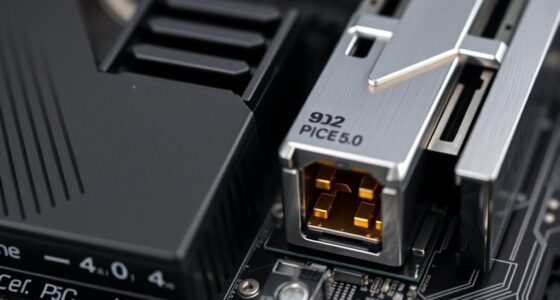
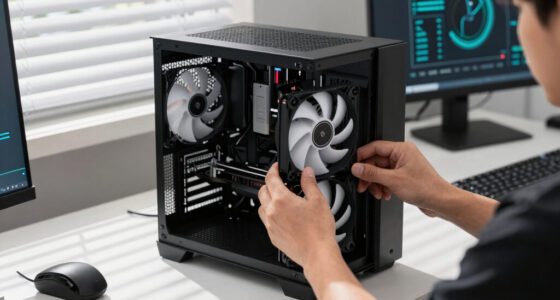
You might overlook airflow when building your PC, focusing more on powerful components or aesthetics. But poor airflow traps heat, causing throttling and potentially damaging hardware over time. Proper airflow keeps components cool and system stable, yet it’s often underestimated or misunderstood. Ignoring airflow can lead to higher noise levels and shorter lifespan for your build. To guarantee your system runs smoothly for years, you’ll want to understand how airflow really impacts performance.
Play games included with Prime
Start a Prime free trial and play with Amazon Luna on your devices.
As an affiliate, we earn on qualifying purchases.
Key Takeaways
- Many overlook airflow’s role in preventing heat buildup, risking throttling and hardware failure.
- Case aesthetics often take precedence over airflow design, neglecting thermal efficiency.
- Users underestimate the importance of strategic fan placement and balanced pressure systems.
- Proper airflow management is seen as complex or secondary compared to component specs.
- Poor airflow planning leads to hotspots, reducing component lifespan and system stability.
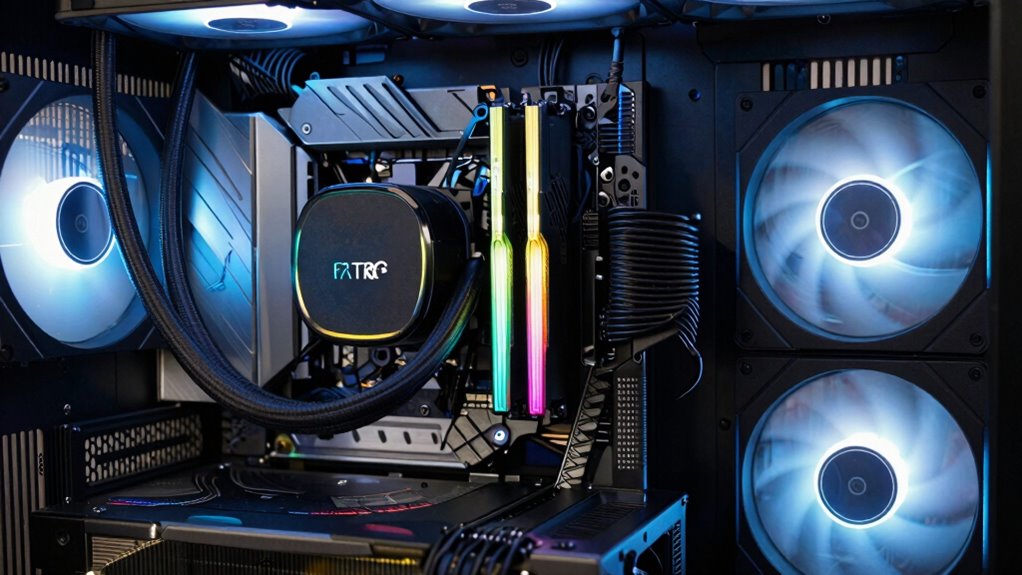
Proper airflow is essential for keeping your PC components cool and ensuring ideal performance. Without good airflow, heat builds up inside your case, causing components to throttle or even fail prematurely. Many builders overlook this critical aspect, focusing instead on high-end GPUs or flashy aesthetics. But neglecting airflow can undermine the entire system, regardless of how powerful your parts are. Thermal management becomes a silent but indispensable player in your PC’s longevity and stability, and it all starts with case design.
Your case design influences how air moves through your build. A well-designed case facilitates efficient intake and exhaust, creating a steady flow that carries heat away from essential components. If your case has poor ventilation or obstructed airflow paths, hot air gets trapped, raising internal temperatures. This not only hampers performance but also accelerates wear on your hardware. When selecting a case, look for features like multiple fan mounting points, mesh panels for better ventilation, and strategic placement of vents. These elements play a pivotal role in ensuring your system stays cool under load. Additionally, paying attention to case airflow can make a significant difference in overall thermal performance.
Thermal management isn’t just about adding more fans; it’s about thoughtful planning. Proper airflow involves creating a pressure balance within your case—positive pressure helps prevent dust buildup and keeps cool air flowing in, while negative pressure pulls hot air out efficiently. You should aim for a balanced configuration where intake fans bring in cool air, and exhaust fans remove warm air. Understanding the airflow direction—front-to-back and bottom-to-top—is key to optimizing heat dissipation. When your airflow is well-managed, your components operate at lower temperatures, which means quieter operation and a longer lifespan. Additionally, case design plays a crucial role in facilitating effective airflow and heat escape. Ensuring proper component placement can further enhance airflow efficiency, reducing hotspots and maintaining stable temperatures across your hardware.
As an affiliate, we earn on qualifying purchases.
Frequently Asked Questions
How Often Should I Clean My Pc’s Airflow Filters?
You should clean your PC’s airflow filters every 1-3 months, depending on dust buildup and your case positioning. If you notice dust accumulating quickly, clean them more often. Proper case positioning—keeping vents unobstructed—helps reduce dust collection. Regular cleaning prevents overheating, maintains airflow efficiency, and prolongs component lifespan. Make it a habit to check filters during routine maintenance to keep your PC running smoothly.
Can Poor Airflow Damage My PC Components?
Think of your PC as a busy city, where dust buildup clogs streets and hampers airflow circulation. Poor airflow can overheat components, leading to thermal throttling or permanent damage. When dust blocks vents and fans, heat can’t escape efficiently, risking damage to your CPU, GPU, and other parts. Regular cleaning maintains ideal airflow, preventing overheating and ensuring your system runs smoothly and safely.
What’s the Ideal Fan Setup for Optimal Airflow?
The ideal fan setup involves placing intake fans at the front and bottom to bring cool air in, while exhaust fans at the top and rear push warm air out. Guarantee proper airflow direction so cool air flows over components and hot air exits efficiently. Balance the airflow to prevent pressure imbalances, and use matching fan sizes for consistent airflow. This setup keeps your components cool and maintains peak performance.
Do RGB Fans Improve Airflow or Just Aesthetics?
LED lighting on RGB fans mainly boosts aesthetics, with airflow benefits coming as a pleasant surprise. While they don’t improve airflow directly, they can add a vibrant look to your build. Keep in mind, some LED fans may produce more fan noise, which might be a trade-off if you’re sensitive to sound. Overall, RGB fans are more about style than performance, making your setup visually striking.
How Do I Troubleshoot Airflow Issues in My PC?
To troubleshoot airflow issues, start by checking for dust buildup inside your case, as it can block airflow and cause overheating. Next, examine your cable management—messy cables can obstruct airflow paths. Confirm fans are spinning correctly and oriented for ideal intake and exhaust. Cleaning dust and organizing cables improves airflow, helping your PC stay cool. Regular maintenance keeps your system running smoothly and prevents overheating problems.
computer case ventilation mesh panels
As an affiliate, we earn on qualifying purchases.
As an affiliate, we earn on qualifying purchases.
Conclusion
Think of your PC as a bustling city. Without proper airflow, it’s like traffic jam in the streets—heat builds up, slowing everything down. But with good airflow, your components breathe freely, like a breeze sweeping through open windows. Don’t ignore this essential part; it’s the wind that keeps your system alive and thriving. When airflow flows smoothly, your build runs cool, quiet, and ready to conquer anything you throw at it.
positive pressure PC cooling system
As an affiliate, we earn on qualifying purchases.
As an affiliate, we earn on qualifying purchases.
As an affiliate, we earn on qualifying purchases.
NFL season / tailgating Picks
team gear
As an affiliate, we earn on qualifying purchases.