
To safely clean dust from your PC, first power it down, unplug all cables, and open the case following the manufacturer’s instructions. Use compressed air to blow dust from fans, heatsinks, and components, holding fans steady to prevent damage. Gently brush away dust from surfaces and filters. Reassemble your PC and power it on to check temperatures. If you’d like more tips, you’ll find how to keep your system cool and dust-free with a few simple steps.
Key Takeaways
- Power down your PC, unplug all cables, and open the case carefully following manufacturer instructions.
- Use compressed air to blow dust from fans, heatsinks, and components, holding fans in place to prevent damage.
- Gently clean circuit boards, connectors, and filters with a soft brush or microfiber cloth to remove dust and debris.
- Reassemble the case securely, then power on to check temperatures and ensure proper airflow and cooling.
- Perform regular cleaning every few months to prevent dust buildup, overheating, and maintain optimal system performance.

Dust buildup can cause your PC to overheat and perform poorly, so regular cleaning is crucial. When dust accumulates inside your computer, it blocks airflow, reducing cooling efficiency and putting unnecessary stress on your components. To keep your system running smoothly, you need to focus on airflow optimization and component maintenance. Proper airflow allows cool air to reach essential parts and hot air to escape, preventing overheating and prolonging hardware lifespan.
Regular cleaning prevents dust buildup that causes overheating and performance issues in your PC.
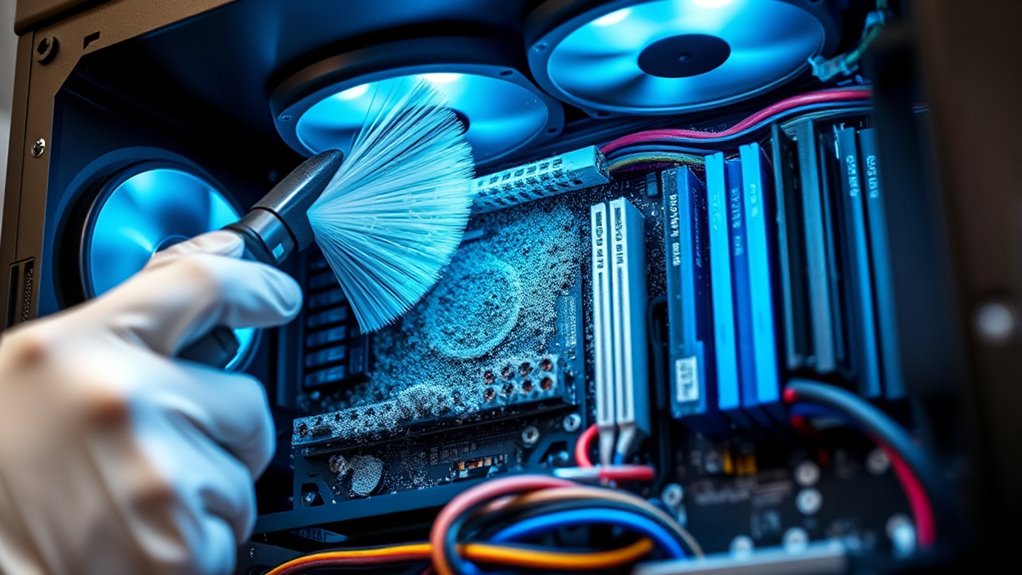
Start by powering down your PC and unplugging all cables. Open your case carefully, following your manufacturer’s instructions, to gain access to the interior. Once open, gently remove larger dust particles from the case using a soft brush or a microfiber cloth. Then, use compressed air to blow dust from fans, heatsinks, and other components. Hold fans in place while you clean them to prevent damage from spinning blades. When cleaning heatsinks, a soft brush can dislodge dust from between the fins, improving airflow and heat dissipation. Be sure to blow dust out of the case rather than deeper inside, directing it toward an open window or vent.
Pay close attention to your case fans, CPU fan, and power supply fan, as these are critical for airflow optimization. If any fan is noisy or not spinning freely, consider replacing it. Dust can cause fans to become unbalanced or stick, which hampers component maintenance efforts. Check your air filters if your case has them; clean or replace filters regularly to prevent dust from circulating inside. Additionally, understanding the impact of contrast ratio on image quality can help you prioritize component cleanliness, as dust on cooling components can affect overall system performance and stability.
While cleaning, inspect cables and connectors for dust or debris, and gently wipe them clean. Dust can settle on circuit boards and connectors, potentially causing electrical issues or static buildup. Take this opportunity to also verify that all components are securely seated and that airflow pathways are unobstructed. Keep your cables tidy to promote better airflow and prevent dust from settling on hard-to-reach spots.
Once you’ve finished cleaning, reassemble your case carefully, making sure all panels are securely in place. Power on your PC and monitor temperatures to confirm that cooling has improved. Regular maintenance, ideally every few months, will ensure dust doesn’t build up to harmful levels. Remember, a clean PC isn’t just about aesthetics; it’s about maintaining the health of your hardware. By focusing on airflow optimization and component maintenance, you’ll keep your system running cooler, quieter, and more efficiently, extending its lifespan and ensuring peak performance.
Frequently Asked Questions
Can I Use Compressed Air Without Turning off My PC?
You shouldn’t use compressed air on your PC without turning it off. Doing so risks damaging components or causing static buildup. Before cleaning, turn off your PC and unplug it. Regular air filter maintenance helps prevent dust buildup, making cleaning easier and more effective. Using compressed air safely ensures your cooling system stays ideal, reducing overheating risk and prolonging your PC’s lifespan. Always handle components gently and follow safety guidelines.
How Often Should I Clean Dust From My PC?
You should clean dust from your PC every 3 to 6 months, depending on your environment. Dust accumulation can hinder cooling and cause overheating, so regular cleaning is essential. If you have pets or live in a dusty area, consider more frequent cleanings. Maintaining a consistent cleaning frequency helps prevent dust buildup, keeps your PC running smoothly, and prolongs its lifespan. Always make certain your PC is powered off before cleaning.
Is It Safe to Vacuum Inside My Computer?
Vacuuming inside your computer is like trying to tame a wild beast; it’s risky. While it might seem quick, static electricity from the vacuum can damage sensitive components. Instead, use compressed air for airflow optimization and to maintain component longevity. It’s safer, more effective, and preserves your PC’s health, ensuring it runs smoothly without the danger of static shocks or accidental damage.
What Tools Are Best for Cleaning PC Dust?
You should use a soft brush or compressed air designed for electronics to clean your PC dust. An air purifier with a dust filter can help reduce airborne particles before cleaning. Avoid vacuuming directly inside your computer, as it might cause static damage. Using these tools keeps dust at bay, improves airflow, and guarantees your PC stays cool and runs efficiently. Always handle components gently to prevent harm.
Are There Risks of Static Electricity Damaging Components?
Is static electricity a real threat when cleaning your PC? Yes, it can cause component damage if you’re not careful. Static electricity builds up and can discharge unexpectedly, harming sensitive parts. To reduce this risk, always ground yourself before touching internal components, use an anti-static wrist strap, and avoid working on carpeted surfaces. Taking these precautions helps protect your computer and guarantees your cleaning process stays safe and effective.
Conclusion
Keeping your PC dust-free is essential for peak cooling and performance. Just like the trusty TARDIS needs regular maintenance to stay in top shape, your computer benefits from routine cleaning. Use gentle tools and avoid harsh chemicals to prevent damage. Remember, a clean PC runs cooler and lasts longer. So, don’t forget to give it a good dusting now and then—your PC will thank you, and you’ll avoid ending up in a technological jam like a certain time-traveling doctor!