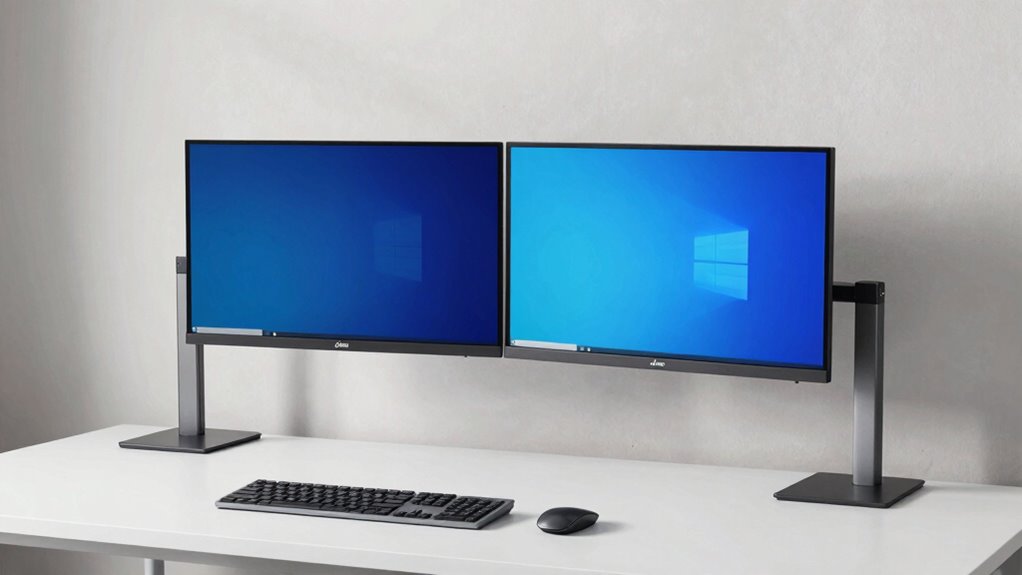

To set up dual monitors without wasting desk space, opt for space-saving mounts like wall, clamp, or adjustable arm mounts that fit your monitors and VESA patterns. Position the primary screen directly in front at eye level, with the secondary angled beside it. Use cable management tools and ergonomic accessories to keep your workspace tidy and comfortable. By combining these strategies, you’ll create an efficient, clutter-free setup. Want to discover more ways to optimize your dual monitor station?
Key Takeaways
- Use wall or clamp mounts to position monitors off the desk surface, freeing up space.
- Opt for adjustable monitor arms to easily reposition screens without clutter.
- Position primary monitor at eye level directly in front, with secondary to the side at a slight angle.
- Incorporate cable management solutions to keep wires organized and reduce workspace clutter.
- Add ergonomic accessories like keyboard trays and footrests to maximize desk efficiency and comfort.

Have you ever wondered how to efficiently set up two monitors for your workspace? If so, you’re not alone. Many people struggle to create a dual-monitor setup that’s both functional and space-saving. The key is to prioritize ergonomic accessories that support your posture and comfort, while also making sure your monitors are properly calibrated for clarity and color accuracy. With the right approach, you can maximize your workspace without cluttering your desk.
Start by choosing the right mounts or stands. Wall mounts are excellent for saving desk space because they lift your monitors off the surface entirely. Clamp mounts attach securely to the edge of your desk, providing a sturdy platform without taking up much room. If you prefer a more flexible setup, adjustable arm mounts give you the ability to position screens precisely, which helps reduce clutter and enhances ergonomic comfort. When selecting these accessories, ensure they are compatible with your monitor sizes and VESA mounting patterns. Additionally, selecting the right projector technology can further enhance your visual workspace if you decide to incorporate projection into your setup.
Choose wall, clamp, or adjustable arm mounts for space-saving, flexible dual-monitor setups.
Next, consider how to position your monitors for seamless ergonomics. Your primary screen should be directly in front of you at eye level, with the second monitor placed to the side at a slight angle. This arrangement minimizes neck strain and keeps your workflow fluid. To facilitate this setup without sacrificing desk space, use monitor arms that can be easily moved or tucked away when not in use. Additionally, a keyboard tray or adjustable stand can free up surface area, letting you push components closer to the wall or edges. Understanding market trends in digital publishing can also help you optimize your visual presentation and content layout for better productivity. Incorporating adjustable peripherals is another way to further customize your workspace for comfort and efficiency.
Monitor calibration is another essential step to guarantee your dual screens display accurate colors and brightness. Proper calibration reduces eye strain and makes working with visual content more precise. Use calibration tools or software to fine-tune each monitor’s settings, matching brightness, contrast, and color temperature. This step is especially important if you work with graphics, photography, or detailed design work. When your monitors are calibrated correctly, the visual shift between screens becomes smoother, creating a more cohesive workspace. Also, understanding emerging trends in digital publishing can help you stay updated on the latest tools and techniques for content creation and visual presentation.
Finally, keep cables organized to prevent clutter. Use cable clips, sleeves, or under-desk trays to route wires neatly out of sight. This tidy setup not only saves space but also reduces accidental disconnects or damage. By combining ergonomic accessories, clever mounting solutions, precise monitor calibration, and cable management, you can create a dual-monitor setup that’s both efficient and space-conscious. Adding ergonomic accessories like wrist supports or footrests can further enhance comfort during long work sessions. With a little effort, your workspace will feel more open, organized, and comfortable—perfect for productivity without sacrificing desk space.

MOUNT PRO Dual Monitor Wall Mount for 13 to 32 Inch Screens, Wall Monitor Arm for 2 Monitors, Each Holds Up to 19.8lbs, Full Motion Wall Monitor Mount with VESA 75×75/100×100, Home Office Setup
Full Motion Adjustments – Adjustable dual monitor wall mount offers +90° to -90° tilt, 180° swivel and 360°…
As an affiliate, we earn on qualifying purchases.
As an affiliate, we earn on qualifying purchases.
Frequently Asked Questions
Can I Use Different Brands for My Dual Monitors?
Yes, you can use different brands for your dual monitors. Just make sure they’re compatible regarding connectivity and size to fit your workspace. Keep in mind, different brands might have varying monitor calibration, which can affect color and brightness consistency. Adjust settings on each display to achieve a cohesive look, making your workspace efficient and visually balanced without wasting desk space.
Do I Need Special Software for Dual Monitor Setup?
You don’t need special software to set up dual monitors; your operating system handles it easily. Just connect your monitors with the right cables, ensuring good cable management to keep your workspace tidy. For ideal display, you might want to calibrate your monitors, adjusting brightness and color for consistency. This setup process is straightforward and doesn’t require extra software, making your dual monitor experience smooth and efficient.
How Do I Connect a Laptop to Dual Monitors?
You can connect your laptop to dual monitors using the right cables—HDMI, DisplayPort, or USB-C—depending on your ports. Start by managing cables neatly to keep your workspace organized. Once connected, calibrate your monitors for color accuracy and proper display settings. Many laptops support multiple displays without extra software, but make certain your graphics card can handle dual outputs. Proper cable management and monitor calibration ensure an efficient, clutter-free setup.
What Are the Best Ergonomic Positions for Dual Monitors?
To maintain an ergonomic posture with dual monitors, position them at eye level to prevent neck strain. Keep the monitor height so your eyes look straight ahead, and make sure the screens are about an arm’s length away. Sit back in your chair with your feet flat on the floor, and keep your shoulders relaxed. Adjust the monitors so they’re slightly angled inward, reducing eye and neck movement for comfortable, healthy use.
Can Dual Monitors Improve Gaming Performance?
Yes, dual monitors can boost your gaming performance, but it’s all about proper setup. When you calibrate your monitors and adjust screen orientation for seamless visuals, you gain a competitive edge. The right calibration sharpens details, while ideal screen orientation reduces eye strain and enhances focus. This setup not only improves your reaction time but also immerses you deeper into your game, giving you a clear advantage over single-screen players.

HUANUO FlowLift™ Pro Monitor Arm for 13–32" Screens, MechaSpring Monitor Mount, Fully-Adjustable Monitor Stand with Tilt/Swivel/Rotation, Tool-Free VESA Mount, C-Clamp/Grommet Base, Max Load 19.8 lbs
Check Desk & Monitor Compatibility: To ensure a proper fit, your monitor must meet the following 3 conditions…
As an affiliate, we earn on qualifying purchases.
As an affiliate, we earn on qualifying purchases.
Conclusion
With a little creativity and some smart organization, you can turn your desk into a well-oiled multi-monitor station without sacrificing space. Think of it as a symphony where each instrument—your monitors—harmonizes perfectly without clashing. By following these tips, you’ll master the art of efficient setup and enjoy a clutter-free workspace that boosts your productivity. Now, go ahead and make your desk the stage for your tech-savvy performance!
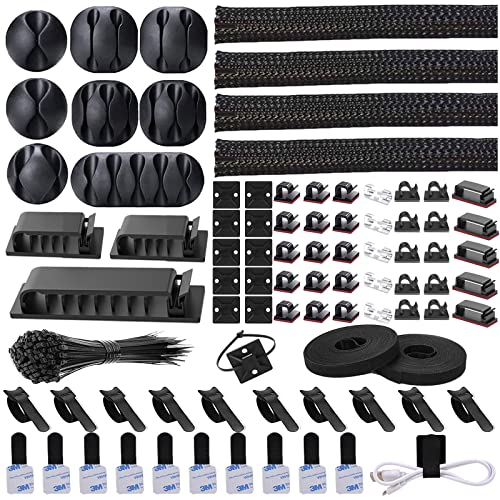
N NOROCME 192 PCS Cable Management Kit 4 Wire Organizer Sleeve,11 Cable Holder,35Cord Clips 10+2 Roll Cable Organizer Straps and 100 Fastening Cable Ties for Computer TV Under Desk, black,clear
Cable Management Kit: 4pcs Cable Sleeves( 20 in L x 0.4 in w), 20pcs reusable wire ties,35Cable Clips…
As an affiliate, we earn on qualifying purchases.
As an affiliate, we earn on qualifying purchases.

HUANUO Keyboard Tray Under Desk, 360 Adjustable Ergonomic Sliding Keyboard & Mouse Tray, Under Desk Keyboard Tray Slide Out, Keyboard Holder Under Desk for Typing in Home, Office Work, 25"W x 9.84"D
Large & Perfect Size – Full size keyboard drawer with a 25” x 9.84” , please kindly confirm…
As an affiliate, we earn on qualifying purchases.
As an affiliate, we earn on qualifying purchases.