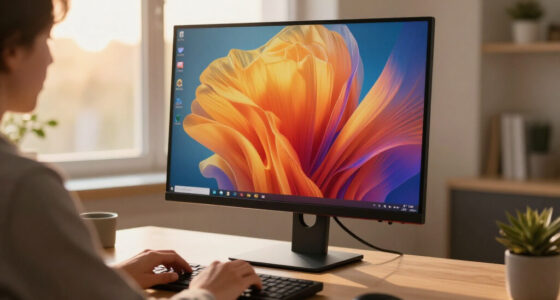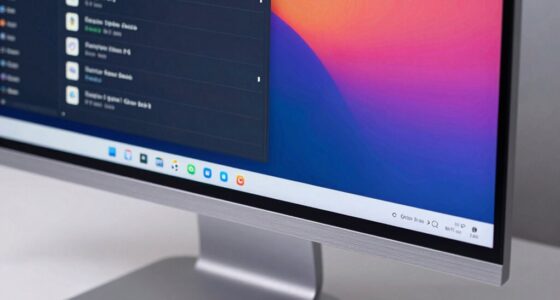

When choosing a monitor for work from home, prioritize size and resolution—larger screens with 4K clarity help with multitasking and reduce eye strain. Make sure it has good color accuracy for detailed work, and adjustable ergonomic features like tilt and height for comfort. Connectivity options like HDMI or USB-C keep your setup tidy and efficient. Also, consider features like blue light filters and high contrast ratios for a more comfortable, productive workspace—keep exploring to find the best fit.

Get the latest gadgets delivered free with Prime
- Fast, free delivery on millions of items
- Prime Video, Amazon Music and more included
- Member-only deals all year
Key Takeaways
- Choose a size (27 inches or larger) with high resolution (4K) for multitasking and clear visuals.
- Ensure accurate color calibration for precise work in design or data analysis.
- Prioritize ergonomic features like adjustable height and blue light filters for comfort.
- Select monitors with versatile connectivity options (HDMI, USB-C) for seamless device integration.
- Consider additional features such as contrast ratio, brightness, and energy efficiency for optimal performance.
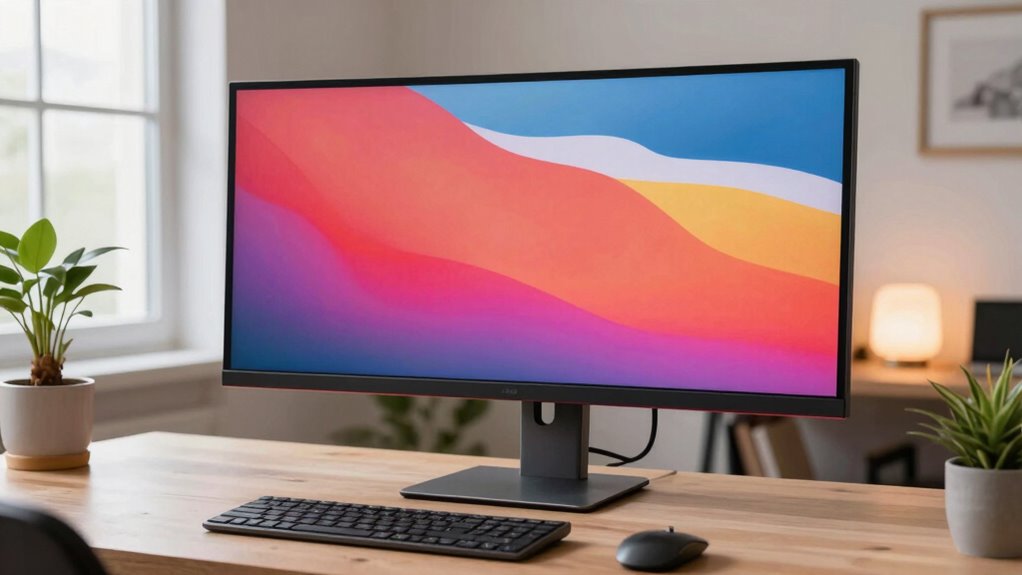
When setting up your ideal home office, choosing the right monitor can considerably boost your productivity and comfort. The monitor is the centerpiece of your workspace, so selecting the right one is essential for long-term efficiency. First, consider the size and resolution. A larger screen, like 27 inches or more, provides ample space for multitasking, while a high resolution—such as 4K—delivers crisp images, reducing eye strain and improving clarity for detailed work. It’s also important to think about color accuracy. A monitor with good color calibration ensures that visuals, whether for graphic design or data analysis, are true to life, which can prevent misinterpretations and reduce eye fatigue caused by inconsistent hues.
Next, pay attention to ergonomic features. Your comfort directly impacts your focus and productivity, so look for monitors that support ergonomic accessories like adjustable stands, tilt, height, and swivel options. This flexibility allows you to position the screen at eye level, reducing neck and back strain during long work sessions. Some monitors even come with built-in blue light filters or flicker-free technology, which further minimizes eye fatigue. The goal is to create a setup that promotes good posture and minimizes discomfort, so take the time to select a monitor that fits well within your ergonomic needs. Additionally, understanding contrast ratio can help you choose a display that offers better visual depth and clarity, especially in complex or detailed work environments. Considering connectivity options is crucial for a clutter-free workspace, as it allows seamless integration with your devices and peripherals. Moreover, choosing a monitor with adjustable brightness can help you adapt to different lighting conditions, reducing glare and eye strain throughout your workday. Incorporating monitors with factory calibration can also ensure consistent color reproduction, which is especially important for creative professionals. It’s wise to also look into energy efficiency features to keep your workspace environmentally friendly and reduce power consumption over time.
Connectivity options are another essential factor. Ensure your monitor offers the ports you need, such as HDMI, DisplayPort, USB-C, or Thunderbolt, to connect seamlessly with your laptop, desktop, or other peripherals. This reduces clutter and makes it easier to switch between devices without hassle. Additionally, consider the monitor’s refresh rate and response time if your work involves multimedia or gaming; higher refresh rates can provide smoother visuals, although they’re less critical for typical office tasks. Lastly, don’t overlook the design and aesthetic appeal. A monitor that complements your workspace can make your environment more inviting and inspiring. If accurate color reproduction is important for your work, invest in a monitor with factory calibration or the ability to manually calibrate colors. This guarantees that you maintain consistent and professional-quality visuals, which is especially important if your work involves creative content or detailed visual work. By carefully considering these factors—size, resolution, ergonomic features, connectivity, and color calibration—you’ll choose a monitor that not only enhances your productivity but also makes your home office a comfortable and efficient space to work in.
Products Worth Considering

LG UltraGear 34GX90SA-W 34-inch WQHD Curved OLED Gaming Monitor

LG UltraGear 32GX850A-B 32-inch 4K UHD Glossy OLED Gaming Monitor

Samsung 34-Inch Odyssey G5 Ultra-Wide Curved Gaming Monitor
As an affiliate, we earn on qualifying purchases.
Frequently Asked Questions
What Is the Ideal Monitor Size for Small Workspaces?
For small workspaces, an ideal monitor size is around 24 inches, offering good screen real estate without overwhelming your desk. Look for ergonomic accessories like adjustable monitor stands to optimize comfort and save space. These stands help position your monitor at eye level and free up desk room. A smaller, well-placed monitor with the right stand can boost productivity while keeping your workspace neat and comfortable.
How Important Is Color Accuracy for Remote Work?
Color accuracy is pretty important for remote work, especially if you handle design, photography, or any visual tasks. You want a monitor with good color calibration to guarantee your displays are precise. Regular display calibration helps maintain that accuracy over time. When choosing a monitor, look for features like wide color gamuts and factory calibration, so your work remains true to life and consistent across different projects and collaborations.
Should I Prioritize Resolution Over Refresh Rate?
You should prioritize resolution over refresh rate for work from home, especially if your tasks involve detailed visuals or document editing, as higher resolution improves clarity. However, consider ergonomic factors like adjustable stands and screen size to reduce strain. Keep your budget in mind; a balance between resolution and refresh rate is key. If your work involves fast-paced activities, a higher refresh rate benefits you, but for general tasks, resolution takes precedence.
Are Curved Monitors Better for Home Office Setups?
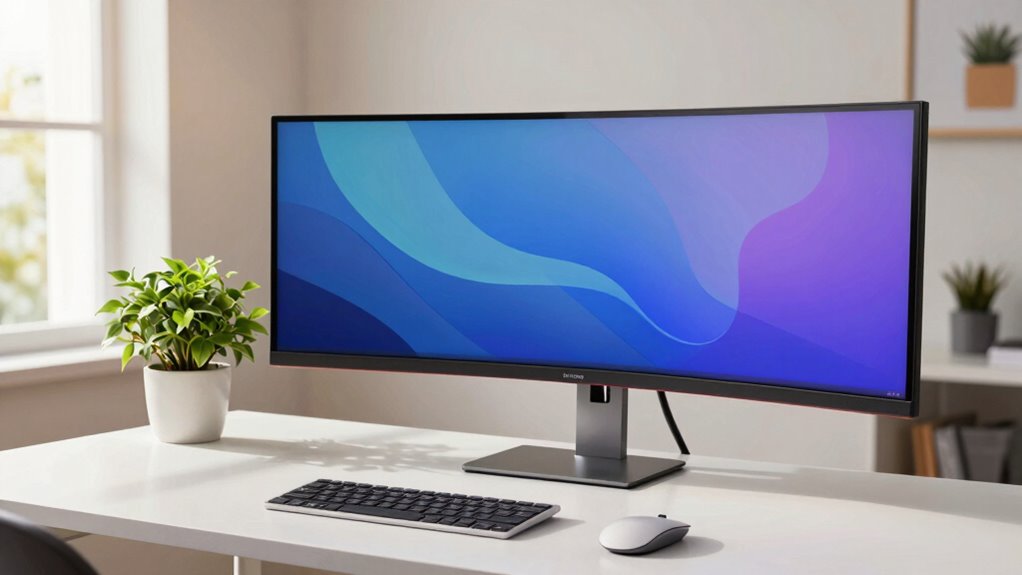
Curved monitors can be a great choice for your home office because they enhance ergonomic design and reduce eye strain by providing a more natural viewing angle. They also add aesthetic appeal, making your workspace look modern and inviting. If you spend hours at your desk, a curved monitor can improve comfort and focus. Just make certain it fits your space and meets your visual needs to maximize its benefits.
How Do I Connect Multiple Monitors Seamlessly?
To connect multiple monitors seamlessly, start by checking your computer’s video output options. Use appropriate cables for each monitor and connect them to your device. To keep your workspace tidy, implement cable management solutions like clips or sleeves. Elevate your monitors using sturdy monitor stands to create an ergonomic setup. This approach guarantees a clean, efficient workspace, making multitasking smooth and comfortable during your work from home routine.
Conclusion
So, after all that, picking the perfect monitor might just be your most exciting task—who knew? Just imagine, spending hours debating screen size, resolution, and refresh rates, all to find that one monitor that makes working from home feel almost too good to be true. But hey, maybe the real trick is realizing that no matter what you choose, the real upgrade is finally convincing your cat that your workspace isn’t their new favorite nap spot.