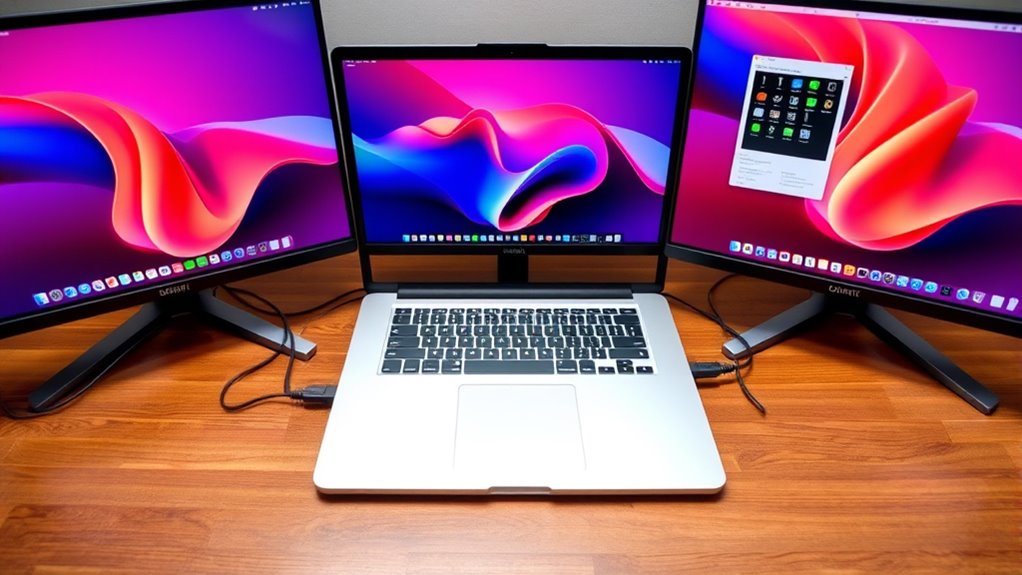

To set up multiple monitors on your laptop, first check that your device supports multiple displays and identify the available ports, such as HDMI, DisplayPort, or USB-C. Connect each monitor using the appropriate cable and verify they are powered on. Your operating system should automatically detect the screens, but you may need to adjust display settings or calibrate for color accuracy. To get everything working smoothly and make the most of your setup, there are a few simple steps to follow.

Get the latest gadgets delivered free — and shop member deals
- Fast, free delivery on millions of items
- Access to Prime Big Deal Days deals on October 6–7
- Prime Video, Amazon Music and more included
Key Takeaways
- Verify your laptop supports multiple displays and identify available ports like HDMI, DisplayPort, or USB-C.
- Connect monitors securely to the appropriate ports using compatible cables and power them on.
- Configure display settings in your operating system to extend or mirror your desktop, setting the primary screen as needed.
- Adjust monitor placement, height, and tilt for ergonomic comfort and seamless workspace integration.
- Calibrate displays for color accuracy and test window movement across screens to ensure smooth operation.
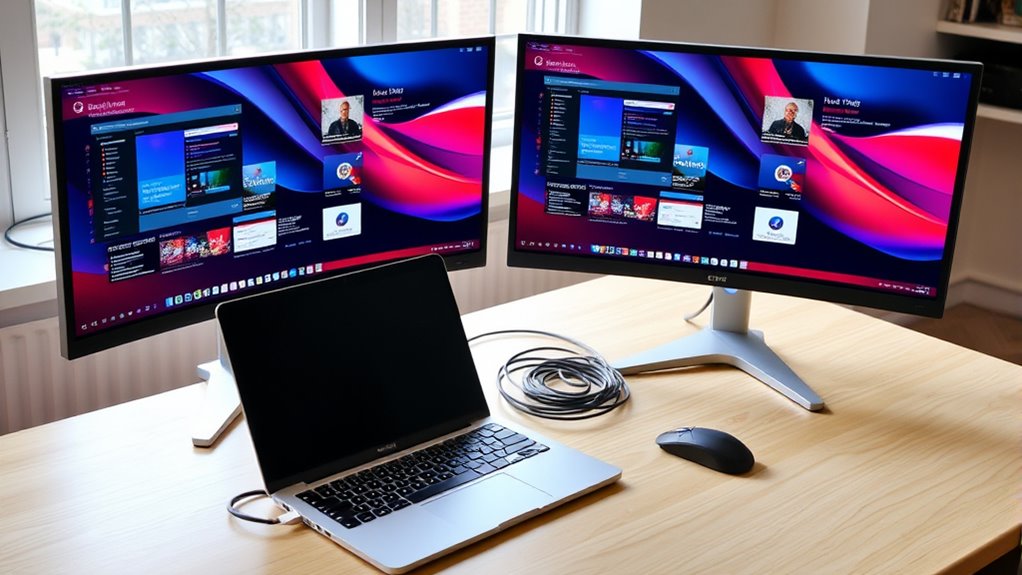
Setting up multiple monitors can considerably boost your productivity and improve your overall computing experience. Whether you’re working on complex projects, multitasking across various applications, or simply want a more immersive setup, having multiple screens makes a noticeable difference. To get the most out of your new setup, start by connecting your monitors properly. Confirm your laptop supports multiple displays—most modern models do, but it’s worth double-checking your ports and specifications. Use the appropriate cables, such as HDMI, DisplayPort, or USB-C, to connect each monitor securely. Once connected, power everything on, and your operating system should detect the additional screens automatically. However, to maximize visual clarity and color accuracy, you should perform monitor calibration. Calibration involves adjusting the display settings—such as brightness, contrast, gamma, and color balance—to ensure each monitor displays consistent and true-to-life colors. Many operating systems include built-in calibration tools, or you can use professional calibration devices for more precise results. Proper calibration helps avoid eye strain and guarantees that images, videos, and color-dependent work look accurate across all screens. Additionally, considering color accuracy can be essential for tasks like photo editing or graphic design.
Cable management plays a crucial role in maintaining a clean, safe workspace and preventing accidental disconnections. As you set up multiple monitors, organize the cables neatly. Use cable clips, sleeves, or ties to bundle cords together and route them along your desk edges or behind your furniture. This not only improves the aesthetics but also reduces the risk of tripping or damaging the cables. Proper cable management also makes future adjustments or troubleshooting easier, saving you time and frustration. When connecting your monitors, pay attention to the placement and orientation. Arrange them in a way that suits your workflow, whether side-by-side, stacked, or in an ergonomic curved formation. Adjust their height and tilt to match your eye level, minimizing neck strain and promoting better posture. Once everything is connected, calibrated, and organized, immerse yourself in your display settings. In your operating system, set your primary display and configure the resolution and scaling for each monitor to match their native specifications. You might also want to enable features like extended desktop mode or mirrored displays, depending on your needs. Testing your setup by moving windows across screens and adjusting settings ensures everything functions smoothly. A well-calibrated, neatly organized multi-monitor setup transforms your workspace into a more efficient, comfortable environment, letting you work smarter and enjoy your digital experience to the fullest.
HDMI to USB-C adapter for monitors
As an affiliate, we earn on qualifying purchases.
As an affiliate, we earn on qualifying purchases.
Frequently Asked Questions
Can I Connect Different Types of Monitors Simultaneously?
Yes, you can connect different types of monitors simultaneously, as long as you check monitor compatibility and use the right cable types. Make certain your laptop supports multiple outputs and that each monitor’s connection is compatible with your ports. You might need adapters for different cable types like HDMI, DisplayPort, or VGA. This setup allows you to customize your workspace with various monitor styles and resolutions for ideal productivity.
How Do I Troubleshoot Monitor Detection Issues?
If your monitors aren’t detected, start by checking cable compatibility to make sure all connections are secure and supported. Then, update your display drivers to fix detection issues. Restart your laptop after updates, and try reconnecting the monitors. If problems persist, test with different cables or ports. These steps usually resolve detection problems and help your monitors work seamlessly together.
What Are the Best Settings for Gaming on Multiple Screens?
Get the most out of your multi-monitor gaming setup by fine-tuning your display settings. Start with monitor calibration to guarantee consistent brightness and contrast across screens, then adjust display color settings for vibrant, immersive visuals. Use the right resolution and refresh rate for smooth gameplay. Don’t forget to explore your graphics card control panel for additional options. This setup will elevate your gaming experience, keeping you engaged and in the zone.
Is It Possible to Extend Displays Wirelessly?
Yes, you can extend displays wirelessly using a wireless display or monitor extension device. You simply connect your laptop to a compatible wireless display, like Miracast or Chromecast, and then configure it to extend your desktop. This allows you to create a seamless monitor extension without cables. Just confirm your hardware supports wireless display technology and that your network is strong enough for a smooth, lag-free experience.
How Do I Configure Audio Output Across Multiple Monitors?
Imagine a seamless sound experience that elevates your workspace. To configure audio output across multiple monitors, first make certain your monitor speakers are set up properly. Then, go to your sound settings and select the desired monitor as your default audio device. You can also customize audio output for each monitor directly within your operating system. This way, your audio flows effortlessly, enriching your multitasking and entertainment moments.
As an affiliate, we earn on qualifying purchases.
Conclusion
Now that you know how to set up multiple monitors, imagine the productivity and immersion awaiting you. With everything seamlessly connected, you’ll wonder how you ever worked without this setup. Are you ready to elevate your workspace and unleash your full potential? Don’t wait—grab those extra screens and transform your laptop into a powerful, multi-dimensional hub. Your enhanced workspace is just a few steps away; all that’s left is for you to take action.
As an affiliate, we earn on qualifying purchases.
As an affiliate, we earn on qualifying purchases.
Fall Picks
fall essentials
As an affiliate, we earn on qualifying purchases.