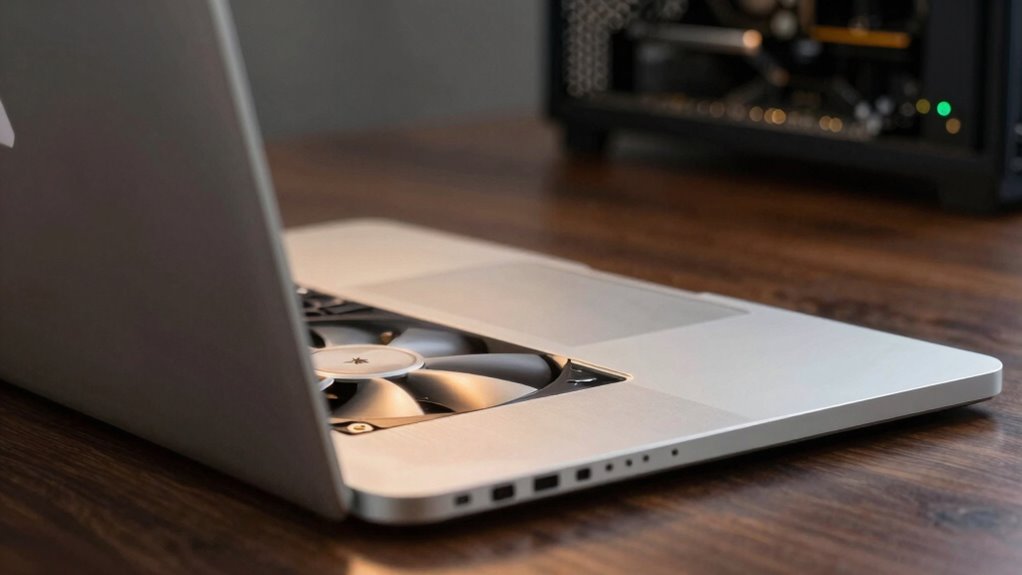

Your laptop’s fan runs constantly because background processes like system updates, antivirus scans, or hidden malware cause the CPU to work hard and generate heat. Worn-out batteries or outdated drivers also make your system struggle to stay cool, keeping the fan active. Managing startup programs and ensuring your software is updated can help reduce unnecessary heat. If you want to learn more about how to troubleshoot and fix this issue, keep exploring the options available.

Get the latest gadgets delivered free — and shop member deals
- Fast, free delivery on millions of items
- Access to Prime Big Deal Days deals on October 6–7
- Prime Video, Amazon Music and more included
Key Takeaways
- Background processes like system updates or antivirus scans can run silently, causing the fan to stay active even when idle.
- Poor battery health may increase system workload and heat, prompting continuous fan operation.
- Outdated drivers or software can lead to inefficient processes, resulting in constant fan activity.
- Unnecessary startup programs and background apps increase CPU usage and heat, keeping the fan running.
- Overheating or system thermal issues may trigger the fan to run continuously to prevent damage.
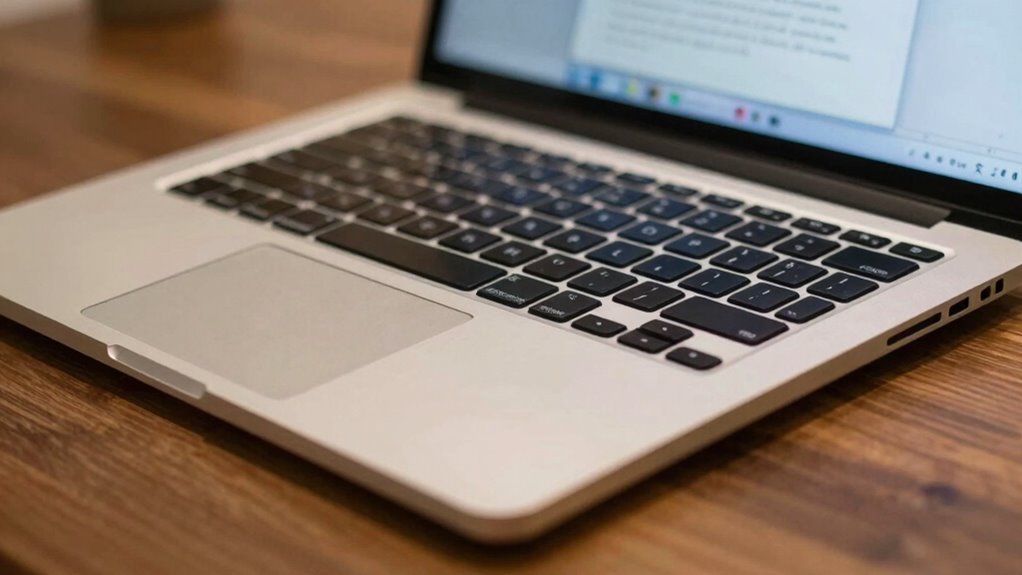
If your laptop’s fan keeps running constantly even when you have nothing open, it can be frustrating and concerning. You might wonder why your device is working so hard without apparent reason. Often, the culprit isn’t just heavy applications but background processes that run silently in the background, consuming CPU power and causing the fan to stay active. These processes can include system updates, antivirus scans, or other software tasks that happen automatically. Even when you’re not actively using your laptop, these background activities can generate heat, prompting the fan to kick in to keep your system cool.
Background processes like updates and scans can cause your laptop fan to run constantly, even when idle.
Another factor to contemplate is your laptop’s battery health. When your battery starts to degrade, it can cause your system to work harder to manage power efficiently. A worn-out battery might send signals to the system that more cooling is needed, which can keep the fan running longer than usual. If your battery is old or shows signs of reduced capacity, it’s worth checking its health status through your system settings or specialized software. Poor battery health can also lead to increased heat production, further triggering the fan to run constantly. Additionally, monitoring your system temperature can help you identify if overheating is contributing to the constant fan activity, especially since thermal management relies heavily on accurate temperature readings.
In many cases, the issue isn’t hardware-related but rather software-related. Over time, your operating system and drivers may become outdated or cluttered with unnecessary files, leading to inefficient processes that tax your CPU. Regularly updating your system and drivers can reduce these background processes. Additionally, running a malware scan can identify any malicious programs that might be running covertly, causing your laptop to overheat and the fan to stay on. To optimize performance, consider cleaning your system cache and removing unnecessary files that may be slowing down your device. Proper system monitoring tools can help you track resource usage and identify problematic applications that contribute to heat buildup.
It’s also essential to manage startup programs. Many applications automatically launch when you turn on your laptop, and some continue running in the background even when you’re not actively using them. You can disable unnecessary startup items through your task manager or system preferences to reduce the load on your processor. Clearing out temporary files and optimizing your system can also improve performance and help keep your laptop cooler. Understanding background processes and their impact on system temperature can help you make informed decisions about which programs to keep active.
Ultimately, persistent fan activity isn’t just about cleaning up software; it’s about understanding how your system’s health—particularly battery health—and background processes influence your device’s temperature. By monitoring these factors and maintaining regular system upkeep, you can help guarantee your laptop runs smoothly without the fan constantly whirring, even when you’re not actively using it.
As an affiliate, we earn on qualifying purchases.
Frequently Asked Questions
Can Malware Cause My Laptop Fan to Run Constantly?
Yes, malware can cause your laptop fan to run constantly by overloading your system’s resources. When infected, your device may run background processes that consume CPU power, prompting the fan to work harder. To fix this, run a thorough antivirus software scan to detect and remove malware. Regular system scans help maintain peak performance, preventing unnecessary fan activity caused by malicious software.
How Do I Check if My Laptop’s BIOS Is Outdated?
Think of your BIOS like the control tower guiding your laptop’s signals. To check if it’s outdated, restart your computer and enter the BIOS setup (usually by pressing F2, Del, or Esc during startup). Look for the BIOS version number. Then, visit your manufacturer’s website for a BIOS update or firmware check. If your version is older, updating it can fix issues and improve performance.
Is It Safe to Clean My Laptop Fan Myself?
Yes, it’s safe to clean your laptop fan yourself if you follow proper precautions. Dust accumulation can cause fan malfunction, making it run constantly. Turn off your laptop and unplug it, then carefully open the case or access panel. Use compressed air to remove dust and debris, avoiding contact with sensitive components. Regular cleaning can prevent overheating, improve performance, and extend your laptop’s lifespan.
Why Does My Laptop Overheat Even With Minimal Use?
Your laptop overheats even with minimal use because dust accumulates in the hardware, blocking airflow and causing overheating symptoms. This buildup traps heat, making your device work harder to cool down, which can lead to frequent fan runs and temperature spikes. Regularly cleaning the hardware dust inside your laptop helps prevent overheating, keeps your system running smoothly, and prolongs its lifespan. Make sure to handle cleaning carefully to avoid damage.
Should I Replace My Laptop’s Thermal Paste?
Yes, you should replace your laptop’s thermal paste if it’s old or dried out, causing overheating and fans to run constantly. Proper application techniques are essential; make sure you clean off the old paste thoroughly and apply a small, even amount of new thermal paste. This improves heat transfer between the CPU and heatsink, helping your laptop stay cool and reducing fan noise during minimal use.
laptop system monitoring software
As an affiliate, we earn on qualifying purchases.
As an affiliate, we earn on qualifying purchases.
Conclusion
If your laptop fan keeps running even when you’re not using any programs, it’s likely due to background processes or dust buildup. Did you know that over 60% of laptop owners experience overheating issues caused by poor maintenance? Regularly cleaning your vents and checking running processes can help. Staying proactive not only extends your device’s lifespan but also keeps it running smoothly. So, take a moment to troubleshoot before it impacts your productivity or hardware longevity.
As an affiliate, we earn on qualifying purchases.
laptop thermal paste replacement kit
As an affiliate, we earn on qualifying purchases.
As an affiliate, we earn on qualifying purchases.
Evergreen bestsellers Picks
bestsellers
As an affiliate, we earn on qualifying purchases.