
Using a laptop docking station simplifies your workspace by connecting multiple peripherals with a single cable, reducing clutter and enhancing productivity. It allows you to easily switch between devices and enjoy wireless options for keyboards, mice, and printers. An ergonomic setup is easy to achieve for better posture and comfort. Make sure to check compatibility and connect everything properly. If you keep exploring, you’ll discover tips to optimize your docking station experience even further.
Key Takeaways
- Connect multiple peripherals through a single port to reduce clutter and streamline workspace organization.
- Ensure compatibility with your laptop’s ports (USB-C, Thunderbolt) before setup.
- Use wireless features like Bluetooth and Wi-Fi to connect peripherals for a cable-free environment.
- Position your monitor at eye level and use ergonomic accessories to promote better posture.
- Organize cables and maintain connections regularly for a tidy, efficient, and stable workspace.

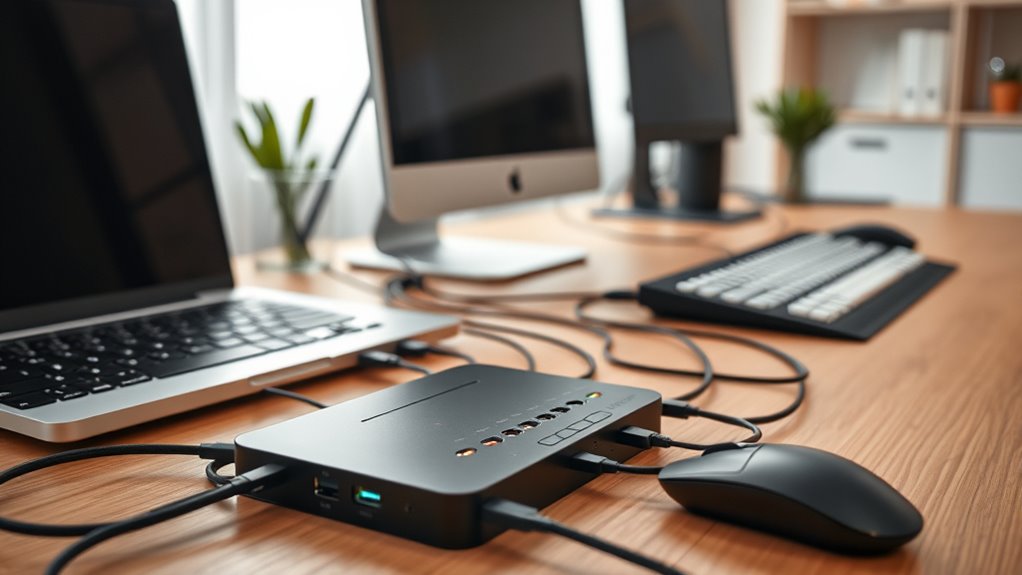
A laptop docking station can substantially enhance your productivity by allowing you to connect multiple peripherals with a single connection. This setup simplifies your workspace, reduces clutter, and makes switching between different devices quick and effortless. One of the biggest advantages is the improved wireless connectivity it offers. Many docking stations come equipped with Bluetooth and Wi-Fi capabilities, enabling you to connect wireless peripherals such as keyboards, mice, printers, and external speakers. This eliminates the need for multiple cables and creates a cleaner, more organized environment. With seamless wireless connectivity, you can move freely around your workspace without being tethered to your laptop, which is especially helpful if you work in a shared or flexible space. Additionally, some docking stations include wellness tech features like blue light filtering or temperature regulation, further supporting your comfort during long working hours.
Beyond connectivity, a docking station plays a vital role in establishing an ergonomic setup. When you connect your laptop to a docking station, you can position your monitor at eye level, use an external keyboard and mouse, and set your workspace to promote better posture. This reduces strain on your neck, shoulders, and wrists, preventing discomfort during long work sessions. An ergonomic setup also boosts productivity because you’re less likely to experience fatigue or pain, which can slow you down or lead to health issues over time. Many docking stations support adjustable stands or have built-in cable management features that help you customize your workspace further, making it easier to maintain good ergonomics.
Setting up your docking station correctly is straightforward but requires some attention to detail. First, confirm your laptop is compatible with the docking station—check the ports and connection types like USB-C or Thunderbolt. Connect the dock to your laptop using the appropriate cable, then plug in your peripherals—monitor, keyboard, mouse, external drives, and others—into the dock’s available ports. For wireless peripherals, pair them via Bluetooth or Wi-Fi following the device instructions. Once everything is connected, power everything on, and your system should recognize the new setup automatically. You might need to adjust display settings or input preferences to optimize your workspace further. It’s also wise to organize cables neatly, using cable clips or sleeves, to maintain a clean, professional look and prevent accidental disconnections.
Frequently Asked Questions
Can I Use a Docking Station With Any Laptop Model?
You can’t always use a docking station with any laptop model because of hardware compatibility issues. Check if your laptop has the right ports and supports the docking station’s connections. Also, consider portability; some docking stations are bulky, making them less convenient if you travel often. Research your laptop’s specifications and the docking station’s compatibility to guarantee a smooth setup and peak performance.
Do Docking Stations Require Additional Software or Drivers?
Docking stations typically require driver installation for proper functionality, but many modern models are plug-and-play, needing minimal setup. You should check software compatibility with your laptop’s operating system to avoid issues. Usually, the necessary drivers are included or automatically downloaded when you connect the docking station. However, for advanced features, visiting the manufacturer’s website for the latest driver updates guarantees smooth operation and peak performance.
Is a Docking Station Suitable for Gaming Laptops?
A docking station can be a double-edged sword for gaming laptops. While it offers expanded connectivity and better cooling, it may introduce latency concerns that could hinder gaming performance. If you’re aiming for smooth gameplay, make certain the dock supports high-speed data transfer and low latency. Compatibility with your gaming hardware is key, but keep in mind, some models might not deliver the best performance needed for intense gaming sessions.
How Do I Troubleshoot Connectivity Issues With a Docking Station?
To troubleshoot connectivity issues with your docking station, first check if your driver updates are current, as outdated drivers can cause problems. Next, verify port compatibility; ensure you’re connecting devices to the correct ports and that your docking station supports your peripherals. Restart your laptop and reconnect everything. If issues persist, update drivers and firmware, and test the docking station on another device to identify hardware problems.
Can I Connect Multiple Monitors to a Single Docking Station?
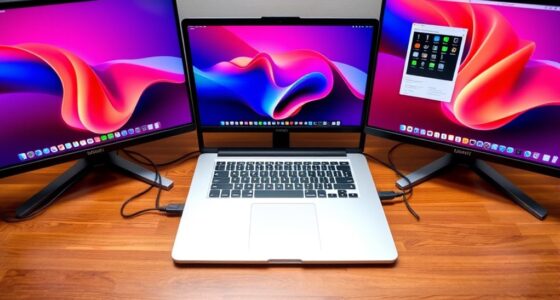
Yes, you can connect multiple monitors to a single docking station, transforming your workspace into a sprawling digital command center. With the right setup, your monitors can display ultra-high resolutions, making your workspace feel like a giant movie screen. Just guarantee your docking station supports multiple outputs, high monitor resolution, and sufficient power delivery. This way, you get seamless connections without sacrificing display quality or charging power for your devices.
Conclusion
Using a laptop docking station transforms your workspace into an ultra-efficient, sci-fi command center. Suddenly, you’re wielding the power of multiple screens, lightning-fast connections, and seamless device management—all at your fingertips. It’s like having a team of tech geniuses working behind the scenes! With just a few simple steps, you’ll unseal productivity levels so sky-high, you’ll wonder how you ever worked without it. Get ready to conquer your day like a true tech superhero!