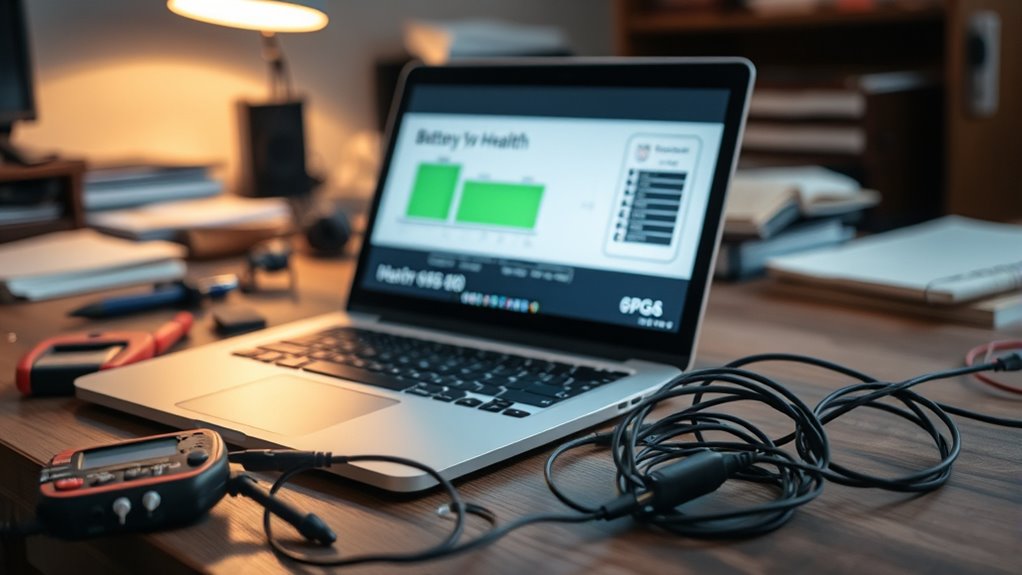

If your laptop battery drains quickly, it’s often due to inefficient power settings, background apps, or a display set at high brightness. Hardware aging or faulty components can also cause rapid drain. Make sure you optimize your power modes, close unnecessary background applications, and lower screen brightness. If these steps don’t help, your battery might need calibration or replacement. Keep exploring these tips to uncover what’s really causing your battery issues.

Get the latest gadgets delivered free with Prime
- Fast, free delivery on millions of items
- Prime Video, Amazon Music and more included
- Member-only deals all year
Key Takeaways
- Check and optimize power management settings, such as enabling power saver mode and adjusting hardware performance limits.
- Identify and close unnecessary background applications and manage startup programs to reduce resource usage.
- Calibrate your battery regularly by fully charging and discharging it to maintain accurate battery health readings.
- Consider hardware aging or faults, replacing the battery if it’s old or damaged to improve battery life.
- Adjust display brightness and contrast settings, and reduce screen timeout to minimize power consumption.
If your laptop’s battery is draining faster than it should, it’s important to identify the underlying cause promptly. One common reason is inefficient power management settings that cause your system to consume more energy than necessary. Modern laptops have various power modes designed to optimize battery life, but if these are misconfigured or disabled, your battery may be working harder than it needs to. Check your system’s power management options and ensure they’re set to conserve energy when possible. For example, switching to a power saver mode can substantially extend your battery life by reducing background activity, lowering screen brightness, and limiting hardware performance. Additionally, some applications might be running in the background, unnecessarily draining resources. Use your task manager or activity monitor to identify and close any high-consuming apps.
Optimize your battery life by adjusting power settings, closing background apps, and enabling power saver mode.
Another factor that can cause faster battery drain is inaccurate battery calibration. Over time, your laptop’s battery meter may become misaligned with the actual charge capacity, leading it to display incorrect battery life estimates. This can make it seem like your battery is draining faster than it truly is, or conversely, cause abrupt shutdowns without warning. To fix this, perform a battery calibration. Usually, this involves fully charging your device to 100%, then letting it run on battery until it completely powers off. Once fully drained, recharge it to 100% uninterrupted. This process helps recalibrate the battery meter and provides a more precise reading of your battery’s health and remaining life.
Other causes of rapid battery drain might include aging hardware or faulty components. Batteries naturally lose capacity over time, and if your device is a few years old, it might simply be reaching the end of its usable life. In such cases, replacing the battery can restore performance. Also, check for software updates, as manufacturers often release firmware or driver updates that improve power efficiency. Keep your drivers updated, especially those related to graphics, chipset, and power management.
Furthermore, understanding the importance of contrast ratio in your device’s display can help you optimize power consumption. Lower contrast ratios tend to use less power, especially on OLED screens, which can significantly extend battery life during everyday use. By paying attention to these factors—power management settings, battery calibration, hardware health, environmental conditions, and display settings—you can diagnose why your laptop battery drains so quickly and take appropriate steps to improve its longevity.
As an affiliate, we earn on qualifying purchases.
Frequently Asked Questions
Can Overcharging Affect My Battery Life?
Overcharging can affect your battery life, but modern laptops have protections to prevent it. However, frequent overcharging impacts battery calibration and accelerates the number of charging cycles your battery undergoes. To optimize your battery’s lifespan, unplug it once fully charged and avoid leaving it plugged in constantly. Regularly calibrate your battery by fully charging and discharging it, which helps maintain accurate battery readings and prolongs its overall health.
Do Background Apps Drain My Battery Faster?
Yes, background apps can cause your battery drain faster. They continue running without your knowledge, using CPU, memory, and power resources. To extend your battery life, you should regularly check and close unnecessary background apps. Adjust your settings to limit app activity when not in use, especially for apps that consume a lot of power. Managing background apps is a simple way to prevent unnecessary battery drain and keep your laptop running longer.
How Does Screen Brightness Impact Battery Consumption?
You’ll notice that higher screen brightness settings substantially increase your laptop’s power consumption, draining the battery faster. When you keep the screen at maximum brightness, it uses more screen power, which can quickly deplete your battery. To conserve energy, lower the brightness settings to a comfortable level. Adjusting the brightness not only extends your battery life but also reduces strain on your device’s power resources, helping it last longer throughout the day.
Is a New Battery More Prone to Quick Drain?
A new battery isn’t necessarily prone to quick drain, but it may seem that way if it’s affected by poor manufacturing quality or if the battery age is very low. Sometimes, new batteries can have manufacturing defects that cause rapid drain, like a car with a faulty engine. Make sure to buy from reputable brands, and check for warranty coverage to avoid issues stemming from manufacturing flaws or early age.
Can Malware Cause Rapid Battery Drain?
Yes, malware can cause rapid battery drain. When malware runs in the background, it consumes resources and power without your knowledge. To fix this, you should perform malware detection using trusted security software. Additionally, optimize your battery life by adjusting power settings and closing unnecessary apps. This helps reduce background activity, ensuring your battery lasts longer and your system stays secure.
As an affiliate, we earn on qualifying purchases.
Conclusion
Sometimes, your laptop’s battery drains faster just when you least expect it—like a reminder that even technology isn’t immune to life’s little surprises. By troubleshooting and making small adjustments, you regain control over your device’s performance. Remember, the same way unexpected events teach patience, understanding your battery’s quirks can remind you to stay mindful of how you manage your tech. After all, in both life and devices, a little attention can make a big difference.
As an affiliate, we earn on qualifying purchases.
background app blocker for Windows
As an affiliate, we earn on qualifying purchases.
As an affiliate, we earn on qualifying purchases.
Fall Picks
fall essentials
As an affiliate, we earn on qualifying purchases.