
To keep your laptop fast for years, regularly manage storage by using cloud backups and deleting unused files. Upgrade hardware components like RAM and switch to an SSD for quicker performance. Keep your software updated, uninstall unused apps, and run malware scans regularly. Maintain your device physically by cleaning dust and ensuring vents stay clear to prevent overheating. Staying on top of these practices will help your laptop stay responsive longer—if you keep exploring ways to optimize, you’ll get even better results.
Key Takeaways
- Regularly upgrade hardware components like RAM and SSD to boost performance and extend lifespan.
- Use cloud storage to minimize local data clutter and maintain system responsiveness.
- Keep software updated, uninstall unused programs, and run malware scans for optimal speed and security.
- Monitor system resources and adjust settings to prevent unnecessary load on hardware.
- Maintain physical cleanliness and ensure vents are clear to prevent overheating and hardware damage.
Ever wondered how to keep your laptop running smoothly over time? It’s a common concern, especially when you rely on your device daily. The key is to focus on proactive measures that prevent slowdown and keep it performing at its best for years instead of months. One of the smartest things you can do is utilize cloud storage. Instead of cluttering your hard drive with unnecessary files, photos, and documents, storing them in the cloud frees up space and reduces the load on your local hardware. This not only keeps your system lean but also makes file access faster and more efficient. Regularly cleaning out old or unused files from your hard drive ensures your laptop remains responsive. Additionally, consider setting up automatic backups through cloud storage services; this way, your important data stays safe without taking up valuable space on your device.
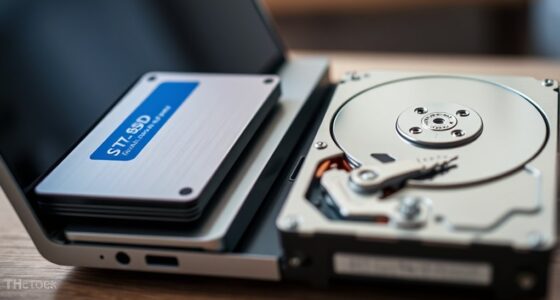
Beyond managing storage, hardware upgrades are vital for extending your laptop’s lifespan. Upgrading your RAM can make a noticeable difference in speed, especially if you often run multiple applications or work with demanding programs. Increasing your RAM allows your laptop to handle more tasks simultaneously without slowing down. Upgrading to a solid-state drive (SSD) is another game-changer. SSDs provide faster read and write speeds compared to traditional hard drives, greatly reducing boot times and application load times. If your laptop’s hardware is aging and feels sluggish, these upgrades can breathe new life into it, making it feel almost new again. Additionally, being aware of your hardware specifications can help you determine which upgrades will be most effective. Regularly reviewing your hardware details can also help you stay informed about compatibility and potential upgrade options. Monitoring your system resources can help you identify processes that unnecessarily consume resources and slow down your device. Keeping an eye on performance metrics can provide insights into how your system is functioning and where improvements are needed. To further optimize performance, adjusting your system settings for best performance can make a significant difference.
Upgrading RAM and switching to an SSD can dramatically boost your laptop’s speed and longevity.
Another tip is to keep your software up to date. Developers regularly release updates that enhance performance, fix bugs, and improve security. Neglecting these updates can leave your system vulnerable and sluggish. Also, be mindful of the programs you install. Only keep applications you genuinely use, and uninstall the rest. Excess software can run background processes that eat up resources, slowing down your laptop. Running regular malware scans and cleaning up unnecessary startup programs will also help maintain peak performance. Additionally, being aware of system resource management can help you identify and address hidden processes that may be slowing your device. Finally, taking care of your laptop physically by keeping it clean and free of dust—especially around vents—can prevent overheating, which is a common cause of performance drops.

Crucial 32GB DDR5 RAM Kit (2x16GB), 5600MHz (or 5200MHz or 4800MHz) Laptop Memory 262-Pin SODIMM, Compatible with Intel Core and AMD Ryzen 7000, Black – CT2K16G56C46S5
- Memory Capacity: 32GB DDR5 RAM Kit (2x16GB)
- Memory Speed: 5600MHz, 5200MHz, or 4800MHz
- Performance Boost: Enhances multitasking and responsiveness
As an affiliate, we earn on qualifying purchases.
As an affiliate, we earn on qualifying purchases.
Frequently Asked Questions
How Often Should I Upgrade My Laptop’s Hardware Components?
You should consider upgrading your laptop’s hardware components every 3 to 5 years, depending on its hardware lifespan and your usage needs. If you notice performance issues or your tasks demand more power, increase upgrade frequency. Regularly assess your laptop’s performance, and don’t wait too long to upgrade critical parts like RAM or SSD. Staying proactive guarantees your laptop remains fast and efficient for years.
Can Using Antivirus Software Slow Down My Laptop?
Antivirus impact can cause system slowdown if the software runs intensive scans or updates in the background. While essential for security, some antivirus programs may consume significant resources, reducing your laptop’s speed. To minimize this, choose lightweight antivirus solutions, schedule scans during idle times, and keep your software updated. Doing so helps you stay protected without sacrificing performance, ensuring your laptop remains fast and responsive over the years.
Is It Better to Keep My Laptop Plugged in or Run on Battery?
It’s better to keep your laptop plugged in when possible, especially to maintain ideal battery health and support effective power management. Running on battery frequently can wear it down faster over time. However, occasionally unplugging helps calibrate the battery, but prolonged use on battery may degrade performance. To keep your laptop fast, balance between plugged-in power and battery use, ensuring proper power management and preserving battery health.
Do Cleaning My Laptop’s Interior Improve Performance?
Cleaning your laptop’s interior can improve performance by removing internal dust that blocks airflow and causes overheating. Use compressed air to blow out dust from fans and vents gently. Reapplying thermal paste between the CPU and heatsink helps maintain *ideal* heat transfer, preventing thermal throttling. Regular cleaning keeps temperatures low, boosts efficiency, and prolongs your laptop’s lifespan, ensuring it stays fast and responsive over the years.
How Can I Identify Which Programs Are Slowing Down My Laptop?
Think of your laptop as a busy highway; background processes and startup programs are like traffic jams slowing everything down. To identify the culprits, open Task Manager or Activity Monitor. Look for programs hogging resources—high CPU, memory, or disk usage. End unnecessary background processes or disable unwanted startup programs. This clears your digital traffic, letting your laptop run smoothly, like a well-oiled machine, ensuring speed stays in your lane for years.

KingSpec 512GB 2.5 SSD SATA III Internal – 550MB/s Read, 520MB/s Write with 3D NAND Flash, for Laptop & Desktop PC Upgrade
- High-Speed Data Transfer: Up to 550MB/s read and 520MB/s write
- Durable and Shockproof: Resistant to drops and shocks
- Quiet and Energy Efficient: Low noise and low power consumption
As an affiliate, we earn on qualifying purchases.
As an affiliate, we earn on qualifying purchases.
Conclusion
By following these simple tips, you can keep your laptop running smoothly for years to come. Regular maintenance, such as cleaning your disk and updating software, prevents unnecessary slowdowns. Remember, a well-maintained device not only saves you time but also enhances your productivity. So, why settle for a sluggish laptop when you can keep it fast and efficient? After all, isn’t a smooth-running device worth the small effort?

Keyboard Cleaner, 10 Pcs Mini Anti Static Laptop Cleaning Kit
- Pack Size: 10 mini anti-static keyboard brushes
- Multi-Scene Use: Suitable for keyboards, electronics, small spaces
- Cost-Effective: Includes backup brushes for long-term use
As an affiliate, we earn on qualifying purchases.
As an affiliate, we earn on qualifying purchases.
![Norton 360 Premium, Antivirus software for 10 Devices with Auto-Renewal – Includes Advanced AI Scam Protection, VPN, Dark Web Monitoring & PC Cloud Backup [Download]](https://m.media-amazon.com/images/I/51v9jAYtYuL._SL500_.jpg)
Norton 360 Premium, Antivirus software for 10 Devices with Auto-Renewal – Includes Advanced AI Scam Protection, VPN, Dark Web Monitoring & PC Cloud Backup [Download]
- Device Compatibility: Protects 10 devices including PC, Mac, iOS, Android
- Instant Protection: Download and install in minutes
- AI Scam Detection: Advanced AI helps identify scams
As an affiliate, we earn on qualifying purchases.
As an affiliate, we earn on qualifying purchases.