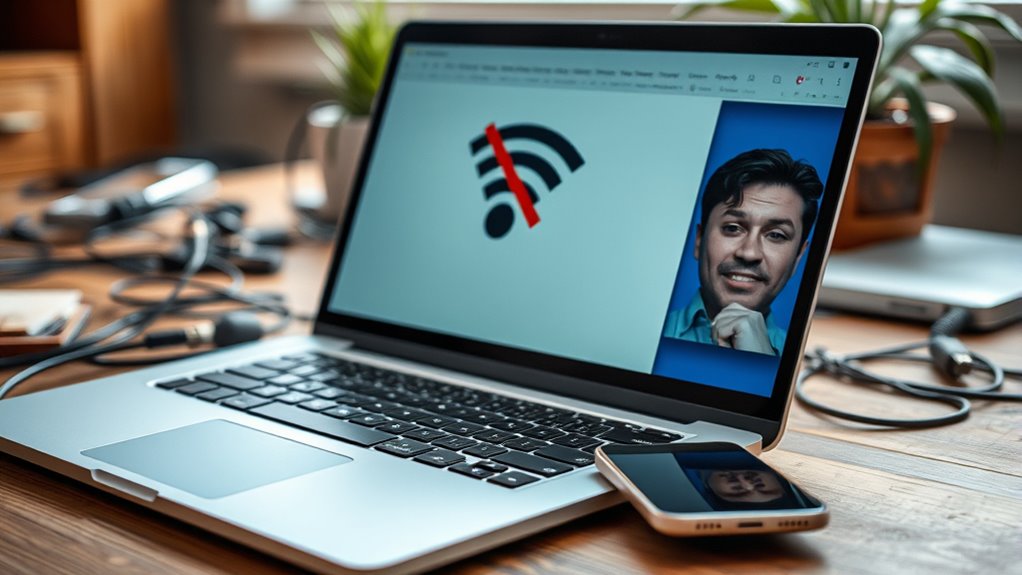
If your laptop won’t connect to Wi-Fi, first make sure you’re on the right network and enter the correct password. Restart your router to clear glitches and update its firmware if needed. Check that your network adapter drivers are current and enable DHCP settings for automatic IP assignment. Keep your device away from interference sources like electronics or projectors, and position your router for maximum signal strength. For more detailed solutions, there’s helpful information just ahead.

Get the latest gadgets delivered free — and shop member deals
- Fast, free delivery on millions of items
- Access to Prime Big Deal Days deals on October 6–7
- Prime Video, Amazon Music and more included
Key Takeaways
- Verify your Wi-Fi network is secure, functioning properly, and that your device has the correct network name and password.
- Restart your router and check for firmware updates to resolve potential glitches or outdated software.
- Ensure DHCP is enabled on your router to allow automatic IP address assignment for your laptop.
- Update your laptop’s network adapter drivers to fix compatibility issues and improve connectivity.
- Minimize interference by placing the router away from electronics like projectors and confirming optimal signal placement.
If your laptop refuses to connect to Wi-Fi, it can be frustrating and disruptive. You might feel stuck, especially when you rely on the internet for work, communication, or entertainment. The good news is that many connectivity issues are fixable with some basic troubleshooting. One common cause could be network security settings or router configuration problems that prevent your device from establishing a connection. Understanding how these factors work can help you identify and resolve the problem quickly.
First, check if your Wi-Fi network is secure and functioning properly. Sometimes, network security settings, such as WPA2 or WPA3 encryption, can cause compatibility issues if your laptop’s network adapter isn’t updated or configured correctly. To troubleshoot, ensure you’re selecting the right network and entering the correct password. If you recently changed your Wi-Fi password, make sure your laptop has the updated credentials saved. Also, verify that your router’s security settings aren’t overly restrictive, which could block new devices from connecting. If necessary, access your router’s configuration page via a browser—usually by typing the router’s IP address—and review the security options. Confirm that the network isn’t hiding or set to restrict access based on device MAC addresses unless you intend it to do so.
Router configuration can also be a culprit. Sometimes, routers need a quick reset or an update to resolve connectivity issues. Restart your router by unplugging it, waiting for about 30 seconds, then plugging it back in. This simple step often clears glitches that may interfere with your connection. If restarting doesn’t work, check your router’s firmware—outdated firmware can cause connection troubles. Updating it through the router’s admin page can improve compatibility with your laptop. Additionally, ensure that your router’s DHCP (Dynamic Host Configuration Protocol) is enabled; this allows it to assign IP addresses automatically to devices like your laptop. If DHCP is disabled, your device might not get a valid IP address, preventing connection. Finally, consider resetting your router to factory settings if you suspect misconfiguration, but remember this will erase custom settings like your Wi-Fi name and password, so you’ll need to reconfigure those afterward.
To further troubleshoot, ensure your network adapter drivers are up-to-date, as outdated drivers can also lead to connection issues. Home theatre projectors can sometimes interfere with Wi-Fi signals if placed too close to your router, so consider their location if you’re experiencing persistent connectivity problems.
Wi-Fi network adapter for laptops
As an affiliate, we earn on qualifying purchases.
As an affiliate, we earn on qualifying purchases.
Frequently Asked Questions
How Do I Reset My Wi-Fi Adapter?
To reset your Wi-Fi adapter and troubleshoot connectivity, go to your Control Panel and open Network & Internet settings. Select “Network and Sharing Center,” then click on “Change adapter settings.” Right-click your Wi-Fi adapter and choose “Disable,” wait a few seconds, then right-click again and select “Enable.” This resets the adapter, often fixing connection issues. If problems persist, restart your router and try reconnecting.
Why Is My Wi-Fi Slow Even When Connected?
Think of your Wi-Fi like a garden hose; if the connection is slow, it’s often due to weak signal strength. You might have placed your router in a corner or behind furniture, blocking the signal. To fix this, move your router to a central, open spot to improve coverage. Ensuring ideal router placement boosts Wi-Fi speed, so your connection stays fast and reliable, even when many devices are connected.
Can Malware Cause Wi-Fi Connection Issues?
Yes, malware can cause Wi-Fi connection issues. It may interfere with your network settings or consume bandwidth, slowing down your connection. Antivirus interference might also block or restrict access to certain network features. To fix this, run a malware removal scan with trusted software and make certain your antivirus isn’t overly restrictive. Removing malware restores normal network function and prevents future connection problems.
How Do I Change My Wi-Fi Network Password?
Think of your Wi-Fi network as a secret garden—only accessible with the right key. To change your Wi-Fi network password, log into your router’s admin panel, usually by entering its IP address in your browser. Navigate to the wireless or security settings, then update your password for better network security. If you forget it, use password recovery options to regain access, ensuring your connection remains safe and secure.
Why Won’t My Laptop Connect After a System Update?
Your laptop might not connect after a system update because the network driver could be outdated or incompatible. Try updating your network driver through Device Manager or visiting your manufacturer’s website. If that doesn’t work, consider performing a system rollback to revert to the previous update, which might resolve driver conflicts. Once you do this, restart your laptop and see if the Wi-Fi connection stabilizes.
As an affiliate, we earn on qualifying purchases.
Conclusion
Don’t let a Wi-Fi connection issue ruin your day—you’re more than capable of fixing it! With these simple steps, you’ll be back online faster than you can say “internet hero.” Remember, your laptop’s Wi-Fi problem isn’t a life-or-death situation; it’s just a tiny glitch in an otherwise smooth digital world. Stay patient, follow these tips, and soon enough, you’ll be surfing the web at lightning speed—like a tech wizard in action!
Ethernet cable for laptop connection
As an affiliate, we earn on qualifying purchases.
As an affiliate, we earn on qualifying purchases.
As an affiliate, we earn on qualifying purchases.
Fall Picks
fall essentials
As an affiliate, we earn on qualifying purchases.