
To fix lip sync problems between your TV and speakers, start by adjusting the audio delay or lip sync setting on your TV or soundbar, which can usually be found in the audio or sound menu. If that doesn’t work, check your external devices like streaming boxes or gaming consoles for processing delays and update their firmware. Using high-quality cables and ensuring secure connections also helps. For more precise control and lasting fixes, exploring detailed calibration options can make a big difference.
Key Takeaways
- Use your TV or soundbar’s built-in “audio delay” or “lip sync” settings to manually adjust audio timing.
- Check and update firmware on all connected devices to ensure optimal processing and compatibility.
- Use high-quality HDMI cables and secure connections to minimize signal delays.
- Identify if external devices like streaming boxes or gaming consoles cause lag, and adjust their settings accordingly.
- Perform regular maintenance, including resetting devices and inspecting cables, to prevent and resolve lip sync issues.

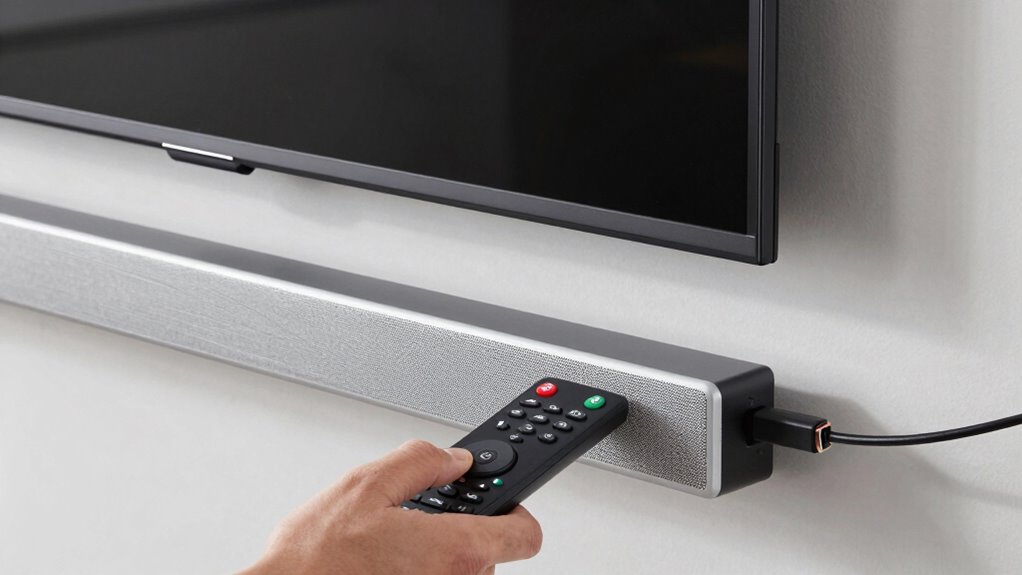
Lip sync problems can be frustrating, especially when the audio and video don’t match up perfectly. It’s a common issue that can disrupt your viewing experience, but the good news is that you can often fix it yourself. The first step is to understand that audio calibration plays a key role in resolving these issues. If your TV or sound system isn’t properly calibrated, it can cause the audio and video to drift out of sync. Many modern TVs and soundbars have built-in settings to help you adjust this, so it’s worth exploring your device’s menu to find options like “audio delay” or “lip sync adjustment.” By fine-tuning these settings, you can align the sound with the picture more precisely.
Adjust your TV or sound system’s audio delay settings to fix lip sync issues effectively.
Signal delay is another common culprit behind lip sync problems. Signal delay happens when there’s a lag introduced by external devices like streaming boxes, gaming consoles, or AV receivers. These devices process audio and video signals differently, which can lead to noticeable delays in one or the other. To combat this, you need to identify where the delay is occurring and then adjust accordingly. Many TVs and receivers let you manually set an audio delay to compensate for this lag. If you notice that the audio is consistently behind the video, increasing the delay setting should bring things back into sync. Conversely, if the sound is ahead, reducing the delay can help. Understanding the processing differences between devices can help you troubleshoot more effectively.
Sometimes, the problem stems from the source device itself. Streaming services, for example, might introduce their own buffering delays, causing a mismatch. In such cases, restarting your device or updating its firmware can sometimes resolve the issue. Additionally, ensure that your HDMI cables are high quality and securely connected, as poor connections can contribute to signal delays. Using high-quality HDMI cables can reduce the chances of signal processing delays. If you’re using multiple devices connected via HDMI, try to minimize the number of connections or use an HDMI splitter designed to reduce latency. Furthermore, understanding how audio and video signals are processed can help you troubleshoot more effectively. It is also helpful to be aware that water-related device issues, such as moisture or corrosion, can sometimes interfere with signal quality. Regularly inspecting and maintaining your equipment can prevent many of these problems before they arise.
If you’ve tried adjusting settings and still face lip sync problems, consider resetting your TV and external devices to their factory defaults. This can clear out any misconfigured settings that might be causing the issue. Ultimately, fixing lip sync problems involves a bit of trial and error, but understanding how audio calibration and signal delay influence your setup puts you in control. With patience and some adjustments, you can enjoy seamless audio and video, making your viewing experience much more enjoyable.
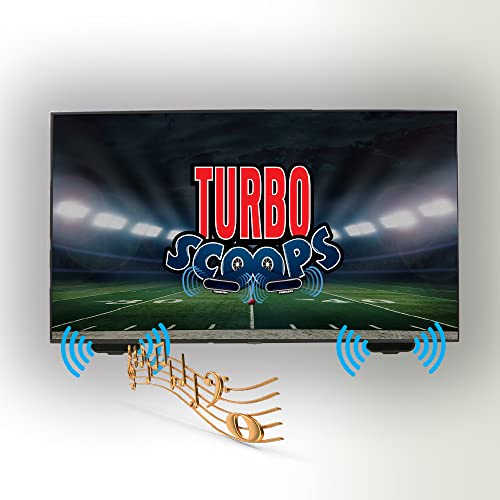
KARE TurboScoops – TV Sound Redirector for Flat Screens with Down-Facing Speakers, Directs Audio for Clear Listening, Ideal Sound Bar Alternative | Black
- Crystal Clear Audio: Redirects sound for clear dialogue
- Universal Compatibility: Fits most TVs with down-firing speakers
- Easy Installation: No tools, peel-and-stick setup in 5 minutes
As an affiliate, we earn on qualifying purchases.
As an affiliate, we earn on qualifying purchases.
Frequently Asked Questions
Can Lip Sync Issues Occur With Streaming Devices Only?
Lip sync issues can happen with streaming devices, but they’re not limited to them. You might experience audio delay caused by streaming compatibility or the device’s processing time. These problems can also occur with cable boxes, Blu-ray players, or gaming consoles. To fix this, check your device settings for audio delay options or update firmware. Ensuring all devices are compatible and properly configured can help eliminate lip sync problems.
Do All TVS Have Adjustable Audio Delay Settings?
Many TVs modestly modify their menus, making adjustable audio delay settings accessible. You can fine-tune picture synchronization, smoothing out sound and visuals. However, not all models possess these precise settings, so it’s wise to check your TV’s user manual or settings menu. If adjustable audio delay isn’t available, external devices or soundbars often provide dedicated options to help harmonize audio delay and achieve perfect picture synchronization.
How Do I Know if My Speakers Are Causing the Sync Problem?
You can tell if your speakers are causing the sync problem by performing an audio calibration test. Play a scene with clear lip movements and listen carefully. If the lips seem out of sync, check your speaker placement—they should be positioned for ideal sound. Adjust the audio delay settings on your TV if available. Proper speaker placement and calibration often resolve lip sync issues caused by speaker delays.
Is It Better to Fix the Issue via Hardware or Software?
Think of fixing your lip sync issue as tuning a delicate instrument—both hardware troubleshooting and software updates play essential roles. Usually, software updates act like a conductor, fine-tuning the system’s timing, while hardware troubleshooting addresses the physical drumbeat that drives your audio. Starting with software updates often offers quicker fixes, but if problems persist, explore hardware checks. Combining both approaches ensures your audio and visuals dance in perfect harmony.
Can Remote Control Settings Affect Lip Sync Accuracy?
Yes, remote control settings can affect lip sync accuracy. Remote interference might cause accidental adjustments or signal disruptions, impacting audio calibration. If your remote’s settings are off, they could interfere with the TV’s audio processing, leading to mismatched lip movements. To fix this, check for remote interference, reset or recalibrate your audio settings, and guarantee no accidental adjustments are affecting the synchronization. Proper calibration helps maintain accurate lip sync.
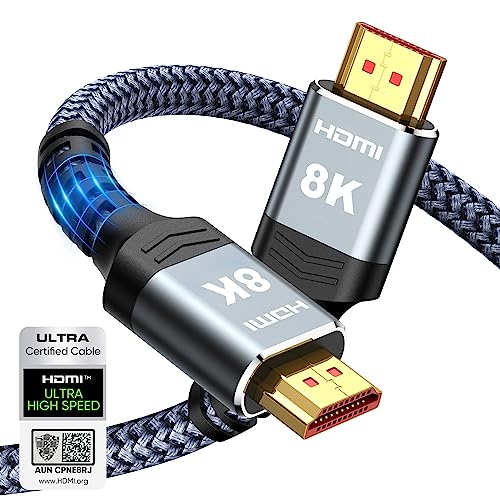
Highwings 8K 10K 4K HDMI Cable 48Gbps 6.6FT/2M, Certified Ultra High Speed
- Supports 8K@60Hz and 4K@120Hz: Displays ultra-high resolution and smoothness
- 48Gbps Data Transfer Speed: Ensures no dropped frames during playback
- Backward Compatible: Works with HDMI 2.0 and earlier versions
As an affiliate, we earn on qualifying purchases.
As an affiliate, we earn on qualifying purchases.
Conclusion
Now that you know how to troubleshoot and fix lip sync issues, you’re all set to enjoy seamless audio-visual harmony. Think of your TV and speakers as a well-choreographed dance—when they move in sync, everything flows smoothly. With a few simple adjustments, you’ll prevent those awkward moments where your lips and words don’t quite match. Say goodbye to disjointed viewing and hello to a perfectly synchronized showtime—your entertainment experience just got a whole lot better.

LINDY Lip Sync Corrector (70449)
- Adjustable audio delay: 0 to 300ms with 8 settings
- Input ports: 2 x L/R stereo phono
As an affiliate, we earn on qualifying purchases.
As an affiliate, we earn on qualifying purchases.

SANDISK 1TB Portable SSD – Up to 800MB/s, USB-C, USB 3.2 Gen 2, Updated Firmware – External Solid State Drive – SDSSDE30-1T00-G26
- High-speed Data Transfer: Up to 800MB/s read speeds
- Portable Storage Solution: Fits seamlessly into mobile lifestyle
- Durable and Drop-resistant: Up to two-meter drop protection
As an affiliate, we earn on qualifying purchases.
As an affiliate, we earn on qualifying purchases.