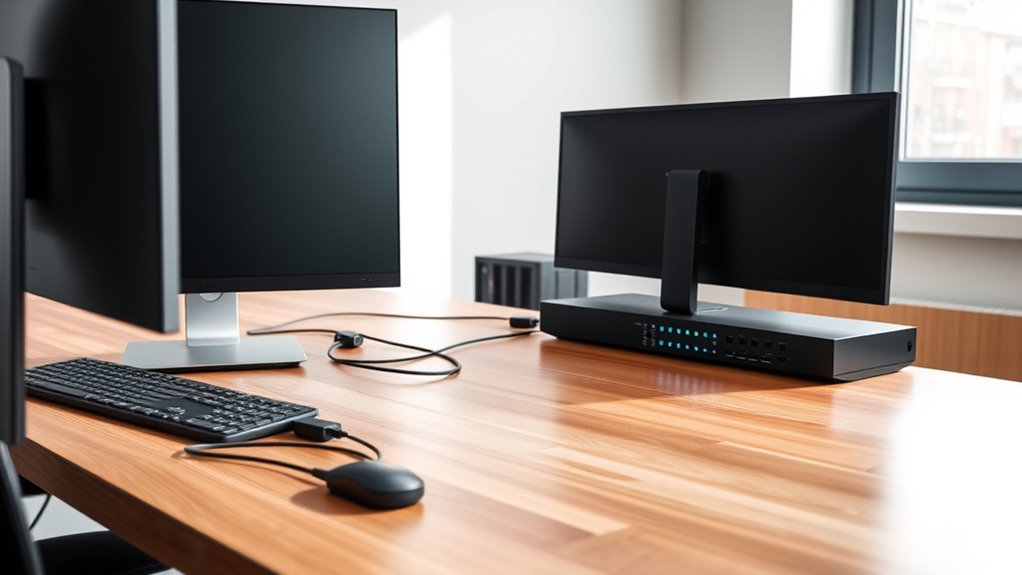

If you’re looking to simplify your workspace in 2025, I recommend exploring the top 14 KVM switches. These options include USB 3.0 HDMI models for 2 computers, dual-monitor switches supporting 4K and even 8K resolutions, and versatile units like the Unitek or UGREEN switches that handle multiple peripherals. Whether you need seamless switching, high-resolution support, or multi-monitor setups, there’s a solution for you. Keep exploring to find the perfect fit for your needs.
Key Takeaways
- The article reviews the top KVM switches of 2025, highlighting features like high resolutions, multi-monitor support, and device compatibility.
- It categorizes switches by types, including USB HDMI, dual-monitor, and high-end models with advanced functions.
- Key switching methods such as physical buttons, remote controls, and hotkeys are explained for user convenience.
- The list covers peripherals sharing capabilities, including USB ports for fast data transfer and device management.
- Compatibility with various operating systems and devices ensures seamless integration into diverse workspace setups.
USB 3.0 HDMI KVM Switch for 2 Computers and Monitor Sharing
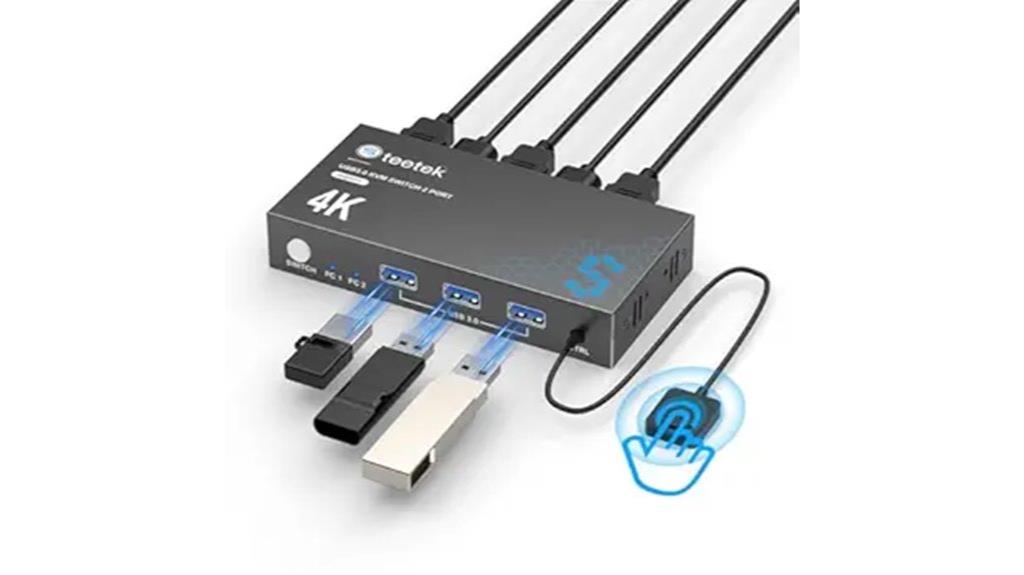
If you’re looking for a reliable way to switch between two computers using a single monitor, keyboard, and mouse, the USB 3.0 HDMI KVM switch is an excellent choice. It controls two devices, supporting a variety of input sources like PCs, laptops, and even PS4, with compatibility for Windows, Linux, and Mac. The switch offers 4K resolution at 60Hz, ensuring sharp visuals, and includes three USB 3.0 ports for fast data transfer. Setup is simple—no drivers needed—and it features both push-button and remote switching options. Plus, its auto-detect function guarantees stable image quality, making multitasking seamless and efficient.
Best For: professionals and gamers who need seamless switching between multiple computers and high-quality visuals on a single monitor.
Pros:
- Supports 4K resolution at 60Hz with HDCP 2.2 for protected content.
- Includes three USB 3.0 ports for fast data transfer up to 5Gbps.
- Easy plug-and-play setup with both button and remote switch options for convenience.
Cons:
- Limited to two computers; not suitable for setups requiring more devices.
- No built-in power supply, which may affect performance with some peripherals.
- May require additional cables or adapters for certain devices or configurations.
Hdmi KVM Switch for Dual Monitors and Computers
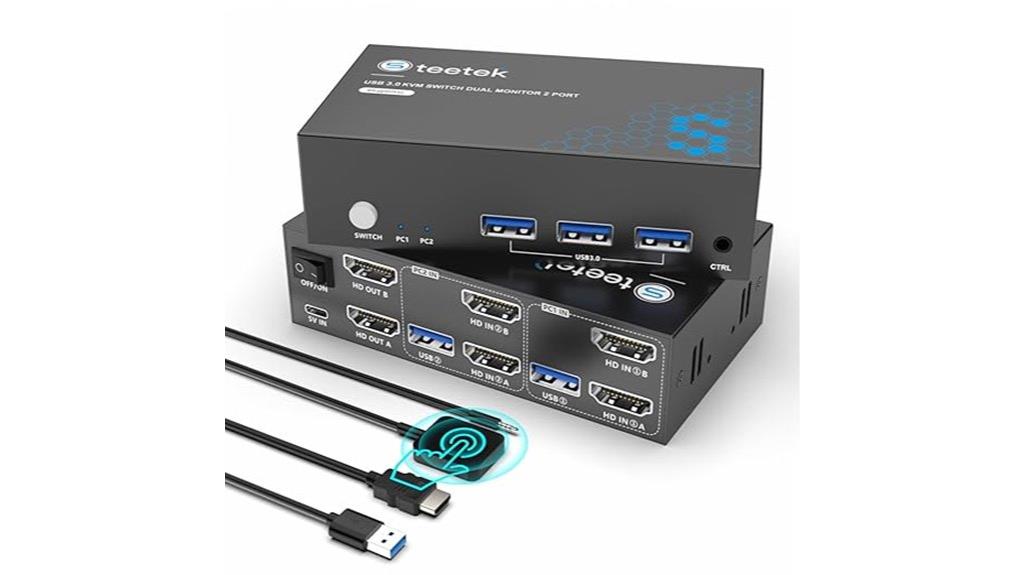
The HDMI KVM Switch for Dual Monitors and Computers stands out as the perfect solution for professionals and gamers who need seamless multi-system management. It supports two monitors and two computers, sharing peripherals effortlessly. With dual HDMI ports, it delivers crisp 4K@60Hz visuals and automatically matches display settings for ideal performance. Its three USB 3.0 ports enable quick sharing of keyboards, mice, and other devices, recognized instantly across systems. The switch offers convenient control via a button or remote, with plug-and-play setup that needs no extra drivers or power supply. Overall, it simplifies switching between multiple systems while maintaining high-quality visuals and device compatibility.
Best For: professionals and gamers who require seamless management of multiple computers and high-quality dual-monitor setups in a compact, easy-to-use device.
Pros:
- Supports ultra-high-definition 4K@60Hz visuals for crisp, detailed displays
- Compatible with a wide range of operating systems and gaming consoles
- Easy plug-and-play setup with multiple switching options, no drivers needed
Cons:
- Requires six HDMI 2.0 cables for full installation, which may be additional cost and setup effort
- Limited to two computers and two monitors, not suitable for larger multi-system setups
- No built-in power supply, potentially limiting performance with certain peripherals
USB3.0 KVM Switch HDMI 4K@60Hz for 4 Computers

For professionals who need to manage multiple computers with a single monitor and input devices, the USB3.0 KVM Switch HDMI 4K@60Hz for 4 Computers offers a reliable, high-performance solution. It supports four computers sharing one 4K display at 60Hz, ensuring crisp visuals and smooth motion. The switch uses a simple button for quick toggling, making alternation seamless. With three USB 3.0 ports, you can easily share peripherals like keyboards, mice, or drives across all systems. It’s plug-and-play, includes all necessary cables, and is compatible with various resolutions, providing an efficient, hassle-free workspace management experience.
Best For: professionals and office users who need to efficiently manage multiple computers with a single high-resolution monitor and input devices.
Pros:
- Supports 4K@60Hz resolution, ensuring sharp visuals and smooth motion for high-quality displays.
- Easy to switch between computers via a convenient button, enhancing workflow efficiency.
- Includes multiple USB 3.0 ports for seamless sharing of peripherals like keyboards, mice, and drives.
Cons:
- Does not support hotkey switching, limiting quick toggling options.
- Requires physical button operation, which may be less convenient in some setups.
- Limited to four connected computers; not suitable for larger multi-system environments.
Unitek HDMI KVM Switch for Dual Monitors and Computers
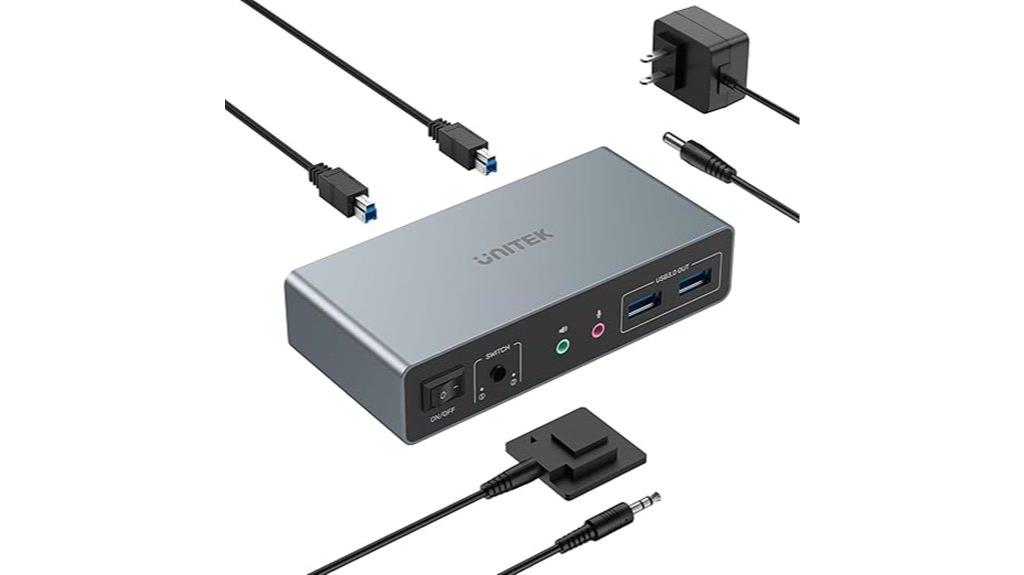
Anyone needing to seamlessly manage dual computers with high-quality visuals will find the Unitek HDMI KVM Switch an excellent choice, especially since it supports 4K@60Hz resolution and multiple USB devices. Designed for desktops, it connects two HDMI sources to two monitors and shares a keyboard, mouse, and three USB 3.0 peripherals. Its compatibility spans Windows, Mac, Linux, and PS4, though not laptops. The switch offers both one-button and remote control options for easy toggling, while supporting HDMI and DisplayPort outputs. With plug-and-play setup, a stable power supply, and high-resolution support, it simplifies your workspace without sacrificing performance.
Best For: users seeking a high-quality, seamless dual-computer setup with 4K visuals and multiple USB device connectivity for desktop environments.
Pros:
- Supports 4K@60Hz resolution for crisp, vibrant visuals.
- Easy plug-and-play installation with both one-button and remote control switching.
- Compatible with multiple operating systems including Windows, Mac, Linux, and PS4, supporting various USB peripherals.
Cons:
- Not compatible with laptops; designed primarily for desktop use.
- Requires external power supply for stable operation, especially with high-power USB devices.
- Limited to HDMI and DisplayPort outputs, needing additional cables for certain setups.
8K HDMI KVM Switch for 2 Monitors and Computers
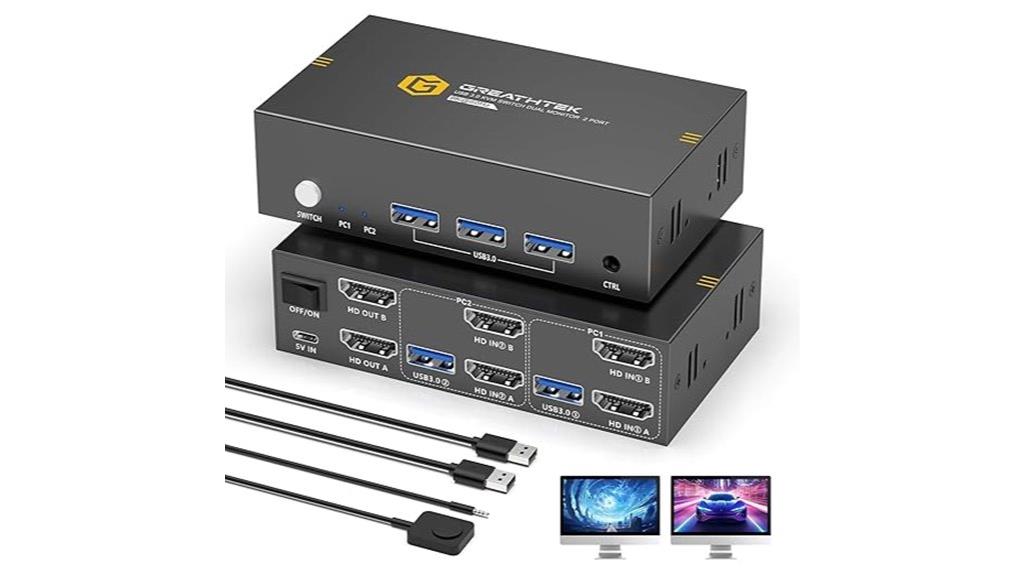
Looking to streamline your multi-monitor setup across two computers without the hassle of constant plugging and unplugging? The K HDMI KVM Switch handles 2 monitors and computers with a single keyboard and mouse, making switching effortless. It supports stunning 8K@60Hz visuals and is compatible with Windows, Mac, and Linux—no drivers needed. With three USB 3.0 ports, you can share devices like drives and cameras seamlessly. It offers both button and remote switching, plus adaptive EDID for stable display quality. Just connect your devices, and you’re ready to switch between computers instantly—no clutter, no fuss. Perfect for maximizing productivity and simplifying complex setups.
Best For: professionals and enthusiasts seeking a high-performance, multi-monitor, multi-device setup with effortless switching and stunning visual quality.
Pros:
- Supports ultra-high-definition 8K@60Hz visuals for crystal-clear detail and immersive experience
- Compatible with Windows, Mac, and Linux without the need for drivers, ensuring easy plug-and-play setup
- Includes multiple USB 3.0 ports for sharing peripherals like drives, cameras, and accessories seamlessly
Cons:
- Does not support hotkey switching, which may be less convenient for some users
- Requires high-quality HDMI 2.1 cables for optimal 8K@60Hz performance, potentially increasing setup costs
- Limited to two computers and two monitors, which may not suit larger multi-device configurations
UGREEN USB 3.0 Switch for Two Computers
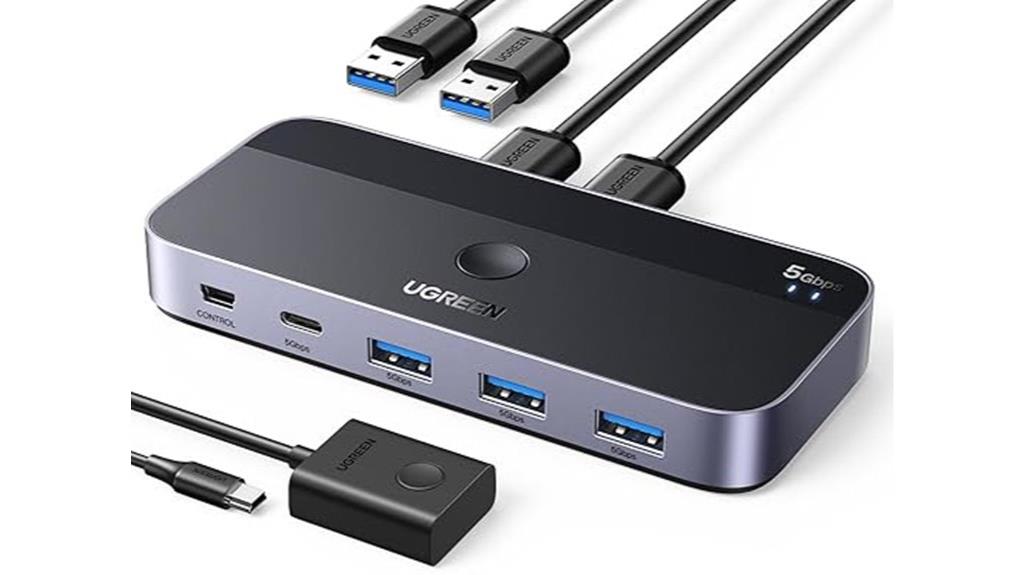
The UGREEN USB 3.0 Switch for Two Computers is an ideal choice for users who need to share multiple USB devices seamlessly between two systems. It allows sharing four devices, like keyboards, mice, printers, and headphones, with one USB-C and three USB-A ports. While it’s not a KVM switch and doesn’t transmit video, it supports fast data transfer up to 5Gbps and works across Windows, macOS, Chrome OS, and Linux. The switch offers two modes—button and remote control—for easy device switching. An optional USB-C power port helps maintain stability during high-power device use, ensuring reliable performance.
Best For: users who need to efficiently share multiple USB devices between two computers without requiring video or monitor sharing.
Pros:
- Supports fast data transfer speeds up to 5Gbps for efficient device operation.
- Compatible with multiple operating systems including Windows, macOS, Chrome OS, and Linux.
- Offers flexible switching options via button or remote control for convenience.
Cons:
- Does not transmit video signals, so it cannot be used as a KVM switch.
- Ports are designated for data transfer only and do not support device charging.
- Requires an optional USB-C power supply for stable operation with high-power devices.
UGREEN HDMI KVM Switch for 2 Monitors and Computers
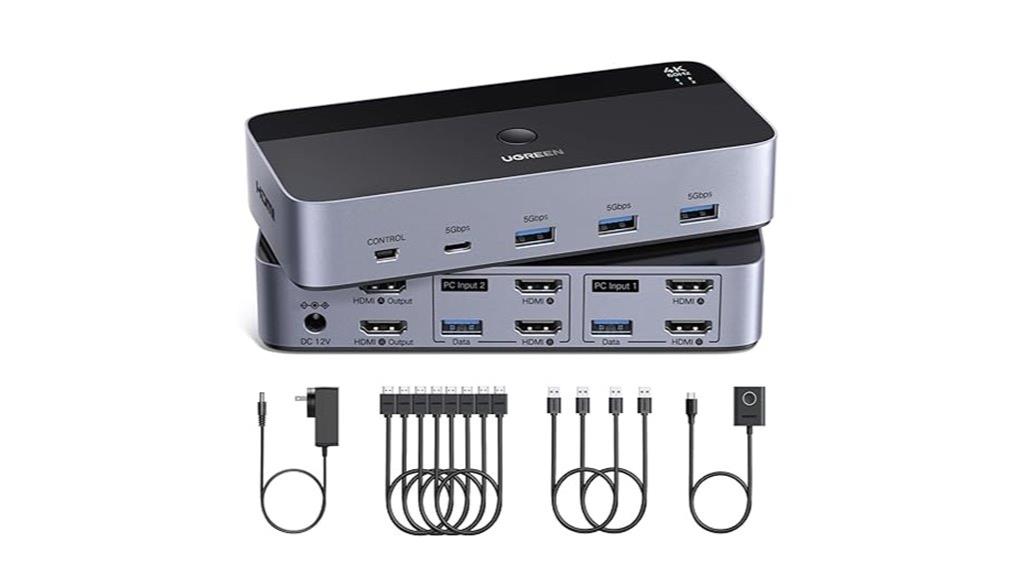
For professionals or gamers needing to manage two computers with multiple high-resolution displays, the UGREEN HDMI KVM Switch for 2 Monitors and Computers provides a simple, reliable solution. It allows you to control both machines with one keyboard, mouse, and dual monitors, supporting extend and mirror modes. It’s plug-and-play, no drivers required, and works with Windows, MacOS, Linux, and HDMI devices like gaming consoles and media players. Supporting up to 4K@60Hz, it delivers vivid, sharp images. With four USB 3.0 ports, you can share peripherals easily. Switching is seamless via buttons or a desktop controller, making multitasking smooth and efficient.
Best For: professionals and gamers who need to efficiently manage two computers with multiple high-resolution displays and peripherals.
Pros:
- Supports 4K@60Hz for vivid, sharp image quality across dual monitors
- Plug-and-play design requires no software or drivers, simplifying setup
- Four USB 3.0 ports facilitate fast sharing of peripherals like keyboard, mouse, and drives
Cons:
- Cannot output both monitors simultaneously; only one computer display at a time
- Requires each computer to have 2 HDMI ports and 1 USB-A port for full functionality
- Hotkey switching is not supported, only button and desktop controller options
USB 3.0 KVM Switch for 2 PCs with HDMI and USB Ports
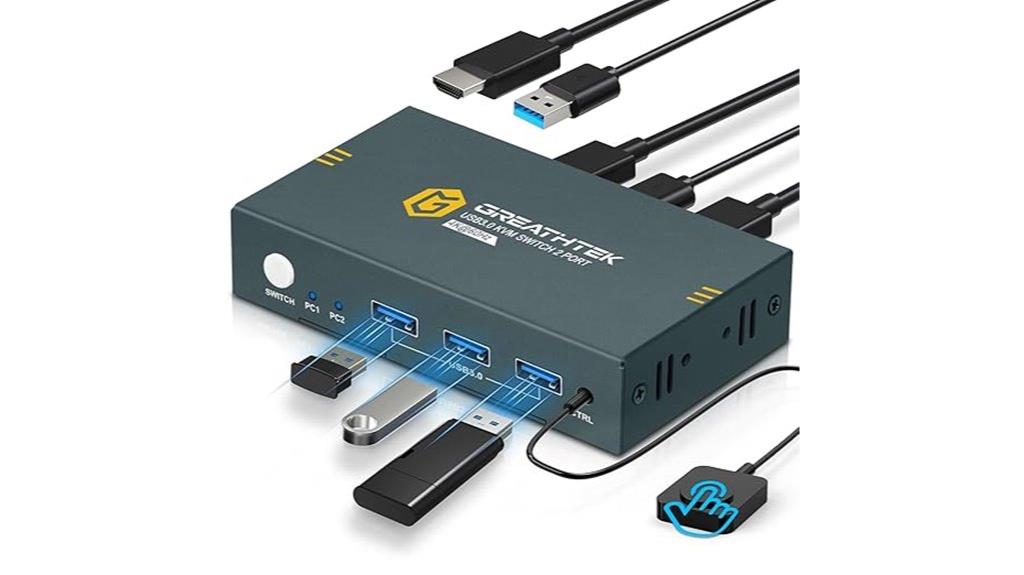
If you’re managing two PCs and need a seamless way to switch between them using a single monitor and peripherals, the USB 3.0 KVM Switch with HDMI and USB ports is an excellent choice. It allows you to control two computers with one monitor, keyboard, mouse, and other USB devices, supporting up to three USB 3.0 peripherals. It delivers 4K video resolution at 60Hz, ensuring sharp visuals, and is compatible with Windows, Linux, Mac, and even PS4. Switching is straightforward via a wired remote or button—hotkey switching isn’t supported. Installation is plug-and-play, with included cables, making setup quick and easy.
Best For: users who need to switch seamlessly between two computers with a single monitor and multiple USB peripherals, including gamers, office workers, and tech enthusiasts.
Pros:
- Supports ultra HD 4K resolution at 60Hz for crisp, clear visuals
- Compatible with a wide range of systems including Windows, Linux, Mac, and PS4
- Plug-and-play setup with included cables for quick, easy installation
Cons:
- Does not support hotkey switching; only remote and button controls are available
- Requires three HDMI cables for connection, which may add to setup complexity
- Limited to controlling two PCs; not suitable for multi-device environments
AV Access KVM Switch Dock for 2 Monitors and 2 Laptops, Dual HDMI, 4K, 60W PD, Ethernet, EDID, 2K@144Hz & 1080P@240Hz

Designed for professionals and gamers who need seamless multitasking, the AV Access KVM Switch Dock excels with its dual HDMI outputs supporting 4K resolution at 60Hz and high refresh rates up to 240Hz for smooth visuals. It connects two laptops to two monitors via USB-C (MST) inputs, enabling easy switching with a front button in just a few seconds. The dock offers 12-in-1 connectivity, including Ethernet, USB ports, SD card reader, and headset jack. It supports 60W charging per laptop, EDID emulation, and automatic wake-up, making it perfect for productivity, gaming, and complex workflows without sacrificing performance or convenience.
Best For: professionals and gamers requiring seamless multitasking with dual monitors and high refresh rates, supporting efficient switching between two laptops.
Pros:
- Supports dual 4K@60Hz HDMI outputs and high refresh rates up to 240Hz for smooth visuals.
- Features comprehensive 12-in-1 connectivity including Ethernet, USB ports, SD card reader, and headset jack.
- Enables simultaneous charging of two laptops with 60W power delivery, EDID emulation, and quick automatic switching.
Cons:
- Not compatible with Mac OS for extended dual screen displays; only duplicate content.
- Does not support 5K monitors or resolutions beyond 4K, limiting certain high-end setups.
- Lacks support for adaptive sync technologies like FreeSync or G-SYNC.
4K HDMI KVM Switch for 2 Computers with Cables
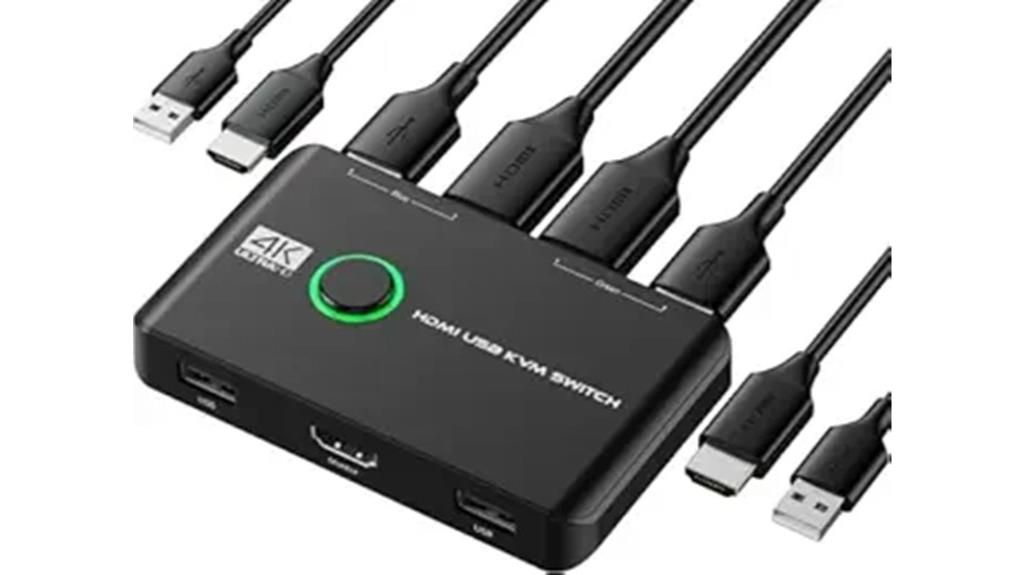
The K HDMI KVM Switch for 2 Computers with Cables is an excellent choice for users who need seamless control over two different systems without the hassle of unplugging and reconnecting devices. It allows you to manage two computers using a single monitor, keyboard, mouse, and printer effortlessly. Supporting UHD 4K@60Hz, it delivers vibrant, sharp images, perfect for work or entertainment. Switching is simple with a single button, and LED indicators show the active device. The switch is plug-and-play, compatible with various operating systems, and comes with all necessary cables. It’s ideal for offices, gaming setups, or multimedia environments where quick, reliable switching matters.
Best For: users who need a reliable, high-resolution switch to control two computers with a single set of peripherals in office, gaming, or multimedia setups.
Pros:
- Supports UHD 4K@60Hz for crisp, vibrant visuals
- Easy to switch between computers with a single button and LED indicators
- Plug-and-play design with included cables for quick, hassle-free setup
Cons:
- Limited to two computers; not suitable for multi-device setups beyond two
- No external power source required, which may limit some advanced features
- Compatibility may vary with very old or unique operating systems or devices
UGREEN 8K@60Hz DisplayPort KVM Switch for 2 Monitors and Computers

For professionals or power users managing multiple devices, the UGREEN 8K@60Hz DisplayPort KVM Switch offers an impressive solution with support for ultra-high-definition 8K video and dual-monitor setups. It manages two computers using one keyboard, mouse, and two monitors, with mirror and extend modes. It’s plug-and-play, compatible with Windows, MacOS, and Linux. Supporting 8K@60Hz, it also works with lower resolutions like 4K and 1080p. Four USB 3.0 ports enable sharing peripherals, and it requires an external power supply. Switching between computers is simple via buttons or a desktop controller, making it ideal for professional environments.
Best For: professionals and power users managing multiple devices who require high-resolution dual-monitor setups with easy switching and peripheral sharing.
Pros:
- Supports ultra HD 8K@60Hz resolution for crystal-clear video quality.
- Compatible with multiple operating systems including Windows, MacOS, and Linux.
- Features four USB 3.0 ports for sharing various peripherals and easy switching via buttons or desktop controller.
Cons:
- Requires an external power supply for proper operation.
- Monitors can only display video from one computer at a time, not both simultaneously.
- Does not support keyboard hotkey switching or EDID emulation, which may limit some advanced configurations.
Anker USB 3.0 HDMI KVM Switch with Remote
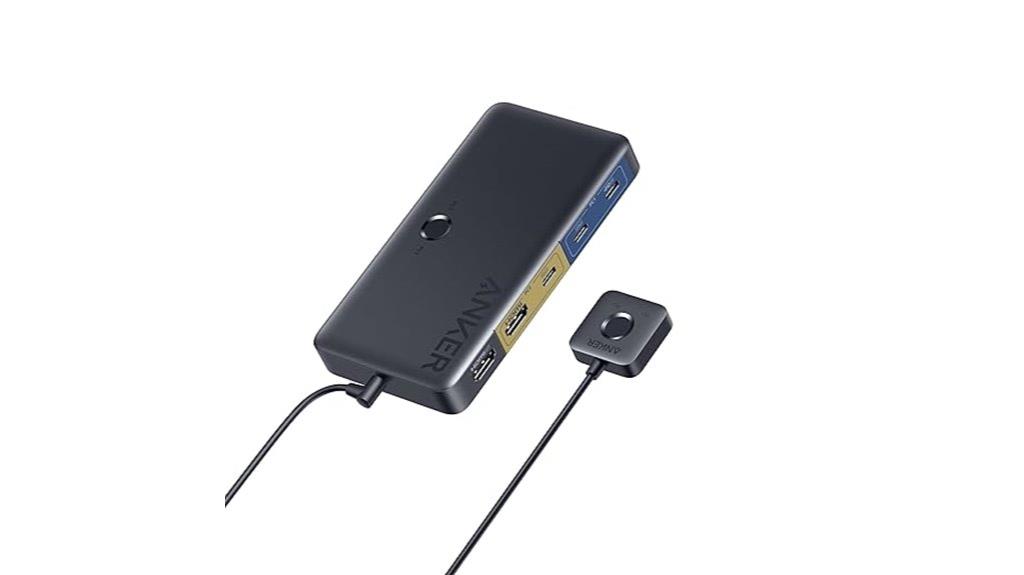
If you need a KVM switch that simplifies managing multiple devices without sacrificing video quality, the Anker USB 3.0 HDMI KVM Switch with Remote is an excellent choice. It delivers 4K@60Hz visuals, ensuring sharp, high-quality images, and offers fast data transfer via multiple USB ports. With 100W PD-IN, it also provides powerful charging for connected devices. Its two-way switch makes toggling between a laptop and desktop effortless, and the magnetic remote adds convenience. Compatible with Dell, MacBook, and iPad, this switch is perfect for streamlined workflows, combining high performance with user-friendly features in a compact design.
Best For: professionals and enthusiasts who need a seamless, high-quality multi-device setup with easy control and powerful charging capabilities.
Pros:
- Supports 4K@60Hz visuals for sharp, high-resolution video quality
- Multiple USB ports enable fast data transfer and device connectivity
- 100W PD-IN provides powerful charging for connected devices
Cons:
- Designed for use with one laptop and one desktop, not compatible with two USB-C laptops simultaneously
- Requires that your laptop’s USB-C port supports DisplayPort alt mode and Power Delivery for full functionality
- May not be suitable for users needing independent switching between two laptops without a desktop setup
UGREEN HDMI KVM Switch for 2 Computers with Cables
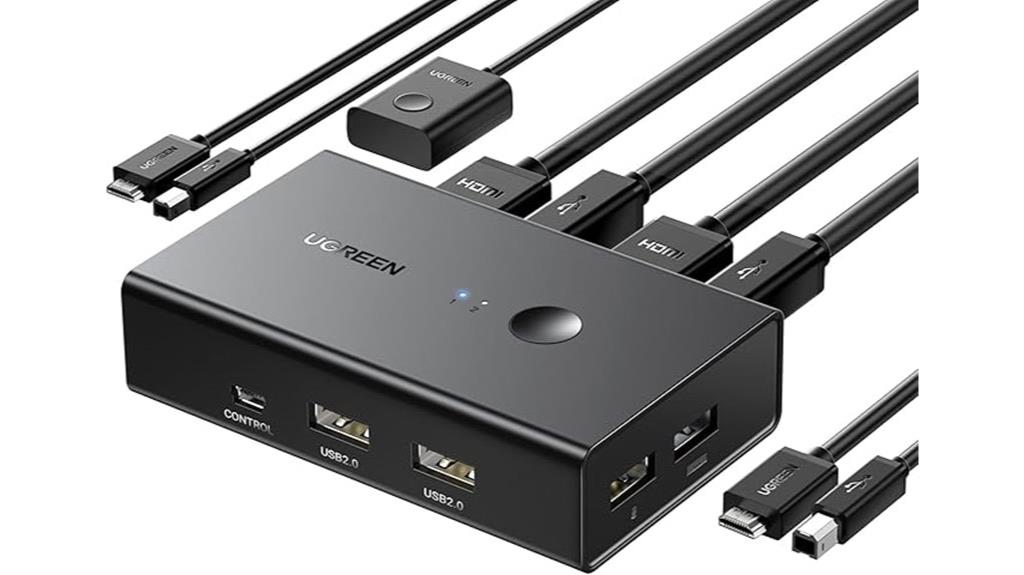
Anyone seeking a reliable, plug-and-play solution to switch between two computers using a single monitor and peripherals will find the UGREEN HDMI KVM Switch an excellent choice. It supports Windows, Mac, Linux, and HDMI devices like gaming consoles and media players. With up to 4K@60Hz resolution, HDR, and HDCP 2.2, it offers vivid, high-quality visuals. Switching is easy via one button or desktop controller, saving desk space and boosting productivity. It requires two USB A to B cables for power and data, and HDMI cables up to 5 meters for 4K. The kit includes all necessary cables, making setup quick and simple.
Best For: users who need a reliable, easy-to-use HDMI KVM switch to manage two computers with high-resolution display and peripheral sharing.
Pros:
- Supports up to 4K@60Hz resolution with HDR for vivid visuals.
- Plug-and-play design requiring no driver installation.
- Two switching options: one-button and desktop controller for convenience.
Cons:
- Does not support hotkey switching or EDID emulation.
- Limited to one monitor; not suitable for multi-monitor setups.
- Requires specific USB A to B cables and HDMI cables ≤5 meters for optimal 4K performance.
USB C KVM Switch 4K@60Hz for Dual Monitors and USB Devices

The USB C KVM Switch 4K@60Hz for Dual Monitors and USB Devices stands out as an ideal solution for professionals who need a seamless, high-resolution dual-monitor setup with easy peripheral sharing. It connects one PC and one laptop, supporting two HDMI outputs at 4K@60Hz and USB-C MST for smooth dual display functionality. Compatible with Windows and macOS (mirrored only on Mac), it features a 7-in-1 docking station with USB 3.0, USB-C, and PD charging ports. With plug-and-play installation, a wired remote, and multiple switching options, it guarantees a tidy, efficient workspace while delivering reliable power and display performance.
Best For: professionals and remote workers who require a seamless dual-monitor setup with high-resolution display support and easy peripheral sharing.
Pros:
- Supports 4K@60Hz dual monitor output for crisp, clear visuals.
- Plug-and-play design with no driver installation needed simplifies setup.
- Includes multiple ports (USB 3.0, USB-C, PD charging) for versatile device connectivity.
Cons:
- Mirrored display mode limited to macOS, reducing flexibility on Mac systems.
- No hotkey switching options; requires physical or remote button presses.
- Actual charging power slightly reduced (73W-85W) compared to the 100W PD port due to device and cable consumption.
Factors to Consider When Choosing Kvm Switches
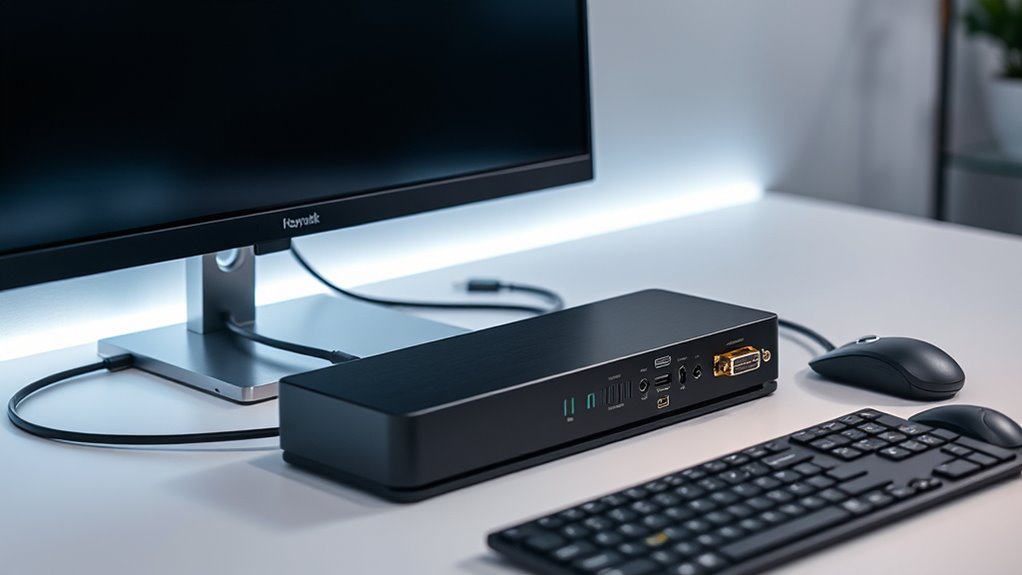
When choosing a KVM switch, I consider compatibility with my devices and whether it supports the video resolution I need. I also think about how I prefer to switch between computers and if I need to share USB devices easily. Finally, I check if the switch requires external power or has a built-in power supply to guarantee it fits my setup.
Device Compatibility Requirements
Choosing the right KVM switch depends heavily on ensuring it’s compatible with all your devices and peripherals. First, check that it supports your operating system, whether Windows, Mac, Linux, or Chrome OS. Next, verify that the video output types match your computers, such as HDMI, DisplayPort, or VGA. It’s also essential to confirm the switch provides enough USB ports for your peripherals like keyboards, mice, or printers. Make sure it can handle the maximum resolution and refresh rate of your monitors, whether 4K@60Hz or 8K@60Hz. Finally, consider the port configurations you need, including dual monitor setups or USB-C compatibility. Ensuring these compatibility factors align with your devices will guarantee smooth operation and a seamless switching experience.
Switching Method Preferences
Selecting the right switching method for your KVM switch depends on how you prefer to control your devices. If you like quick, tactile access, button switches are ideal—they let you toggle instantly right at the device. For a cleaner setup and remote control convenience, remote-controlled switches are a great choice, letting you switch from a distance without clutter. If you want seamless, rapid switching during work, hotkeys on your keyboard are a smart option, enabling quick toggling with shortcuts. Some switches support multiple methods simultaneously, offering flexibility based on your workflow. Ultimately, consider whether you need immediate manual control, remote operation, or keyboard shortcuts, and choose a switch that aligns with how you prefer to manage your devices efficiently.
Video Resolution Support
Video resolution support is a key factor to contemplate when picking a KVM switch, especially if you work with high-definition content or gaming. You need to guarantee it can handle your setup’s maximum resolution, like 4K at 60Hz or 8K at 60Hz, for sharp, clear images. Compatibility with your existing cables—HDMI, DisplayPort, or VGA—is vital to avoid signal issues. Also, check if the switch supports HDCP, which is essential for streaming protected content in high resolutions. Adaptive EDID features are helpful, as they automatically optimize display settings for stable visuals. If you’re into gaming or professional editing, support for high refresh rates like 120Hz or 144Hz can make a big difference in smooth motion. Prioritizing these factors ensures seamless, high-quality visuals across your devices.
USB Device Sharing Needs
When evaluating a KVM switch for your setup, gauging your USB device sharing needs is essential to guarantee smooth operation. First, determine how many USB devices you plan to share, like printers or external drives, and choose a switch with enough ports. Check if it supports USB 3.0 or 2.0, matching your peripherals’ data transfer requirements. Also, consider whether the switch offers dedicated ports for each device or shares multiple through fewer ports, which can impact compatibility. Look for features like hot plugging or auto-detection, enabling seamless device recognition without rebooting. Finally, if you have high-power peripherals, verify if the switch supports charging or power delivery, ensuring your devices remain powered without issues.
Power Supply Necessities
Power supply needs are a critical consideration when choosing a KVM switch, as insufficient power can lead to signal instability and device malfunctions. Some switches require external power sources—like USB or AC adapters—to support multiple high-resolution displays or numerous USB devices. Higher resolutions, such as 4K or 8K, demand more power for reliable signal transmission. Many models include built-in power adapters to ensure stable operation, preventing signal loss and performance drops. Portable or bus-powered switches don’t need external power but often have limitations in device compatibility and display quality. Adequate power supply is essential for supporting features like multi-monitor setups, USB sharing, and audio transmission without interruptions. Considering power needs helps ensure smooth, reliable operation tailored to your workspace demands.
Workspace Space Constraints
Choosing the right KVM switch involves more than just compatibility and features; workspace constraints play a significant role in your decision. If you have limited desk space, compact KVM switches are a smart choice since they occupy minimal room. For larger setups or server rooms, rack-mounted KVM units help save space by fitting into existing racks. It’s crucial to evaluate the size and design of the switch to ensure it fits comfortably within your available area. Wireless or remote-controlled KVM switches are excellent options for freeing up desk space, as they eliminate the need for physical proximity. Additionally, vertical or multi-layered models can maximize functionality while minimizing footprint, making them ideal for tight or multi-use environments.
Budget and Cost Efficiency
Evaluating the total cost of a KVM switch involves more than just the initial purchase price; you should also consider any additional accessories, cables, or setup expenses. It’s important to check if the device is compatible with your existing hardware and whether its features justify a higher price. Long-term value matters too—look at durability, warranty, and customer support to ensure you’re making a sound investment. Opt for models that include essential functions without unnecessary extras, maximizing cost efficiency. Additionally, think about future scalability—choose a switch that can handle upgrades without significant extra costs. Balancing your budget constraints with the need for reliable performance will help you select a KVM switch that offers great value both now and down the line.
Frequently Asked Questions
Can KVM Switches Support Audio Switching Between Connected Devices?
Yes, many KVM switches support audio switching between connected devices. I’ve found that most modern models include audio jacks, allowing me to switch audio along with video and keyboard/mouse control. This feature makes it convenient to manage multiple devices without unplugging or switching cables. Just make sure to choose a KVM switch specifically designed with audio support if this feature is important to you, as not all models offer it.
Do All KVM Switches Require Software Installation for Operation?
Not all KVM switches require software installation for operation. Many basic models are plug-and-play, meaning you just connect your devices, and they work instantly without any additional software. However, some advanced KVM switches, especially those with features like remote access or audio support, may need dedicated software for full functionality. I recommend checking the product specifications to see if software is necessary for your specific needs.
Are KVM Switches Compatible With Gaming Peripherals and High-Refresh-Rate Monitors?
Think of a KVM switch like a traffic controller, smoothly directing signals between devices. Most modern KVM switches are compatible with gaming peripherals and high-refresh-rate monitors, but you should check specific specs. High-quality switches support fast response times and high resolutions, ensuring your gaming experience remains seamless. So, yes, many KVMs are designed to handle demanding peripherals and high-performance displays, making them a versatile addition to your setup.
What Is the Maximum Distance for Connecting KVM Switches Over Long Cables?
The maximum distance for connecting KVM switches over long cables typically ranges from 50 to 150 feet, depending on the quality of the cables and the switch itself. I’ve found that using high-quality, shielded HDMI or DisplayPort cables can extend this range while maintaining signal integrity. If you need longer distances, consider active extenders or fiber optic cables to guarantee clear video and reliable keyboard/mouse connections without lag or degradation.
How Energy-Efficient Are Modern KVM Switches During Prolonged Use?
Modern KVM switches are surprisingly energy-efficient, especially during prolonged use. Imagine a device that quietly conserves power, reducing your energy bills and environmental footprint without sacrificing performance. I’ve seen models that automatically enter low-power modes when idle, making them ideal for long work sessions. So, you can run your setup all day without worry, knowing these switches are designed to keep energy consumption minimal while delivering seamless switching.
Conclusion
Choosing the right KVM switch is like finding the perfect adapter for a tangled mess of cables—once it clicks, everything flows smoothly. I once thought juggling multiple devices was chaos until I found a switch that simplified my setup. If you pick wisely, you’ll turn a cluttered workspace into a well-orchestrated symphony of productivity. Trust me, the right switch transforms your tech chaos into effortless harmony.