To set up a tablet for seniors, start by enabling voice commands like Siri or Google Assistant for easy hands-free control. Adjust accessibility settings such as larger fonts, high contrast, and simplified home screens to make navigation easier. Limit notifications and install only necessary apps to reduce clutter. Teach simple voice activation phrases and demonstrate basic tasks. If you keep exploring, you’ll discover additional tips to make the device even more user-friendly.

Get the latest gadgets delivered free with Prime
- Fast, free delivery on millions of items
- Prime Video, Amazon Music and more included
- Member-only deals all year
Key Takeaways
- Enable simplified or easy mode to reduce clutter and provide larger icons for easier navigation.
- Increase font size and activate high-contrast settings to improve readability.
- Install only essential apps and organize them on a dedicated home screen for quick access.
- Enable voice commands and virtual assistants to facilitate hands-free operation.
- Set up secure login options like PINs or biometrics to protect privacy and simplify access.
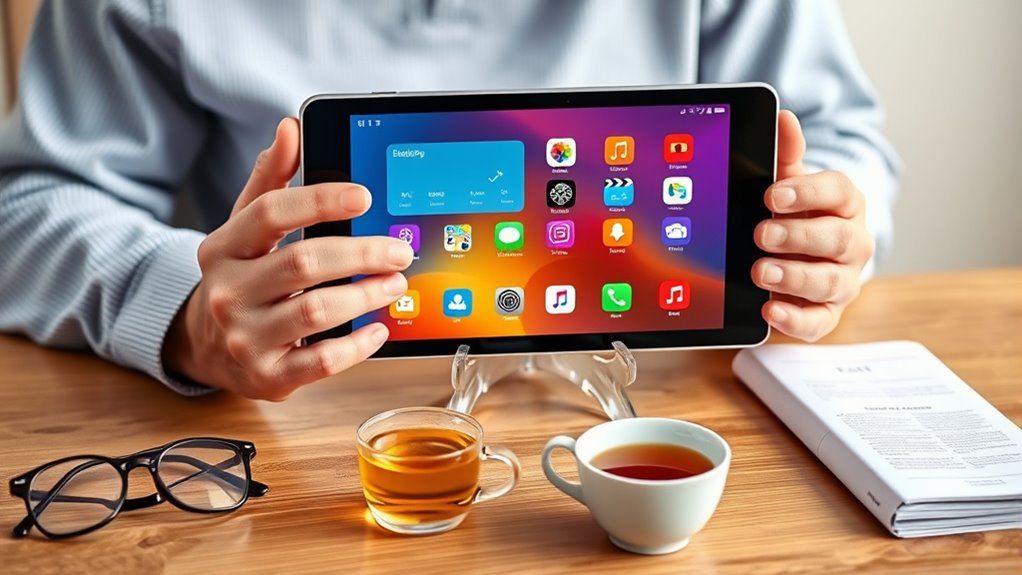
Setting up a tablet for seniors can considerably enhance their ability to stay connected and access useful information. When you’re configuring a device for someone who might not be tech-savvy, simplicity is key. One of the most effective ways to achieve this is by enabling voice commands. Voice commands allow seniors to navigate their tablet hands-free, reducing frustration and making everyday tasks more manageable. You can activate voice assistant features like Siri, Google Assistant, or Alexa, depending on the tablet’s operating system. Setting up voice commands involves a few straightforward steps: go into the device’s settings, find the voice assistant section, and turn it on. Once enabled, teach the user how to activate the voice feature with simple phrases like “Hey Siri” or “Hey Google.” This way, they can ask questions, open apps, or send messages without touching the screen, which is particularly helpful for those with limited dexterity or vision challenges.
Another vital aspect of simplifying the tablet experience is adjusting the privacy settings. Many seniors worry about privacy, so guiding them through these settings can help ease their concerns and give them confidence in using the device. Start by reviewing permissions for apps to ensure they only have access to necessary information. Disable any unnecessary features that could compromise privacy, such as location sharing or access to personal data. Set up a secure login method, like a strong PIN or biometric authentication if the tablet supports it, so they don’t have to remember complex passwords. Explaining privacy settings in simple terms reassures seniors that they’re in control of their information, fostering trust and comfort with the device. Additionally, understanding home theatre projectors and their features can help in creating a comfortable viewing experience, which can be especially enjoyable for seniors during leisure time.
Beyond voice commands and privacy settings, consider customizing the tablet’s interface to be more senior-friendly. Increasing font size, enabling high-contrast modes, and simplifying home screens can make a significant difference. These adjustments make the tablet easier to see and navigate, helping seniors feel more confident and independent. Additionally, installing only essential apps prevents overwhelming them with clutter, and providing clear, step-by-step instructions for common tasks can boost their comfort level.
Products Worth Considering

Samsung Galaxy Tab A11+ 11-Inch Tablet, 6GB RAM, 128GB Storage, Expandable, Gray

Apple MacBook Air 13-inch with M5 chip, 16GB memory, 512GB SSD, and 12MP Center Stage camera

Jackery Explorer 300 Portable Power Station, 292Wh
As an affiliate, we earn on qualifying purchases.
Frequently Asked Questions
How Can I Customize Notifications for Senior Users?
You can customize notifications for senior users by managing notification settings within the tablet’s notification management menu. Turn off unnecessary alerts, prioritize important notifications, and adjust sound or vibration options for clarity. Use app customization to limit notifications to essential apps only, reducing distractions. This way, you make sure they receive helpful alerts without feeling overwhelmed, creating a simpler, more user-friendly experience tailored to their needs.
What Safety Features Are Available for Senior Tablets?
Think of your tablet as a fortress with safety features safeguarding your loved one. You can activate screen magnification, making text easier to see, and set up emergency contacts, acting as guardians ready to assist. These features guarantee senior users navigate their device securely, minimizing risks. By enabling these, you create a safer digital environment, giving peace of mind to both users and their families.
How Do I Update the Tablet’s Software Easily?
You can update your senior tablet easily by checking device compatibility first, ensuring the update is suitable. Navigate to Settings > Software Update, and tap “Download and Install” when prompted. Keep in mind that update frequency varies; some devices update automatically, while others need manual checks. Regular updates improve security and performance, so make it a habit to check for updates periodically to keep your tablet running smoothly and securely.
Can I Install Third-Party Apps Securely?
Yes, you can install third-party apps securely by sticking to reputable sources like the Google Play Store or Apple App Store. Always check app permissions and read reviews to avoid security concerns. Before installing, verify your device’s security settings are active, and avoid downloading apps from unfamiliar sites. This way, you protect your tablet from malware and keep your personal information safe while enjoying new apps.
How Do I Troubleshoot Common Connectivity Issues?
When your tablet struggles with Wi-Fi troubleshooting or Bluetooth pairing, start by restarting your device and router—think of it as giving both a fresh start. Check if your Wi-Fi is connected and if airplane mode is off. For Bluetooth issues, ensure your device is discoverable and within range. Updating software can also resolve many connectivity hiccups, making your tablet work smoothly again.
Conclusion
Now that you’ve set up the tablet with care and patience, it becomes more than just a device—it transforms into a bridge connecting your loved one to the world. With simple tweaks and a gentle touch, you’re turning technology into a friendly companion, opening doors to new adventures and connections. Remember, every click and swipe is a step toward independence and joy, painting a brighter, more connected future for your senior loved one.