Whether you need a stylus depends on what you do with your tablet. If you mostly browse, watch, or jot quick notes, your finger is usually enough. But if you want precision for drawing, sketching, or detailed editing, a stylus can boost your accuracy and creativity. Ready to discover which type suits your needs? Keep exploring, and you’ll find out how choosing the right stylus can transform your tablet experience.
Key Takeaways
- Use a stylus for precise note-taking, sketching, or digital art requiring detailed control and accuracy.
- Rely on your finger for simple navigation, casual doodles, or quick interactions where precision isn’t critical.
- Choose a stylus with pressure sensitivity and tilt features if you engage in professional digital art or detailed design work.
- Consider compatibility with your device and whether the stylus offers features like handwriting recognition or customizable buttons.
- Opt for a finger for basic tasks to save cost and simplify interactions, reserving a stylus for specialized creative or productivity needs.
Advantages of Using a Stylus With Your Tablet
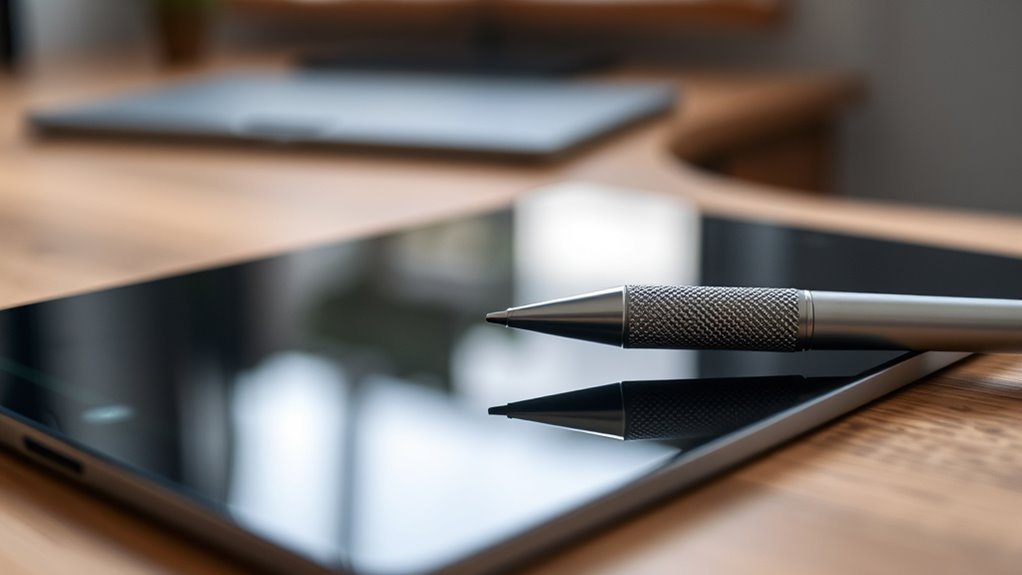
Using a stylus with your tablet can substantially enhance your productivity and creativity. It enables precise control, making tasks like note-taking, sketching, or editing much more efficient. Handwriting recognition transforms your handwritten notes into editable text instantly, saving you time and effort. This feature is especially useful for jotting down quick ideas or organizing information visually. Additionally, a stylus liberates your artistic expression, allowing you to draw, paint, or design with natural movements. You can achieve finer detail and smoother strokes compared to using your finger, making your digital art feel more authentic. Moreover, customizable buttons on some styluses can provide quick access to frequently used tools, further streamlining your workflow. Employing a stylus can also help reduce finger smudges on your screen, keeping your device cleaner and improving touch accuracy. The presence of pressure sensitivity in many styluses allows for more nuanced drawing and writing, closely mimicking real-life pen and brush experiences. Incorporating features like tilt recognition can further enhance your control and creativity when working on detailed projects. Modern ergonomic designs ensure comfort during extended use, preventing fatigue and improving overall handling. Overall, a stylus bridges the gap between traditional and digital creativity, giving you a versatile tool to improve both your work and artistic projects.
When a Finger Is Usually Enough
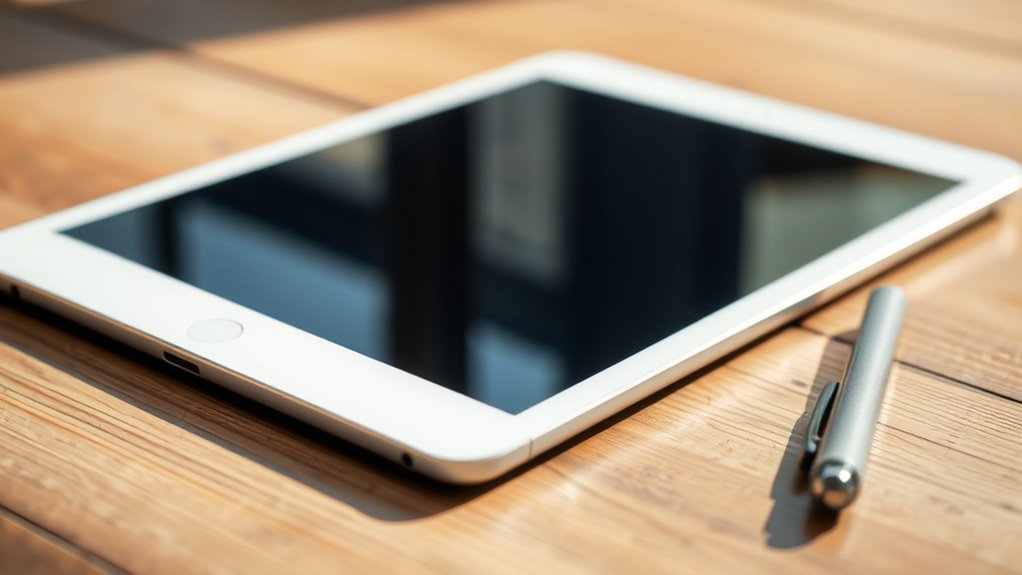
While a stylus offers precision and control for detailed work, there are many situations where your finger is all you need. For casual tasks, your finger is quick, intuitive, and natural. Here are three common scenarios:
- Navigating apps or scrolling through content without needing pinpoint accuracy.
- Sketching quick digital art sketches where precision isn’t critical.
- Writing notes or comments, where handwriting clarity isn’t a concern.
- Using touchscreen technology techniques to create a calming atmosphere during breaks or work sessions.
For these tasks, using your finger feels seamless and effortless. It’s perfect for browsing, casual doodling, or jotting down thoughts without fuss. A finger is often enough to get the job done efficiently, especially when precision isn’t paramount.
Types of Styluses and Their Features

There are different types of styluses, like capacitive and active models, each offering unique advantages. You’ll also find a variety of tip styles and sizes, which can affect precision and comfort. Additionally, some styluses come with specialty features, such as pressure sensitivity or programmable buttons, to enhance your experience. Incorporating the right stylus can also improve your overall digital productivity and help you maintain focus during creative or work tasks. For example, choosing a stylus with pressure sensitivity can provide more control and a natural drawing or writing experience, especially on tablets designed for artistic work. Moreover, selecting a stylus that offers seamless integration with devices can significantly boost your efficiency and reduce frustration during use.
Capacitive vs. Active
Capacitive and active styluses serve different purposes and offer distinct features that can influence your choice. Capacitive styluses mimic your finger, relying on screen sensitivity to work well with basic tasks like scrolling or casual drawing. They’re simple and usually inexpensive. Active styluses, however, use internal technology to provide better handwriting recognition and accuracy. They often include pressure sensitivity and finer tips, making detailed work easier. Additionally, active styluses are often compatible with touch-sensitive devices like smart beds or heated mattress pads that may incorporate touch controls for convenience. Using a stylus designed specifically for your device can also enhance the accuracy and responsiveness of your input, especially when combined with specialized software for note-taking or digital art. Incorporating AI-driven personalization can further improve your digital experience by tailoring the stylus functions to your specific needs and preferences.
Tip Styles & Sizes
Stylus tip styles and sizes considerably impact your drawing and writing experience. A fine tip offers precision, ideal for detailed work, while a broader tip provides a more natural feel. Smaller tips work well with screen protectors, minimizing scratches and maintaining responsiveness, whereas larger tips may cause more screen contact and reduce accuracy. Some styluses include gesture control features, allowing you to steer or switch tools with simple hand movements, making tip design vital for seamless gestures. Consider your typical tasks: if you prefer fine detail, opt for a slim, precise tip; for casual note-taking, a wider tip might suffice. The right tip size enhances control, protects your screen, and guarantees smooth interaction, whether you’re sketching, writing, or just steering your device effortlessly. Additionally, choosing appropriate stylus tips can help prevent damage to your device’s screen over time, especially when considering screen protector compatibility and durability.
Specialty Functionality
Different styluses come equipped with a variety of specialized features designed to enhance your digital experience. These include capabilities like handwriting recognition, which makes note-taking seamless and converts your handwriting into editable text. For digital art, some styluses offer pressure sensitivity and tilt support, giving you control similar to traditional brushes. You might also find styluses with customizable buttons for shortcuts, speeding up your workflow. Here are some key features to contemplate:
- Handwriting recognition for quick note conversion
- Pressure sensitivity and tilt for realistic digital art
- Shortcut buttons for effortless task management
Developing an understanding of industry trends can help you select the best stylus for your needs. These functionalities can transform your tablet into a powerful tool, whether you’re sketching detailed artwork or jotting down notes with precision. Choosing a stylus with specialty features depends on your specific needs and creative goals.
How a Stylus Enhances Creativity and Precision
Using a stylus can substantially boost your creativity and precision when working on digital devices. It allows you to sketch detailed digital art with more control and accuracy, mimicking traditional drawing tools. Whether you’re designing intricate illustrations or experimenting with different styles, a stylus helps you translate your ideas seamlessly onto the screen. For note-taking, it offers a natural feel that makes writing faster and more fluid, especially when capturing complex diagrams or handwritten notes. The fine tip provides better detail and minimizes errors, giving your work a polished look. Additionally, a stylus can support digital art techniques that benefit from high precision and control, elevating the quality of your creative projects. The right stylus can also improve your overall device performance by reducing pressure on the screen and increasing responsiveness. Overall, a stylus enhances your ability to express yourself creatively and guarantees your work is precise, making it an invaluable tool for anyone serious about digital art or note-taking.
Cost Considerations and Budget-Friendly Options

If you’re looking to save money, there are budget-friendly stylus options that won’t break the bank. You might also consider the cost of premium pens if you want better performance without overspending. Additionally, DIY stylus projects can be a creative and affordable way to get started. For those seeking high-quality performance, investing in a more advanced stylus could be worthwhile.
Budget-Friendly Stylus Choices
Finding an affordable stylus doesn’t mean you have to contemplate sacrificing quality or performance. Budget-friendly options can still meet your needs without breaking the bank. For example, some styluses offer decent screen responsiveness, ensuring smooth writing and drawing. Others come with impressive battery life, so you won’t constantly worry about charging. Additionally, these styluses often work well with screen protectors, maintaining accurate input without scratching your device. Here are three options to consider: 1. Basic capacitive styluses that work with most tablets and are easy on your wallet 2. Styluses with built-in rechargeable batteries for longer use 3. Models with fine tips for precise writing and drawing, compatible with screen protectors. Using styluses with screen compatibility features ensures better performance across various devices, making your choice more reliable. These choices keep costs low while delivering reliable performance.
Cost of Premium Pens
Premium pens often come with a higher price tag, but investing in one can substantially enhance your drawing and writing experience. Stylus costs vary widely, with premium pens typically costing more due to better build quality, pressure sensitivity, and responsiveness. Although a premium pen investment might seem steep initially, it can improve your accuracy and comfort, making digital art and note-taking more enjoyable. If budget is a concern, consider balancing features with affordability. Some mid-range options provide excellent performance without breaking the bank. Remember, a higher price doesn’t always guarantee better results, but a well-chosen premium pen can be worth the extra cost if you’re serious about your work. Carefully evaluate your needs to find a stylus that offers the best value for your budget. Vetted options are available to ensure quality and durability, especially considering the effectiveness of eye patches and their role in skin care routines.
DIY Stylus Options
Creating a DIY stylus can be a cost-effective way to experiment with digital drawing and note-taking without investing in expensive tools. You can craft a functional stylus using simple household items, saving money while testing your needs. For example:
- Use a broken screen protector with a piece of foam or sponge attached to the tip for smooth drawing.
- Wrap a conductive material, like a piece of aluminum foil, around a pen or stylus tip, ensuring good contact with your screen.
- Convert a cotton swab or Q-tip by wrapping it with aluminum foil for a quick, responsive stylus.
Keep in mind, DIY styluses may impact your device’s screen protectors or reduce battery life if they use conductive materials that draw power. Experiment wisely!
Compatibility and Device Requirements
Before choosing a stylus, ensuring your device’s compatibility and requirements is essential. Check your device’s screen size to confirm it fits the stylus specifications, as some pens are designed specifically for larger or smaller screens. Your operating system also plays a significant role; certain styluses are only compatible with iOS, Android, or Windows devices. Some styluses require specific apps or software to function properly, so verify whether your device supports these. Additionally, consider the device’s hardware capabilities—older models may not support advanced stylus features like pressure sensitivity or palm rejection. By understanding your device’s screen size, operating system, and hardware requirements, you can select a stylus that works seamlessly without compatibility issues.
Situations Where a Stylus Makes a Difference

A stylus truly makes a difference when you need precision and control, such as during detailed drawing, note-taking, or editing tasks. Using a stylus can help you avoid screen protection issues caused by fingerprints and smudges, keeping your display clearer. It also minimizes accidental taps, improving accuracy. Plus, with a stylus, you can work more efficiently, but it may impact your tablet’s battery life since some styluses require power or Bluetooth connection. Here are three situations where a stylus shines:
- Creating detailed artwork or illustrations
- Annotating documents or highlighting text
- Performing precise edits or handwriting notes
In these cases, the benefits outweigh potential downsides like charging needs or screen wear.
Making the Decision: Do You Really Need One?
Deciding whether you truly need a stylus depends on how often you perform tasks that require precision and control. If you mainly use your tablet for browsing, watching videos, or casual note-taking, pen alternatives like your finger might suffice. However, if you frequently sketch, annotate, or work on detailed projects, the stylus benefits become clear—it offers accuracy, pressure sensitivity, and a natural writing experience. Consider how much value these features add to your workflow. Think about your budget and whether investing in a stylus fits your needs or if a basic pen alternative works just as well. Ultimately, if your tasks demand finesse and detailed input, a stylus can be a worthwhile tool; otherwise, you might get by without one.
Frequently Asked Questions
Can I Use Any Stylus With My Tablet?
You can’t just use any stylus with your tablet, as stylus versatility varies. Many tablets require specific stylus types that are compatible with their screen technology. Look for pens that offer pen customization features to suit your needs, whether for drawing, note-taking, or navigation. Using an incompatible stylus may result in poor performance or no response, so always check your tablet’s specifications and choose a stylus designed for it.
Are Styluses Compatible With All Tablet Brands?
You might discover that stylus compatibility varies across tablet brands. For example, a student using a Samsung Galaxy Tab may find a Wacom stylus works well, but it won’t necessarily work with an iPad. Cross brand styluses often have limited compatibility, so it’s essential to check your tablet’s specifications before purchasing. Always verify if the stylus supports your device to guarantee smooth functionality and avoid frustration.
How Long Does a Stylus Battery Typically Last?
A stylus battery typically lasts between 8 to 12 hours of active use, but this can vary based on the model and usage patterns. To maintain peak performance, you might need occasional stylus replacement or recharging. Keep an eye on your stylus battery life, and when it starts to fade, replacing the battery or upgrading your stylus ensures smooth functionality and uninterrupted creativity or productivity on your tablet.
Do Styluses Work Well for Note-Taking or Just Drawing?
Styluses work well for both note-taking and sketching, enhancing digital handwriting and boosting your sketching efficiency. When you use a stylus, you’ll find it easier to jot down ideas quickly and create detailed artwork with precision. Whether you’re capturing quick notes or working on complex illustrations, a stylus helps you stay accurate and comfortable, making your digital experience more natural and productive.
Is a Stylus Necessary for Reading or Just for Editing?
In the age of digital reading, a stylus isn’t essential for casual browsing or simple reading. It’s more like a high-tech quill—great for editing, highlighting, or annotating, but not necessary for just flipping through pages or enjoying a novel. You can comfortably read on your tablet without one, reserving the stylus for tasks that demand precision or note-taking. Think of it as a tool for fine-tuning your experience, not a must-have.
Conclusion
Whether you choose a stylus or stick with your finger, it’s like picking the right brush for your masterpiece. A stylus can turn your tablet into a seamless extension of your creativity, like a trusted compass guiding your ideas. But if your needs are simple, your finger might suffice. Ultimately, it’s about finding what feels right in your hand and sparks your passion—your perfect tool for turning ideas into art.