After an update, your phone’s battery might feel worse because the software temporarily disrupts how it estimates and manages power. Background activities like indexing and system optimization run invisibly, causing increased power drain. Miscalibration can also make your device seem like it’s losing battery faster. Once these processes complete and the system stabilizes, your battery should improve. To learn more about how to fix this, keep exploring the details below.
Prime for Young Adults — start your free trial
Fast free delivery, streaming and member deals for eligible 18–24 year olds.
As an affiliate, we earn on qualifying purchases.
Key Takeaways
- Software updates can disrupt battery calibration, leading to inaccurate battery life estimates.
- Background processes like indexing and syncing increase power consumption temporarily after updates.
- System optimizations and power management changes may cause initial higher battery drain.
- Hardware-software incompatibilities triggered by updates can cause abnormal battery drain.
- Performing proper calibration and closing unnecessary apps can help improve battery performance.
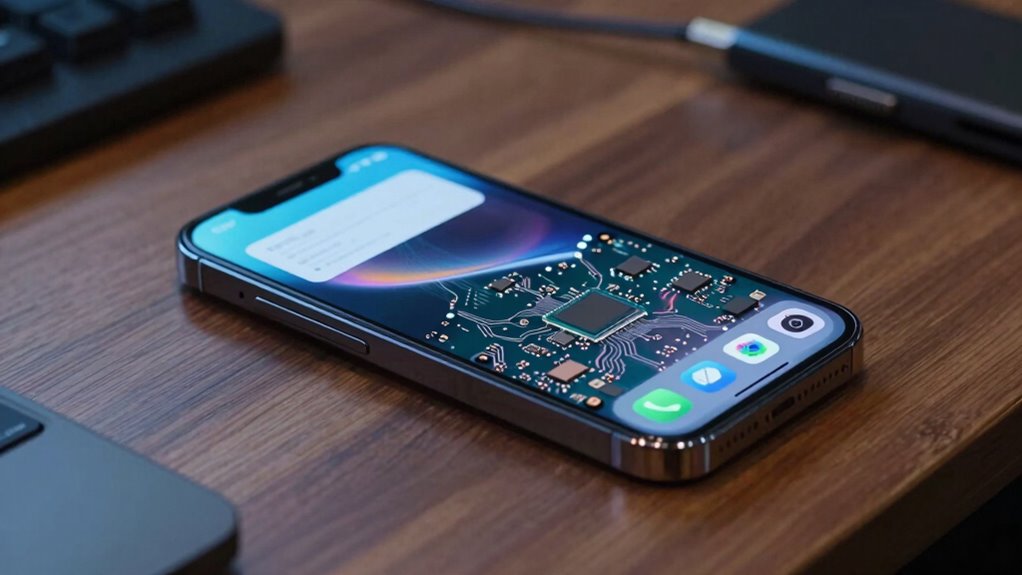
If your phone’s battery suddenly seems to drain faster after an update, you’re not imagining things. Software updates can sometimes cause your battery to behave differently, and the main reason usually boils down to how your device manages power afterward. One common issue is that the update might throw off your battery calibration, which is essentially how your phone estimates remaining battery life. When the battery isn’t calibrated properly, your device can either underestimate or overestimate how much charge is left. This miscalculation often results in the battery draining faster because your phone might be trying to conserve power unnecessarily or, conversely, not conserving enough, leading to quicker depletion.
Battery drains faster after updates due to calibration issues and increased background activity.
Another factor at play is the accumulation of background processes. After an update, your phone often needs to reorganize and optimize its system files, which can temporarily cause certain apps or services to run more actively in the background. These processes, while necessary for system stability and security, can consume a lot of power if they’re not properly managed. During this period, your phone might be indexing files, syncing data, or completing other maintenance tasks that run invisibly in the background. All of these activities can significantly increase power usage, making it seem like your battery is draining at an abnormal rate. Additionally, system optimizations introduced during updates may cause increased power consumption until they’re fully integrated. Sometimes, these updates also change how your device handles power management, which can temporarily impact battery life. It’s also worth noting that software updates often include performance enhancements that may initially cause higher power draw until the system stabilizes. Proper battery calibration can help your device better adapt to these changes, ensuring more accurate estimates of remaining charge.
Furthermore, updating your device’s software can sometimes trigger hardware-related issues that impact battery performance, especially if the update causes any incompatibility or hardware miscommunication. To help mitigate these issues, it’s a good idea to perform a battery calibration. This involves fully charging your phone to 100%, then letting it drain completely until it turns off. Afterward, charge it back up to full without interruption. This process helps your device better gauge its actual battery capacity, leading to more accurate estimates of remaining charge. Additionally, checking your background processes after an update can make a big difference. You can go into your settings and close unnecessary apps or disable features that aren’t essential. Sometimes, a simple reboot can also reset any lingering background activities that might be draining power more than usual.
Over time, as your device settles post-update, the battery performance should improve. Keep in mind that software updates often introduce new features and optimizations that might temporarily affect battery life, but these effects usually stabilize once your phone completes its initial reindexing and background processing. So, if your battery feels worse after an update, don’t worry—taking a few steps to recalibrate and manage background processes can restore your device’s battery life and give you a more accurate picture of how long your charge will last.
smartphone battery calibration tool
As an affiliate, we earn on qualifying purchases.
As an affiliate, we earn on qualifying purchases.
Frequently Asked Questions
Can I Reverse a Phone Update to Improve Battery Life?
Yes, you can try reversing a phone update to improve battery life. Think of it as hitting rewind on a song—you perform a firmware rollback to an earlier version. Before that, do a battery calibration by fully charging and discharging your device. Keep in mind, rolling back firmware can be tricky and risky, so back up your data first. If done correctly, it might help restore your battery’s previous efficiency.
Do All Updates Negatively Impact Battery Performance?
Not all updates negatively impact battery performance. Sometimes, updates include new features or security improvements that can temporarily affect battery life. To fix this, you can try battery calibration and app optimization, which help your phone manage power better. Keep your apps updated, close unused apps, and restart your device regularly. These steps guarantee your battery runs efficiently, regardless of updates, and prevent unnecessary drain.
How Long Does It Take for a Battery to Recover After an Update?
Your battery typically takes a few days to recover after an update if you perform a proper battery calibration. During this time, avoid heavy app background usage and fully drain your battery once before recharging. This helps the system recalibrate, providing more accurate battery life readings. Be patient, as calibration can vary, but usually, within a week, your battery performance should stabilize and feel more reliable.
Are There Specific Updates Known to Drain Batteries More?
Think of some updates as adding extra weight to a backpack—certain updates, especially those with poor battery efficiency or update compatibility issues, can drain your battery faster. Some software patches or new features might push your device’s processor harder, leading to quicker battery drain. Always check update notes for battery-related improvements or issues, and consider whether your device needs a specific update to maintain peak battery health.
Does Battery Health Influence How Updates Affect Battery Life?
Battery health definitely influences how updates affect your battery life. If your battery has experienced degradation, it can’t hold a charge as well, making software optimizations less effective. Updates often include new features and tweaks that demand more power, which can worsen performance if your battery’s already compromised. So, keeping your battery healthy through proper care can help guarantee updates run more efficiently, extending your device’s overall battery lifespan.
As an affiliate, we earn on qualifying purchases.
Conclusion
Think of your phone’s battery as a garden that needs tending. After an update, it’s like planting new seeds—exciting but fragile. With patience and proper care, the weeds of drained power will be pulled, and your battery will flourish again. Remember, every update is a rain shower—necessary for growth, even if it temporarily darkens your skies. Trust the process, and soon, your phone’s energy will bloom brighter than before.
best phone battery calibration apps
As an affiliate, we earn on qualifying purchases.
As an affiliate, we earn on qualifying purchases.
As an affiliate, we earn on qualifying purchases.
Fall yard work Picks
leaf blowers
As an affiliate, we earn on qualifying purchases.