Discover hidden Android features that can boost your productivity and security. Use split screen to multitask effortlessly, enabling you to run two apps side by side. Activate Smart Lock to keep your device unlocked in trusted places while securing your data. Customize quick settings for faster access to essential functions, and enable one-handed mode for easier handling. Record your screen, find hidden emoji and GIF options, and set up app pinning to stay focused. Exploring these tips will reveal more efficient ways to use your device.
Key Takeaways
- Activate split screen to multitask efficiently by dragging apps to screen edges for customizable workspace.
- Use Smart Lock with trusted devices for seamless, secure unlocking without repeatedly entering passcodes.
- Customize Quick Settings by editing toggles like Wi-Fi and Bluetooth for faster access to frequently used features.
- Record your screen easily via quick settings, with options to include audio and adjust quality for tutorials or sharing.
- Enable Nearby Share for quick, cable-free file transfers between Android devices in close proximity.
Master Split Screen for Multitasking
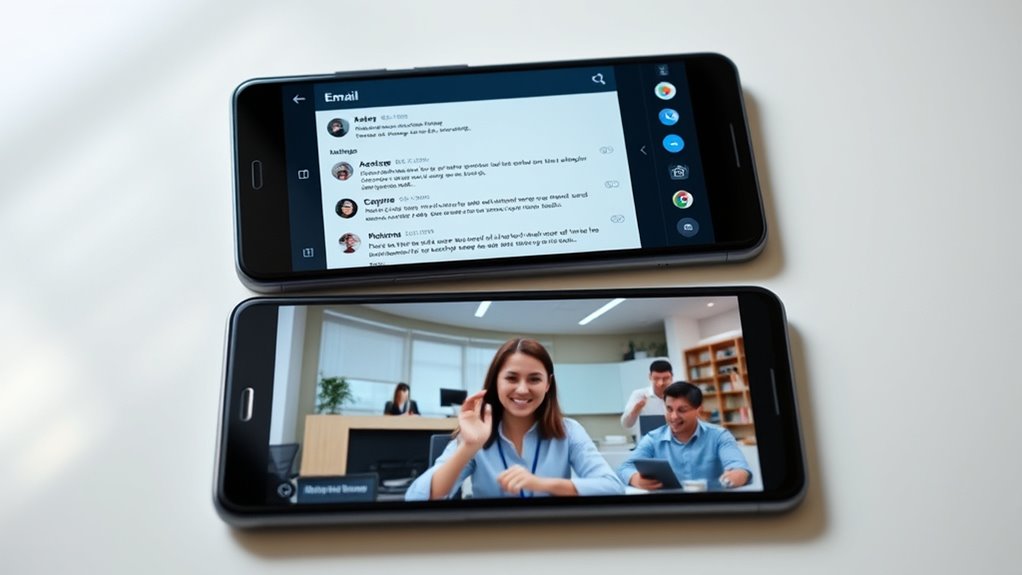
If you want to boost your productivity on Android, mastering the split screen feature is essential. It allows you to enhance your multi window efficiency by running two apps side by side, saving time and reducing toggling. To activate split screen, simply open your recent apps, then tap the split screen icon or drag an app to the top or side of the screen. You can adjust the app resizability by dragging the divider, customizing how much space each app occupies. This feature is perfect for multitasking—whether you’re replying to messages while browsing or referencing documents while working. By mastering split screen, you make your Android device a powerful multitasking tool, maximizing efficiency without switching between apps constantly. Additionally, exploring Android accessibility features can further optimize your device for various needs and enhance overall usability. Understanding multitasking capabilities can also help you fully leverage your device’s potential for productivity, especially when combined with features like essential app integration. Developing a comprehensive app workflow can further streamline your tasks and improve your overall efficiency, making the most of your device’s built-in features.
Use Smart Lock to Keep Your Phone Unlocked Securely
After mastering split screen for multitasking, you can further streamline your Android experience with Smart Lock, which keeps your device accessible in trusted situations. Smart Lock uses biometric authentication like fingerprint or face recognition to prevent constant re-entry of passcodes, making unlocking faster and more secure. You can also set trusted devices, such as your smartwatch or Bluetooth car system, so your phone stays unlocked when connected to them. This feature is especially handy when you’re at home or in secure locations, reducing frustration while maintaining security. Additionally, understanding asset division laws can help you navigate the division of property more effectively during divorce proceedings. To activate Smart Lock, go to Settings > Security > Smart Lock, and follow the prompts. Implementing secure features like Smart Lock can help balance convenience and protection for your device. By leveraging trusted devices and biometric authentication, you enjoy quick access without compromising your device’s security. Incorporating home security concepts can further enhance your Android device’s protection and convenience. For added security, consider customizing lock screen settings to ensure sensitive information remains protected even when your device is unlocked.
Customize Quick Settings for Faster Access
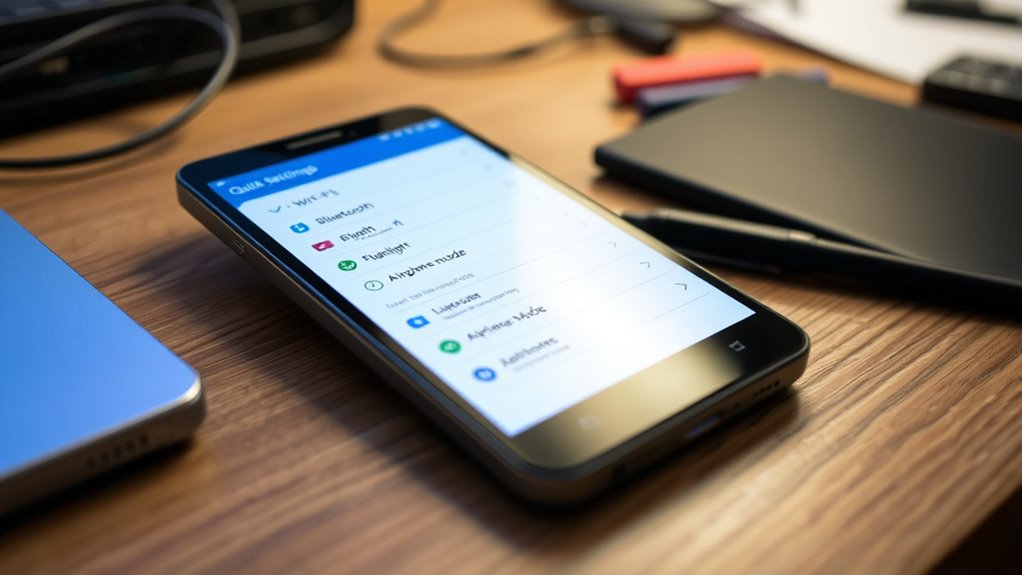
Ever wish you could access your most-used settings instantly? You can customize quick settings to do just that. Swipe down from the top of your screen to open the Quick Settings panel, then tap the pencil icon to edit. Here, you can add custom quick toggles for features you use often, like Wi-Fi, Bluetooth, or airplane mode. Rearrange icons for streamlined access, putting your essentials at your fingertips. This customization saves you time and makes managing your device more efficient. No more digging through menus—your favorite controls are just a tap away. Adjusting your quick settings is quick and easy, giving you a more personalized and responsive Android experience. Taking a moment to understand your device’s features can help you optimize your settings even further for a smoother user experience. Exploring precious metals investment principles can also inspire you to create a more relaxing digital environment. Additionally, customizing your accessibility options can enhance device usability for all users.
Enable One-Handed Mode for Easier Handling

To make one-handed use more comfortable, Android offers a built-in One-Handed Mode that shrinks the display and shifts it to one side of the screen. This feature is especially useful if you have a large device or find it difficult to reach all areas with one hand. To activate it, confirm gesture navigation is enabled, then swipe diagonally from a bottom corner or use the quick settings toggle. Once enabled, the screen size adjusts, making content easier to reach. You can also customize which side the display shifts to, based on your dominant hand. When you’re done, a simple tap or swipe will revert the screen to full size. This feature enhances usability without the need for additional apps or complex settings. Additionally, enabling gesture navigation can improve the overall accessibility and fluidity of using these features. Ensuring your device supports built-in accessibility features can further optimize your experience, and exploring other hidden Android features can greatly improve your daily usage. Exploring the customization options available can help tailor the experience even further to your preferences. Incorporating biodiversity awareness into your digital habits can also inspire more eco-friendly and sustainable choices in your daily life.
Take Advantage of Screen Recording

Did you know that Android devices make it easy to record your screen without installing extra apps? You can capture gameplay, tutorials, or important conversations effortlessly. To get started, swipe down to access the quick settings panel and tap the Screen Record icon. Before recording, you can adjust video quality to *guarantee* your footage looks sharp, especially if you plan to share it. Additionally, check your audio settings—whether you want to record internal sound or your microphone—so your recording captures everything accurately. Once set, hit start, and your device will record everything happening on your screen. When finished, the video saves automatically, ready for sharing or review. Taking advantage of this feature helps you create clear, professional-looking recordings without hassle. YouGoNews
Use Digital Wellbeing to Manage Your Screen Time
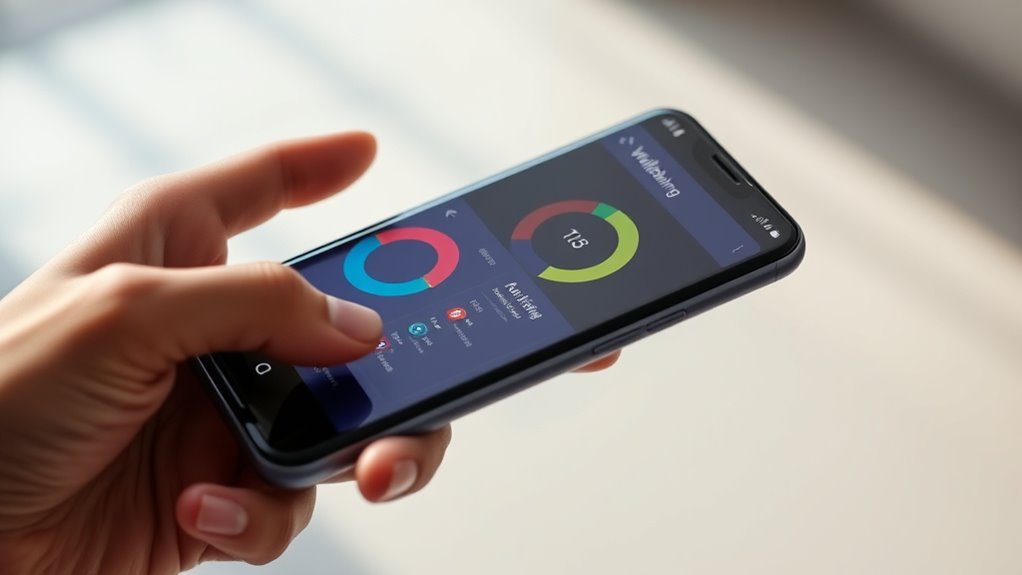
After mastering screen recording to share your gameplay or tutorials, it’s also helpful to monitor how much time you spend on your device. Use Digital Wellbeing to manage your screen time effectively. This feature provides clear insights into your daily device usage, helping you set boundaries and reduce distractions. With app usage monitoring, you can see which apps consume the most time and decide if you want to limit their access. Digital Wellbeing also offers tools like timers and focus modes, allowing you to create designated periods for work or relaxation. Additionally, understanding your camping habits can inspire you to take breaks and balance your digital and outdoor activities. Recognizing signs like Herpes Look can help you identify symptoms early and seek appropriate care. By actively tracking your screen time, you gain better control over your digital habits, promoting healthier device usage and more mindful app engagement. Incorporating well-being tips, such as setting comfort and support solutions, can further enhance your overall digital health.
Discover Hidden Emoji and GIF Search in Keyboard
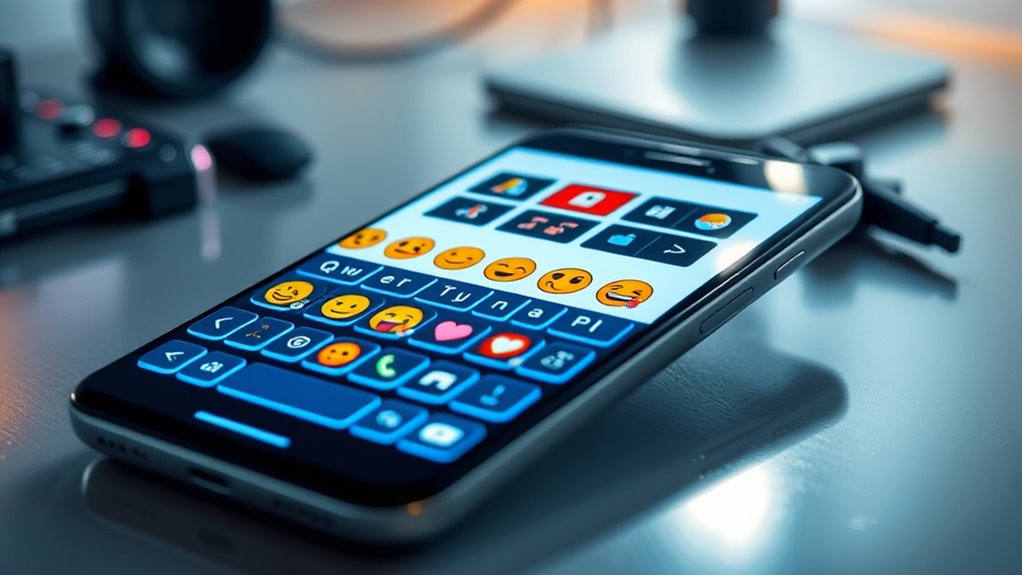
Did you know your keyboard has hidden features for quick emoji and GIF searches? You can easily find and use your favorite expressions with simple tips and search enhancements. Plus, you might even discover how to create custom emoji collections for more personalized messaging.
Quick Emoji Search Tips
Ever wondered how to quickly find the perfect emoji or GIF without digging through endless menus? You can use emoji search shortcuts directly on your keyboard for faster access. Simply type relevant keywords, and your keyboard will suggest matching emojis instantly—these are called keyboard emoji suggestions. To activate this feature, tap the emoji icon or long-press the spacebar, then look for the search bar. Type a keyword like “happy” or “coffee,” and your keyboard will display relevant emojis, saving you time. Some keyboards also support quick emoji search shortcuts that pop up automatically based on your typing context. Mastering these tips makes expressing yourself faster and more fun, without interrupting your flow to browse through long emoji lists.
GIF Search Enhancements
Many modern keyboards now enhance your messaging experience by integrating powerful GIF search features and revealing hidden emoji options. These gif search enhancements make finding the perfect animated clip quick and effortless, often with just a few taps. Additionally, emoji search improvements allow you to locate specific emojis faster by typing keywords or related phrases, revealing hidden options you might not notice at first glance. These hidden features streamline your conversations, making it easier to express emotions and reactions visually. By exploring your keyboard’s advanced search capabilities, you access a more dynamic way to communicate. Whether you’re searching for a funny GIF or a subtle emoji, these enhancements help you find exactly what you need instantly, elevating your messaging game without extra effort.
Custom Emoji Collections
Revealing hidden emoji and GIF search options can greatly enhance your messaging experience. With advanced emoji customization, you can create a personalized collection of emojis that truly express your style. Many Android keyboards now support animated emoji creation, allowing you to design lively, eye-catching icons to share. By exploring these hidden features, you’ll find options to access unique emoji packs or even craft your own animated emojis directly within your keyboard. This not only makes your messages more engaging but also saves time searching for the perfect sticker or emoji. Once you access these capabilities, your conversations will feel more dynamic and personalized, giving you the power to stand out with custom emoji collections that reflect your mood and personality.
Access Developer Options for Advanced Customization
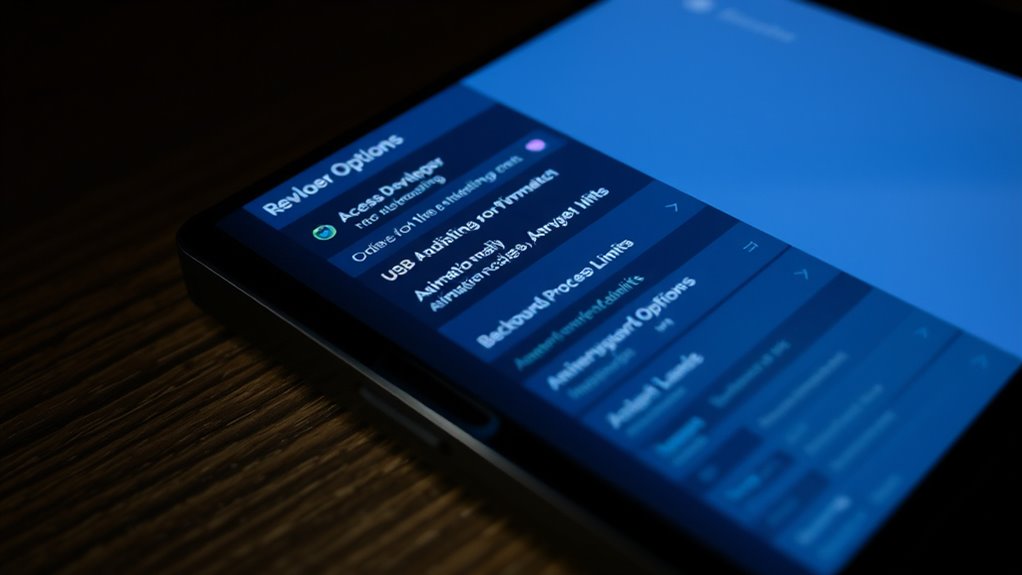
If you want to open powerful customization options on your Android device, accessing Developer Options is a crucial step. To do this, go to Settings, then tap About Phone. Locate the Build Number and tap it seven times quickly. You’ll see a message confirming you’ve enabled Developer Options. Now, return to Settings and find Developer Options in the menu. Here, you can activate advanced customization features like USB debugging, animation controls, and background process limits. These tools give you more control over your device’s performance and behavior. Be cautious when changing settings—some adjustments can affect stability. Exploring developer options allows you to fine-tune your Android experience, making your device work exactly how you want it.
Set Up App Pinning to Keep Focused on One App
Setting up app pinning helps you lock in focus on a single app, so you don’t get distracted. It also prevents accidental exits, keeping you on track. Plus, it secures sensitive tasks when you need extra peace of mind.
Lock in Focus
To keep yourself focused on a single app and prevent distractions, you can activate app pinning on your Android device. This feature locks the device to one app, so you stay immersed without interruptions. Before enabling, consider adjusting privacy settings to restrict access to sensitive data and manage notifications to avoid unnecessary alerts. Once pinned, you can:
- Restrict access to other apps and settings
- Prevent accidental screen swipes or exits
- Lock the app with a PIN or fingerprint
- Customize notification visibility for that app
- Ensure the device remains dedicated to one task
This feature is perfect for sharing your device temporarily or maintaining focus during work. By setting up app pinning properly, you control your focus while safeguarding privacy and streamlining notification management.
Prevent Accidental Exit
Accidental exits from an app can disrupt your focus and interrupt your workflow, but setting up app pinning helps prevent this. With app pinning, you lock your device into a single app, making it harder to accidentally switch apps or exit. To enable this, go to Settings > Security > App Pinning, then turn it on. When you want to pin an app, open it and tap the overview button (or gesture controls, depending on your device), then tap the pin icon. Once pinned, your device stays focused on that app until you deliberately unpin it. This feature is especially useful if you need to keep someone else or yourself from navigating away during sensitive tasks. It guarantees your attention remains on one app, minimizing accidental app switching or exits.
Secure Sensitive Tasks
When handling sensitive tasks on your Android device, keeping your focus locked on a single app can prevent accidental data leaks or interruptions. App pinning helps you do just that by locking the current app in place until you *release* it again. Once enabled, you can:
- Prevent others from switching apps during a quick task
- Keep your encrypted messaging app secure from accidental closure
- Rely on biometric security, like fingerprint or face recognition, to unpin
- Focus solely on one app, reducing distractions
- Protect sensitive information when lending your device temporarily
Setting up app pinning is simple and adds a layer of security, ensuring your focus stays on the task at hand while maintaining the privacy of your encrypted communications.
Utilize Nearby Share for Easy File Transfers
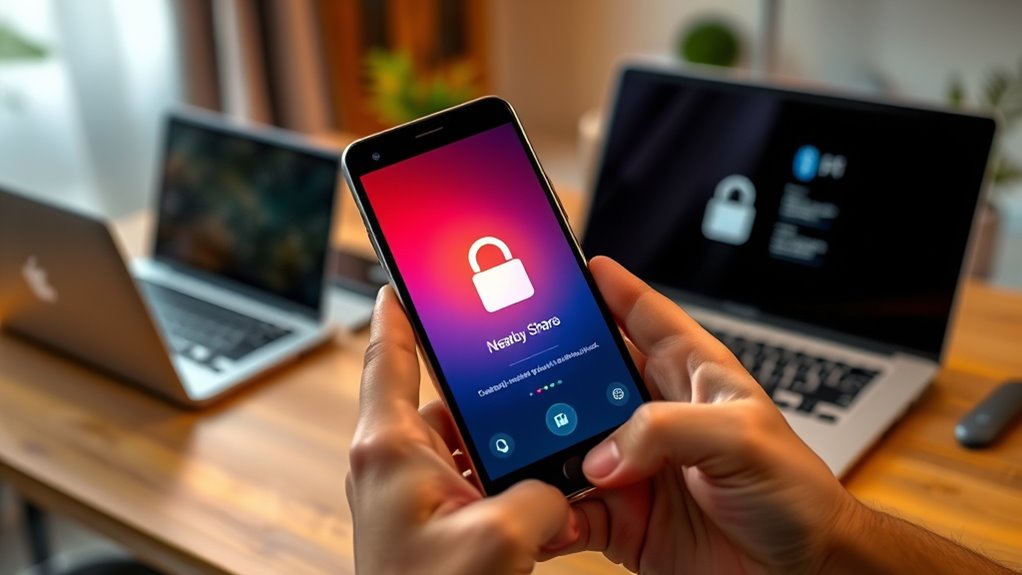
Nearby Share makes transferring files between Android devices quick and effortless. Whether you’re sharing photos, documents, or links, this feature provides seamless transfers without needing cables or third-party apps. To get started, turn on Nearby Share in your device settings, enable Bluetooth and Location, and make sure both devices are close. Once set, select the file, tap Share, and choose Nearby Share. The process is fast and secure, with your device discovery settings controlling who can receive files. Here’s a quick overview:
| Step | Action | Result |
|---|---|---|
| 1 | Enable Nearby Share | Ready to share files |
| 2 | Select file | Initiate sharing process |
| 3 | Choose device | Send securely |
| 4 | Accept transfer | Files arrive instantly |
Using Nearby Share simplifies file sharing, making your Android experience more efficient.
Frequently Asked Questions
How Can I Customize Notifications for Specific Apps?
To customize notifications for specific apps, go to your Settings and tap on Notifications. Find the app you want to modify, then select Notification categories or App notification channels. Here, you can adjust the notification style, sound, and importance level. You can even turn off notifications entirely or set different preferences for each category. This way, you control how and when you get alerts, keeping your notifications tailored to your needs.
What Security Features Does Android Offer for App Permissions?
You might worry about your privacy, but Android offers strong security features for app permissions. You can control app permissions through privacy controls, deciding which apps access your location, camera, or microphone. Android also prompts you when an app requests sensitive data and allows you to revoke permissions anytime. This way, you stay in charge of your privacy, ensuring your data stays safe while using your device confidently.
How Do I Enable Dark Mode Across All Apps?
To enable dark mode across all apps, go to your device’s Display settings. Tap on Display customization and select Dark theme or Night mode. You can also find Accessibility tweaks here to make the theme more comfortable for your eyes. Once enabled, most compatible apps will automatically switch to dark mode, giving you a consistent, eye-friendly experience. Remember, some apps may still require manual adjustments for full dark mode support.
Can I Improve Battery Life With Hidden Settings?
They say a stitch in time saves nine, and the same applies to your battery life. You can improve it by diving into hidden settings like battery optimization and restricting background activity for apps that drain power unnecessarily. Turn off unnecessary services, disable auto-sync, and limit background data. These tweaks help conserve energy, extend your device’s longevity, and keep it running smoothly without constantly searching for a charger.
What Are the Best Ways to Backup Android Data?
You can back up your Android data by using cloud backups like Google Drive or OneDrive, which automatically sync your photos, contacts, and app data. For a more secure option, perform a manual data transfer to your computer via USB or Wi-Fi. Regular backups guarantee your data stays safe if your device gets lost or damaged, and cloud backups make restoring your information quick and easy whenever needed.
Conclusion
Reveal the full potential of your Android device and turn it into a sleek, powerful tool. These hidden features are like secret passages, waiting to be explored and mastered. Once you explore, you’ll navigate your phone with the ease of a seasoned explorer, revealing new shortcuts and capabilities. So go ahead—discover, customize, and elevate your Android experience. Your phone’s true magic is just a few taps away, ready to transform how you connect and create.