A safe CPU temperature generally stays below 80°C to keep your system stable and prevent damage. To monitor your CPU’s heat, use reliable software compatible with your hardware for real-time readings. Manage heat by keeping your PC clean, improving airflow, and applying quality thermal paste. Upgrading cooling solutions can also help. Staying aware of these tips guarantees your CPU stays within safe limits—if you continue, you’ll discover more ways to keep your system cool and healthy.

Get the latest gadgets delivered free — and shop member deals
- Fast, free delivery on millions of items
- Access to Prime Big Deal Days deals on October 6–7
- Prime Video, Amazon Music and more included
Key Takeaways
- Generally, CPU temperatures between 40°C and 70°C are safe during normal operation, while temperatures above 80°C may indicate overheating.
- Use reliable software tools to monitor real-time CPU temperatures regularly, especially during intensive tasks or overclocking.
- Maintain optimal cooling by cleaning dust from fans and heatsinks, upgrading cooling systems, and ensuring good airflow within the case.
- Apply high-quality thermal paste and ensure proper installation to enhance heat transfer from CPU to cooling solutions.
- Avoid prolonged high temperatures; take breaks or reduce workloads if CPU temperature exceeds 80-85°C to prevent damage and performance throttling.
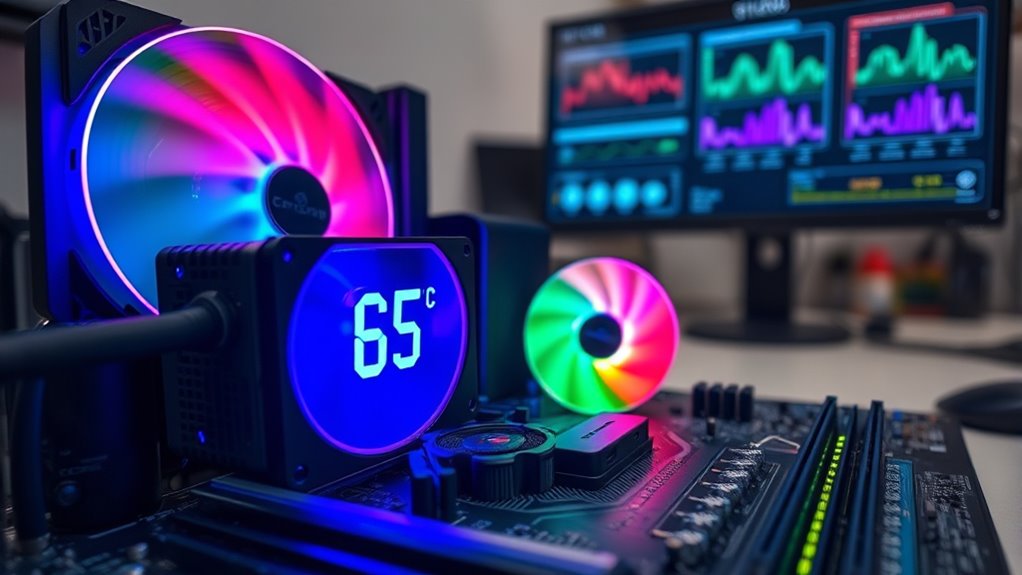
Monitoring your CPU temperature is crucial to guarantee your computer runs smoothly and prevents damage. When your CPU gets too hot, it can throttle performance or, worse, suffer permanent damage. Keeping an eye on the temperature helps you catch issues early and avoid costly repairs. One of the main risks to watch out for is overclocking, which pushes your CPU beyond its standard limits to boost performance. While overclocking can be tempting, it raises the risk of overheating, especially if your cooling setup isn’t robust enough. If you choose to overclock, you must be extra diligent in monitoring your CPU temperature and ensuring your system stays within safe ranges. Proper thermal management is essential here, and applying high-quality thermal paste is a critical step. Thermal paste fills microscopic gaps between your CPU’s heat spreader and the cooling solution, improving heat transfer. If you neglect thermal paste application or use a poor-quality paste, your CPU may run hotter than necessary, increasing the risk of thermal throttling or damage during intense workloads. Additionally, maintaining good airflow within your case helps dissipate heat more effectively and keeps your system running cooler.
To accurately monitor your CPU temperature, you should use reliable software tools compatible with your system. Many free options are available that provide real-time temperature readings, allowing you to keep a close eye during heavy tasks or overclocking. Regularly checking these readings helps you identify when temperatures approach unsafe levels—usually above 80-85°C for most CPUs. If you notice temperatures climbing too high, consider improving your cooling system, whether that means cleaning dust from fans and heatsinks, upgrading to a better air cooler, or switching to liquid cooling. Always remember that maintaining a good airflow within your case also plays a role in heat management.
Managing heat isn’t just about hardware; your usage habits matter too. Avoid running demanding applications for extended periods without proper cooling, and give your system breaks to cool down if it’s running hot. If you’re overclocking, be cautious and gradually increase performance settings while monitoring temperature responses. This way, you can find a balance between performance and thermal safety. Ultimately, staying aware of your CPU’s temperature and taking preventative steps ensures your computer runs efficiently without risking hardware failure due to excessive heat. Proper thermal paste application, vigilant monitoring, and good airflow are your best defenses against overheating, helping you extend your system’s lifespan and maintain peak performance. Being knowledgeable about thermal management can significantly improve your system’s reliability and longevity.
CPU temperature monitoring software
As an affiliate, we earn on qualifying purchases.
As an affiliate, we earn on qualifying purchases.
Frequently Asked Questions
How Does Ambient Room Temperature Affect CPU Cooling?
Your ambient room temperature directly impacts CPU cooling because higher temperatures reduce air circulation and room ventilation efficiency. When the room feels warm, your cooling system struggles to dissipate heat effectively, causing CPU temps to rise. To keep your CPU cool, guarantee proper airflow, use fans for better air circulation, and maintain good room ventilation, especially during intense tasks or in warmer environments. This helps prevent overheating and maintains ideal performance.
Can Overclocking Cause Permanent CPU Damage Due to Heat?
Overclocking can be like pushing a car beyond its limits—yes, it might cause permanent CPU damage due to excessive heat. When you overclock, thermal throttling kicks in to protect your processor, but sustained high temperatures increase power consumption and stress the CPU. Over time, this can lead to degradation of essential components, risking permanent damage. Always monitor your temps and keep cooling effective to avoid irreversible harm.
What Are the Best Thermal Paste Options for CPU Cooling?
You should choose high-quality thermal paste like Arctic MX-4, Noctua NT-H1, or Thermal Grizzly Kryonaut for ideal CPU cooling. When applying, guarantee proper thermal paste application for full coverage without excess, which can hinder heat transfer. These options offer excellent paste longevity, maintaining thermal conductivity over time. Regularly check and reapply if you notice rising temperatures or uneven cooling, ensuring your CPU stays cool and performs well.
How Often Should I Clean My CPU Heatsink and Fans?
Think of your CPU as a busy kitchen chef; keeping it clean is key to smooth operation. You should clean your heatsink and fans every 3 to 6 months to prevent dust buildup, which hampers cooling. During cleaning, reapply thermal paste if needed to maintain ideal thermal transfer. Regular maintenance ensures your system stays cool, efficient, and extends its lifespan, much like a well-kept kitchen keeps chefs happy and productive.
Is It Safe to Run a CPU at High Temperatures Temporarily?
Running your CPU at temporary high temps isn’t usually dangerous if it’s just short-term overheating or brief spikes in temperature. Modern CPUs can handle short bursts of high temperatures without damage. However, avoid prolonged periods of high temps, as they can cause long-term harm or throttling. Always keep an eye on your temps during intensive tasks, and make certain your cooling system is clean and functioning properly to prevent issues.
high-quality thermal paste for CPU
As an affiliate, we earn on qualifying purchases.
As an affiliate, we earn on qualifying purchases.
Conclusion
By monitoring your CPU temperature, maintaining ideal cooling, and avoiding overheating, you protect your system’s performance, extend its lifespan, and prevent unexpected shutdowns. Keep an eye on temperature levels, clean your cooling system regularly, and use reliable software to stay informed. Stay proactive, stay cool, and guarantee your CPU runs smoothly and safely—because a healthy CPU equals a happy, efficient computer. Take control today, and enjoy worry-free computing tomorrow.
As an affiliate, we earn on qualifying purchases.
As an affiliate, we earn on qualifying purchases.
Fall Picks
fall essentials
As an affiliate, we earn on qualifying purchases.