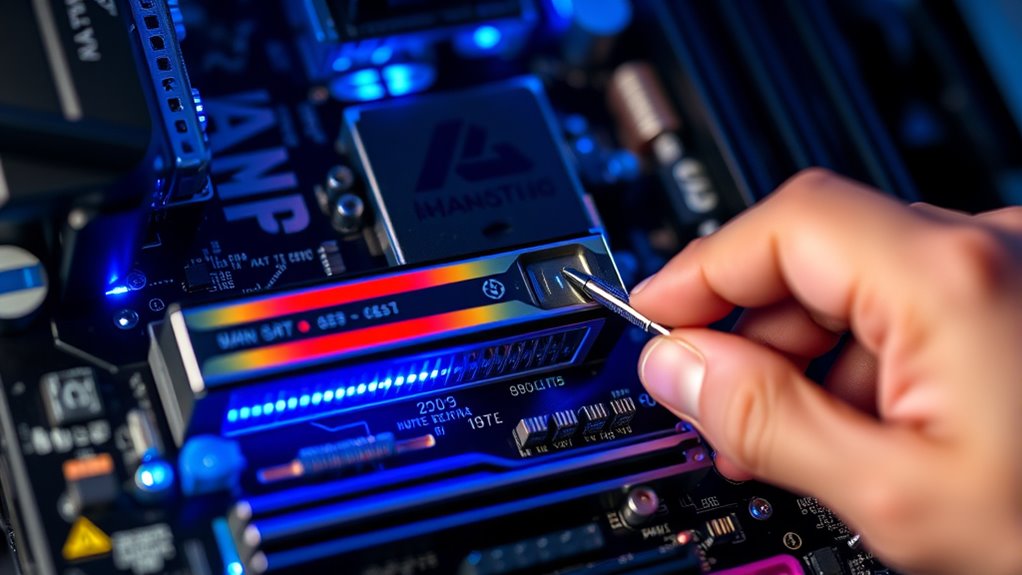

To safely overclock your PC, start by checking your hardware’s compatibility and updating your BIOS and drivers for stability. Establish a baseline with stress tests, then slowly raise your CPU multiplier and voltage while monitoring temperatures and power. Tweak RAM timings carefully, and incrementally increase settings, testing stability each time. Enable automatic shutdown protections and keep detailed records. If you follow these steps closely, you’ll unseal more performance while keeping your hardware safe—so, keep going to learn exactly how.
Key Takeaways
- Update your BIOS, drivers, and firmware to ensure stability and compatibility before overclocking.
- Increase CPU and RAM settings gradually, testing stability and temperatures after each adjustment.
- Use real-time monitoring tools to track temperatures, voltages, and system behavior during overclocking.
- Set conservative voltage limits and enable automatic shutdown features to prevent hardware damage.
- Conduct incremental stress tests, documenting changes to find the optimal balance between performance and safety.
Assess Your Hardware Compatibility and Capabilities

Before attempting to overclock your PC, you need to make certain your hardware can handle the increased demands. Hardware limitations vary, and not all components are built for overclocking. Start with compatibility checks by researching your CPU, GPU, and motherboard models to see if they support overclocking features. Check manufacturer specifications and user reviews to identify any known issues or restrictions. For example, some motherboards have limited overclocking capabilities, and certain CPUs may hit thermal or power limits quickly. Ensuring your hardware is compatible helps prevent instability or damage. Be mindful that older components might not overclock well or at all. Additionally, understanding your hardware’s processing power is crucial for effective overclocking. You should also consider the market conditions that can influence your hardware’s performance and longevity, ensuring your overclocking efforts are sustainable. Taking these steps ensures you’re working within your hardware’s capabilities and reduces the risks associated with overclocking.
Update Your BIOS and Drivers

Updating your BIOS and drivers is a vital step to guarantee your system is prepared for overclocking. BIOS updates can improve system stability, compatibility, and enable new features that support overclocking. Check your motherboard manufacturer’s website for the latest BIOS version, then follow their instructions carefully to update. Similarly, driver updates confirm your hardware runs smoothly and efficiently, reducing potential conflicts or stability issues during overclocking. Update your graphics card, chipset, and other device drivers through official sources or trusted tools. Keeping your BIOS and drivers current minimizes risks and assure your system is optimized for increased performance. Proper updates lay a solid foundation for safe overclocking. Additionally, understanding the subtopic importance of keeping firmware and driver software up to date can significantly impact your hardware’s overclocking potential and overall stability. Regular updates also help ensure your hardware benefits from latest optimizations, which can directly influence overclocking success and stability. Staying informed about AI security vulnerabilities can help you recognize potential risks during system modifications and enhance your safety practices. Always back up your data before updating, and avoid rushing the process to prevent potential issues. Maintaining system security through timely updates can safeguard your system against vulnerabilities that might be exploited during overclocking. Being aware of firmware vulnerabilities can help you address security flaws that could be exploited by malicious actors.
Establish a Baseline With Stress Testing

Establishing a baseline with stress testing is essential to understand your system’s current stability and performance levels. Before making any overclocking adjustments, run a thorough stress test to verify your system’s stability under load. This helps identify any existing issues and sets a reference point for comparison later. During the stress test, monitor temperatures, voltages, and system behavior to ensure everything operates within safe limits. Conduct the test for at least 15-30 minutes to get accurate results. If your system passes without crashes or errors, you can be confident in its stability verification. This baseline allows you to track how overclocking affects your system and ensures you’re not pushing beyond safe parameters. Additionally, understanding thermal management techniques can further help you keep temperatures in check and prevent overheating during overclocking. Proper cooling solutions are crucial to maintaining system health and stability throughout the overclocking process. Regularly reviewing your system’s performance metrics can help you fine-tune your overclocking settings for optimal results.
Adjust the CPU Multiplier and Voltage Settings

To begin adjusting your CPU’s performance, you need to modify the multiplier and voltage settings in your BIOS or UEFI firmware. The multiplier adjustment controls your CPU’s clock speed, so increasing it raises performance, but do so gradually. Be mindful of voltage regulation; increasing voltage can enhance stability but also generates more heat. Start by slightly raising the multiplier, then adjust the core voltage incrementally. Monitor system stability and temperatures closely after each change. Avoid pushing settings too far too quickly to prevent damage or system crashes. Save your settings, reboot, and test stability. Fine-tuning these parameters allows you to find a balance between performance gains and safe operation, ensuring your overclock remains stable during demanding tasks. Additionally, understanding the importance of system stability helps prevent potential hardware issues during overclocking.
Tweak RAM Timings and Frequencies
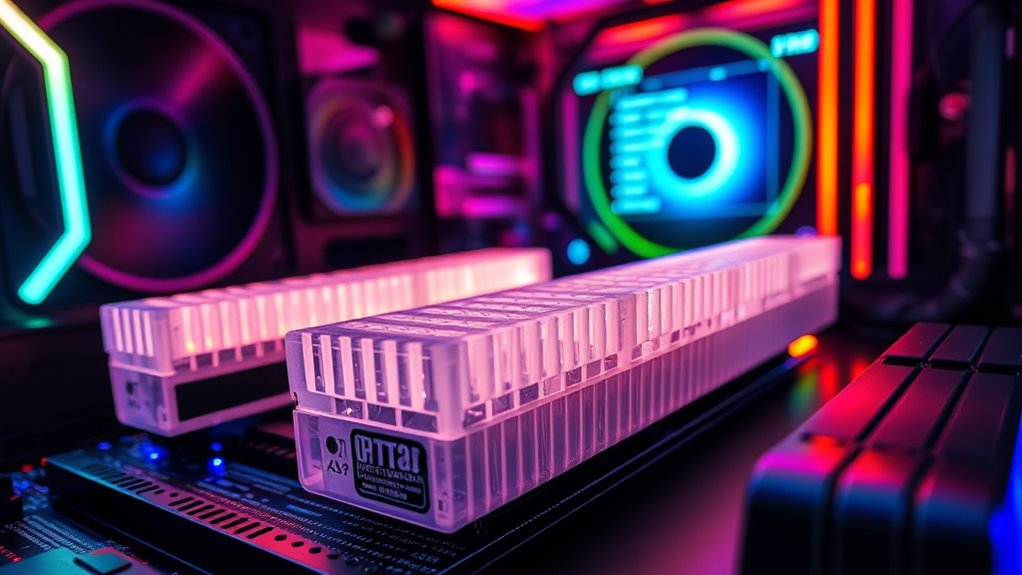
To improve your system’s performance, you should start tweaking your RAM timings and frequencies. Adjusting the RAM voltage guarantees stability when making these changes, and modifying timing settings can boost speed without sacrificing reliability. Be cautious and test thoroughly after each adjustment to keep your system safe. Additionally, ensure that your headphone connection is secure and properly configured to avoid audio issues during testing. Remember that using quality RAM modules can significantly impact your overclocking success and stability. For optimal results, consider researching specific overclocking guidelines tailored to your RAM and motherboard models.
Adjusting RAM Voltage
Adjusting RAM voltage is a crucial step in safely overclocking your system, as it helps stabilize higher memory speeds. Increasing voltage can improve voltage stability, ensuring your RAM runs reliably at overclocked settings. However, avoid over-volting, as it can lead to excessive heat and reduce power efficiency. Start by gradually increasing the RAM voltage in small increments, testing stability after each adjustment. Keep an eye on temperatures and system stability to prevent damage. Proper voltage tuning balances performance gains with system safety. Remember, higher voltages don’t always mean better performance—finding that sweet spot is key. Use reliable monitoring tools to track voltage, temperature, and stability throughout the process. This careful approach safeguards your hardware while maximizing overclocking potential. Additionally, choosing the right Vacuums for Pet Hair can help keep your system clean and free of dust that might affect thermal performance. Proper airflow and dust management are essential for maintaining optimal thermal efficiency during overclocking. Maintaining good hardware health through regular cleaning can further improve stability and longevity of your overclocked system.
Modifying Timing Settings
After setting your RAM voltage for stability, fine-tuning the timing settings can release even better performance. Adjusting memory latency and other timing parameters reduces the delay between memory commands, boosting overall speed. Start by decreasing primary timing values like CL, tRCD, and tRP incrementally—small changes can make a big difference. Be cautious; overly aggressive timing adjustments can cause instability. Use your motherboard’s BIOS or overclocking software to test each change, ensuring stability with stress tests. Remember, tighter timing and higher frequencies improve performance but may increase the risk of errors if pushed too far. Always monitor your system’s responsiveness and temperature, and dial back settings if issues arise. Proper timing adjustments optimize your RAM’s performance potential without compromising system reliability. Additionally, understanding memory timings can help you make more informed adjustments for optimal performance.
Monitor Temperatures and Power Consumption

Monitoring your CPU and GPU temperatures, along with power consumption, is essential when overclocking because it helps prevent hardware damage and stability issues. Keeping an eye on these metrics guides your thermal management efforts and guarantees you maintain power efficiency. If temperatures exceed safe limits, you risk overheating and potential component failure. Regularly check your system’s readings during stress tests or extended use. Use reliable monitoring tools to track real-time data and adjust settings accordingly. Focus on maintaining ideal temperatures to improve thermal management, which prolongs hardware lifespan. Additionally, monitoring power consumption helps identify inefficiencies, saving energy and reducing heat output. Being aware of proper cooling solutions can further optimize your overclocking process. Staying informed about Vetted – AP Tuning best practices can further optimize your overclocking process. Stay vigilant, and you’ll achieve better performance without compromising your system’s health. Proper storage practices for your hardware components also support optimal operation and longevity.
Incrementally Increase Settings and Test Stability

Once you’ve checked that your temperatures and power consumption are within safe limits, it’s time to increase your overclocking settings gradually. Pushing your system too hard all at once can lead to overclocking risks, including system instability or hardware damage. To minimize these risks, raise your CPU or GPU clock speeds in small increments—usually 10-20 MHz—and then run stability tests. Pay close attention to your cooling solutions; effective cooling is essential during this process. If your system crashes or shows errors, dial back the settings slightly. Patience is key: incremental increases and thorough testing help you find the maximum stable overclock without sacrificing reliability or risking overheating.
Implement Safety Measures and Fail-Safes

To safeguard your system during overclocking, it’s vital to implement safety measures and fail-safes that can prevent damage and guarantee stability. These measures protect your hardware safety and ensure quick responses during potential issues. You should:
- Enable automatic emergency shutdown in your BIOS or overclocking software to instantly power off if temperatures or voltages reach dangerous levels.
- Use reliable monitoring tools to track CPU and GPU temperatures, voltages, and stability in real-time.
- Set conservative voltage limits and keep your overclock within safe thresholds to avoid hardware stress.
These steps help prevent overheating and hardware failure, minimizing risks associated with overclocking. Safety measures act as your first line of defense, guaranteeing your PC remains protected during aggressive performance tweaks.
Document Settings and Maintain Regular Monitoring
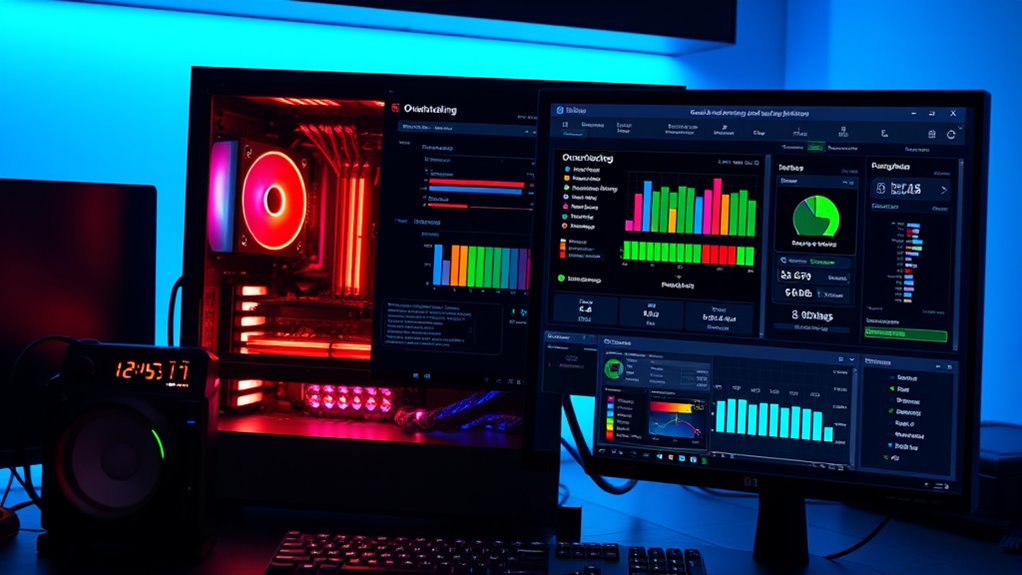
You should back up your configuration files before making any changes so you can restore settings if needed. Using monitoring tools helps you keep an eye on your system’s performance and temperature in real-time. Regularly documenting your settings and monitoring results guarantees you can track progress and catch issues early.
Backup Configuration Files
Have you backed up your configuration files lately? Regularly saving your system settings guarantees you can quickly recover if overclocking causes issues. Use system restore points to roll back to a stable state, or consider cloud backup solutions for added security. Keeping backups of your BIOS and driver configurations helps avoid tedious reconfigurations.
- Save your current settings before overclocking to easily revert if needed
- Use system restore to recover from unstable changes
- Store backups in the cloud for quick access and safety
Use Monitoring Tools
Using monitoring tools is essential for keeping your overclocking safe and stable. They help you track temperature management and power monitoring, preventing overheating and power issues. Regularly check your CPU and GPU temperatures to ensure they stay within safe limits. Use software like HWMonitor or MSI Afterburner to gather real-time data. Here’s a simple overview:
| Metric | Safe Range | Monitoring Tips |
|---|---|---|
| Temperature | 60-80°C | Keep below CPU’s max threshold |
| Power Consumption | Within PSU limits | Watch for spikes |
| System Stability | No crashes | Adjust overclock if unstable |
Consistent monitoring helps you make informed adjustments, maintaining performance without risking hardware damage.
Frequently Asked Questions
Can I Overclock My Laptop Safely Without Damaging It?
You can overclock your laptop, but it’s risky. To maintain laptop safety, you need to understand overclocking risks, like overheating and hardware damage. Use reliable tools, monitor temperatures constantly, and increase clock speeds gradually. Avoid pushing your laptop too far beyond recommended limits. Remember, laptops aren’t designed for heavy overclocking, so proceed carefully and prioritize safety to prevent permanent damage.
How Do I Prevent Overheating During Overclocking?
Think of your PC as a delicate engine—you must keep it cool to keep it running smoothly. To prevent overheating during overclocking, focus on thermal management by upgrading your cooling solutions, like installing high-quality fans or liquid cooling. Monitor temperatures regularly, avoid pushing your system beyond safe limits, and guarantee proper airflow. These steps help maintain ideal performance without risking damage, keeping your system cool under pressure.
What Are the Signs of Unstable Overclocking?
You’ll notice hardware instability if your system crashes frequently, especially during gaming or intensive tasks. You might also see graphical glitches, unexpected restarts, or error messages. Overclocking can cause these issues if not properly stabilized, so keep an eye on your system’s behavior. If you experience system crashes or hardware uncertainty, dial back your overclock settings, increase cooling, or run stability tests to ensure safe, reliable performance.
Is It Possible to Reverse Overclocking if Problems Occur?
Ever wonder if you can reverse overclocking if problems pop up? Yes, you can reverse adjustments easily by resetting your BIOS settings or using dedicated software. This helps restore stability and performance. Keep in mind, though, that reversing overclocking might have warranty implications, so check your manufacturer’s policies beforehand. Doing so guarantees you protect your system and maintain peace of mind during troubleshooting.
How Does Overclocking Affect the Lifespan of My Hardware?
Overclocking can slightly reduce your hardware’s lifespan because it increases heat and electrical stress, leading to potential hardware degradation over time. If you push your components too hard without proper cooling, their longevity may decrease. However, if you overclock carefully and maintain good cooling, you can minimize these effects. Always monitor temperatures and voltages to protect your hardware and preserve component longevity while enjoying improved performance.
Conclusion
Now that you know the steps to safely overclock your PC, imagine the thrill of pushing your system to new heights—just enough to boost performance without risking stability. But remember, every tweak brings new challenges and surprises. Will your cooling hold up under the pressure? Will your system stay rock-solid or hit an unexpected snag? Stay vigilant, keep monitoring, and embrace the journey—your perfect overclocked setup is waiting just beyond the next adjustment.