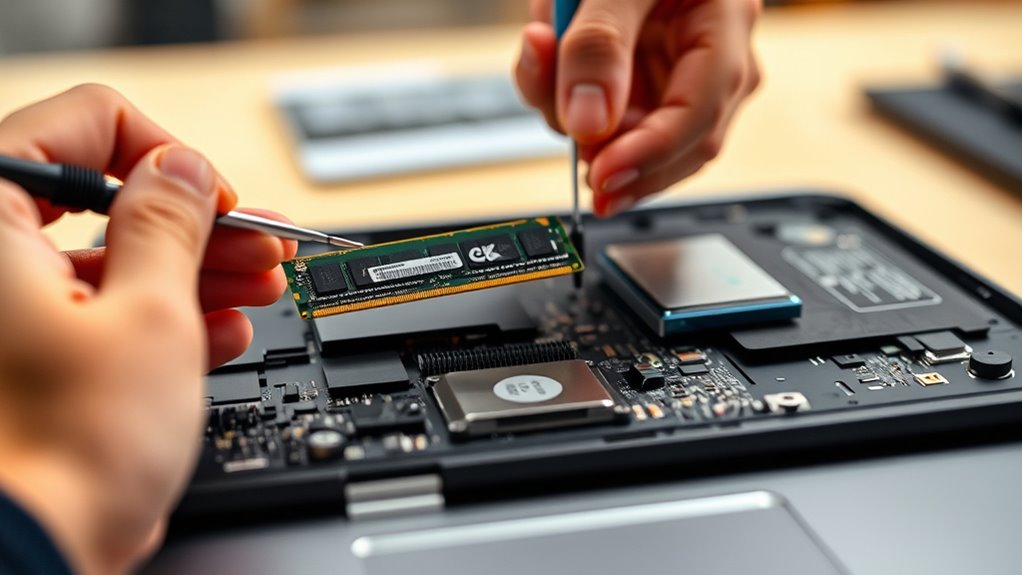

To upgrade your laptop’s RAM or SSD, start by powering down, unplugging, and removing the battery if possible. Open the back panel carefully, refer to your model’s manual for specific instructions, then install the new components securely. Remember to clean dust and guarantee proper airflow to prevent overheating. Using a cooling pad or cleaning vents can help maintain ideal temps. Keep exploring for detailed tips to ensure a smooth, safe upgrade process.
Key Takeaways
- Research compatible components (RAM, SSD) and gather necessary tools before starting the upgrade process.
- Power off, disconnect power sources, and open the laptop casing carefully to access upgrade ports.
- Install new hardware by aligning modules properly and securing them without forcing to prevent damage.
- Close the casing securely, reconnect power, and boot the device to ensure the upgrade is recognized.
- Update system BIOS and drivers if needed, and perform a clean system check to verify proper functioning.
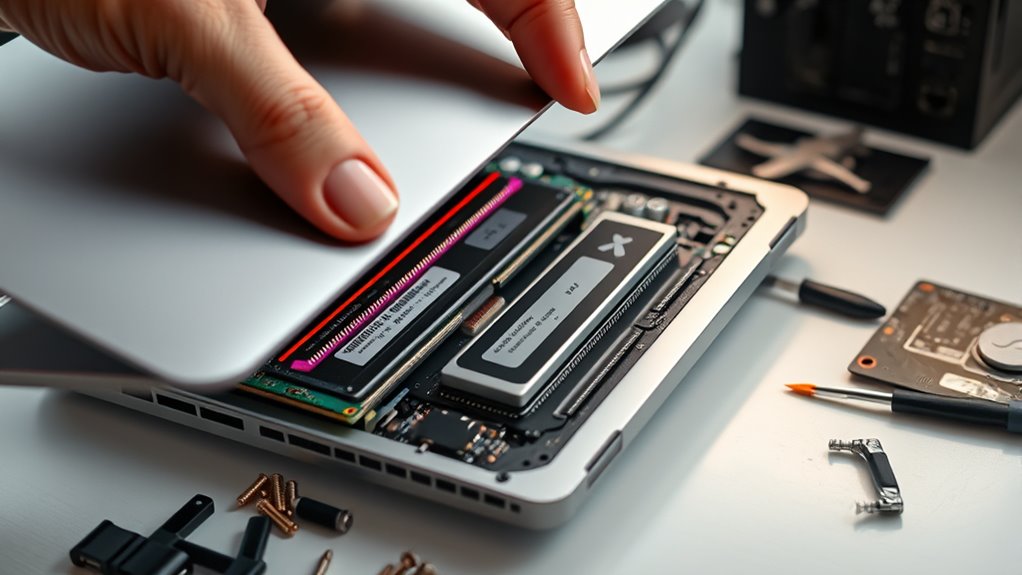
Cooling solutions are another critical aspect often overlooked. Overheating can throttle CPU speeds, causing your laptop to lag or freeze during intensive tasks. Ensuring your device has good cooling solutions in place is vital, especially when upgrading hardware components. You can start by cleaning out dust from vents and fans, which often accumulate over time and hinder airflow. Using compressed air can help dislodge debris without opening the device. If your laptop runs hot frequently, consider investing in a cooling pad—these provide extra airflow and help maintain optimal temperatures during demanding use. Keeping temperatures low not only improves performance but also prolongs your laptop’s lifespan. Additionally, monitoring your thermal management can help identify overheating issues early and prevent hardware damage.
Frequently Asked Questions
Can I Upgrade My Laptop’s Graphics Card?
You generally can’t upgrade your laptop’s graphics card because most laptops have integrated or soldered GPUs that aren’t removable. To upgrade, you need to check your laptop’s graphics card compatibility and whether it has a dedicated, upgradeable GPU slot. The upgrade process involves opening your laptop carefully, ensuring compatibility, and installing a compatible graphics card, but many laptops don’t support this, so consider external GPU options if you want better graphics performance.
What Tools Are Necessary for Internal Upgrades?
To perform internal upgrades, you need compatible tools like precision screwdrivers, an anti-static wrist strap, and plastic pry tools. These help you handle delicate components safely. Always follow safety precautions, such as disconnecting power and grounding yourself, to prevent static damage. Having the right tools guarantees a smooth upgrade process and minimizes the risk of damaging your laptop. Make sure to work in a clean, organized space for best results.
Are There Compatibility Issues With Different RAM Types?
You might face compatibility issues with different RAM types, so don’t assume any DDR standard will work seamlessly. Your laptop’s RAM compatibility depends on specific DDR standards—like DDR3 or DDR4—and supported speeds and sizes. Check your device’s specifications carefully before upgrading. Mixing incompatible RAM can cause system instability or failure to boot, so verifying compatibility guarantees your upgrade is successful and keeps your laptop running smoothly.
How Do I Backup Data Before Upgrading?
You should back up your data before upgrading by using reliable backup methods like an external hard drive or cloud storage. Connect your device, then transfer important files, documents, and settings to make certain they’re safe. This way, if anything goes wrong during the upgrade, you can restore your data easily. Always double-check that your backup is complete and accessible, so you won’t lose any crucial information during the process.
Will Upgrading Void My Laptop’s Warranty?
Breaking the bank on warranties isn’t always necessary. Upgrading your laptop yourself might impact warranty implications, especially if manufacturer restrictions come into play. Some brands allow upgrades without voiding the warranty, while others might see it as tampering. Check your manufacturer’s policy first—if you’re cautious, you won’t get caught in a bind. Doing your homework helps you avoid surprises and keeps your warranty intact.
Conclusion
Now that you’ve upgraded your laptop, it’s like giving it a fresh set of wings to soar higher and faster. With each new RAM module or SSD, you’ve liberated a new level of power and speed, transforming your machine into a sleek, agile beast ready to conquer any task. Remember, this DIY upgrade isn’t just about hardware—it’s about taking control and breathing new life into your trusty companion, turning it into a performance masterpiece.