
To clean your laptop without damage, start by turning it off and unplugging it. Use soft, damp microfiber cloths with water or isopropyl alcohol to wipe the exterior, screen, and keyboard gently. Avoid spraying liquids directly and don’t insert sharp objects into ports. Use compressed air or anti-static brushes to remove dust from vents and crevices. Following these steps helps keep your device running smoothly—keep going to learn more tips for safe cleaning.
Key Takeaways
- Turn off and disconnect the laptop from power before cleaning to prevent damage and electric shocks.
- Use microfiber cloths and gentle cleaners like isopropyl alcohol to wipe surfaces and screens safely.
- Avoid spraying liquid directly onto the device; dampen cloths instead for cleaning screens and keyboards.
- Use compressed air or anti-static brushes to carefully remove dust from vents and ports without inserting sharp objects.
- Perform regular cleaning and inspections to maintain airflow, prevent overheating, and prolong your laptop’s lifespan.
Turn Off and Unplug Your Laptop
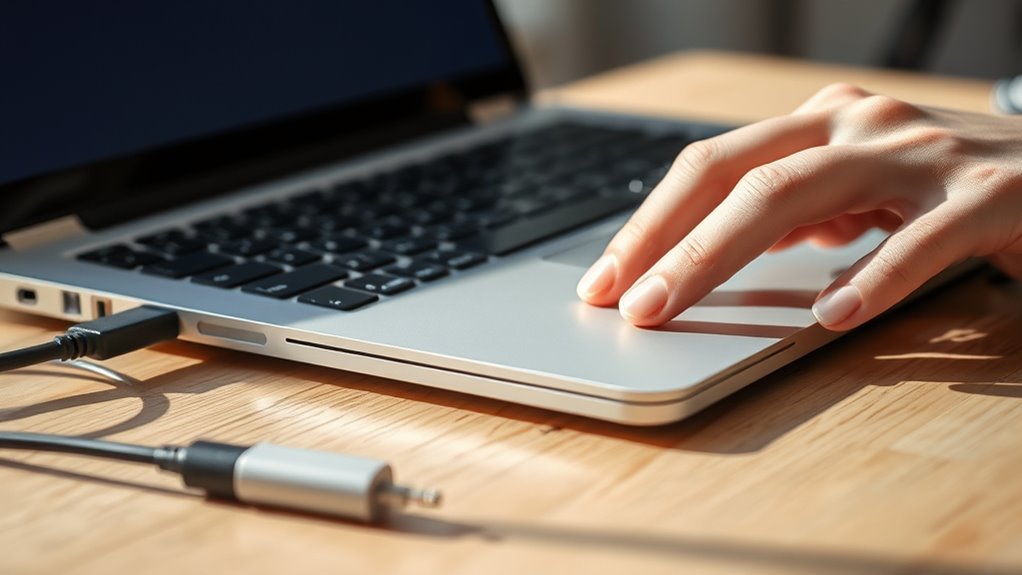
Before you begin cleaning your laptop, make sure to turn it off and unplug it from any power source. This step is vital for effective power management and hardware safety. Turning off your device prevents accidental activation that could cause damage or electric shock. Unplugging ensures there’s no power running through the components, reducing the risk of short circuits. It also helps protect sensitive internal parts from static or moisture exposure. Always wait a few moments after shutting down before cleaning, allowing internal systems to cool and stabilize. Taking these precautions minimizes the chance of hardware damage and makes the cleaning process safer and more efficient. Proper power management during cleaning helps prolong your laptop’s lifespan and maintain optimal performance. Additionally, being mindful of static electricity buildup is important to prevent potential damage to internal components. Utilizing an anti-static brush or cloth during cleaning can help mitigate this risk. To further ensure safety, consider using an electric static discharge wrist strap to prevent static buildup on your body. Remember, handling your laptop with care during power management is essential to keep it functioning properly in the long run.
Gather the Right Cleaning Supplies

Before you start cleaning, gather the right supplies, including gentle cleaning agents and soft tools. Using the proper cleaners safeguards against damage, while the right tools ensure a thorough job. Make sure you have everything ready before you begin to avoid interruptions. Additionally, understanding best cleaning practices can help you maintain your laptop’s performance and longevity. Incorporating proper cleaning techniques can further prevent damage and ensure effective cleaning. Being aware of air purifier maintenance can also remind you to handle your device with care, much like nurturing a personal partnership. To prevent dust buildup and keep your device running smoothly, consider regular cleaning routines that incorporate preventive maintenance techniques.
Suitable Cleaning Agents
Choosing the right cleaning agents is essential to safely and effectively clean your laptop. You should opt for non abrasive cleaners that won’t scratch surfaces or damage sensitive components. Alcohol-based solutions are ideal for disinfecting without leaving residue or moisture that could harm internal parts. Avoid harsh chemicals like bleach or ammonia, which can cause discoloration or corrosion. Using the correct cleaning agents ensures a safe cleaning process and prolongs your laptop’s lifespan.
Here are some suitable cleaning agents to consider:
- Microfiber cloths
- Isopropyl alcohol (70% or higher)
- Specialty electronics cleaning wipes
- Diluted mild dish soap
- Compressed air for dust removal
Essential Tools to Use
To effectively clean your laptop, gather the essential tools that guarantee a safe and thorough process. You’ll need microfiber cloths for gentle screen cleaning, preventing scratches while removing dust and smudges. Compressed air is vital for keyboard maintenance, helping you blow out debris from between keys without damage. Use a soft, anti-static brush to dislodge stubborn dirt from crevices. Keep a small spray bottle with a mixture of distilled water and isopropyl alcohol for light cleaning, avoiding excess liquid. Additionally, have cotton swabs handy for precise cleaning around ports and edges. These tools ensure you can safely and effectively clean your laptop’s screen and keyboard, maintaining peak performance without risking damage. Proper tools make all the difference in a thorough, damage-free cleaning.
Remove Dirt and Dust From the Exterior
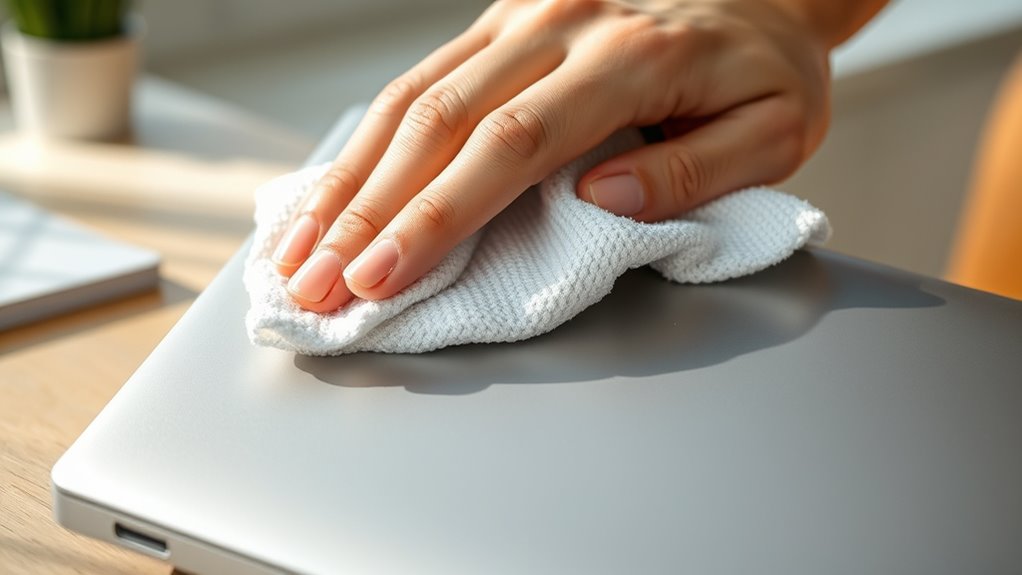
Dust and dirt can quickly accumulate on your laptop’s exterior, making it look dull and unkempt. To combat this, start by gently wiping down the surface with a microfiber cloth. Pay special attention to areas prone to dust accumulation, like vents and corners. Use a soft brush or compressed air to dislodge stubborn dirt and dust from crevices. Avoid harsh cleaners that could damage the finish. For screen smudges, lightly dampen a cloth with water or a screen-safe cleaner. Keep in mind that a clean exterior not only improves appearance but also prevents dust from entering vents and affecting performance. Regular cleaning helps maintain your laptop’s longevity and keeps it looking professional. Additionally, using vacuum cleaner attachments can help remove dust from hard-to-reach areas without risking damage to delicate components. Incorporating proper maintenance practices ensures your laptop remains in optimal condition over time.
Clean the Screen Safely

Cleaning your laptop screen requires careful attention to avoid damage. Use a soft, lint-free cloth slightly dampened with water or a gentle screen cleaner, avoiding harsh chemicals. Gently wipe the screen in a circular motion to remove smudges and fingerprints. Be cautious around the edges to prevent liquid from seeping into openings. Regular cleaning helps reduce screen glare, making it easier to see and reducing eye strain. After cleaning, check your screen calibration to ensure your display remains accurate, as improper cleaning can sometimes affect color or brightness settings. Never spray liquid directly onto the screen. Instead, spray the cleaner onto the cloth. This careful approach preserves your screen’s integrity and keeps it crystal clear without damaging delicate coatings. Proper cleaning techniques also help maintain the longevity of screen coatings and prevent premature wear. Additionally, using appropriate cleaning methods can help minimize the risk of introducing pollutants that may harm your device over time. For example, some cleaning solutions may contain chemicals that could degrade electronic components, so choosing the right products is essential. Incorporating gentle, mindful cleaning practices and periodically inspecting your device for dust buildup can extend its lifespan and performance over time.
Wipe Down the Keyboard and Touchpad

When wiping down your keyboard and touchpad, use the right cleaning tools like a soft cloth or microfiber towel. Apply gentle pressure and wipe in a consistent, light motion to avoid damage. This approach guarantees your devices stay clean without risking harm to sensitive surfaces. Additionally, avoiding harsh chemicals helps preserve the integrity of your device’s delicate components to prevent damage. Using proper cleaning techniques can further reduce the risk of damage and ensure your device remains in excellent condition. Incorporating regular maintenance practices can also extend the lifespan of your laptop and keep it functioning optimally. Selecting appropriate cleaning tools is essential for maintaining the longevity of your device’s surfaces.
Use Appropriate Cleaning Tools
To effectively wipe down your keyboard and touchpad, selecting the right cleaning tools is vital. Using suitable cleaning cloths prevents damage and guarantees a thorough clean. Microfiber towels are ideal because they are soft, lint-free, and gentle on surfaces. Avoid abrasive materials that could scratch your laptop’s finish. Keep a small, clean microfiber towel handy for quick, effective cleaning. For stubborn spots, dampen the towel slightly with a mixture of water and isopropyl alcohol—never soak it. Use different cloths for screens and keyboards to prevent cross-contamination. Always ensure your cleaning tools are clean and free of debris before use. Proper tools make your cleaning safe, effective, and hassle-free. Additionally, be mindful of indoor air quality when cleaning to avoid circulating dust and allergens.
Gentle Wiping Technique
Using the right cleaning tools is just the first step; applying a gentle wiping technique guarantees you remove dirt and grime without causing any damage. Start by dampening a soft cloth with a small amount of a safe cleaning solution or water. Gently wipe the keyboard and touchpad in a light, sweeping motion, avoiding excessive pressure. Focus on small sections at a time to ensure thorough cleaning without pushing debris into crevices. Use the soft cloth to pick up dust and smudges without scratching delicate surfaces. Remember, gentle wiping prevents unintentional damage and preserves your laptop’s finish. Avoid harsh scrubbing or abrasive materials. With a soft cloth and careful movements, you’ll effectively clean your laptop while maintaining its integrity.
Clean the Ports and Vents

Dirt and dust can quickly accumulate in your laptop’s ports and vents, reducing airflow and causing overheating. To maintain airflow efficiency, you need to clean these areas carefully. Use a soft brush or compressed air to gently remove debris without damaging sensitive components. Focus on clearing out dust from the vents and port openings to prevent blockages. Regular port maintenance not only improves cooling but also ensures optimal device performance. Be cautious not to insert anything into the ports that could cause damage. Keep these tips in mind:
Clean ports and vents regularly with soft tools to prevent overheating and ensure optimal performance.
- Use compressed air to blow out dust
- Gently brush around vents and ports
- Avoid inserting sharp objects
- Keep vents exposed during use
- Regularly inspect for buildup
Final Checks and Preventative Tips
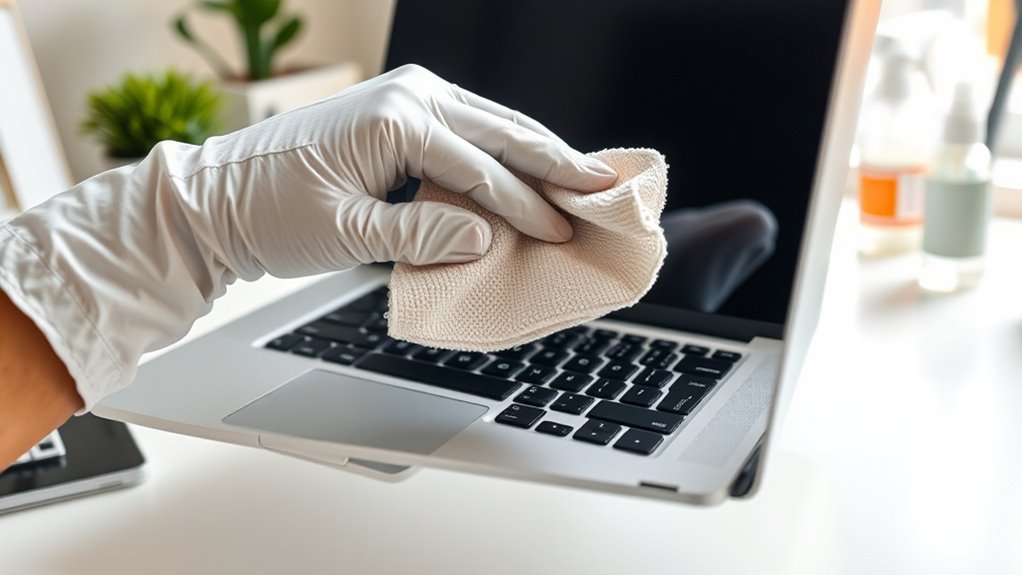
Before finishing your cleaning routine, it’s important to perform final checks to guarantee everything is in proper order. First, run antivirus checks to ensure your system is secure from any threats that could have been introduced unknowingly. Next, verify that your software updates are current; outdated software can pose security risks and slow down performance. Use the table below to evaluate your laptop’s health and security:
| Aspect | Action |
|---|---|
| Antivirus Status | Run a full scan and update definitions |
| Software Updates | Check for and install latest updates |
| Physical Condition | Inspect for dust or damage |
| Performance Checks | Test for speed and responsiveness |
Regularly performing these checks keeps your device running smoothly and protected from future issues.
Frequently Asked Questions
Can I Use Household Cleaners to Clean My Laptop?
You shouldn’t use household chemicals or homemade solutions to clean your laptop, as they can damage the delicate components. Instead, opt for a soft, lint-free cloth slightly dampened with water or a 70% isopropyl alcohol solution. Avoid spraying directly onto your device, and never use abrasive cleaners. This way, you’ll keep your laptop clean without risking harm to its internal parts or screen.
How Often Should I Clean My Laptop?
You should clean your laptop at least once a week to prevent germs and dust buildup. Notably, studies show keyboards and screens harbor more bacteria than a toilet seat! Regular screen cleaning and keyboard maintenance keep your device functioning smoothly and reduce risk of damage. If you notice smudges, dust, or dirt, it’s time for a gentle wipe. Consistent care ensures your laptop stays clean, hygienic, and in top shape.
Is It Safe to Use Compressed Air on All Ports?
Yes, using compressed air on all ports is generally safe if you keep the air pressure low. It helps with dust removal and prevents debris buildup that can cause overheating. Hold the can upright to avoid releasing propellant and aim the airflow carefully to avoid damage. Use short bursts, and stay a few inches away from the ports. This method effectively cleans your laptop without risking damage.
What Should I Do if Liquid Spills on My Laptop?
A liquid spill on your laptop is like a storm hitting your window—quick action can minimize damage. Immediately turn off your device and disconnect it from power. Gently tilt to drain excess liquid, then dry with a soft cloth. Avoid turning it on until fully dry to prevent accidental damage. If unsure, consult a professional, as even small spills can cause long-term harm if mishandled.
Can Cleaning Damage the Laptop’s Warranty?
Cleaning your laptop carefully generally won’t void your warranty, but warranty concerns can arise if you use improper cleaning methods. Avoid harsh chemicals, excessive moisture, or opening the device yourself, as these can damage components and void coverage. Stick to manufacturer-approved cleaning guidelines, such as using a soft cloth and gentle cleaners. If you’re unsure, check your warranty terms or contact customer support to prevent accidental damage and guarantee your warranty remains valid.
Conclusion
Now that you know how to clean your laptop properly, imagine your device shining like a mirror, ready to serve you without a hitch. By following these steps, you protect your investment and keep your workspace tidy. Think of your laptop as a trusted companion—treat it with care, and it’ll reward you with smooth performance and a long life. Clean it regularly, and watch your digital world sparkle with clarity and confidence.