To set up your new PS5 or Xbox quickly, gather your accessories and organize them for easy access. Connect to the internet via Wi-Fi or Ethernet, ensuring a stable connection. Power on the console, follow the prompts, and update the firmware. Sign into your gaming accounts, set up profiles, and link digital stores. Finally, connect and test your controllers and peripherals. If you continue, you’ll discover more tips to optimize your gaming setup.

Get the latest gadgets delivered free — and shop member deals
- Fast, free delivery on millions of items
- Access to Prime Big Deal Days deals on October 6–7
- Prime Video, Amazon Music and more included
Key Takeaways
- Gather and organize all accessories, ensuring controllers, headsets, and peripherals are charged, compatible, and ready for use.
- Connect your console to the internet via Wi-Fi or Ethernet, minimizing obstacles to ensure a stable connection.
- Power on the console, follow prompts, and update firmware to access the latest features and security patches.
- Sign into your gaming account, set up your profile, and download or purchase games as needed.
- Sync and test accessories like controllers and headsets to confirm proper functionality before gaming sessions.
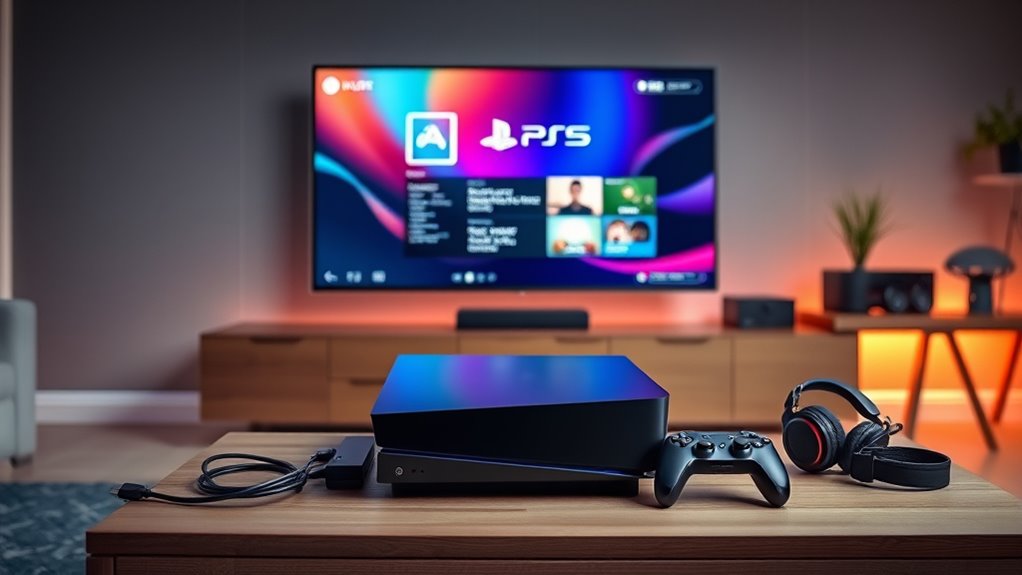
Getting your new gaming console up and running is exciting, and setting it up correctly guarantees you’ll enjoy smooth gameplay from the start. The first step is to gather all your console accessories—controllers, headsets, charging docks, and any extra peripherals—and verify they’re ready to connect. These accessories can considerably enhance your gaming experience, so it’s worth taking a moment to organize them. Once you’ve sorted your accessories, the next priority is establishing a reliable internet connection. A stable internet connection is vital for online gaming, streaming, and even downloading updates or new games. Whether you’re using Wi-Fi or an Ethernet cable, make sure your connection is fast and steady to avoid lag or interruptions during gameplay.
Gather and organize your accessories, then connect to a stable internet for smooth gaming.
If you’re opting for Wi-Fi, position your console close to your router, minimizing obstacles that could weaken the signal. For the best performance, consider connecting via Ethernet cable; it provides a more stable and faster connection, especially if your Wi-Fi signal is weak or inconsistent. Once your internet is set up, power on your console and follow the on-screen prompts to connect to your network. If you encounter issues, check your router settings or restart your modem and console. Many consoles also support a wired connection, which you can set up easily by plugging an Ethernet cable from your router directly into your console’s port.
After establishing your internet connection, it’s time to update your console’s firmware. This step guarantees you have the latest features and security patches, which can improve performance and fix bugs. During this process, your console might restart several times, so be patient. Once updated, sign in to your account—whether it’s PlayStation Network or Xbox Live—and set up your profile. Linking your account allows you to access digital stores, cloud saves, and multiplayer options.
Next, connect your console accessories. Sync your controllers via Bluetooth or wired connection, depending on the device. Take a moment to test each accessory to verify they work properly. For example, check that your headset connects correctly and that your controllers respond without lag. If you’ve purchased additional controllers or peripherals, pair them now so they’re ready for gameplay. Remember to keep your accessories charged and organized, so you’re prepared for long gaming sessions without interruptions. Also, consider projector technology to optimize your setup for an immersive gaming experience on a big screen.
Frequently Asked Questions
How Do I Transfer Data From My Old Console to the New One?
To transfer data from your old console to your new one, start with a console transfer or data migration. Connect both consoles to your network, then follow the on-screen prompts. For a smooth process, make certain both devices are updated to the latest firmware. You can also use cloud saves or a USB drive for game data. This way, you’ll quickly move your settings, games, and profiles to your new console.
What Internet Speed Is Recommended for Optimal Gaming?
For ideal gaming, you should aim for an internet speed of at least 25 Mbps download and 3 Mbps upload. These internet requirements guarantee smooth gameplay, quick downloads, and minimal lag. Bandwidth recommendations vary depending on your gaming activities, but higher speeds are always better for online multiplayer, streaming, and downloading large game files. Keep your connection stable and wired if possible, to avoid interruptions and enjoy a seamless gaming experience.
How Can I Troubleshoot Common Setup Errors?
Did you know over 30% of gamers face setup errors? To troubleshoot connectivity issues, check your Wi-Fi signal strength and restart your router. For resolving installation errors, verify your console’s software is up-to-date and clear space if needed. If problems persist, reconnect your cables firmly, reset network settings, or consult the support site. These simple steps can quickly get you back to gaming without frustration.
Are There Parental Controls Available During Setup?
Yes, parental controls are available during setup. You can set up parental controls to manage screen time, content restrictions, and online interactions right from the start. During the initial setup, you’ll be prompted to create a child account or link an existing one, allowing you to set setup restrictions and customize parental controls. This helps guarantee a safer gaming environment tailored to your family’s needs.
How Do I Connect Additional Controllers or Accessories?
You can connect additional controllers or accessories easily by controller pairing or accessory installation. To pair a controller, turn it on and press the pairing button until the light flashes. For accessories, plug them into the console’s USB port or follow specific pairing instructions. Make certain your console is on, then follow prompts to complete the setup. This ensures seamless controller pairing and accessory installation for an improved gaming experience.
Conclusion
Now that your console is set up and ready to go, you’re all set to plunge into immersive gaming experiences. While the sleek design and cutting-edge technology make your setup impressive, don’t forget the simple joy of just pressing start and losing yourself in a new adventure. It’s a perfect balance—modern innovation meets the timeless thrill of gaming. So, power it up, sit back, and enjoy every moment of your gaming journey.
Fall Picks
fall essentials
As an affiliate, we earn on qualifying purchases.