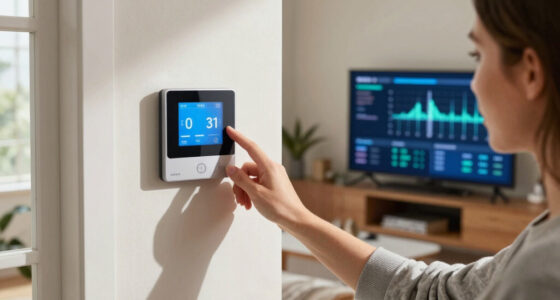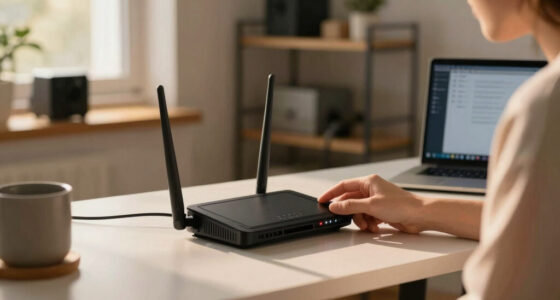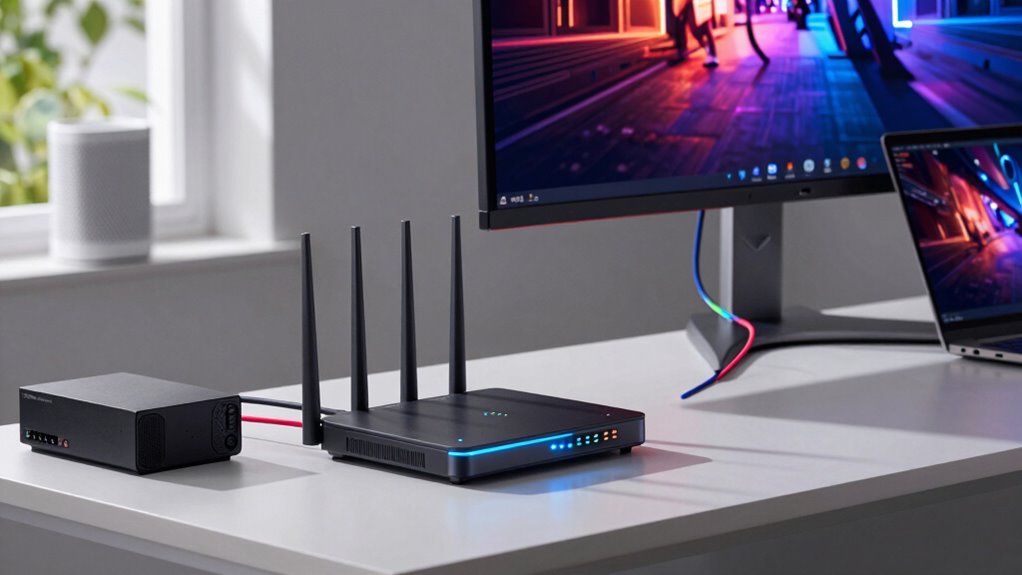

To build a faster home network, keep your router’s firmware updated, change default passwords, and enable WPA3 encryption for security. Position your router centrally and elevated to maximize coverage, and connect high-bandwidth devices to the 5 GHz band. Use QoS to prioritize streaming, gaming, or work traffic, and switch to less congested Wi-Fi channels. Upgrading to a mesh system or dual/tri-band router can also boost speed; discover more tips below.

Get the latest gadgets delivered free with Prime
- Fast, free delivery on millions of items
- Prime Video, Amazon Music and more included
- Member-only deals all year
Key Takeaways
- Keep router firmware updated and change default login credentials for security and performance.
- Position the router centrally, elevated, and away from obstructions to maximize signal coverage.
- Use QoS settings to prioritize bandwidth for streaming, gaming, and work applications.
- Switch to less congested Wi-Fi channels and consider dual-band or tri-band routers for better speed.
- Upgrade to mesh Wi-Fi systems and support for the latest Wi-Fi standards to reduce dead zones and increase speed.
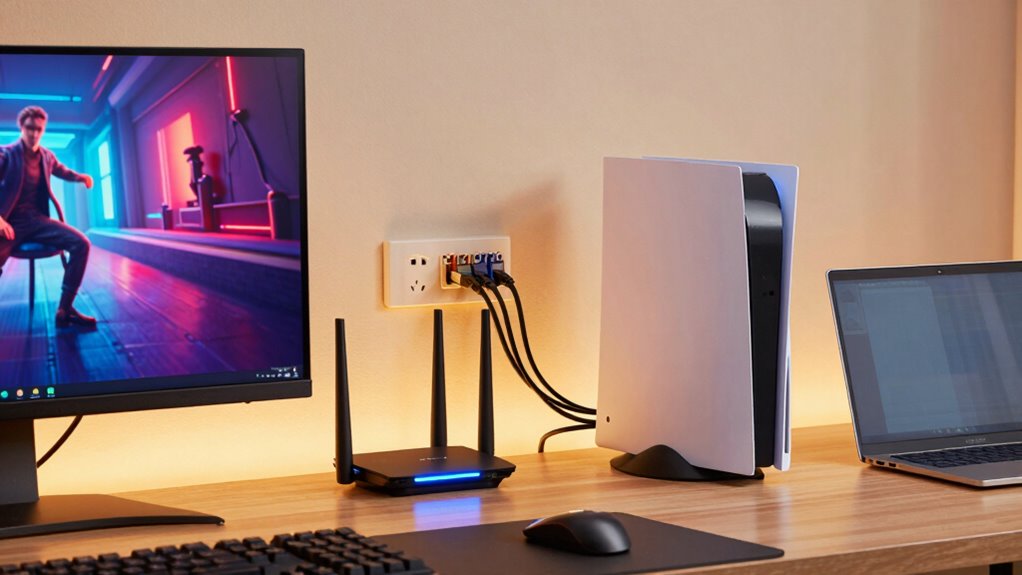
In today’s digital world, a fast and reliable home network is essential for seamless streaming, gaming, and remote work. To achieve this, you need to focus on optimizing your network’s setup, starting with your router. Proper router configuration is crucial, as it directly affects your connection speed and stability. First, ensure your router’s firmware is up to date; manufacturers often release updates that improve performance and fix security vulnerabilities. Access your router’s admin panel, typically through a web browser, and follow the instructions to install the latest firmware.
Next, change the default username and password to enhance wireless security. A secure network prevents unauthorized access that can slow down your internet or compromise your data. Use a strong, unique password combining letters, numbers, and symbols. Consider enabling WPA3 encryption if your router supports it, as it offers better security than WPA2. Additionally, hide your network SSID so that it isn’t openly visible to nearby devices, further protecting your network from potential intruders.
Configuring your router’s settings can significantly boost your network speed. Use the Quality of Service (QoS) feature to prioritize bandwidth for activities like streaming, gaming, or work-related applications. For instance, set high priority for video calls or gaming traffic to reduce lag and buffering. Also, switch to a less congested Wi-Fi channel, especially if you’re in a crowded area with many nearby networks. Most routers have an automatic channel selection, but manually choosing a clear channel can sometimes improve performance. Understanding Wi-Fi channels can help you select the optimal one for your environment.
To maximize speed, consider upgrading to a dual-band or tri-band router that offers separate frequencies for different devices. Connect your streaming devices and game consoles to the 5 GHz band, which typically provides faster speeds and less interference than the 2.4 GHz band. Keep your router positioned centrally in your home, elevated, and away from obstructions like thick walls or metal objects to ensure optimal signal coverage. Regularly updating your network hardware can also help maintain optimal performance as technology advances. Additionally, network security is vital to prevent unauthorized devices from slowing down your connection or compromising your data.
Finally, if your internet plan allows, upgrade your modem or consider installing a mesh Wi-Fi system if you have a larger home. This setup reduces dead zones and maintains high speeds across all areas. Implementing these steps—proper router configuration, ensuring wireless security, and optimizing your network placement—will help you build a faster, more stable network that supports high-quality streaming, smooth gaming, and efficient remote work.
As an affiliate, we earn on qualifying purchases.
Frequently Asked Questions
How Do I Prioritize Bandwidth for Specific Devices?
To prioritize bandwidth for specific devices, you need to use device prioritization and bandwidth management features on your router. Access your router’s admin panel, locate the Quality of Service (QoS) settings, and assign high priority to your gaming, streaming, or work devices. This way, your network allocates bandwidth effectively, ensuring those devices get the necessary speed without interruptions, improving your overall online experience.
What Is the Best Router for Multiple Users?
You should choose a high-performance router with excellent device placement and compatibility. The theory that mesh systems improve multi-user speeds holds true, as they distribute connections efficiently. Opt for a router that supports multiple devices simultaneously, like one with Wi-Fi 6 or Wi-Fi 6E. Make certain it’s compatible with your existing setup, and place it centrally for maximum coverage. This setup keeps everyone connected smoothly, whether gaming, streaming, or working.
How Often Should I Update My Network Hardware?
You should update your network hardware every 3 to 5 years to prevent network congestion and guarantee peak performance. Regular updates help maintain hardware longevity and keep your network running smoothly, especially with multiple devices. If you notice slower speeds or connectivity issues, consider upgrading sooner. Staying current with new technology also improves security, so keep an eye on product releases and consider periodic reviews to determine if an upgrade is needed.
Can Mesh Networks Improve Overall Speed?
Yes, mesh networks can improve your overall speed by reducing wireless interference and enhancing signal boosting throughout your home. They create multiple connection points, which help distribute internet coverage evenly, minimizing dead zones. This setup allows for more stable connections, especially if you have many devices or thick walls. As a result, your streaming, gaming, and work activities become smoother and more reliable, even in larger or challenging spaces.
What Security Measures Protect My Faster Network?
To protect your faster network, you should use strong encryption protocols like WPA3 to secure wireless connections. Additionally, configure your firewall settings to block unauthorized access and monitor network traffic. Regularly update your router firmware to patch vulnerabilities. These security measures help prevent hacking and guarantee your streaming, gaming, and work activities stay private and safe on your high-speed network.
As an affiliate, we earn on qualifying purchases.
Conclusion
With these tips, your home network will be as smooth as a well-oiled machine, seamlessly supporting streaming, gaming, and work. Think of it as upgrading from a bicycle to a rocket—faster, more reliable, and ready to handle anything you throw at it. So, take control, optimize your setup, and enjoy a connection that keeps you ahead of the game. Your digital world deserves nothing less than lightning-fast speed and rock-solid stability.
As an affiliate, we earn on qualifying purchases.
As an affiliate, we earn on qualifying purchases.
Fall Picks
fall essentials
As an affiliate, we earn on qualifying purchases.