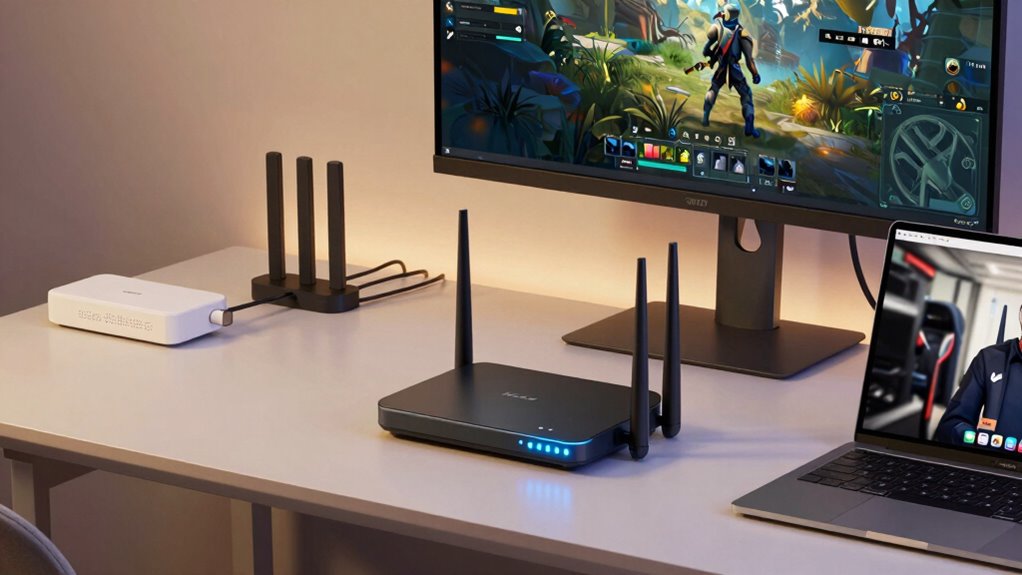

To boost your Wi-Fi for gaming, streaming, and video calls simultaneously, start by placing your router centrally, elevated, and away from walls or electronics to maximize signal strength. Enable Quality of Service (QoS) to prioritize critical devices, and consider creating separate networks for less important devices. Upgrading to a Wi-Fi 6 router and using wired connections for main devices can also improve stability. For more tips on optimizing your setup, keep exploring effective solutions.

Get the latest gadgets delivered free with Prime
- Fast, free delivery on millions of items
- Prime Video, Amazon Music and more included
- Member-only deals all year
Key Takeaways
- Place the router centrally and elevated to maximize coverage and reduce interference.
- Enable QoS to prioritize bandwidth for gaming, streaming, and video calls simultaneously.
- Use wired Ethernet connections for critical devices to ensure stable, high-speed connectivity.
- Create separate guest or Wi-Fi networks to segment bandwidth and reduce congestion.
- Regularly update router firmware and upgrade to Wi-Fi 6 for improved performance and reliability.

Are you tired of lag and buffering ruining your gaming streams and video calls? If so, the first step is to focus on your Wi-Fi setup. Proper router placement makes a meaningful difference. Position your router in a central location, ideally elevated off the ground and free from obstructions like thick walls, metal objects, or electronics that could interfere with the signal. Avoid placing it behind furniture or in corners of your home, as these spots weaken the signal strength. The goal is to maximize coverage across your living space so that your devices receive a strong, stable connection.
Proper router placement in a central, elevated spot boosts Wi-Fi coverage and reduces lag.
Next, consider how you manage your bandwidth. Bandwidth management is vital when multiple devices are competing for internet resources, especially during gaming or video calls. Prioritize traffic by enabling Quality of Service (QoS) settings on your router. This feature allows you to allocate more bandwidth to your gaming and video call devices, reducing latency and buffering. For example, you can set your gaming console or PC and your video conferencing device as high-priority devices, ensuring they get the bandwidth they need when needed most. This prevents other devices, like smart home gadgets or streaming services, from hogging bandwidth and causing lag.
Additionally, limiting background activities on your network can greatly improve performance. Close unnecessary apps or updates running in the background and disconnect devices that aren’t in use. If you notice persistent issues, consider creating separate Wi-Fi networks or guest networks for less critical devices. This keeps your main network dedicated to your gaming and video call needs, further reducing congestion. Network congestion can significantly impact your overall internet experience, especially during peak usage times. Implementing network segmentation can help isolate traffic and improve overall network efficiency in busy households. Moreover, understanding network infrastructure and its limitations can guide you in choosing the best solutions for your specific environment.
Another effective strategy is to upgrade your router if it’s outdated. Modern routers support the latest Wi-Fi standards, like Wi-Fi 6, which offer better speeds, increased capacity, and improved handling of multiple devices. Pair this with a wired Ethernet connection for your main gaming or work device whenever possible, as wired connections eliminate interference and provide a more stable, faster connection.
Finally, regularly update your router’s firmware. Manufacturers often release updates that improve performance and security. Keeping your firmware current guarantees you’re benefiting from the latest optimizations and features designed to enhance your Wi-Fi experience. Additionally, understanding and implementing software quality assurance principles, such as requirements traceability, can help identify and resolve network issues more efficiently, ensuring a reliable connection every time.
Improving your Wi-Fi for gaming streaming and video calls involves a combination of strategic router placement, smart bandwidth management, and hardware upgrades. Implementing these tips will help you enjoy smoother gameplay, clearer calls, and a more reliable overall internet experience.
As an affiliate, we earn on qualifying purchases.
Frequently Asked Questions
How Does Device Placement Affect Wi-Fi Performance During Gaming and Streaming?
Device positioning plays a vital role in Wi-Fi performance during gaming and streaming. Placing your device centrally and elevated reduces signal interference and guarantees a stronger, more stable connection. Keep it away from thick walls, metal objects, and electronics that cause interference. Proper device placement minimizes lag and buffering, enhancing your experience. So, adjust your device’s position for the best signal strength, especially when multiple activities demand high bandwidth.
Can Upgrading My Router Significantly Improve Multiple Device Connectivity?
Upgrading your router can dramatically boost your device connectivity—it’s like upgrading from a bicycle to a rocket! A new router often offers better range and faster speeds, making your gaming, streaming, and calls smoother. Plus, newer models come with enhanced router security features, keeping your network safe. Don’t forget to regularly update your firmware; it fixes bugs and improves performance, ensuring your upgraded router stays at peak power for all your devices.
What Are the Best Settings for Prioritizing Gaming and Video Calls?
You should enable Quality of Service (QoS) on your router to prioritize gaming and video calls. Set bandwidth management rules to allocate more bandwidth to these activities, ensuring smooth performance. Adjust the settings to give higher priority to your gaming console or video conferencing device. By actively managing your network’s bandwidth and prioritizing important traffic, you’ll experience less lag and better quality during gaming and video calls.
How Do Interference and Neighboring Wi-Fi Networks Impact My Connection?
Interference and neighboring Wi-Fi networks can disrupt your connection by causing signal interference and network congestion. When multiple networks operate on the same or overlapping channels, your Wi-Fi struggles to maintain a stable signal, leading to lag or dropped connections. To minimize this, choose a less crowded channel, position your router away from other devices, and use a 5 GHz band if available, reducing interference from nearby networks.
Is a Wired Connection Better Than Wi-Fi for Gaming and Video Calls?
A wired connection is better than Wi-Fi for gaming and video calls because it offers more stable, faster speeds with less interference. You gain wired security, reducing risks of hacking. While wireless offers flexibility, a wired setup minimizes lag and disconnections, ensuring smoother gameplay and clearer calls. If you want the best experience, especially for high-demand activities, prioritize a wired connection whenever possible.
As an affiliate, we earn on qualifying purchases.
Conclusion
By optimizing your Wi-Fi for gaming, streaming, and video calls, you guarantee smooth, uninterrupted experiences. Remember, nearly 60% of gamers report lag issues affecting their gameplay, highlighting how vital a strong connection is. With these simple tips, you can enjoy seamless gaming and communication without frustration. Investing a little effort now can greatly enhance your digital interactions—making every call clearer and every game more enjoyable. Don’t let slow Wi-Fi hold you back from the best online experiences.
As an affiliate, we earn on qualifying purchases.
Quality of Service (QoS) router settings
As an affiliate, we earn on qualifying purchases.
As an affiliate, we earn on qualifying purchases.
Halloween Picks
halloween
As an affiliate, we earn on qualifying purchases.