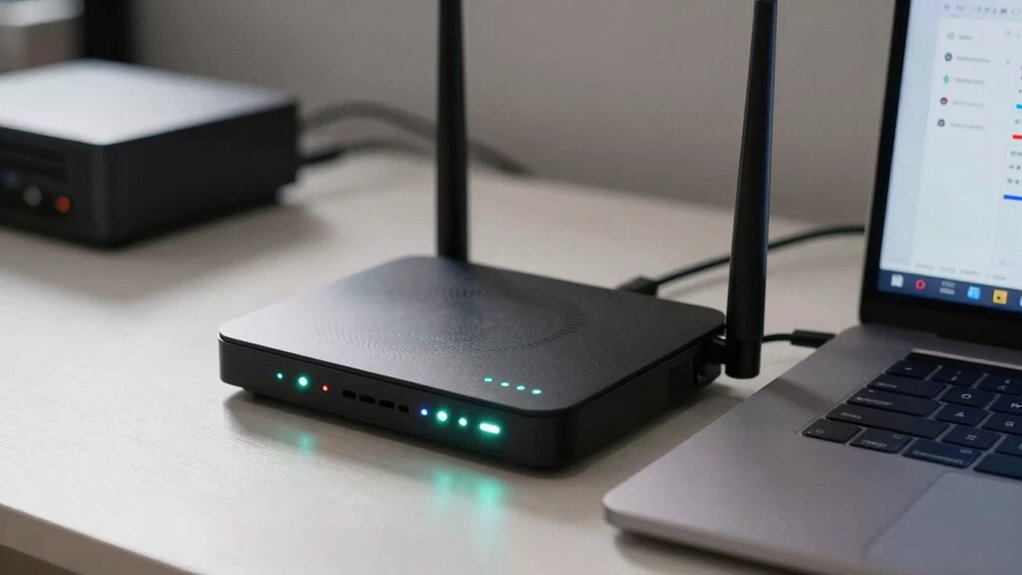

To determine if your internet issues come from your router or ISP, start by running speed tests at different times and note any drops or high latency. Restart your router and check if the connection improves. If multiple devices have problems, contact your ISP to check for outages. Also, look for physical damage or interference that might affect your router. For more tips on troubleshooting, keep exploring to identify the root of the problem.

Get the latest gadgets delivered free with Prime
- Fast, free delivery on millions of items
- Prime Video, Amazon Music and more included
- Member-only deals all year
Key Takeaways
- Perform speed tests on multiple devices at different times; consistent issues suggest router problems, while intermittent issues may indicate ISP issues.
- Restart your router to see if connectivity improves; if problems persist, the router may be at fault.
- Check for physical damage, overheating, or loose cables on the router; hardware issues point to a router problem.
- Contact your ISP to verify service status or outages; ongoing outages suggest the issue is with the ISP.
- Update your router’s firmware; outdated firmware can cause issues independent of the ISP’s service quality.
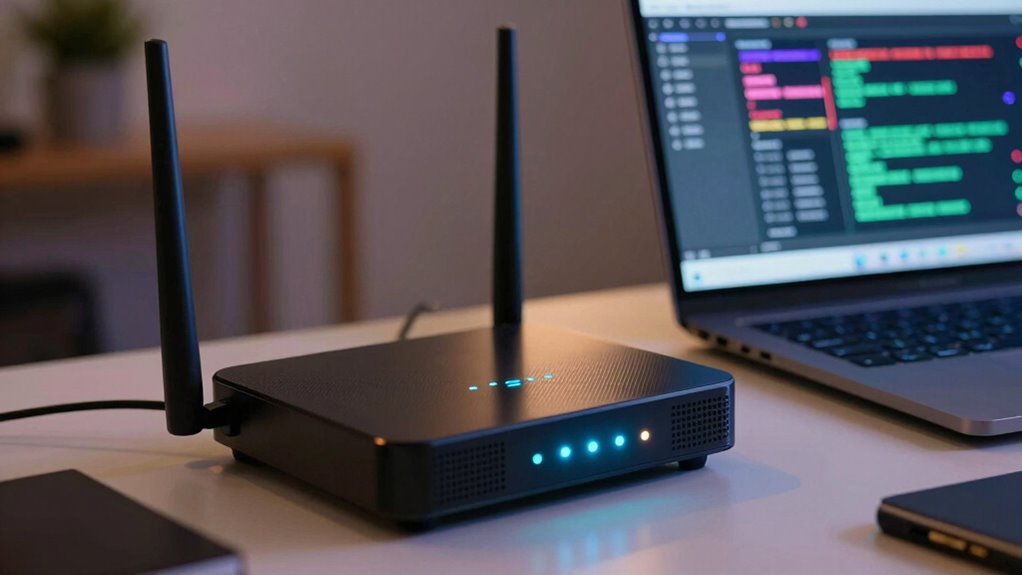
If your internet connection keeps dropping or slowing down, it can be frustrating trying to figure out whether the issue stems from your router or your internet service provider (ISP). One common cause of connection problems is wireless interference, which can disrupt the signal between your devices and your router. Wireless interference occurs when other electronic devices, such as cordless phones, microwave ovens, or neighboring Wi-Fi networks, operate on the same frequency bands. To troubleshoot, try changing your Wi-Fi channel through your router’s settings. Switching from the crowded 2.4 GHz band to the less congested 5 GHz band can also help reduce interference. If adjusting channels doesn’t improve your connection, it’s worth considering whether interference is persistent or if other issues are at play.
Another key step in diagnosing whether the problem is with your router involves checking for firmware updates. Firmware is the software that runs your router, and outdated firmware can cause performance issues or security vulnerabilities. Visit your router manufacturer’s website or access the router’s admin panel to see if a firmware update is available. Applying these updates often fixes bugs, enhances stability, and improves overall performance, which might resolve your connectivity problems. If your router’s firmware is up to date and you still face issues, it suggests the problem might not originate from your hardware but rather from your ISP.
You should also observe how your connection behaves across different devices. If only one device experiences slow or dropping connections, the issue likely lies with that device’s configuration or hardware. However, if multiple devices experience similar problems simultaneously, it points toward a problem with your router or your ISP’s network. Run speed tests at different times of the day and compare the results. Consistently low speeds or high latency indicate a broader problem, possibly on your ISP’s end. Additionally, understanding home network technology can help you better troubleshoot and optimize your setup.
Finally, consider the physical condition of your router. Check for overheating, loose cables, or physical damage. Sometimes, simply restarting your router can temporarily resolve issues, but if problems persist, resetting to factory settings or replacing the device may be necessary. If after all these steps your connection remains unstable, contacting your ISP for a line check or service outage update can confirm if the issue is on their side. By systematically ruling out interference, updating firmware, and monitoring device behavior, you can better identify whether your internet problems originate from your router or your ISP.
Products Worth Considering

Bose QuietComfort Headphones (2nd Gen), Wireless Noise-Cancelling Over-Ear Headphones, Black

Jackery Explorer 2000 v2 Portable Power Station, 2042Wh

Apple MacBook Air 13-inch with M5 chip, 16GB memory, 1TB SSD, and 12MP Center Stage camera (Midnight)
As an affiliate, we earn on qualifying purchases.
Frequently Asked Questions
Can a Weak Wi-Fi Signal Cause Internet Issues?
Yes, a weak Wi-Fi signal can cause internet issues. Wi-Fi interference from other devices or walls can weaken your connection, leading to slow speeds or dropped access. Using a signal booster can help amplify your signal, improving stability. You could also try relocating your router to a more central spot or reducing interference sources. These steps help guarantee your Wi-Fi stays strong and reliable, preventing frustrating internet problems.
How Often Should I Restart My Router?
You should restart your router about once a month to keep it running smoothly. Sometimes, a firmware update or ideal router placement can prevent the need for frequent restarts. If you notice slow speeds or dropped connections, restarting can help clear temporary glitches. Regular restarts, combined with keeping your firmware current and positioning the router in a central spot, guarantee better performance and fewer interruptions.
What Are Signs of a Faulty Router?
If your router’s firmware is outdated, it can cause connection issues, indicating a faulty router. Signs include frequent disconnections, slow speeds, or difficulty connecting devices. Power cycling the router often helps resolve temporary glitches, but persistent problems suggest a faulty router. Check for firmware updates and perform a power cycle regularly. If issues continue after these steps, your router might need replacement or professional repair.
How Do I Contact My ISP for Support?
You can contact your ISP for support by calling their customer service number, which is usually found on your bill or their website. When you reach out, explain your issue clearly and ask about troubleshooting steps you’ve already taken. They may guide you through further diagnostics or schedule a technician visit if needed. Staying patient and providing detailed information helps speed up the support process and resolves your internet problems faster.
Can Malware Affect My Internet Connection?
Think of your internet connection like a highway—malware infection is like a traffic jam that slows everything down. Yes, malware can affect your internet connection by hijacking network security, causing slow speeds or disconnects. It can also redirect your traffic or create vulnerabilities, making your network more susceptible to attacks. Regularly scan your device for malware and keep security software updated to keep your network running smoothly.
Conclusion
Remember, when your connection falters, it’s like chasing shadows in the night—sometimes the problem’s in your router’s maze, other times it’s the ISP’s distant call. By testing and ruling out each, you hold the key to clarity, much like a lighthouse guiding ships safely ashore. With patience and a steady hand, you’ll reveal the true source and restore your digital voyage, turning the tide back in your favor.