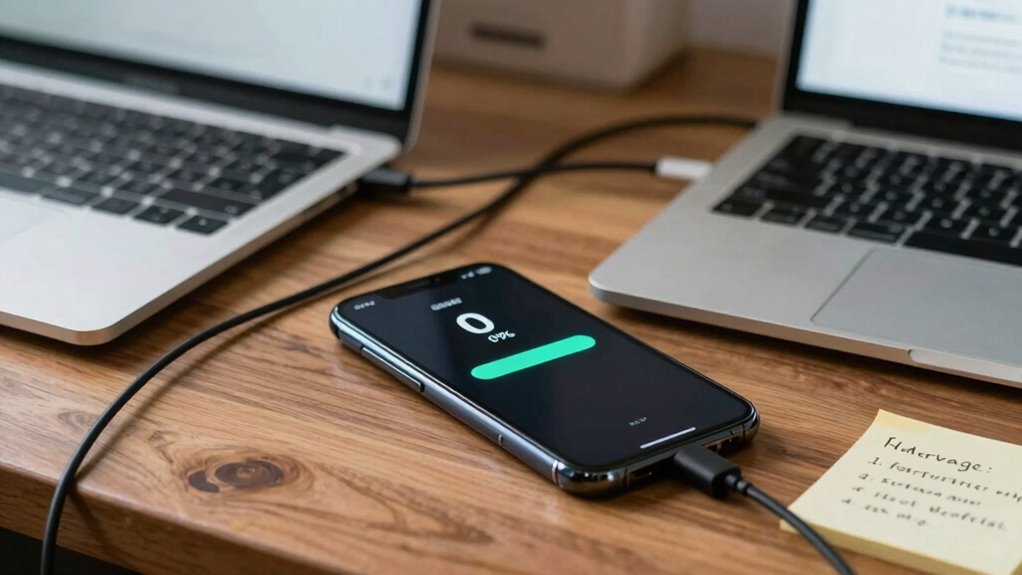

If your phone takes forever to back up, it’s likely due to a weak internet connection, large data volume, or outdated software. Slow Wi-Fi, network congestion, or relying on mobile data can delay uploads. Clearing unnecessary files, updating software, and choosing off-peak hours can help speed things up. Making these adjustments can considerably improve backup times. Keep exploring for more tips that could help you streamline the process even further.
Key Takeaways
- Weak or unstable internet connection significantly slows down backup speeds; use strong Wi-Fi or off-peak hours.
- Large data volumes, like photos and videos, increase backup time; delete unnecessary files or archive data locally.
- Background apps and low device storage reduce backup efficiency; close apps and free up space before starting.
- Outdated device software or unnecessary backup settings can cause delays; keep software updated and customize backup options.
- Network congestion and interference hinder data transfer; choose times with less network traffic for faster backups.
If your phone is taking forever to back up, you’re not alone—many users face this frustrating issue. Slow backup times can be caused by a variety of factors, but one of the most common is the connection to cloud storage. When your device struggles to upload data, it’s often because of a weak or unstable internet connection. If you’re on a slow Wi-Fi network or relying on mobile data, the transfer speed drops considerably, making the backup process drag on longer than it should. To improve backup speed, try switching to a faster, more reliable network. Connecting to a high-speed Wi-Fi, preferably one with a strong signal, can dramatically cut down the time it takes to complete the backup.
Another reason your backup may be taking ages is the sheer amount of data stored on your device. Photos, videos, app data, messages, and other files can quickly pile up, and backing up all of this information takes time. If you haven’t cleaned out your phone in a while, consider deleting unnecessary files or archiving some data locally to reduce what needs to be uploaded. This not only shortens your backup time but also minimizes the load on your cloud storage. Optimizing storage management can also help streamline the process. Additionally, data transfer speed can be affected by factors like network congestion or interference, which can further delay backups. Being aware of network congestion and choosing off-peak hours for backups may also help improve the overall process.
Your device’s settings can also influence backup speed. Some phones have backup options that include every app, setting, and piece of data, which can extend the process. Adjusting these settings to exclude less critical data can help speed things up. For example, deselecting app data from less important apps or turning off automatic backups temporarily while you manually update can make a difference. Also, ensure your device’s software is up to date, as updates often include improvements that optimize backup efficiency. Additionally, the color accuracy of your device’s display and data can slightly influence how quickly it processes and displays information, indirectly affecting backup times. Keeping your device optimized and running smoothly can contribute to faster backups overall.
Furthermore, the performance of your device itself impacts backup times. If your phone is running low on storage or has background apps consuming resources, the backup process slows down. Closing unnecessary apps, freeing up storage, and restarting your phone before backing up can give your device a fresh start, enhancing overall backup speed. Regular maintenance and ensuring your device’s hardware and software are in good condition are key for efficient backups.

TP-Link AX1800 WiFi 6 Router (Archer AX21 V5) – Dual Band Wireless Internet, Gigabit, Easy Mesh, Works with Alexa – A Certified for Humans Device, Free Expert Support
DUAL-BAND WIFI 6 ROUTER: Wi-Fi 6(802.11ax) technology achieves faster speeds, greater capacity and reduced network congestion compared to…
As an affiliate, we earn on qualifying purchases.
As an affiliate, we earn on qualifying purchases.
Frequently Asked Questions
Does Using Third-Party Backup Apps Affect Backup Speed?
Using third-party apps can affect your backup speed, either improving or slowing it down. Some third-party apps optimize backup efficiency by compressing data or managing it more effectively, which speeds things up. However, others may lack this optimization, causing delays. If you notice slow backups, try switching to trusted apps known for better backup efficiency, or stick with built-in options for more reliable and faster results.
Can a Slow Internet Connection Delay Cloud Backups?
A slow internet connection can definitely delay cloud backups, especially when network congestion is high. When your connection slows down, upload speeds decrease, making the process take longer. Cloud encryption adds extra security layers, which can slightly impact backup times but shouldn’t cause major delays. To speed up backups, try connecting to a faster network, avoid peak usage times, or pause other devices consuming bandwidth.
How Does Phone Age Impact Backup Duration?
As your phone ages, backup times tend to increase due to battery degradation and storage fragmentation. Battery wear can slow down data processing, while fragmented storage makes file retrieval less efficient. You might notice backups taking longer over time. To improve this, consider replacing the battery and regularly cleaning or organizing your storage. These steps can help speed up your backups, making the process quicker and more reliable.
Do Specific File Types Take Longer to Back Up?
You might notice some file types, like videos or high-resolution images, take longer to back up. Think of it like packing a suitcase—larger or uncompressed files need more space. File compression reduces size, speeding up the process, while backup encryption adds security but can slow it down. So, if you’re backing up big files, expect longer times, especially if encryption is turned on. Remember, every cloud has a silver lining!
Is It Better to Backup Over Wi-Fi or Cellular Data?
It’s better to back up over Wi-Fi because it’s faster and won’t drain your battery health as much as cellular data. Using Wi-Fi helps conserve your device’s storage capacity, preventing unnecessary data use and backup delays. Cellular backups can be slower, especially if your signal is weak, and they consume more battery. For a quick, efficient backup that preserves your phone’s health and storage, always prefer Wi-Fi.

MFi Certified USB 3.0 Flash Drive 128GB for iPhone, 3in1 External Memory Photo Keeper Storage Stick for Picture/Video/Data Saver/Backup, High Speed Thumb/Jump/Hard Drives for iPhone/iPad/Android/PC
【MFi Certified Multi-function Flash Drive】This flash drive is MFi certified, high quality and excellent performance, allowing you to…
As an affiliate, we earn on qualifying purchases.
As an affiliate, we earn on qualifying purchases.
Conclusion
Now that you know the culprits behind your sluggish backups, you’re better equipped to speed things up. Think of your phone as a busy bee—sometimes it needs a little encouragement to fly faster. By clearing space, updating software, and managing settings, you’re pruning the branches of a tangled tree. With a little patience and these tips, your backups will glide smoothly, turning that waiting game into a swift, seamless dance.

10 Pcs Cell Phone Cleaning Kit,Charging Port Cleaner,Dual Sided Anti Clogging Nylon Brushes,Suitable for Clean Phone Charging Port,Phone Speaker, AirPods,Tablet Camera,Other Electronics
10 Precision Tools in One Kit :This phone cleaning kit packs 10 ultra-slim nylon brushes plus integrated hook…
As an affiliate, we earn on qualifying purchases.
As an affiliate, we earn on qualifying purchases.

MATEIN Cable Organizer Bag, Large Travel Storage Bag Sturdy Tool Case with Handle for Phone Cord Electronics Accessories, Carrying Case for Tablet (Up to 12.9inch), Powerbank, Hard Drive, Black
Double Layers & Well Organized – This travel electronics organizer is designed with multiple pockets and various size…
As an affiliate, we earn on qualifying purchases.
As an affiliate, we earn on qualifying purchases.