
To get the most out of your tablet for work or school, customize your home screen with organized apps and widgets for quick access. Use cloud storage and syncing to keep files secure and easily accessible across devices. Opt for note-taking apps with handwriting and annotation features, and enhance productivity with external keyboards or styluses. Manage notifications to stay focused and optimize battery life. Keep exploring to discover more tips that can boost your efficiency even further.
Key Takeaways
- Customize your home screen with quick-access apps and relevant widgets for efficient navigation.
- Sync your files and notes across devices using secure cloud storage for seamless access.
- Organize notes with tags, folders, and handwriting recognition to stay structured and easily retrievable.
- Use external accessories like keyboards and styluses to boost productivity and comfort.
- Manage notifications and battery settings to minimize distractions and extend device usage during work or school.
Customize Your Home Screen for Quick Access

To make your tablet more efficient for work or school, customize your home screen so your most-used apps are always within reach. Start by arranging your apps for easy access, grouping related ones together for smoother navigation. Use widget customization to add useful tools like calendars, to-do lists, or quick note pads right on your home screen. This way, you can check your schedule or jot down ideas without opening multiple apps. Drag and place your favorite apps in prominent positions, ensuring they’re instantly accessible. Remove any clutter or apps you rarely use to keep your screen clean and focused. With thoughtful app arrangement and widget customization, you’ll save time and streamline your workflow, making your tablet a more effective work or study tool. Additionally, adjusting your color accuracy settings can improve visual clarity when reviewing detailed documents or images. Exploring your device’s accessibility features can also help tailor your tablet’s interface to better suit your needs, further enhancing your productivity. Being aware of potential security vulnerabilities is important to keep your data safe while using your device. Incorporating screen layout options can help optimize your workspace for different tasks and environments.
Utilize Cloud Storage and Syncing Features
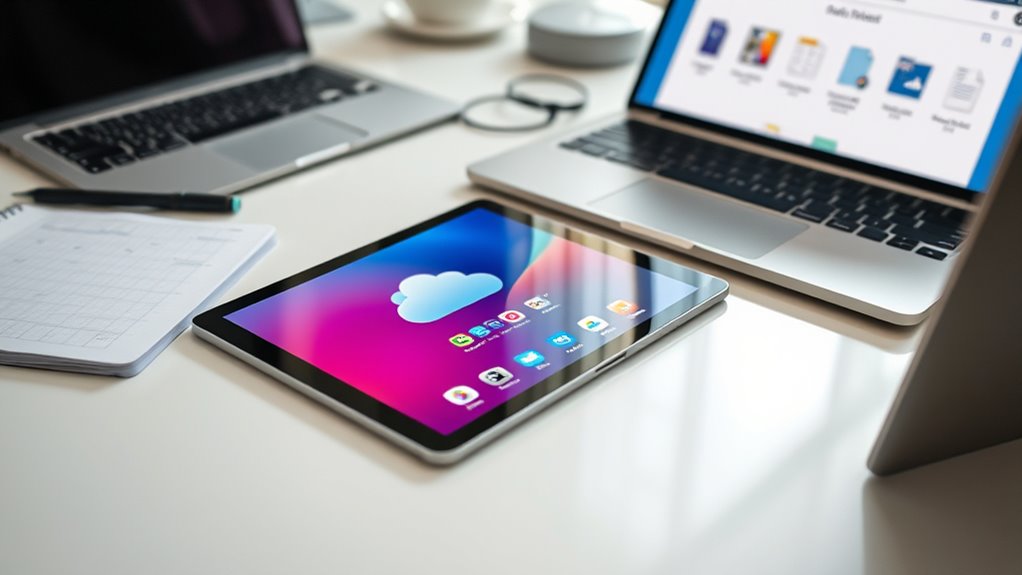
Leveraging cloud storage and syncing features can considerably boost your productivity by guaranteeing your files are accessible whenever you need them. Use trusted cloud services that prioritize cloud storage security to keep your data safe. Syncing across devices allows you to start a project on your tablet and seamlessly continue on your laptop or phone without missing a beat. Regularly check your sync settings to ensure everything updates correctly. Keep sensitive files protected by enabling two-factor authentication and using encrypted storage options. By effectively utilizing these features, you eliminate the hassle of manual file transfers and reduce the risk of losing important documents. Additionally, understanding navigation and mapping can help you organize your files more efficiently across devices. This approach ensures your work stays consistent, current, and secure across all your devices, saving you time and frustration.
Optimize Your Note-Taking and Organization Apps
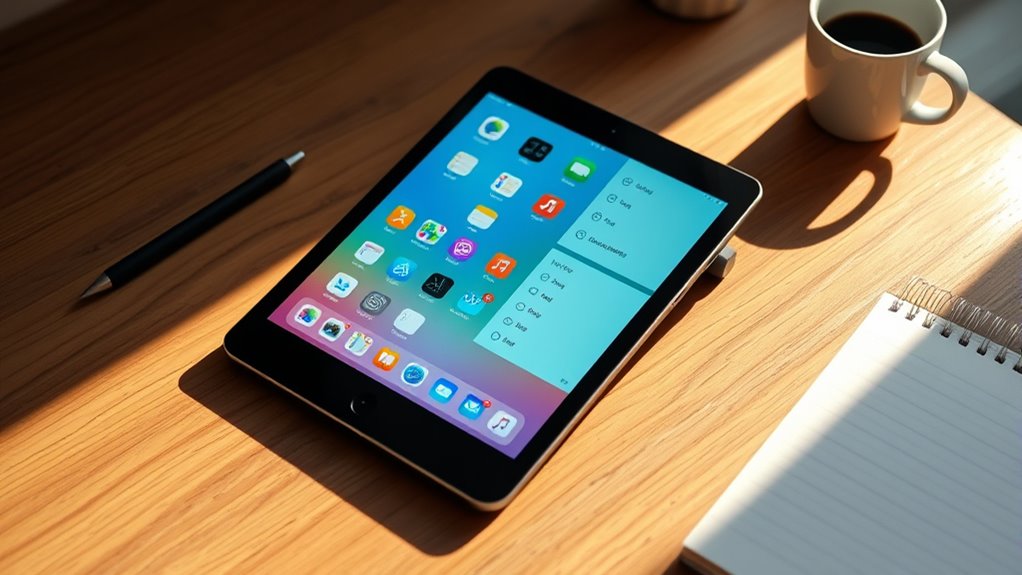
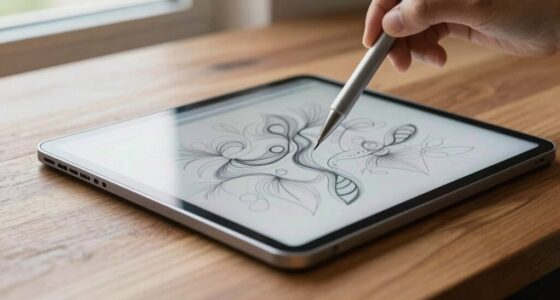
Efficient note-taking and organization are essential for staying on top of your work or studies, especially when using a tablet. To maximize this, choose apps with strong handwriting recognition and versatile annotation tools. Handwriting recognition allows you to convert handwritten notes into editable text, saving time and effort. Annotation tools let you highlight, draw, and add comments directly on your documents, keeping everything clear and organized. Use the table below to compare features:
| App Name | Handwriting Recognition | Annotation Tools |
|---|---|---|
| Notability | Yes | Yes |
| GoodNotes | Yes | Yes |
| OneNote | Partial | Yes |
Additionally, selecting apps with flexible organization features can further enhance your productivity by helping you categorize and locate your notes effortlessly. Incorporating cloud syncing options ensures your notes are backed up and accessible across multiple devices, boosting your efficiency. Implementing search capabilities within your note apps can also save time when trying to find specific information quickly. Moreover, choosing apps that support customizable folders and tags can help you maintain a structured and easily navigable note system. Understanding emergency preparedness essentials and having the right tools can be crucial in stressful situations, making organized note-taking even more valuable during emergencies.
Enhance Productivity With Keyboard and Accessories
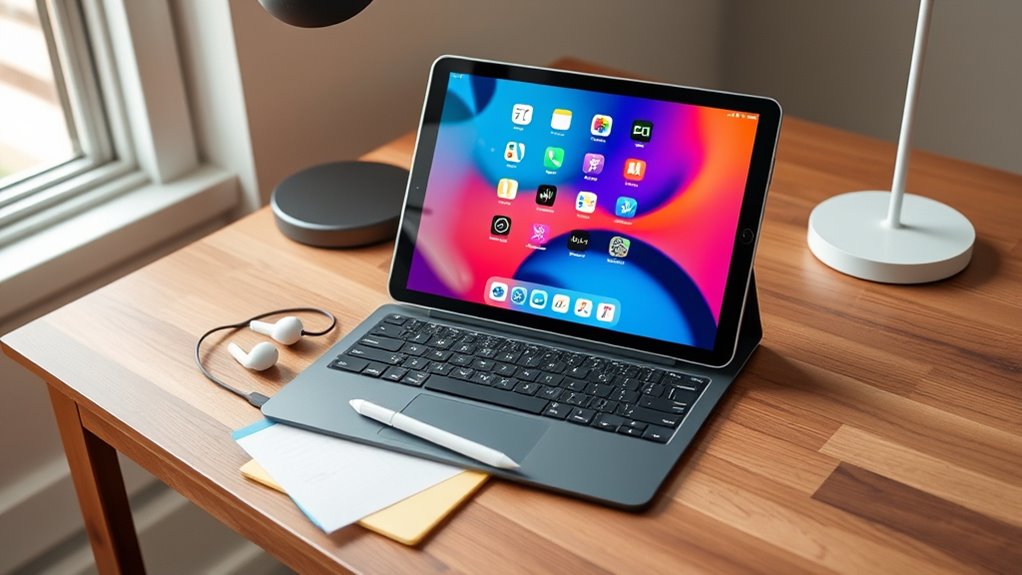
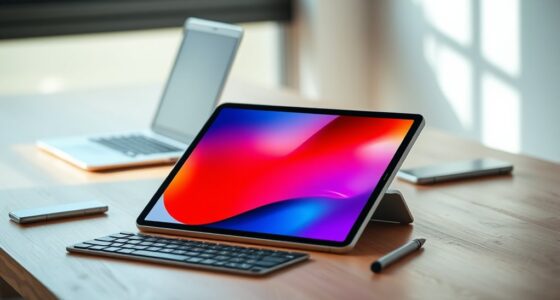
Using the right keyboard and accessories can considerably boost your productivity on a tablet. A good external keyboard makes typing faster and more comfortable, especially during long work sessions. Pairing it with a stylus integration allows you to take detailed notes or sketch ideas with precision. Additionally, connecting your tablet to an external monitor expands your workspace, enabling easier multitasking and better focus. Many tablets support external monitor connections via USB-C or HDMI, making it simple to project your screen onto a larger display. These accessories help turn your tablet into a more versatile workstation, whether you’re editing documents, designing projects, or attending virtual meetings. Investing in compatible accessories ensures you work more efficiently and comfortably throughout your day. External monitor connections can significantly enhance your ability to multitask effectively.
Manage Notifications and Battery Life Effectively
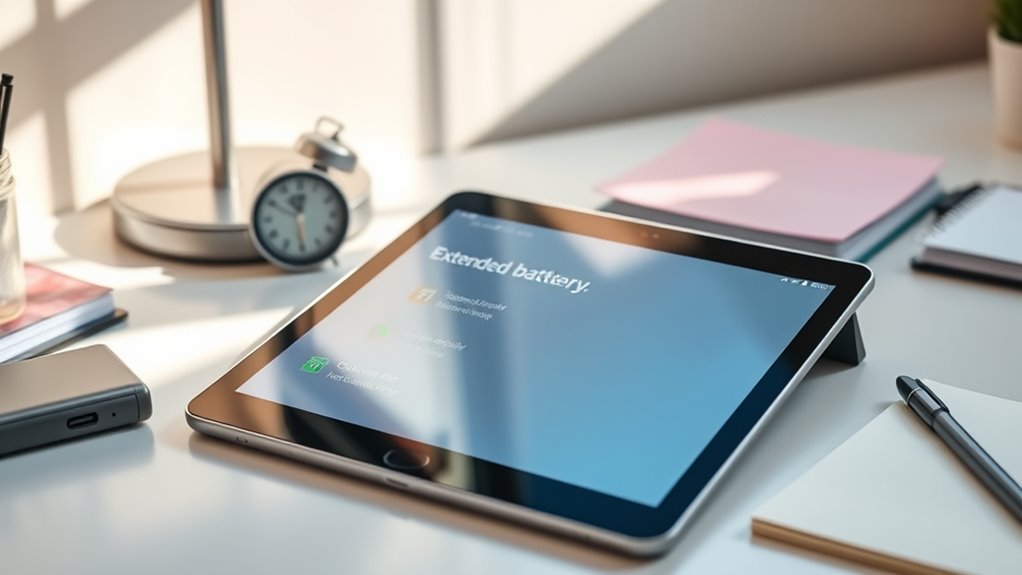
To get the most out of your tablet for work or school, managing notifications and battery life is essential. Start by adjusting your notification settings to prioritize important alerts and mute non-urgent ones, reducing distractions. Next, enable battery optimization features to extend usage, especially during long days. Consider these steps:
Prioritize alerts and activate battery saver modes to boost focus and prolong your tablet’s battery life.
- Customize notification settings to control app alerts and minimize interruptions.
- Turn off notifications for apps that aren’t critical during work or study sessions.
- Activate battery saver modes to optimize power consumption when needed.
- Regularly monitor battery health and usage to identify power-draining apps or processes.
- Incorporate battery management techniques to maintain optimal device performance and prolong battery lifespan.
- Be aware that performance cookies can help monitor your device’s operation to improve overall functionality.
- Additionally, understanding how vegetable juices and other health-oriented features can enhance your overall well-being may motivate you to take better care of your device and health routines.
- Integrating holistic health approaches can support your mental and physical well-being, further boosting your productivity and focus.
Implementing these strategies helps you stay focused and ensures your tablet lasts through demanding days. Proper notification management and battery optimization are key to maximizing productivity and device longevity.
Frequently Asked Questions
How Can I Improve My Tablet’s Security for Work or School Use?
To improve your tablet’s security for work or school, start by setting up strong password protection and enable biometric authentication like fingerprint or facial recognition. Keep your software up to date to patch security vulnerabilities, and avoid installing apps from untrusted sources. Use a VPN when accessing sensitive information, and enable remote wipe features in case your device gets lost. These steps help safeguard your data effectively.
What Are the Best Apps for Collaborative Projects on a Tablet?
You should try apps like Google Drive, Microsoft 365, and Notion for collaborative projects on your tablet. These apps enable cloud collaboration, so everyone can access and share files easily. They also support real-time editing, allowing team members to work simultaneously without confusion. By using these tools, you enhance teamwork and productivity, ensuring your projects stay organized and up-to-date wherever you are.
How Do I Troubleshoot Common Connectivity Issues?
If you face Wi-Fi troubleshooting issues, start by restarting your router and tablet. Make certain you’re within range and check for any network outages. For Bluetooth connectivity problems, turn Bluetooth off and on again, then reconnect your devices. Confirm your tablet’s software is up to date, as updates can fix bugs affecting connectivity. Clearing cache or resetting network settings can also resolve persistent issues, helping you stay connected for work or school.
Can I Customize Accessibility Features for Better Productivity?
Yes, you can customize accessibility features to boost productivity. You can enable voice commands to navigate your tablet hands-free, making multitasking easier. Screen readers can be activated to read on-screen text aloud, helping you focus on your work without straining your eyes. Adjust these settings in your device’s accessibility menu, tailoring them to your needs for a smoother, more efficient experience and increased overall productivity.
What Are the Best Ways to Manage Multiple Accounts on a Tablet?
You can easily manage multiple accounts by setting up a multi-profile setup on your tablet. Use account management features to add and switch between profiles quickly, keeping work and personal data separate. Enable quick profile switching for seamless shifts, and consider using app-specific logins to streamline access. This way, you stay organized, maintain privacy, and boost productivity without hassle.
Conclusion
By customizing your home screen, using cloud storage, and optimizing apps, you can boost your tablet productivity for work or school. Adding accessories like a keyboard makes tasks even smoother. Did you know that 60% of students say tablets help them stay organized? So, take advantage of these tips to make your device work best for you. With a few simple tweaks, you’ll get more done and stay efficient every day.