
To extend your smartphone’s battery life all day, lower your screen brightness and set a shorter timeout, activate battery saver mode, and turn off Wi-Fi, Bluetooth, and location services when not needed. Close background apps and update software regularly. Avoid power-hungry apps and consider using a portable charger or power bank for backup. Turning off your device or enabling airplane mode during idle times can also help. Keep exploring for more tips to maximize your battery life.
Key Takeaways
- Enable Battery Saver Mode and activate airplane mode during extended idle periods to reduce background activity.
- Lower screen brightness, use dark mode, and set a shorter screen timeout to minimize display power consumption.
- Turn off Wi-Fi, Bluetooth, and location services when not in use to prevent unnecessary energy drain.
- Close unused apps and limit high-power applications like streaming or gaming during the day.
- Keep software updated and optimize signal strength by avoiding areas with poor reception for better energy efficiency.
Adjust Screen Brightness and Timeout Settings

Since the screen consumes a significant portion of your smartphone’s battery, adjusting its brightness and timeout settings can make a noticeable difference. Start by calibrating your display to optimize brightness levels; dimming the screen reduces power use without sacrificing visibility. Use auto-brightness if available, so your device adjusts based on ambient light. Next, set a shorter screen timeout to prevent the display from staying on unnecessarily when you’re not using your phone. For example, enabling a 30-second timeout ensures the screen turns off quickly, conserving battery life. Additionally, some devices offer advanced display calibration options that fine-tune color and brightness for optimal power efficiency. Proper display calibration combined with sensible screen timeout settings can extend your phone’s battery throughout the day. Additionally, choosing portable power solutions like power banks can help keep your device charged during extended outings, especially when you need reliable backup power. Being aware of battery-saving modes can further optimize your device’s energy consumption during critical times.
Enable Battery Saver Mode
Turning on Battery Saver Mode helps reduce background activity and conserve power. It automatically adjusts your settings, including brightness, to extend your phone’s battery life. You should enable it whenever you need to make your battery last longer. Comfort and support solutions such as reducing unnecessary notifications can also help minimize battery drain. Incorporating efficient music writing techniques can also help optimize your device’s performance during creative tasks. Additionally, understanding postpartum recovery periods can ensure your device usage aligns with your physical and emotional readiness. Being aware of AI bifurcation and its societal implications can also inform your understanding of technological impacts on daily life. Recognizing power management features in your device can further enhance your ability to control battery consumption effectively.
Optimize Background Activity
Enabling Battery Saver Mode is one of the simplest ways to extend your smartphone’s battery life throughout the day. It reduces background activity, limiting apps from consuming power when you’re not actively using them. To maximize this benefit, manage app activity efficiently. You can do this by:
- Disabling unnecessary app refreshes in settings to prevent background activity drain
- Limiting app permissions that allow them to run in the background
- Closing apps completely when not in use to stop background processes
- Be aware of potential security vulnerabilities associated with new payment technologies that could impact your device if not properly protected.
- Additionally, some devices offer automatic optimization features that help manage background activities more effectively.
- Incorporating attention management techniques can further help you identify which apps truly need to run in the background and optimize your device’s performance.
- Regularly updating your device’s software can also help improve battery efficiency by fixing bugs and optimizing system processes.
- Monitoring your device’s usage patterns can help you identify which apps are the biggest power consumers and adjust their settings accordingly.
Adjust Brightness Settings
Adjusting your brightness settings is a quick and effective way to conserve battery life. Start by enabling auto brightness adjustment, which automatically adjusts your screen brightness based on ambient lighting, reducing unnecessary power drain. Proper screen calibration guarantees your display isn’t brighter than necessary, further saving battery. If auto brightness isn’t enough, manually lower your screen brightness to a comfortable level that uses less power. Keep in mind, high screen brightness consumes more energy, especially in bright environments. By optimizing your brightness settings, you decrease the workload on your display, which is one of the most battery-intensive components. Regularly reviewing and adjusting these settings helps extend your smartphone’s battery life throughout the day, keeping your device ready when you need it most. Additionally, understanding the best gelato spots in your area can encourage you to take breaks and reduce screen time, indirectly conserving battery life. Staying informed about industry trends can also help you discover new power-saving features that further enhance your battery management strategies. Being aware of latest software updates can improve overall battery efficiency and introduce new energy-saving options.
Turn Off Unnecessary Wireless Connections

Wireless connections like Wi-Fi, Bluetooth, and mobile data can drain your smartphone’s battery when they’re not in use. These wireless signals often stay active, causing unnecessary power consumption, especially for background data synchronization. To conserve battery life, turn off any connections you don’t need. A useful tip is to optimize your device settings by disabling features that are not essential during the day. Additionally, some devices have power-saving modes that automatically disable non-essential wireless connections to help extend battery life. Consider these steps:
Turning off unused Wi-Fi, Bluetooth, and mobile data saves battery life by preventing unnecessary power drain.
- Disable Wi-Fi when you’re not connected to a network.
- Turn off Bluetooth if you aren’t pairing devices.
- Switch off mobile data if you’re in an area with no signal or don’t need internet access.
- Be aware that some dog names can reflect your pet’s personality, which might inspire you to choose a name that suits your lifestyle and preferences.
Manage App Usage and Background Activity
Since wireless connections can drain your battery when left running in the background, managing how apps use your device’s resources becomes even more important. You can do this through background app management, which limits apps from running unnecessary processes when you’re not actively using them. Check your settings to identify apps that consume excessive power and disable their background activity. Additionally, notification control helps conserve battery by reducing unnecessary alerts that wake your device frequently. Turn off notifications for apps that aren’t essential, and customize alert settings to only receive important updates. By actively managing app usage and controlling notifications, you reduce the workload on your phone’s processor and save battery life, ensuring your device lasts longer throughout the day.
Limit Location Services and GPS Usage

Turning off location services for apps you don’t need can save a lot of battery. Enable battery saver mode and set your device to use less precise GPS when full accuracy isn’t necessary. Limiting location access helps your phone run longer between charges. Being aware of how privacy regulations can influence app permissions ensures you’re not granting unnecessary access.
Disable Unnecessary Apps
Have you ever noticed your battery draining faster when certain apps seem to run in the background? Disabling unnecessary apps is a key step in effective app management. When you close apps you no longer need, you reduce background activity and save power. Additionally, controlling notifications helps limit app wake-ups, preventing unnecessary screen on time. To optimize your phone’s battery life, consider these actions:
- Turn off background app refresh for apps you don’t need constantly updating
- Disable notifications from apps that aren’t urgent
- Uninstall or disable apps that you rarely use
Use Battery Saver Mode
Using Battery Saver Mode can substantially extend your smartphone’s battery life by limiting power-intensive features like location services and GPS. When you enable this mode, it reduces background activity and prevents apps from constantly accessing your location, saving energy. This not only prolongs your device’s runtime but also helps maintain proper battery calibration over time. Good charging habits, such as avoiding frequent full discharges, combined with Battery Saver Mode, improve overall battery health. Limiting GPS usage prevents unnecessary drain caused by continuous location tracking, ensuring your phone consumes less power during regular use. Regularly activating Battery Saver Mode, especially when your battery is low or you won’t have access to charging, helps maximize your device’s daily battery life efficiently.
Limit Location Accuracy
Limiting your device’s location accuracy can considerably reduce battery drain caused by constant GPS usage. When you disable high-accuracy mode, your phone relies less on GPS calibration and more on Wi-Fi and cell towers, conserving power. To optimize your battery life, consider adjusting location settings to “Battery saving” mode, which reduces GPS usage. This not only preserves energy but also minimizes unnecessary background activity. By controlling your location accuracy, you prevent your device from frequently updating your position, which is a major drain on battery life. Be selective about when and how your apps access location data to avoid continuous GPS calibration. This simple adjustment can markedly extend your phone’s battery endurance throughout the day.
- Use “Battery saving” location mode for less frequent updates
- Turn off location services when not needed
- Limit background app access to location data
Use Dark Mode and Reduce Screen Refresh Rate

Activating dark mode and lowering your screen’s refresh rate can considerably extend your smartphone’s battery life. Dark mode reduces power consumption, especially on OLED screens, by using darker pixels. Meanwhile, decreasing the refresh rate from 120Hz to 60Hz or lower decreases the energy needed for screen updates. Here’s how these adjustments impact your device:
| Feature | Power Saving Benefit | Best Use Case |
|---|---|---|
| Dark Mode | Reduces pixel power | Night use, social media |
| High Refresh Rate | Saps more battery | Gaming, scrolling fast |
| Lower Refresh Rate | Saves energy | Reading, browsing, casual use |
Keep Software and Apps Updated
Keeping your software and apps up to date is essential because updates often include improvements that optimize battery efficiency. Developers release updates to fix software bugs that may cause unnecessary battery drain, ensuring your device runs smoothly. Additionally, updating apps can refine app permissions, preventing apps from accessing unnecessary features and conserving power.
Regularly updating your device improves battery life by fixing bugs and optimizing performance.
To stay current, regularly check for updates in your device settings. Pay attention to:
- Permissions management, ensuring apps only access what they need
- Patches that fix bugs causing excessive battery use
- Optimization features included in updates to enhance energy efficiency
Avoid Using Power-Intensive Apps When Not Necessary

While updating your apps helps improve efficiency, using power-hungry applications unnecessarily can still drain your battery quickly. Avoid running intensive apps unless you really need them, and check app permissions to prevent background activity that consumes extra power. Many apps request permissions that aren’t essential, allowing them to operate in the background and drain your battery without your knowledge. Also, disable app notifications for non-essential apps, as constant alerts wake your screen and use power. Limit the use of social media, streaming, or gaming apps when you’re trying to conserve battery life. By managing app permissions carefully and turning off unnecessary notifications, you reduce background activity and save energy, helping your phone last longer throughout the day.
Carry a Portable Charger or Power Bank
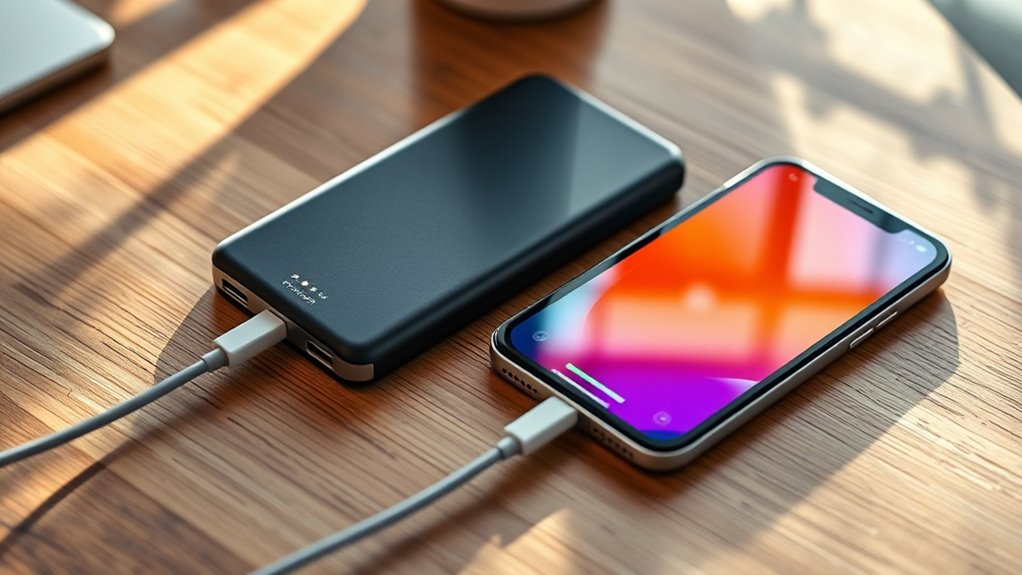
Carrying a portable charger or power bank makes certain you can recharge your phone on the go, especially when you’re away from power outlets. A reliable power bank ensures your device stays powered during long outings, commutes, or emergencies. Look for a portable charger with sufficient capacity to charge your phone at least once or twice. Compact and lightweight models fit easily into your bag or pocket, making them convenient for daily use. When selecting a power bank, consider features like fast-charging capabilities, multiple ports, and durability. Having a portable charger on hand means you’re less likely to worry about running out of battery unexpectedly, keeping your device ready whenever you need it. Stay connected and avoid interruptions with a well-chosen power bank.
A reliable power bank keeps your device charged on the go, ensuring you stay connected anytime, anywhere.
- High-capacity batteries (10,000mAh or more)
- Fast-charging support for quick recharges
- Compact, travel-friendly design
Turn Off Your Device or Enable Airplane Mode When Not in Use

When you’re not using your phone, turn it off to save battery, especially during long periods of inactivity. If turning it off isn’t practical, enable airplane mode to prevent unnecessary power drain from background services. These simple steps can help your device last much longer throughout the day.
Power Down During Downtime
Turning off your smartphone or enabling airplane mode during periods of inactivity can considerably conserve battery life. When your device isn’t in use, reducing screen time and disabling app notifications minimizes background activity, saving power. If you’re not expecting calls or messages, powering down prevents unnecessary drain. This simple step guarantees your phone isn’t constantly updating or syncing, which can quickly deplete your battery.
- Limit your screen time by turning off your device during long breaks or meetings
- Disable app notifications to prevent background refreshes when idle
- Use airplane mode during extended downtimes to block all wireless signals
Activate Flight Mode When Idle
Enabling airplane mode when your device is idle is one of the most effective ways to conserve battery life. When you turn on airplane mode, it disables Wi-Fi, cellular, and Bluetooth connections, preventing your phone from constantly searching for signals. This reduction in background activity helps preserve your battery, especially during long periods of inactivity. To maximize benefits, use Wi-Fi optimization techniques when reconnecting, ensuring you only use essential data. Signal boosting can also improve connection stability when you do need to stay online, reducing the power drain caused by weak signals. By activating airplane mode during downtime or when not in use, you prevent unnecessary power consumption from background apps and network scans, helping your battery last longer throughout the day.
Frequently Asked Questions
How Can I Identify Which Apps Drain My Battery the Most?
You can identify which apps drain your battery the most by checking your device’s battery consumption analysis in settings. Look for app usage patterns that show high activity and power use. Many smartphones provide a detailed breakdown, so you can see which apps consume the most battery. Regularly monitoring this helps you manage your app usage better, closing or limiting high-drain apps to extend your battery life throughout the day.
Does Lowering Screen Resolution Help Conserve Battery Life?
Think of your display resolution as the brightness of a campfire; lowering it dims the glow, saving fuel. When you reduce your display resolution, your screen becomes less demanding, which in turn decreases power consumption. This simple change can markedly extend your battery life by reducing the energy needed to light up your display. So, yes, lowering your display resolution helps conserve battery power and keeps your device running longer.
Are There Specific Settings for Gaming to Extend Battery Duration?
Yes, you can optimize gaming to save battery life by enabling your device’s battery saver modes and adjusting gaming settings. Activate gaming optimization features, like reducing graphics quality and disabling background apps, to lower power consumption. Use built-in battery saver modes during gaming sessions to limit background activity and screen brightness. These steps help extend your device’s battery life while enjoying your favorite games without constantly worrying about running out of power.
How Does Background App Refresh Impact Overall Battery Health?
Imagine your phone’s background apps as busy bees constantly buzzing around, draining your battery without your notice. Background app refresh keeps those bees active, but it impacts your overall battery health by using extra power. You can manage this through app permissions and battery optimization settings, which help control which apps refresh in the background. This way, you preserve your battery’s robustness, keeping your phone alive longer and healthier throughout the day.
Can Adjusting Haptic Feedback and Vibrations Improve Battery Longevity?
Adjusting haptic feedback and vibration intensity can definitely help improve your battery longevity. By lowering vibration strength or turning off haptic feedback for notifications and keyboard presses, you reduce the power your phone uses for these features. This small change can add up over the day, conserving energy and extending your device’s battery life. So, tweak those settings to enjoy longer usage without sacrificing essential feedback.
Conclusion
By following these tips, you can make your smartphone’s battery last all day. For example, imagine you’re on a long trip and turn on power-saving mode, disable unnecessary connections, and limit app activity. Your phone stays powered longer, ensuring you stay connected and productive. With a few simple adjustments, you’ll enjoy extended battery life and fewer worries about running out of juice, no matter how busy your day gets.