Understanding PC components is essential for building or upgrading a reliable, high-performance system. Key topics include choosing the right power supply for stable power and future upgrades, selecting effective cooling solutions like air or liquid cooling to prevent overheating, and ensuring proper airflow and maintenance. Other crucial components include the CPU, GPU, motherboard, RAM, storage drives, and case. Stay curious—exploring each part helps you optimize your PC’s performance and durability.
Key Takeaways
- Understand the roles of power supplies, cooling solutions, and other essential PC components for system stability.
- Learn about different cooling methods, including air cooling and liquid cooling, for optimal thermal management.
- Ensure power supplies have sufficient wattage, high efficiency, and protections to support current and future upgrades.
- Maintain proper airflow, cable management, and regular cleaning to enhance cooling performance and system longevity.
- Recognize the importance of selecting compatible components to build a balanced, high-performance PC.
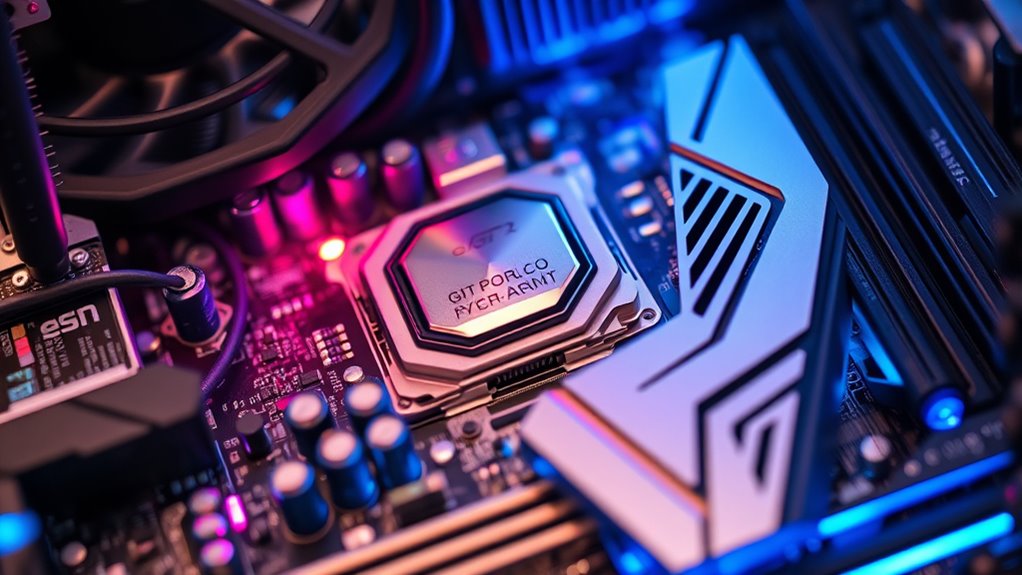
A computer’s performance and capabilities heavily depend on its components, each playing a critical role in ensuring smooth operation. When you’re building or upgrading your PC, paying attention to the power supply and cooling solutions can make all the difference. The power supply, often overlooked, is the backbone that delivers stable electricity to all your hardware. A reliable power supply ensures your components receive consistent voltage, preventing crashes and damage caused by power fluctuations. It’s important to choose a unit with enough wattage to support your system’s current and future upgrades. Look for one with high efficiency ratings, like 80 Plus Bronze or higher, to reduce energy waste and heat. A quality power supply also includes protections against over-voltage, over-current, and short circuits, safeguarding your investment over time.
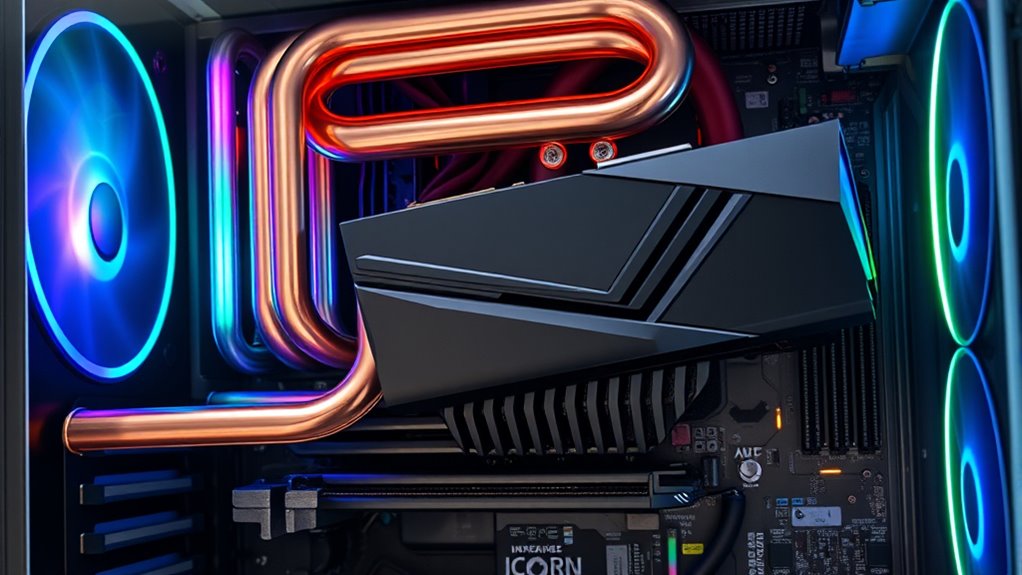
Cooling solutions are equally essential because they keep your components operating within safe temperature ranges. Overheating can lead to throttling, reduced performance, or even permanent damage. Your CPU and GPU generate a lot of heat, especially under load, so effective cooling is necessary. Air cooling solutions, such as heatsinks and fans, are common and straightforward to install. They work by dissipating heat away from your processors and expelling it out of your case. Make sure you select fans with good airflow ratings and consider the case’s airflow design to maximize cooling efficiency. If you’re aiming for higher performance or overclocking, liquid cooling might be worth considering. Liquid cooling systems, whether all-in-one kits or custom setups, provide superior heat dissipation, keeping temperatures low even during intense gaming or workload sessions.
Beyond just choosing the right cooling method, proper cable management and case airflow are essential. Ensure your case has enough ventilation holes and that airflow paths aren’t obstructed by cables or components. Regular cleaning of dust filters and fans also helps maintain ideal cooling performance over time. Remember, a well-cooled system runs quieter, lasts longer, and performs better. When you combine a high-quality power supply with effective cooling solutions, you create a stable environment where your components can operate at their best. This synergy minimizes system crashes, reduces noise, and prolongs the life of your hardware. Investing in these fundamental components might seem simple, but they are the backbone of a reliable, high-performing PC that meets your gaming, work, or creative needs. Additionally, selecting components with adequate cooling capabilities can prevent thermal throttling and extend hardware longevity.
Frequently Asked Questions
How Do I Choose Compatible Components for My Build?
To choose compatible components, start with a compatibility checklist that includes your motherboard, CPU, RAM, GPU, and power supply. Make sure the CPU fits the motherboard socket and the RAM matches the motherboard’s supported speeds and capacity. Check component compatibility online or in manufacturer specs. You’ll avoid issues like bottlenecks or hardware incompatibility by verifying all parts work seamlessly together, ensuring a smooth, efficient build.
What Are the Signs of Failing PC Components?
If you notice your PC crashes unexpectedly, experiences performance degradation, or struggles to boot, these are signs of hardware failure. You might see error messages, strange noises, or overheating issues. Slowdowns, frequent freezes, or corrupted files also indicate possible component problems. Stay alert to these signs, as ignoring them can lead to more serious hardware damage. Regular maintenance and diagnostics can help catch issues early before they worsen.
How Often Should I Upgrade My PC Components?
Think of your PC as a car that needs regular tune-ups. You should upgrade components every 3-5 years, depending on your performance benchmarks and how demanding your tasks are. Keep an eye on overclocking safety; if you notice slowdowns or crashes, it’s time to upgrade sooner. Regular updates guarantee smooth performance and prevent breakdowns, so stay proactive about your system’s health to keep it running at its best.
Can I Upgrade Individual Parts Without Reinstalling Windows?
Yes, you can upgrade individual parts without reinstalling Windows, as long as the new hardware is compatible and offers upgrade flexibility. When you replace components like the GPU or RAM, Windows often recognizes the changes automatically. However, for significant upgrades like the motherboard or CPU, you might need to reinstall or reactivate Windows due to hardware compatibility issues. Always verify your new parts are compatible with your existing system.
What Are the Best Brands for Reliable PC Components?
Looking for reliable brands? You’ll want to prioritize proven players like Corsair, ASUS, and Western Digital. They boast stellar brand reputation and solid warranty policies, giving you peace of mind. These brands consistently deliver dependable, durable parts, minimizing mishaps and maximizing performance. Trust in their track record, and you’ll enjoy a smooth, stress-free experience—keeping your build balanced, bug-free, and backed by excellent support whenever issues arise.
Conclusion
Just as a skilled conductor brings harmony to an orchestra, understanding each PC component guarantees your system runs smoothly. When all parts work together seamlessly, your computer performs like a well-rehearsed symphony, ready to tackle any task. By mastering these essentials, you become the maestro of your digital world, transforming complex pieces into a beautiful, effortless performance. Remember, every component is a crucial note—play them wisely for a masterpiece in motion.