

To extend your laptop’s battery life on the go, lower your screen brightness and shorten the timeout duration. Turn off Wi-Fi and Bluetooth when they aren’t needed, and close unused apps to reduce background activity. Activate power-saving modes and keep your system updated for better efficiency. Managing resource-heavy tasks and carrying portable chargers can also help. Keep exploring these tips to learn more ways to maximize your device’s battery life while on the move.
Key Takeaways
- Lower screen brightness and shorten timeout settings to reduce display power consumption.
- Turn off Wi-Fi, Bluetooth, and other wireless features when not in use.
- Enable battery saver or power modes to limit background activity and optimize energy use.
- Close unused apps and disable auto-updates to prevent unnecessary background processes.
- Carry portable chargers, extra batteries, and protective accessories for extended on-the-go use.
Adjust Your Screen Brightness and Timeout Settings

Reducing your screen brightness and adjusting the timeout settings can make a noticeable difference in extending your laptop’s battery life. Your laptop’s brightness sensors automatically detect ambient light and can help optimize screen brightness, but manually lowering the brightness often saves more power. You can fine-tune your display through screen calibration to ensure the image remains clear without unnecessary brightness. Lowering the brightness diminishes power consumption of the display, which is one of the biggest battery drainers. Additionally, setting your screen to turn off after a shorter period of inactivity minimizes unnecessary power use when you’re not actively looking at it. auto-brightness settings can also assist in maintaining optimal brightness levels without manual adjustments, further improving battery efficiency. Understanding how display technology impacts power consumption can help you make more informed adjustments for longer battery life. Being aware of laptop hardware components that consume extra power can also guide you in managing your device’s energy use more effectively.
Disable Unnecessary Wireless Connections and Background Apps
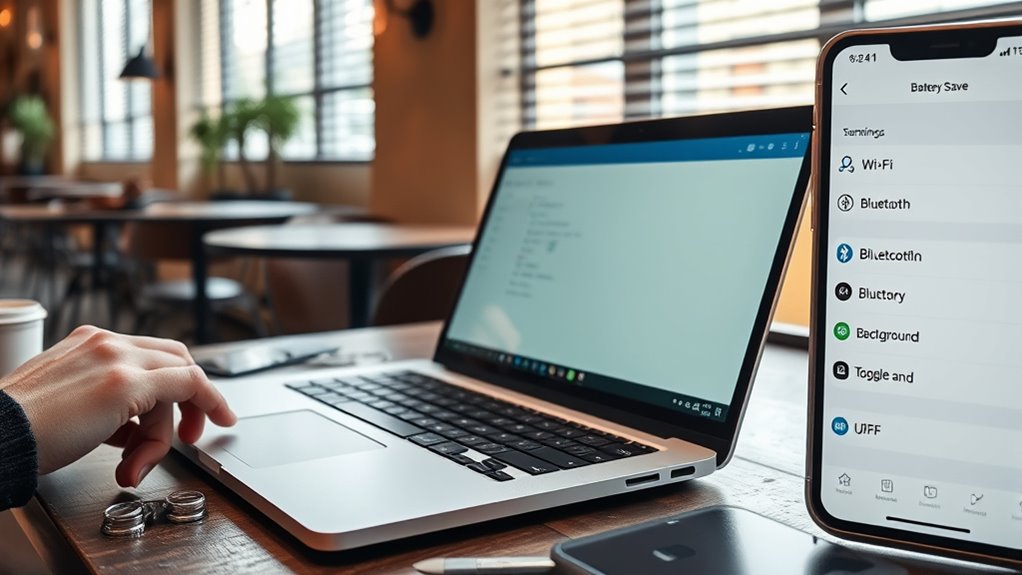
Turning off Wi-Fi and Bluetooth when you’re not using them can save significant battery life. Make sure to close apps you aren’t using and manage background processes to prevent unnecessary power drain. These quick actions help your laptop run longer between charges. Additionally, monitoring which applications consume the most power can help you identify and close resource-intensive programs to further extend battery life. Recognizing power-hungry processes allows for better management of your device’s energy consumption. Regularly checking your system’s battery usage statistics can provide insights into which tasks drain the most energy and help you adjust your habits accordingly. Furthermore, understanding the impact of background activities can assist in optimizing your laptop’s overall energy efficiency. Moreover, disabling unnecessary startup programs can reduce background activity and conserve battery life over extended periods.
Turn Off Wi-Fi & Bluetooth
When you’re not using Wi-Fi or Bluetooth, disabling these connections can considerably extend your laptop’s battery life. Wi-Fi scans and Bluetooth pairing require energy, draining your battery faster. Turning them off prevents unnecessary power consumption and enhances Wi-Fi security by reducing potential vulnerabilities. Here are some quick tips:
- Switch off Wi-Fi when not connected to a network
- Disable Bluetooth if you’re not pairing devices
- Turn off Wi-Fi hotspots or tethering features
- Use airplane mode in low-signal areas
- Check for background apps that might auto-reconnect Bluetooth or Wi-Fi
- Consider disabling background processes that consume power when not in use
- Utilizing wireless connection management tools can help monitor and control your device’s connectivity to optimize battery life
- Regularly reviewing your wireless settings ensures you are not unintentionally keeping connections active.
Close Unused Apps
Have you noticed your laptop slowing down or draining battery even when you’re not actively using it? One way to fix this is by closing unused apps. Background app management is key to conserving power, as many apps continue running without your knowledge, consuming system resources and draining your battery. Take a moment to review open applications and shut down those you don’t need. This reduces unnecessary system resource allocation, freeing up processing power and battery life. Additionally, managing home decoration inspiration can help you optimize your workspace environment for better device performance. By closing unused apps, you prevent them from running in the background, which helps your laptop run more efficiently and extends battery life on the go. Regularly managing your open apps ensures your device isn’t wasting energy on tasks you’re not actively engaging with.
Manage Background Processes
Disabling unnecessary wireless connections and background apps can considerably boost your laptop’s battery life. By managing background process monitoring and app prioritization, you prevent apps from draining power when you don’t need them running. Turn off Wi-Fi, Bluetooth, or Ethernet if you’re not using them. Close or disable apps running in the background that aren’t essential. Use task managers to identify power-hungry processes and limit their activity. Adjust app settings to prevent automatic updates or background syncs. Regularly review which apps are active to ensure only necessary ones run, minimizing unnecessary background activity. This proactive approach keeps your system lean and conserves energy, giving you more usage time on the go. Additionally, understanding GMC tuning techniques can help optimize your vehicle’s performance, much like managing background processes optimizes your laptop’s efficiency. Monitoring your system’s power consumption can also help identify specific apps or processes that are causing excessive drain, allowing for targeted adjustments. Exploring power management tools can further help you set customized profiles for different usage scenarios, extending battery life during critical moments.
Use Power-Saving Modes and Battery Optimization Features

Using power-saving modes and battery optimization features can considerably extend your laptop’s battery life. Activate the battery saver mode whenever you’re running low or expect a long day without charging. This mode reduces background activity, dims the display, and limits non-essential processes to conserve energy. Many laptops also offer customizable energy modes, allowing you to choose settings that balance performance and power efficiency. These modes automatically adjust CPU usage, screen brightness, and system updates to optimize battery life. Additionally, enabling energy-efficient hardware configurations can further enhance your laptop’s power conservation. Employing AI-driven solutions for system management can identify and optimize power usage patterns more effectively. By regularly enabling and adjusting these features, you guarantee your laptop uses energy efficiently, especially when you’re on the move. Implementing power management settings is a simple yet effective way to maximize your laptop’s endurance and stay productive longer without needing to find a charger. Incorporating smart system management techniques can also help tailor energy use to your specific activities, boosting efficiency.
Keep Your Operating System and Software Up to Date

Keeping your operating system and software up to date is a simple yet effective way to guarantee your laptop runs efficiently and conserves battery life. Regular software updates include important security patches and performance improvements that prevent unnecessary power drain. When you update, your system can better manage resources, reducing background processes that consume energy. Staying current also helps avoid bugs that may cause overheating or excessive battery usage. Make it a habit to check for updates weekly to ensure peak performance and security. Additionally, staying informed about AI in Education and other technological advances can help you understand how software improvements contribute to overall device efficiency.
Manage Power-Hungry Applications and Processes

To extend your laptop’s battery life, it’s essential to identify and manage applications and processes that consume excessive power. Background app management helps you control which apps run when not in use, preventing unnecessary drain. Use task managers to spot resource-heavy processes and close those that aren’t needed. Resource allocation techniques, like adjusting priority settings or limiting background activity, guarantee your system focuses on essential tasks. Regularly monitoring your activity can reveal hidden power hogs, especially those running invisibly in the background. Disabling startup programs and uninstalling unused software also reduces strain on your battery. By actively managing these applications and processes, you optimize power consumption, keeping your laptop running longer on the go.
Carry Essential Accessories and Extra Power Sources

Carrying the right accessories and extra power sources can considerably extend your laptop’s usability when you’re away from a power outlet. A portable charger is essential to keep your device powered during long outings, preventing unexpected shutdowns. Invest in a sturdy carrying case to protect your laptop and accessories from damage and make transportation easier. Additional items to contemplate include a compact mouse, a foldable keyboard, and spare cables for quick charging. These accessories help you stay productive and comfortable on the go. By having extra power sources and protective gear, you reduce the risk of losing power unexpectedly, ensuring your work or entertainment continues seamlessly. Staying prepared with these essentials maximizes your laptop’s battery life and your overall mobility.
Frequently Asked Questions
How Does Temperature Affect My Laptop’s Battery Life?
Temperature considerably impacts your laptop’s battery life. High temperatures hinder thermal management, causing your battery to overheat, which accelerates battery degradation over time. Conversely, extremely cold temperatures can reduce battery efficiency temporarily. To protect your battery, keep your laptop within a suitable temperature range, avoid exposing it to direct sunlight, and guarantee proper airflow. Proper thermal management helps extend your battery’s lifespan and maintains peak performance.
Can Using a Laptop Stand Improve Battery Efficiency?
Imagine your laptop as a marathon runner; a laptop stand acts like the supportive pit crew, helping it perform better. Using a laptop stand improves battery efficiency by reducing strain on internal components, preventing overheating, and maintaining a steady temperature. Plus, the ergonomic benefits keep you comfortable, so you work longer without fatigue. Your device runs smoother, lasts longer, and keeps up with your pace—all thanks to a simple, supportive stand.
Do External Peripherals Drain My Battery Faster?
Yes, external peripherals like an external monitor or gaming peripherals can drain your battery faster. They increase power consumption because your laptop has to work harder to run additional devices. Using an external monitor, especially if it’s high-resolution, can profoundly impact battery life. Gaming peripherals, such as gaming mice and headsets, also draw extra power, so unplug them when not in use to prolong your laptop’s battery life on the go.
How Does Battery Calibration Impact Overall Performance?
Think of your battery as a delicate compass, guiding your device’s performance. Proper calibration acts as its true north, ensuring accurate readings. When you calibrate regularly, you improve battery health and calibration accuracy, which helps your laptop run smoothly and efficiently. This process prevents misjudged charge levels, prolongs battery lifespan, and maintains overall performance. Keep your battery calibrated, and it’ll stay reliable, guiding you through your day without unexpected power drops.
Is It Better to Keep My Battery Charged at 50%?
Keeping your battery charged around 50% can help maintain its health, especially if you avoid frequent full charges or deep discharges. This practice minimizes stress on your battery, reducing the number of charging cycles it undergoes, which can extend its lifespan. Regularly maintaining a moderate charge level helps preserve overall battery health and ensures your laptop stays reliable longer, especially when you’re on the go.
Conclusion
By implementing these tips, you’ll transform your laptop into a sleek, energy-efficient companion, ready to navigate bustling cafes or quiet parks. Picture your battery as a delicate flame, flickering but sustained with careful tending. Each adjustment—dimmed screens, disabled connections, optimized settings—acts as a gentle breath, keeping your device glowing steadily. With mindful habits, your laptop becomes a resilient partner, empowering your on-the-go moments without the worry of running out of power.