Using an external monitor can boost your productivity, improve visual comfort, and expand your workspace compared to relying solely on your laptop screen. It offers better color accuracy, larger screens, ergonomic adjustments, and versatile connection options. However, it also means extra setup, cost, and less portability. Considering your workflow and workspace, a second display can be a game-changer—if you explore the factors that matter most, you’ll find the best choice for you.
Key Takeaways
- External monitors offer better color accuracy, larger screens, and higher resolutions for improved productivity and visual comfort.
- Laptop screens provide portability, quick setup, and cost-effective solutions suitable for on-the-go use.
- Choosing a second display enhances multitasking, organization, and workspace ergonomics, reducing strain and increasing efficiency.
- Consider compatibility, connection options, and desk space when deciding between an external monitor and relying solely on your laptop screen.
- Using a second monitor is beneficial for detailed tasks like photo editing or design, but may add setup complexity and cost.
Advantages of Using an External Monitor
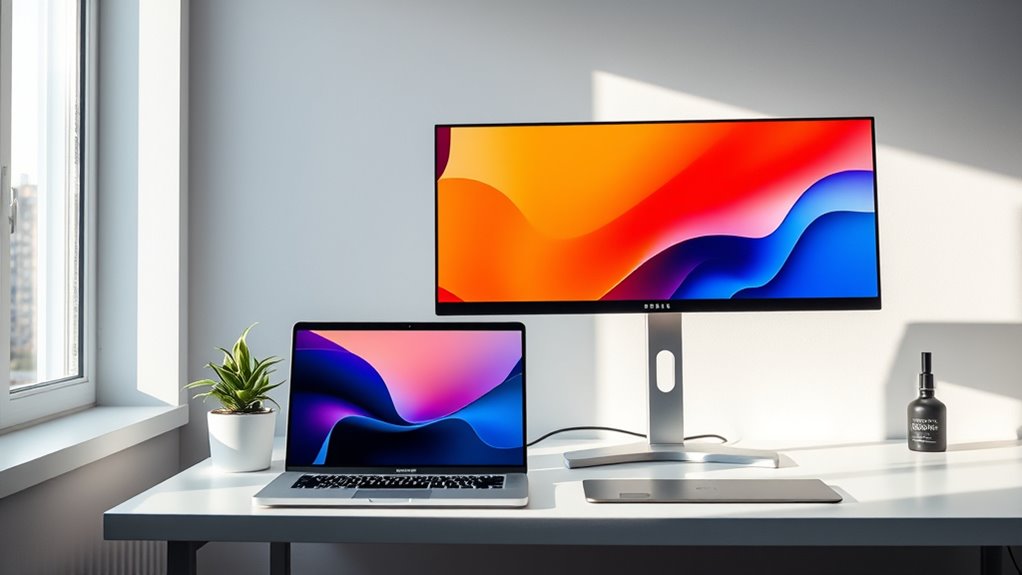
Using an external monitor offers several clear advantages that can substantially enhance your productivity and user experience. One key benefit is improved color accuracy, which is essential for tasks like photo editing or graphic design. External monitors often feature better panels that deliver more precise and consistent colors, helping you achieve professional-quality results. Additionally, connection options are more versatile; you can choose from HDMI, DisplayPort, USB-C, or Thunderbolt, making it easier to connect with different devices and setups. This flexibility allows you to customize your workspace for maximum efficiency. With a larger screen and better display quality, you’ll find multitasking becomes smoother and more comfortable. Furthermore, color accuracy plays a crucial role in achieving accurate visual representation, especially for creative professionals. The screen size of an external monitor also significantly impacts your ability to view multiple applications simultaneously, boosting overall productivity. An often overlooked aspect is the performance benefits of an external display, as it can reduce strain on your laptop’s graphics hardware, leading to more stable operation during demanding tasks. Moreover, choosing the right display technology can improve energy efficiency and longevity of your setup. Improved display resolution can also contribute to sharper images and clearer text, enhancing overall visual clarity. Overall, an external monitor is a valuable upgrade that boosts your work quality and makes your digital experience more enjoyable.
Benefits of Relying on Your Laptop Screen
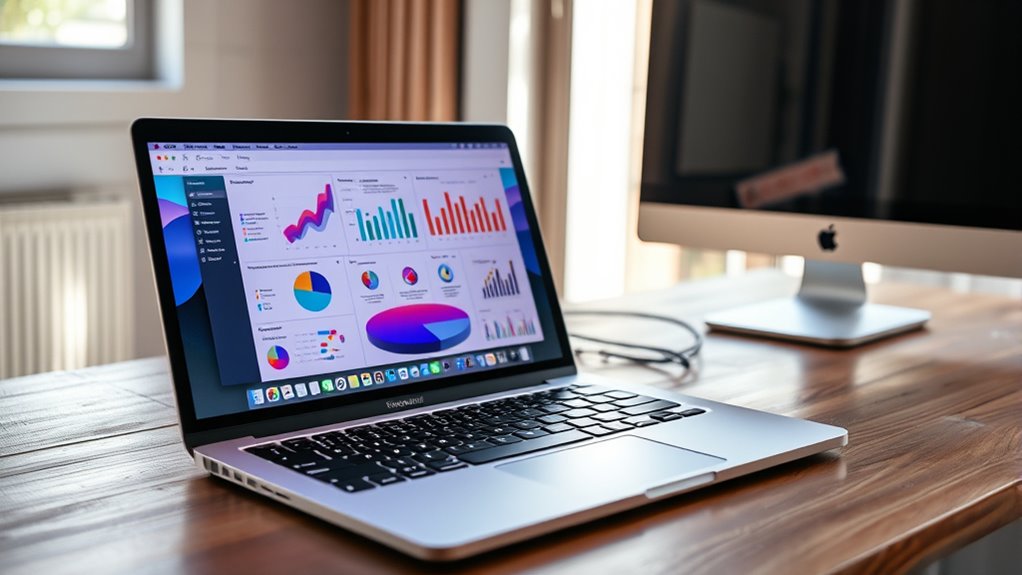
Relying on your laptop screen can streamline your workflow by eliminating the need for additional hardware and setup time. Modern laptop screens often feature high screen resolution, delivering sharp images and text that make multitasking smoother. The built-in display ensures excellent color accuracy, so your visuals stay true to their intended hues, which is essential for design work or photo editing. Additionally, Self Watering Plant Pots reflect the importance of convenience and efficiency in daily tasks, emphasizing how integrated, reliable tools can enhance productivity. You’ll appreciate the convenience of a portable, ready-to-use screen that adapts to your environment. Plus, you avoid the clutter and cable management hassles associated with external monitors. This approach supports a more streamlined workflow, helping you stay focused and productive throughout your tasks.
Rely on your laptop screen for sharp visuals, color accuracy, and seamless workflow without extra hardware.
Furthermore, relying solely on your laptop screen can reduce distraction by minimizing unnecessary peripherals and connections, allowing you to concentrate better on your work.
Factors to Consider When Choosing a Second Display
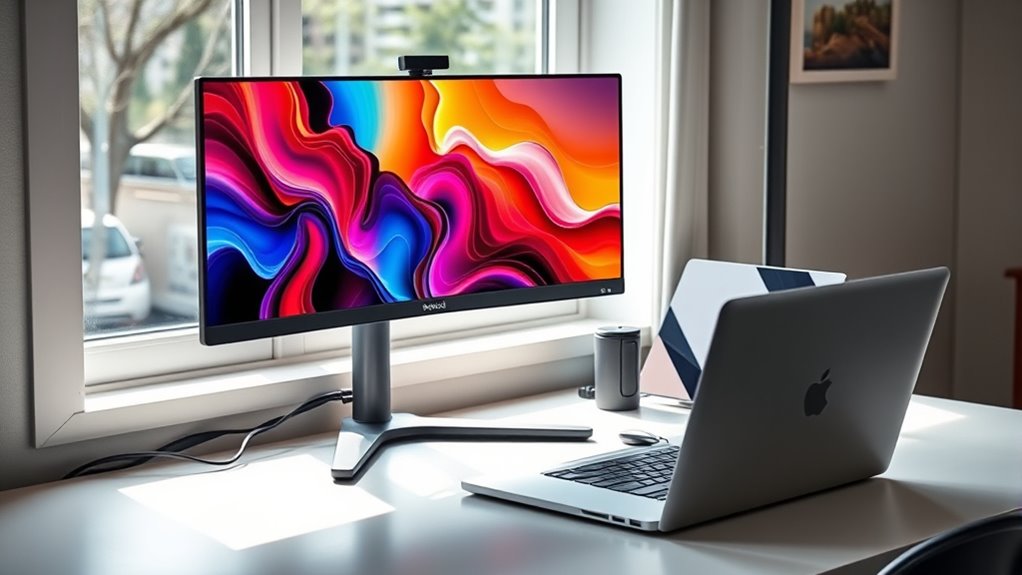
When choosing a second display, you need to take into account factors like size, resolution, and connectivity options to guarantee it complements your workflow. Screen resolution is vital; a higher resolution ensures sharper images and more workspace, boosting efficiency. Consider ergonomic considerations as well—an adjustable height, tilt, and swivel help prevent strain during long hours. Size matters too; a larger screen can improve multitasking but may take up more desk space. Connectivity options, such as HDMI, DisplayPort, or USB-C, should match your laptop’s ports for seamless setup. Additionally, display calibration is important to ensure color accuracy, especially for creative work. This calibration can also influence how well your monitor displays soulmate angel numbers, which is crucial if you work with visual data or design. Balancing these factors ensures your second display enhances productivity without sacrificing comfort or compatibility. By carefully evaluating each aspect, you can select a monitor that fits your specific needs and working style. Additionally, understanding lifestyle factors like remote work habits can help you choose a display that supports your overall work environment.
Impact on Productivity and Multitasking

Using an external monitor can substantially boost your productivity by allowing you to handle multiple tasks simultaneously. It reduces the need to switch between windows, making your workflow smoother and faster. As a result, you’ll find yourself completing work more efficiently with less frustration. Additionally, having a larger display can improve your visual clarity, making it easier to focus on details and reducing eye strain during long sessions. Moreover, choosing the right monitor type can optimize your viewing experience and further enhance your multitasking capabilities.
Enhanced Multitasking Capacity
Having multiple screens substantially boosts your multitasking ability, allowing you to work more efficiently and manage several tasks simultaneously. With an external monitor, you can view multiple windows side by side, reducing the need to switch back and forth. This setup enhances visual aesthetics and creates a more organized workspace, making your tasks feel less cluttered. The ergonomic design of a second display also minimizes neck strain and improves comfort during long hours. You’ll experience:
- Greater focus on each task without constant window juggling
- Faster decision-making thanks to quick access to information
- A more professional, sleek workspace that inspires productivity
This setup empowers you to stay on top of your workload, making multitasking smoother and less stressful. Additionally, integrating AI security features into your workspace can help protect sensitive data and enhance overall security during your multitasking activities. Incorporating space management principles can further optimize your workspace layout for maximum efficiency. Moreover, adopting ergonomic practices can reduce fatigue and improve overall comfort during extended work sessions. Implementing monitor calibration ensures color accuracy and reduces eye strain during prolonged use.
Reduced Task Switching
Reduced task switching occurs when you minimize the need to constantly shift your focus between different windows or applications. Using a second display helps you keep relevant information visible at once, so you don’t waste time hunting for files or tabs. This setup improves workflow by allowing you to reference data or documents without interruption. Plus, with better color accuracy on an external monitor, you see details more clearly, reducing eye strain and errors. The ergonomic benefits also come into play: a properly positioned second screen reduces neck and eye strain, keeping you comfortable during long tasks. Additionally, passive voice detection tools can help streamline your editing process by highlighting areas to revise, enhancing clarity and engagement. For example, some monitors offer adjustable stands to optimize your viewing angle, further improving comfort. Moreover, multi‑display setups can be integrated with smart‑home features to customize your workspace environment, further boosting efficiency. Incorporating visual continuity between screens can also help reduce cognitive load when switching contexts. In addition, selecting monitors with high resolution ensures sharper images and better detail, which can enhance your overall productivity. Overall, a second monitor streamlines your multitasking, helping you stay focused and productive by cutting down on unnecessary task switching.
Increased Work Efficiency
An external monitor substantially boosts your work efficiency by enabling you to multitask more effectively. With a larger, well-calibrated display, you can view multiple windows simultaneously, reducing time spent switching between tasks. An ergonomic setup minimizes strain, keeping you comfortable and focused longer. Proper color calibration guarantees visuals are accurate, which is essential for detailed work like design or editing. You’ll experience less eye fatigue and increased clarity, making your workflow smoother. Plus, having a second screen encourages better organization and prioritization.
- Feel confident knowing your display is optimized for color and comfort
- Experience less fatigue and more sustained concentration
- Achieve faster, more precise results with better multitasking capabilities
Cost and Space Requirements for External Monitors
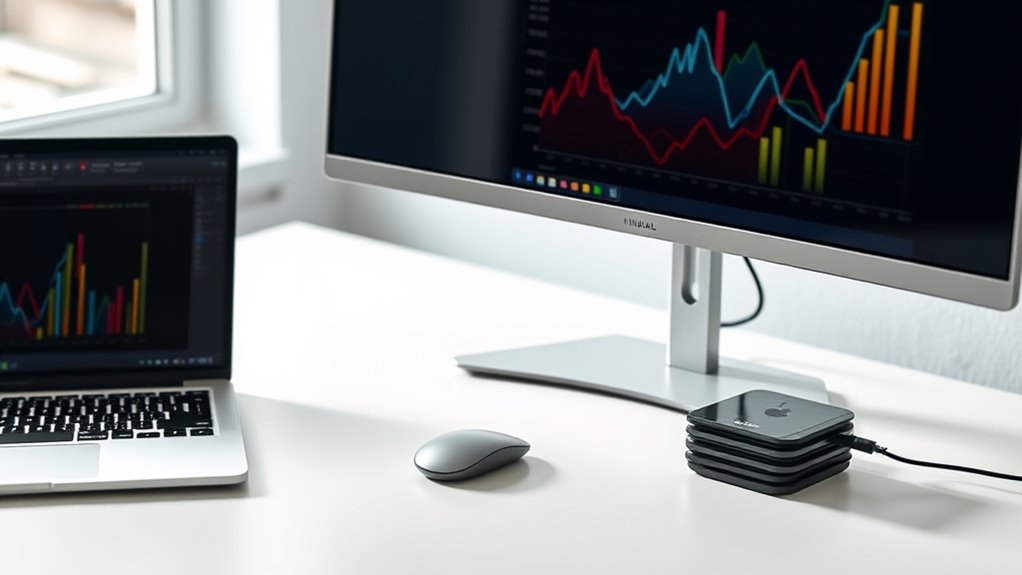
When considering external monitors, you need to think about your budget and pricing options to find a setup that fits your financial plan. You’ll also want to assess how much desk space you have available, since larger screens require more room. Balancing cost and space will help you choose the best monitor for your needs. Additionally, considering the effectiveness of eye patches can be analogous to evaluating monitor features, as both require understanding the benefits and limitations to make an informed decision.
Budget and Pricing
Budget plays a significant role when choosing an external monitor, as prices can vary widely based on features, size, and brand. Conducting a thorough price comparison helps you find options that fit your budget constraints without sacrificing quality. Keep in mind that investing in a good monitor can boost productivity and reduce eye strain, making it a worthwhile expense.
Consider these points:
- Finding a high-quality display that doesn’t break the bank can be rewarding.
- Budget constraints might limit your choices but don’t mean you have to settle for less.
- The best value often lies in balancing price with features you truly need, rather than opting for the most expensive or cheapest models.
Being mindful of costs ensures you make a smart, satisfying purchase.
Desk Space Needs
Choosing an external monitor means considering not just features and price but also how much space it will occupy on your desk. External monitors vary in size, from compact 22-inch models to expansive 32-inch screens, affecting your workspace. Here’s a visual:
| Monitor Size | Space Needed | Aesthetic Impact |
|---|---|---|
| 22-inch | Moderate | Subtle |
| 24-inch | Slightly larger | Clean look |
| 27-inch | Noticeable | Modern feel |
| 32-inch | Significant | Impressive |
| Ultrawide | Wide footprint | Dynamic vibe |
Consider ergonomic benefits; a well-placed monitor reduces neck strain. Also, aesthetic considerations influence your workspace’s look and feel, making it more inviting and organized.
Portability and Convenience Concerns
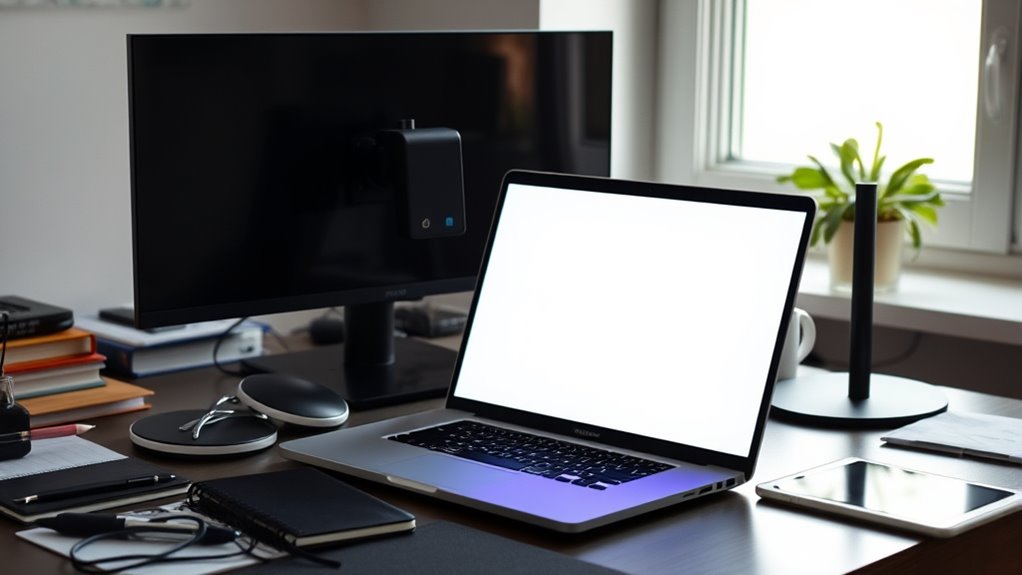
While external monitors can substantially boost your screen space, they often introduce challenges in portability and convenience. Carrying a monitor adds to your gear, making travel or remote work less flexible. Portability issues mean you might hesitate to bring it on the go, limiting your mobility. Setup complexity can also become a barrier, requiring extra cables and configurations that slow you down. Plus, finding space for a monitor in small work areas can be frustrating.
You might feel overwhelmed by the added weight and bulk, making quick handoffs difficult. The hassle of setting up and packing away a second display can drain your energy and focus. Ultimately, the convenience of a sleek laptop screen might outweigh the benefits of extra display space when mobility is key.
Compatibility and Setup Ease
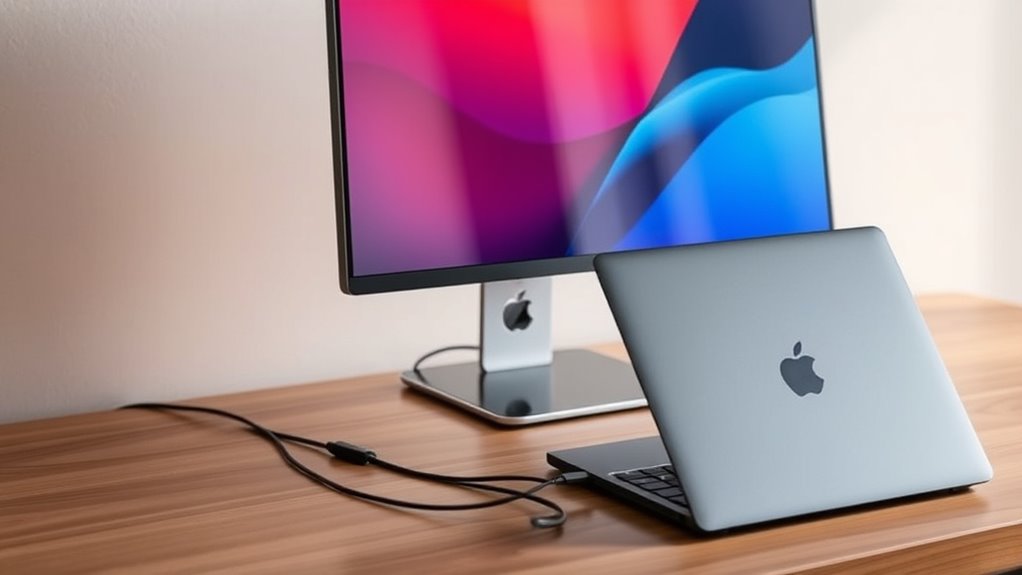
Setting up an external monitor can often be straightforward, but connection compatibility issues can complicate the process. Your laptop may lack the right ports, or the monitor might require adapters. Guaranteeing setup simplicity depends on matching your device’s output options with the monitor’s input. To help, here’s a quick comparison:
| Connection Compatibility | Setup Simplicity |
|---|---|
| HDMI, DisplayPort, USB-C | Usually easy with built-in support |
| Older ports (VGA, DVI) | May need adapters, adding complexity |
| Wireless options | Require network configuration, less straightforward |
| Thunderbolt compatibility | Quick setup, high performance |
| Power connection | Separate power source may be needed |
Matching your device’s ports with the monitor’s inputs ensures a smoother, hassle-free setup process.
Making the Decision: Is a Second Screen Right for You?
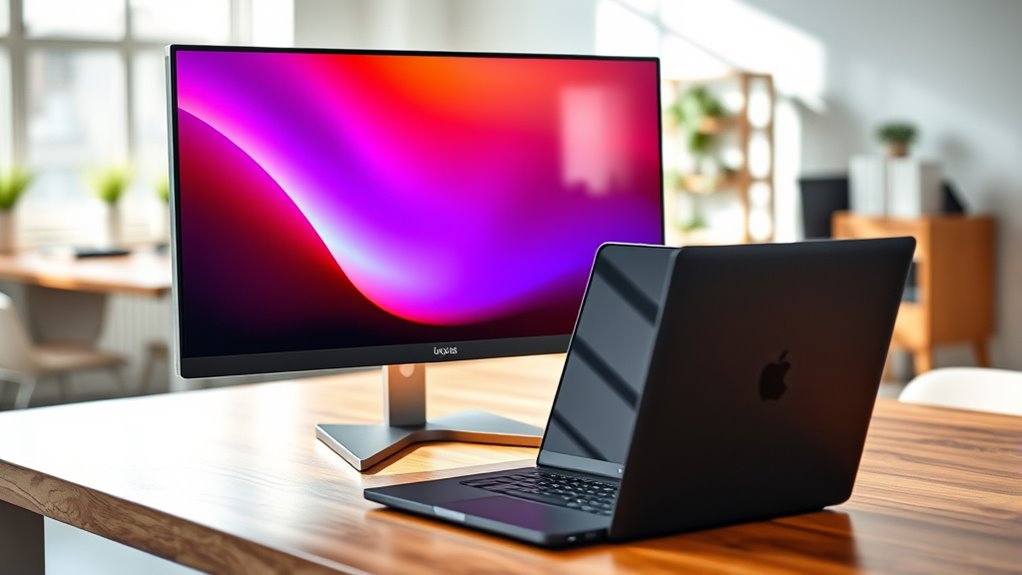
Deciding whether to add a second screen depends on how you work and your daily needs. If you crave better organization, increased productivity, or reduced eye strain, a second display can be a game-changer. Consider the ergonomic benefits, like improved posture and comfort, which help prevent fatigue. Think about aesthetic preferences—do you prefer a sleek setup or a multi-monitor workspace? Ask yourself:
Adding a second screen boosts productivity, organization, and ergonomic comfort—helping you work smarter and more comfortably.
- Do I need more screen real estate to boost efficiency?
- Will a second monitor reduce clutter and improve focus?
- Am I seeking a more comfortable, ergonomic workspace?
If these points resonate, a second screen could be a worthwhile investment. Ultimately, it’s about aligning your workspace with your habits and preferences for a more productive, comfortable experience.
Frequently Asked Questions
How Do External Monitors Affect Laptop Battery Life?
Using an external monitor can increase your laptop’s power consumption, which leads to faster battery drain. The larger the external display and the higher its resolution, the more energy it requires to operate. When you connect an external monitor, your laptop works harder to power the additional screen, reducing overall battery life. To conserve power, consider lowering the monitor’s brightness or using energy-efficient display settings.
Can I Use Multiple External Monitors Simultaneously?
You can definitely use multiple external monitors simultaneously, creating a multi monitor setup that boosts your productivity. Picture yourself toggling effortlessly between screens, each displaying different applications or data, maximizing your workspace. Dual display benefits include easier multitasking and improved workflow. Just verify your laptop supports multiple connections and your graphics card can handle the load—then enjoy the seamless, expanded digital environment that multiple external monitors provide.
What Are the Best Resolution Options for Different Work Types?
For different work types, you should personalize your resolution and display scaling to optimize clarity and performance. High-resolution options like 4K are ideal for detailed tasks such as photo editing, while 1080p works well for everyday use and multitasking. Adjust display scaling to ensure text and icons are comfortable to read. Tailoring resolution settings to your specific needs helps improve productivity and reduces eye strain.
How Do External Monitors Impact Desk Ergonomics?
You might worry external monitors clutter your desk, but they greatly improve your ergonomic posture by allowing proper monitor placement. With adjustable height and tilt, you can position the screen at eye level, reducing neck strain. Proper placement encourages a comfortable, natural sitting position, helping prevent fatigue and injury. Using an external monitor encourages better ergonomics, making your workspace more efficient and healthier for long-term use.
Are There Specific Brands Known for Reliable External Displays?
You’ll find that brands like Dell, LG, and ASUS are known for reliable external displays, thanks to their strong brand reputation and quality display technology. These companies focus on durability, color accuracy, and ergonomic features, making them excellent choices for productivity and entertainment. When choosing a brand, consider reviews and specifications to guarantee the display technology meets your needs, providing a dependable and high-quality second monitor.
Conclusion
Ultimately, choosing between an external monitor and your laptop screen could be the decision that transforms your entire work life. Imagine doubling your productivity, crushing deadlines effortlessly, and turning your workspace into a powerhouse of efficiency—all with one simple upgrade. Don’t settle for mediocrity when a second display could make you unstoppable. The choice is yours—are you ready to unleash your full potential and conquer your tasks like a true multitasking hero?